

Categories
The Categories module discovers your store's category and collection pages from your sitemap, so the chat and search widgets can surface them alongside products. A customer asking for "winter coats" can land on your dedicated Winter Collection page instead of scrolling through a long product list.
Lives at Site Settings → Categories (the tab is visible once the Categories module is enabled in Modules).
What this gives you
- Category navigation in Quick Search results — a sidebar lets customers narrow to a specific section before browsing products. See Quick Search settings → Category filter / Category search.
- "Popular categories" block on the Quick Search initial screen — direct entry points to your most-visited sections.
- Smarter chat answers — the AI knows the names of your real category pages and can reference them when explaining what you sell.
If you don't enable Categories, search and chat still work — they just don't suggest collection pages, only individual products.
How it works
You point Looma at your sitemap URL. The system fetches each URL listed, reads the <h1> heading, and uses AI to decide which URLs are category pages (collections, sections) vs product pages (which it ignores — those come from your product feed). Each found category is saved with its URL and title, and made searchable for the widget.
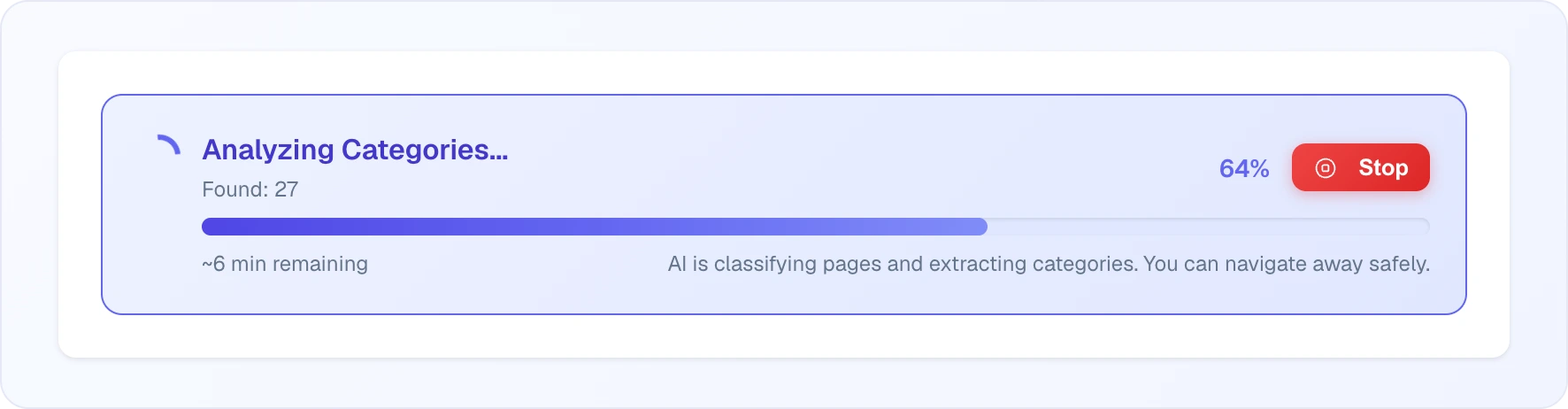
The whole analysis runs as a background task — it can take 30–60 minutes for a large site. You don't need to keep the dashboard open. While it runs, an Analyzing Categories... banner sits above the settings with the number of categories found so far, the completion percentage, the estimated time left and a Stop button.
Setup
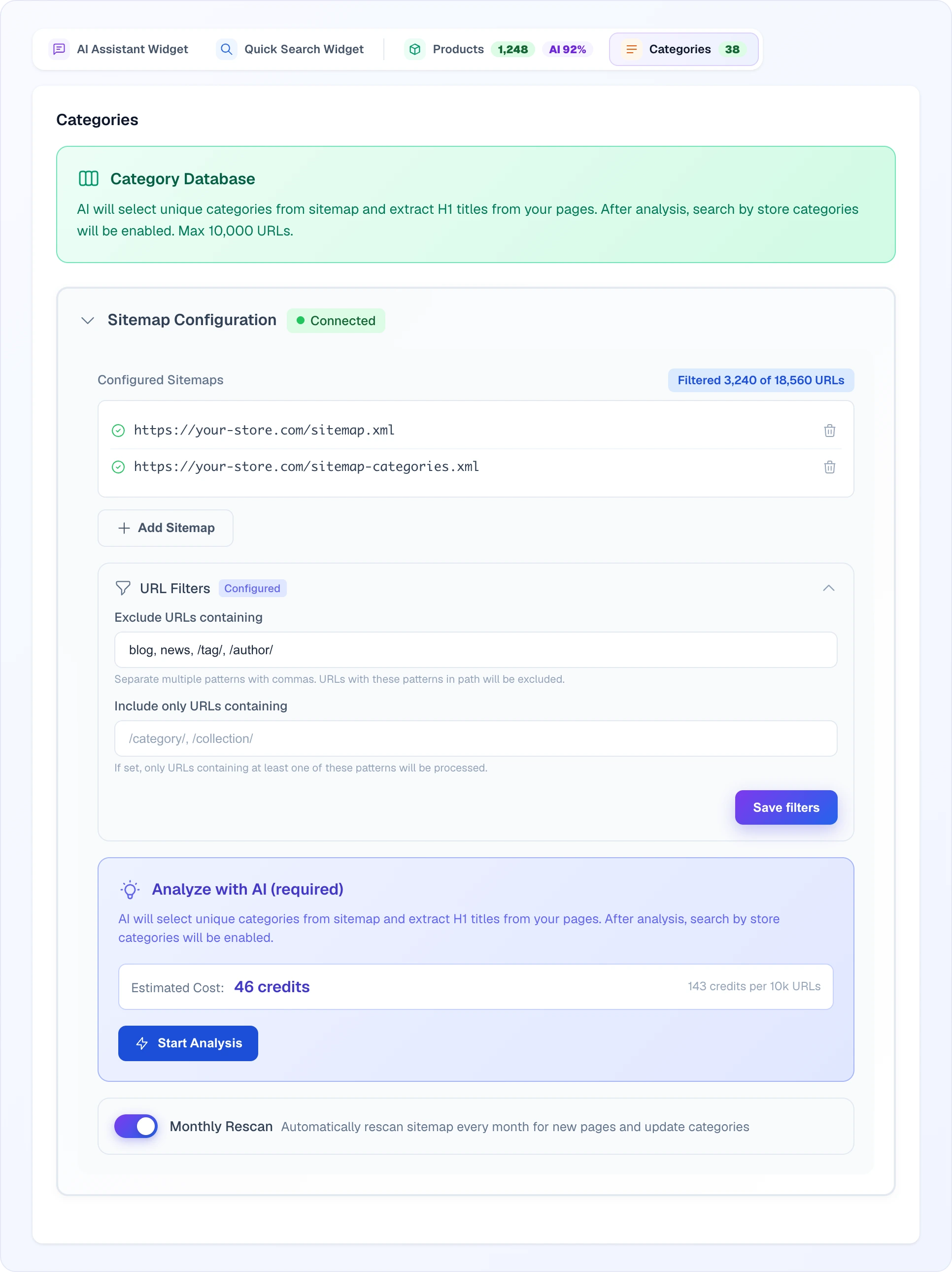
Add sitemap URL(s) — under Sitemap Configuration. There are two ways: Auto-detect — paste your site address and click Detect Sitemap, Looma reads
robots.txtand lists the sitemaps it found with checkboxes; or Sitemap URL — paste the addresses yourself, one per line (https://your-store.com/sitemap.xml). Then click Save Settings. You can list several sitemaps if your store splits them by section; later you add more with Add Sitemap or remove one with the bin next to it.(Optional) URL filters — under URL Filters. Two text fields:
- Exclude URLs containing — comma-separated keywords. URLs matching any are skipped before analysis. Example:
blog, news, /tag/, /author/to ignore non-catalogue pages. - Include only URLs containing — opposite filter. If you set this, only matching URLs are analyzed. Example:
/category/, /collection/.
Filters only take effect once you click Save filters — that's when the count recalculates against the narrowed set.
- Exclude URLs containing — comma-separated keywords. URLs matching any are skipped before analysis. Example:
Run analysis — click Start Analysis (in the Analyze with AI (required) block). The dashboard shows the URL count and the estimated cost in credits before you commit. When a filter has narrowed the set, the count reads "Filtered X of Y URLs" and both the cost estimate and the 10 000-URL limit warning are based on the filtered count, not the raw sitemap total.
(Optional) Monthly Rescan — switch it on to re-run analysis every month. Turning it on or off changes only that setting: your sitemap URLs and filters stay as they are. Picks up new pages added since the last run; pages that disappeared from your sitemap are marked inactive (kept in the list so you can revive them later).
Cost
Pricing is 143 credits per 10 000 URLs analyzed (about 0.014 credits per URL). The cost is shown before you start — you confirm before any credits are spent.
A 5 000-URL sitemap costs ~71 credits. Only the first 10 000 URLs are analyzed per run — anything beyond that is skipped (it does not run again for the remainder). If your sitemap is larger, use the Include/Exclude URL filters to keep the relevant set under 10 000; the dashboard shows a URL-limit warning when the count exceeds it.
No charge for: viewing categories, toggling them on/off, deleting, or syncing to the widget.
Managing the category list
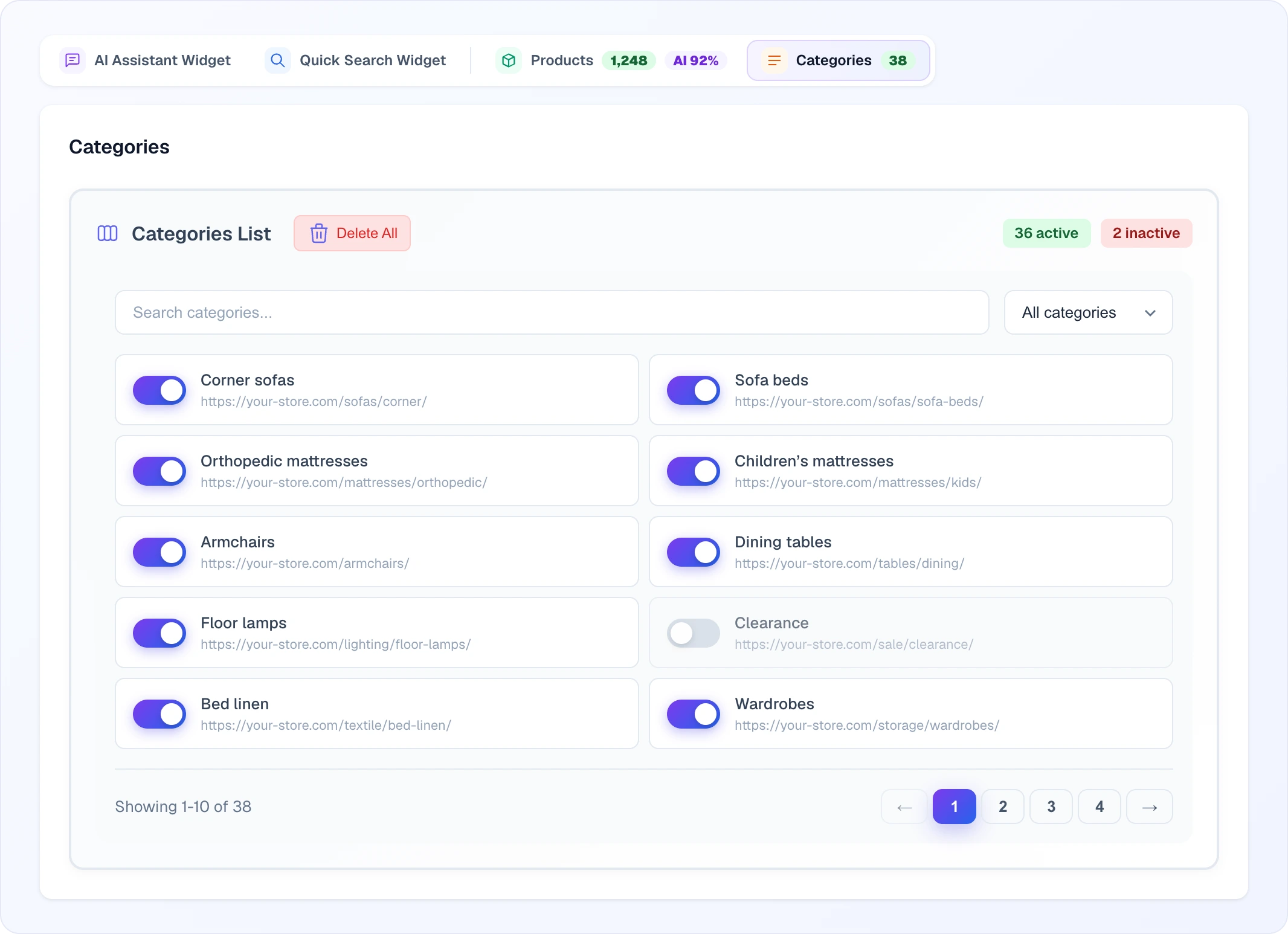
Once analysis completes, the list shows every found category with:
- URL — the page link
- Title — the H1 from that page
- Active toggle — on = appears in search/widget, off = hidden but kept in the list
Above the list are the counters of active and inactive categories. You can search by name, filter (All categories / Only active / Only inactive), toggle individual categories, or click Delete All to start fresh.
You cannot edit titles manually (they're pulled from the page H1) or add categories by hand — everything comes from the sitemap. To change a title, fix the H1 on your page and re-run analysis.
When the same product appears in multiple categories
Not a problem. The Categories module only indexes category pages (URLs that aren't individual products), so a product shown under both "Sale" and "Bestsellers" simply means both those pages are independent entries — each tracked by its own URL.
Categories vs Knowledge Base
These two features look similar but solve different problems:
| Categories | Knowledge Base | |
|---|---|---|
| What it holds | Your store's category / collection page links | Long-form text answers (delivery, returns, warranty, FAQs) |
| How it's filled | Auto-discovered from sitemap | Written by you (or imported from URL / Google Sheets) |
| Where it shows | Search results, "Popular categories" block | Chat answers to policy questions |
| Use it for | Navigation — "show me the collection page" | Knowledge — "what's your return policy" |
You can use both — they complement each other.
Common issues
- Analysis finds 0 categories — most likely your sitemap URLs all look like product pages (lots of
/product/...paths), or the H1 tags on those pages are missing. Add an Include only filter pointing at your real category paths (/category/,/collection/). - Categories appear that shouldn't — toggle them off individually, or add an Exclude filter pattern and re-run analysis.
- My new pages aren't showing up — categories only refresh on analysis runs. Enable Monthly Rescan for monthly updates or re-run manually.
- "Please enter at least one sitemap URL" — Start Analysis needs at least one saved sitemap URL. Add and save a sitemap under Sitemap Configuration, then start again.
- "Products required" warning — the module needs at least some products synced to your store before it can run. Set up your product feed first (Google Merchant Feed), then come back.
Related
- Quick Search — where category blocks appear in customer searches
- Knowledge Base & Google Base — for store policies (different from Categories)
- Google Merchant Feed — required before Categories can run