

KeepinCRM
Connect KeepinCRM and every lead your widgets collect turns into a deal in your CRM — at the pipeline stage you choose, with the customer, the conversation text and the products the visitor looked at. No feed, no export, no manual copying.
The connection is one-way: Looma writes into your CRM and never reads deals, stock or the catalogue back.
What reaches your CRM
Leads from chat and search. Everything the AI assistant, the search widget and the widget forms collect. Each lead becomes one deal in KeepinCRM, and the visitor becomes a customer marked as a lead.
Changes to leads already sent. If a lead changes after it reached the CRM — its status changed in Looma, the conversation got longer — a note called “Оновлення з Looma” (Update from Looma) with the new status and text appears in the activity log of the same deal. No second deal is created. The note is written in Ukrainian and keeps the line breaks of the conversation; the status is your own status name, or for the four standard statuses their Ukrainian names (Новий, В роботі, Завершено, Відхилено).
Leads without contacts are not sent
A lead with neither a phone number nor an email is skipped: in the CRM it would be a deal nobody can call back.
Before you start
- A KeepinCRM account on the Extended plan. The API is only available there.
- Access of the person who first registered the KeepinCRM account: only they can create the API key.
- The Owner or Administrator role in Looma: only they can open Integrations.
- An active subscription. With an expired one the page redirects to Billing.
Step 1. Get the API key
In KeepinCRM open Settings → Company profile → API tab and click Create.
There is one key per account
If the key is already used by another integration, copy the existing one instead of creating a new one.
Step 2. Connect the site
- Open Integrations in the sidebar and pick the KeepinCRM card.
- Find your site in the list and click Connect.
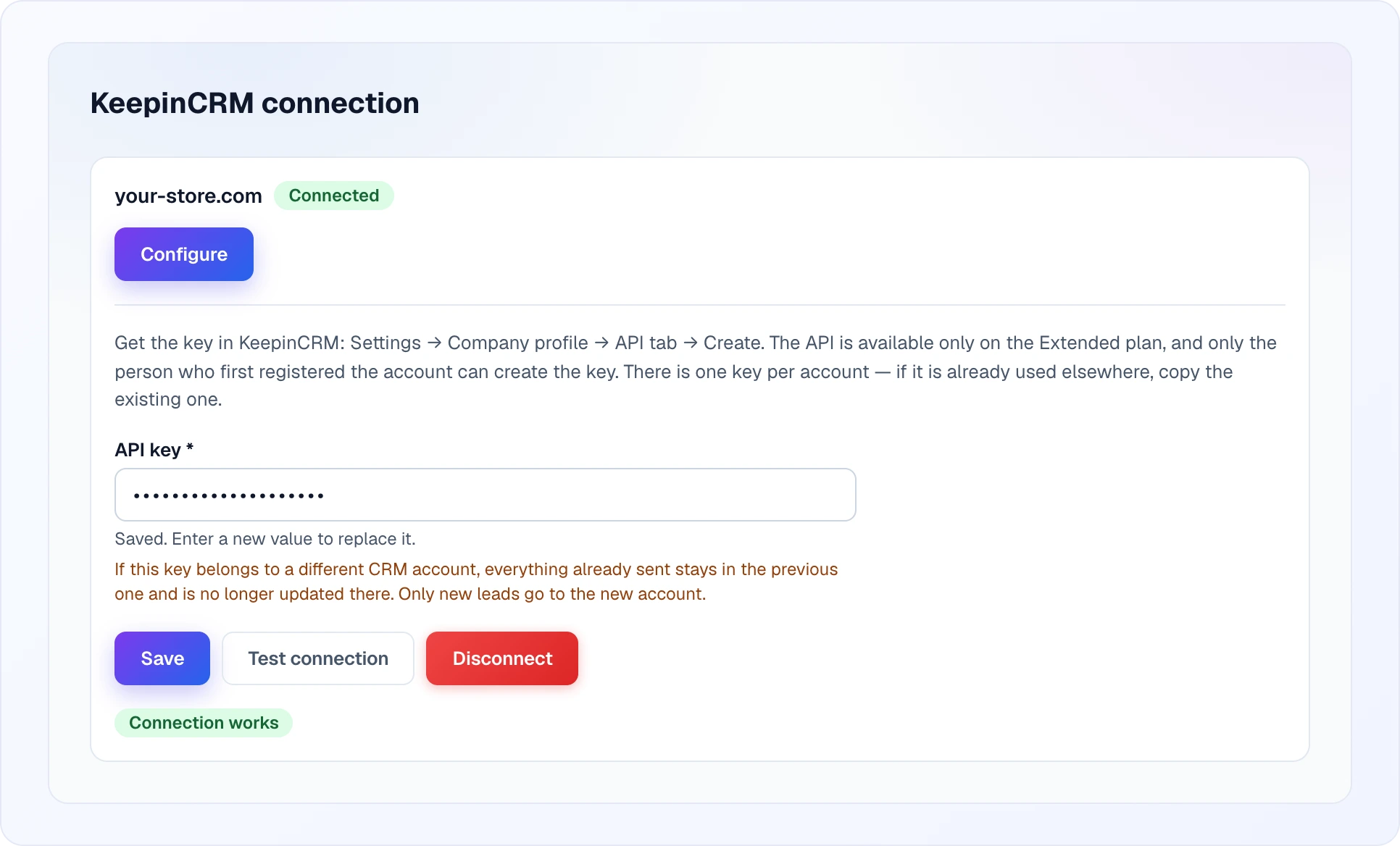
- Paste the API key and click Save.
- Click Test connection — the button appears once the key is saved.
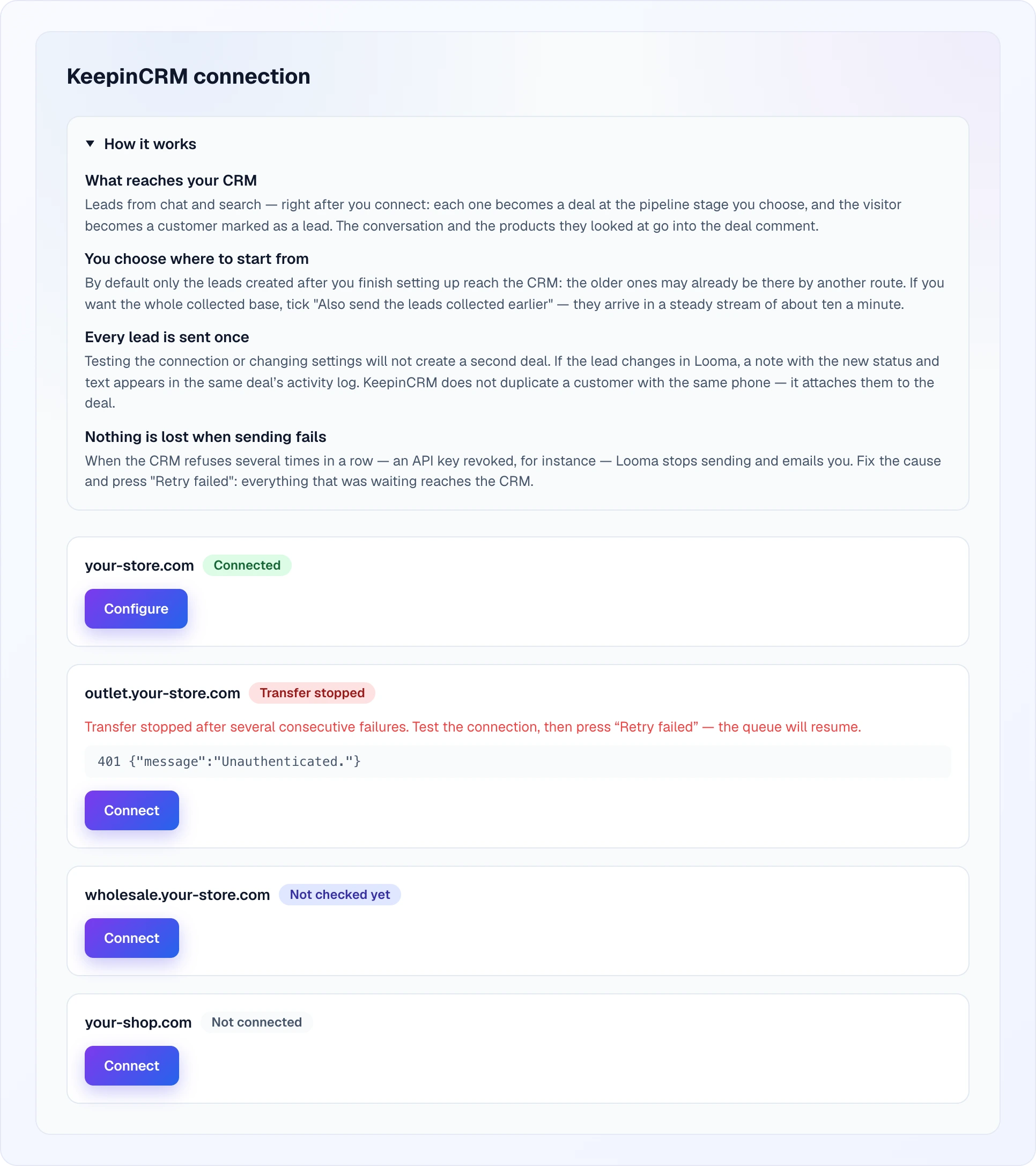
The KeepinCRM connection page lists all your sites, each with its own badge and button: Configure for a connected site, Connect for the rest. A site whose transfer was stopped also shows the reason in red and the last error returned by the CRM.
When the test passes, the badge next to the site name changes to Connected, the form shows a green Connection works, and the settings appear below.
One key, several sites
KeepinCRM allows 100 requests per minute per key, so sites sharing a key share that limit. Looma warns you about it — delivery gets slower, but nothing breaks.
Step 3. Choose the stage and what to send
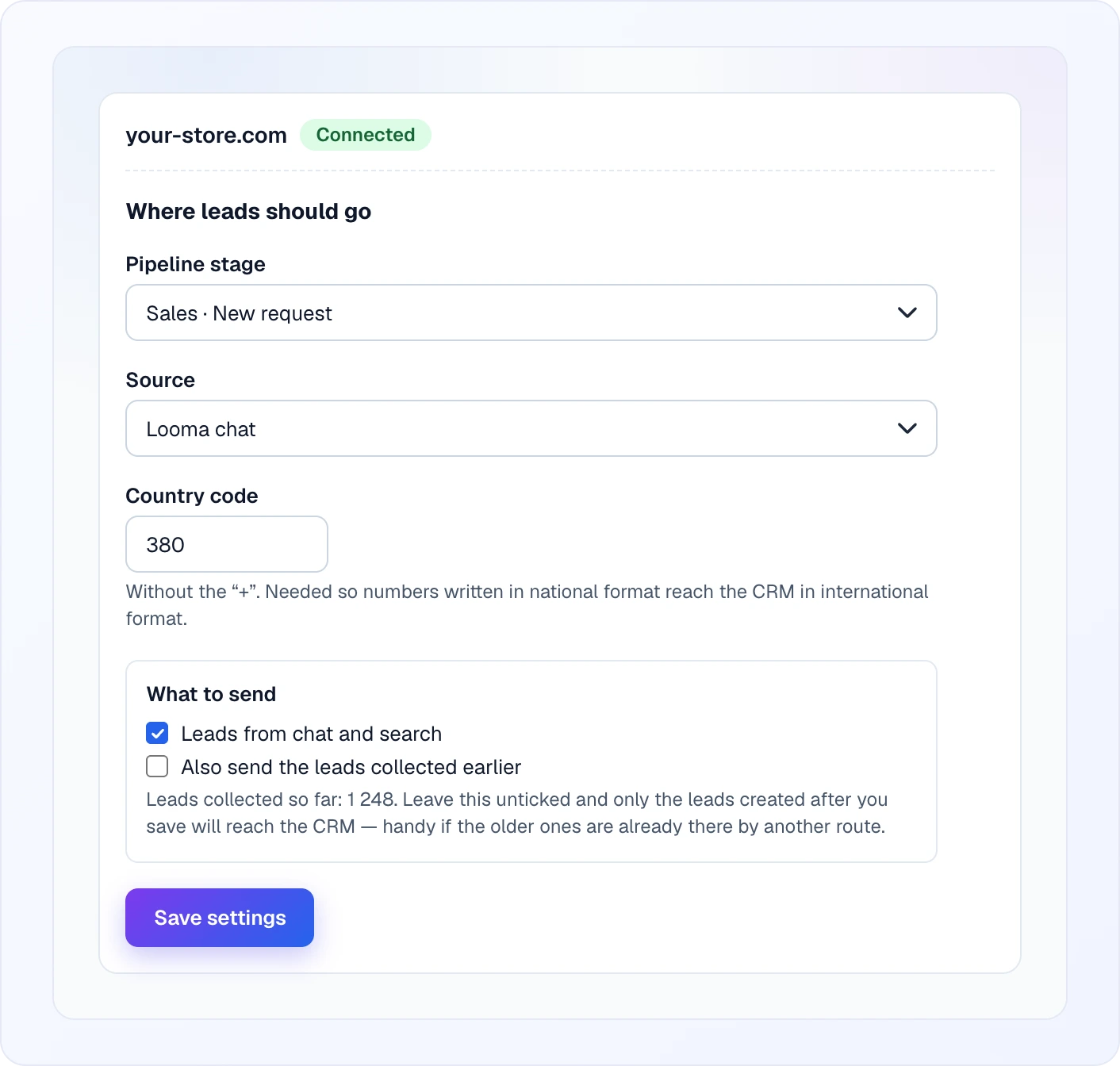
| Setting | What it does |
|---|---|
| Pipeline stage | where new deals land, shown as “Pipeline · Stage”. Required |
| Source | the deal and customer source from your KeepinCRM list. Optional — “Do not set” leaves it empty |
| Country code | the phone code without + (380 by default), digits only. It turns numbers in national format into international ones |
| Leads from chat and search | the main switch. Nothing is sent while it is off |
| Also send the leads collected earlier | off by default. The form shows how many leads you already have. Without the tick only leads created after saving reach the CRM. With it, the whole backlog is sent at a steady pace |
Click Save settings. Delivery starts within a minute.
Added or removed a stage in KeepinCRM?
Click Test connection and the stage list refreshes. If the chosen stage is deleted in KeepinCRM, the CRM silently puts deals on the first stage of the pipeline, without any error.
What a deal contains
- Title — your site name and the lead number, e.g.
your-store.com #163, so the deal is easy to find. - Customer — name, phone in international format, email, the “lead” mark.
- Comment — the lead text followed by the products the visitor looked at.
- Stage and source — from your settings.
Products arrive as text lines in the comment, not as deal line items:
Товари з чату:
• Sofa Milano (SKU 39230) — 12 999 UAH
This is deliberate: a line item that is not in your stock would be created by KeepinCRM as a new product, so every lead would clutter your catalogue. The deal total cannot be computed from these lines; your operator sees what the customer was interested in.
A customer with the same phone
If a customer with this phone already exists in your CRM, KeepinCRM does not create a duplicate — it attaches them to the new deal and updates their name to the one the person gave in the chat.
Timing
| New lead → deal in the CRM | about a minute |
| Sending the backlog | about ten leads per minute per site |
| Rate | Looma paces itself and backs off when KeepinCRM asks, without losing anything |
When something goes wrong
The badge next to the site name tells you where you are:
| Badge | Meaning |
|---|---|
| Not checked yet | the key is saved but never tested — click Test connection |
| Connected | everything works |
| The CRM rejected the key | the key is wrong or was re-created — copy the current one |
| The key is correct, but the CRM grants no access to the data | most likely your KeepinCRM plan does not include the API — you need Extended |
| The CRM is not responding | a temporary outage on the KeepinCRM side; Looma keeps retrying |
| Transfer stopped | ten failures in a row — see below |
| Not connected | nothing is saved for this site yet |
| Beyond your plan limit | the site itself is over your plan’s site limit — see Billing |
If the test says “The CRM is busy with other data right now — try again in a minute”, wait a minute and click Test connection again.
After ten failures in a row Looma stops delivery and emails the account owner. The site shows a red Transfer stopped badge and the last error the CRM returned. Nothing is lost: fix the cause, click Test connection, then Retry failed.
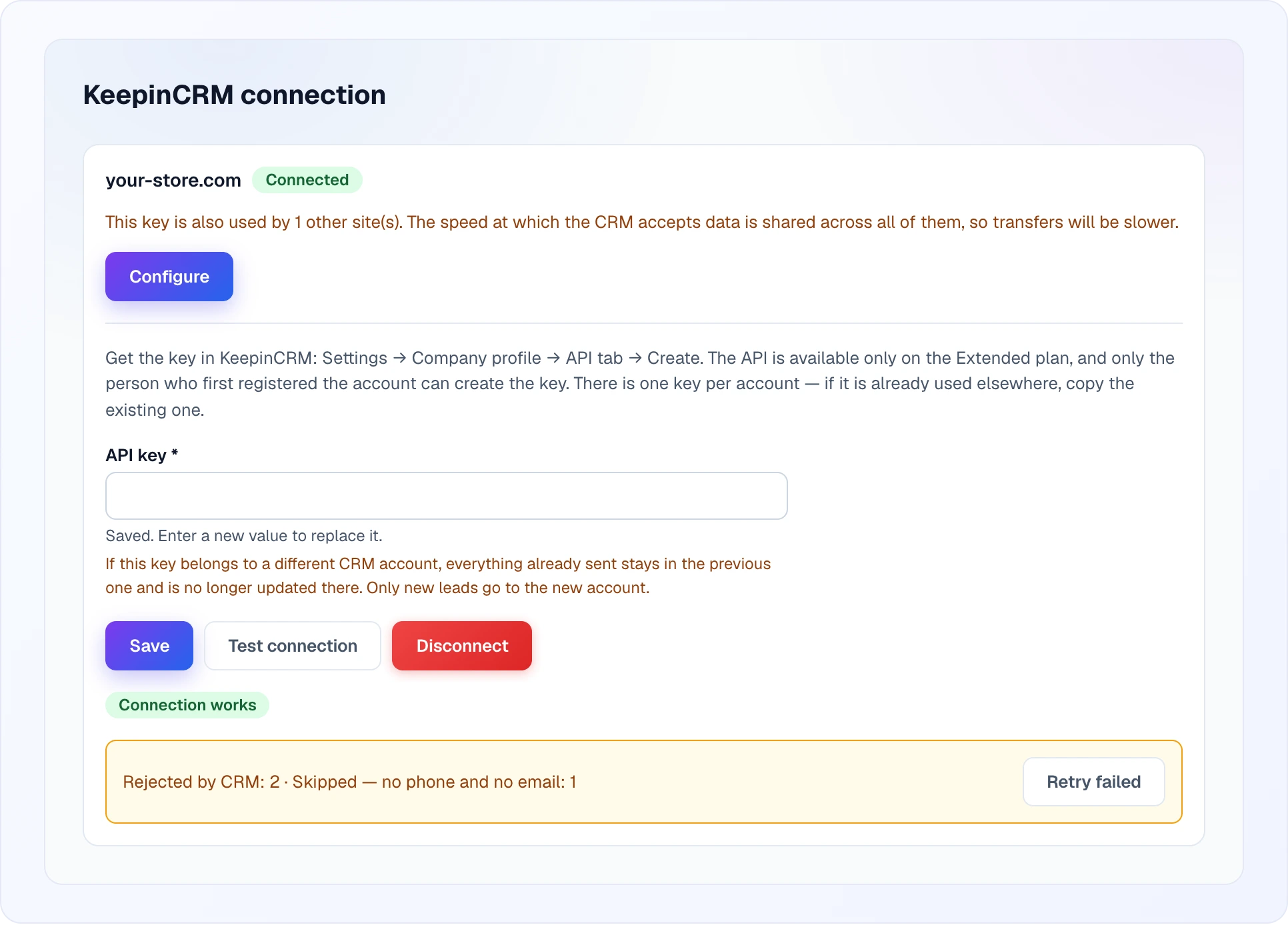
The “Retry failed” block appears only when something is stuck and shows what and why:
- Rejected by CRM — the CRM refused this data.
- Skipped — no phone and no email — there is nothing to build a deal from.
- No answer from the CRM — still on its way, usually clears by itself.
- The CRM limits the rate — not moving — KeepinCRM is throttling; it passes by itself.
Connection lost while creating a deal
If the connection drops exactly while Looma is creating a deal, it does not retry automatically — otherwise a second deal could appear in the CRM. Such a lead goes to “Rejected by CRM”: check whether the deal exists in KeepinCRM, and only if it does not, click Retry failed.
Changing the key or the CRM account
Paste the new key on the same page and save. If the new key belongs to another KeepinCRM account, everything already sent stays in the previous account and is no longer updated there; only new leads go to the new one.
Disconnecting
Integrations → KeepinCRM → Disconnect. Looma asks for confirmation, and the saved key is deleted, not just switched off.
Disconnecting clears the delivery history
That history is what remembers which leads were already sent. Connect the same CRM again and previously sent leads arrive a second time, as new deals.
Troubleshooting
I don’t see Integrations. It is available only to the Owner and Administrator roles.
I don’t see the API tab in KeepinCRM. Only the person who first registered the account sees it, and only on the Extended plan.
The settings don’t appear. They show only after a successful Test connection.
The stage I need is not in the list. Click Test connection — Looma re-reads your pipelines.
Phone numbers arrive mangled. Check the Country code field.
Everything is connected, but nothing arrives. Make sure Leads from chat and search is on and that the leads you expect were created after saving. Leads with no phone and no email are never sent.
The deal comment does not change when the lead changes. That is by design: changes arrive as notes in the deal’s activity log.
Related
- Leads — where leads come from
- KeyCRM and SalesDrive — the same connection for other CRMs
- Integrations — API keys and webhooks for your own systems
- Billing — plans and subscription status