

Leads
The Leads page lists every contact captured by the chat widget and your connected messengers — visitor name, phone, email, plus whatever custom fields you asked for. Each lead links back to the chat that produced it, so you always have the conversation context when you follow up. Here you filter and search leads, assign them to teammates, move them through statuses and leave internal notes.
Leads are created automatically — see Lead Collection for what triggers the AI to ask for contacts, which fields to collect, and the on/off toggle per site.
If the subscription has expired, the page is replaced with Subscription expired ("Renew your subscription to continue viewing leads.") and an Upgrade Plan button that leads to billing.
Video guide
The whole section in 3:30 — where leads come from, statuses and filters, the lead card, taking a lead, assigning, comments, the customer's details, your own statuses, archive and automations, notifications and delivery to your CRM. Subtitles are in the player menu.
Layout
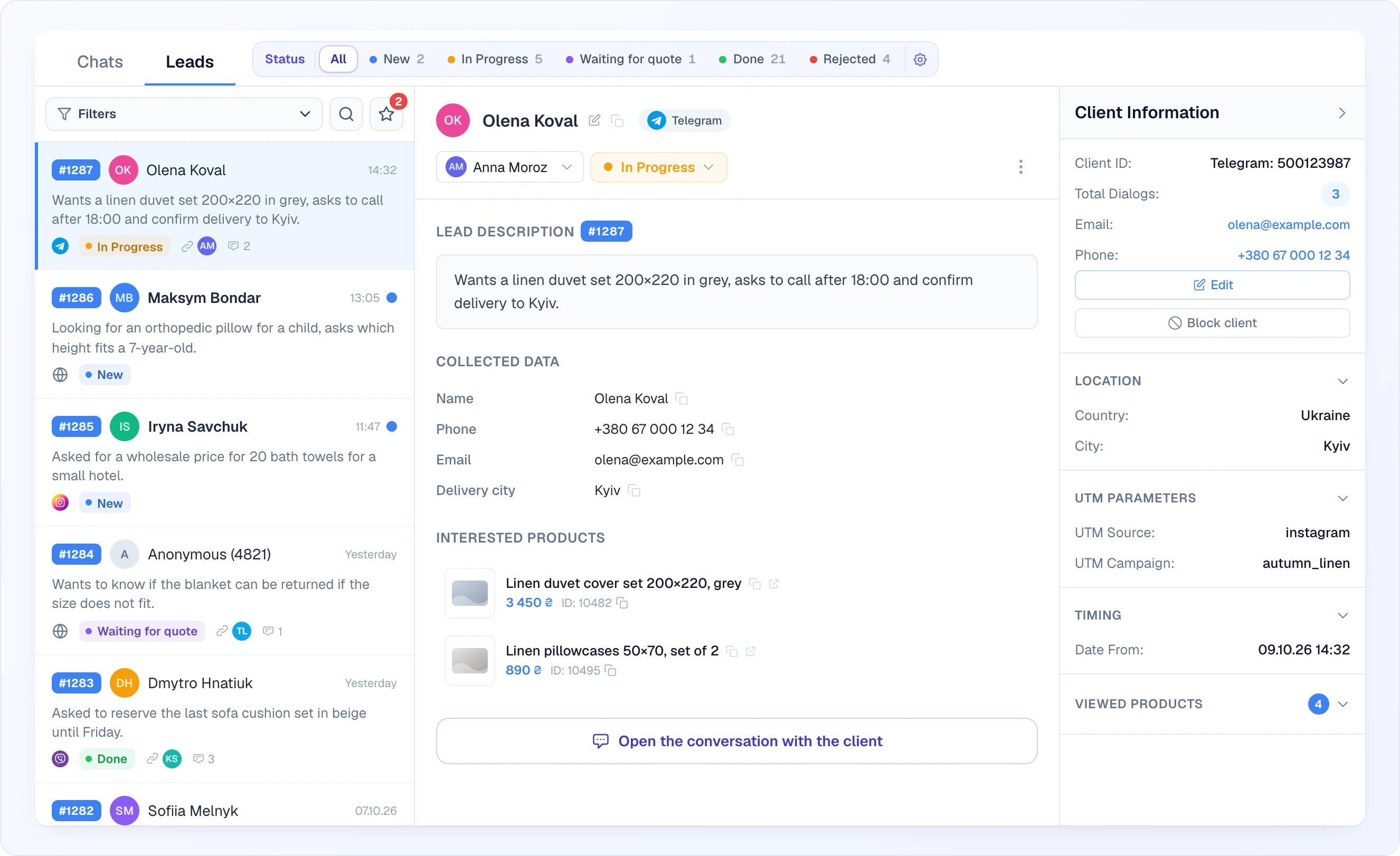
The page has three columns on a desktop:
- Left — the list of leads, with the Filters toolbar, search and the New-leads shortcut on top
- Middle — the card of the selected lead: its header (name, source, operator, status, menu) and body (description, collected data, products, history, comments). Until you pick a lead it says "Select a lead from the list"
- Right — Client Information, a collapsible panel with everything known about the visitor
Above the columns, next to the Chats and Leads tabs, sits the Status bar — a one-click filter by status with counters (see Status bar).
Drag the thin dividers between the columns to make the list or the client panel wider; the widths are remembered in your browser. The selected lead is part of the page address (?id=…), so the browser's back and forward buttons move between leads you opened, and a link to a lead opens that lead directly.
Typical workflow
- A new lead arrives — the star badge and the sidebar counter go up, and the lead appears at the top of the list with a blue dot.
- Click it to open the card. Read the Lead Description and Collected Data, glance at Interested Products and, if needed, at the client's location, UTM tags and viewed products on the right.
- Click Take Lead — the lead is assigned to you and moves from New to In Progress.
- Contact the client: by phone or email from the collected data, or open the original chat with Open the conversation with the client and reply there.
- Leave an internal comment about what you agreed, so a teammate can pick up where you left off.
- Set the final status — Done if the deal or question is closed, Rejected if the lead is not relevant.
List view
Each row shows:
- #ID badge, avatar and visitor name. A visitor without a name is shown as "Anonymous" plus the last four digits of their session ID, for example "Anonymous (4821)"
- Date — time for today, "Yesterday", or the full date otherwise
- A two-line preview of the lead description
- Source icon: the site favicon for the website widget, or Telegram / Viber / Messenger (Facebook) / Instagram. WhatsApp leads are listed without an icon.
- Status badge in the status colour (default statuses: New, In Progress, Done, Rejected, plus any you add)
- Assigned operator — avatar or initials next to a link icon (if assigned); hover it to see the name
- Comment count (number of internal notes), shown when there is at least one
- A blue dot and a bold name if the lead is unread. Opening a lead marks it as read
The list shows the newest leads first and has no other sorting. It loads 30 leads at a time and fetches the next page by itself when you scroll near the bottom. It refreshes about every 10 seconds, and also right away when a lead is created or changed by a teammate in another tab or device, so you never need to reload the page.
When there are no leads yet, the list says "No leads yet — Leads collected by AI will appear here".
Filters
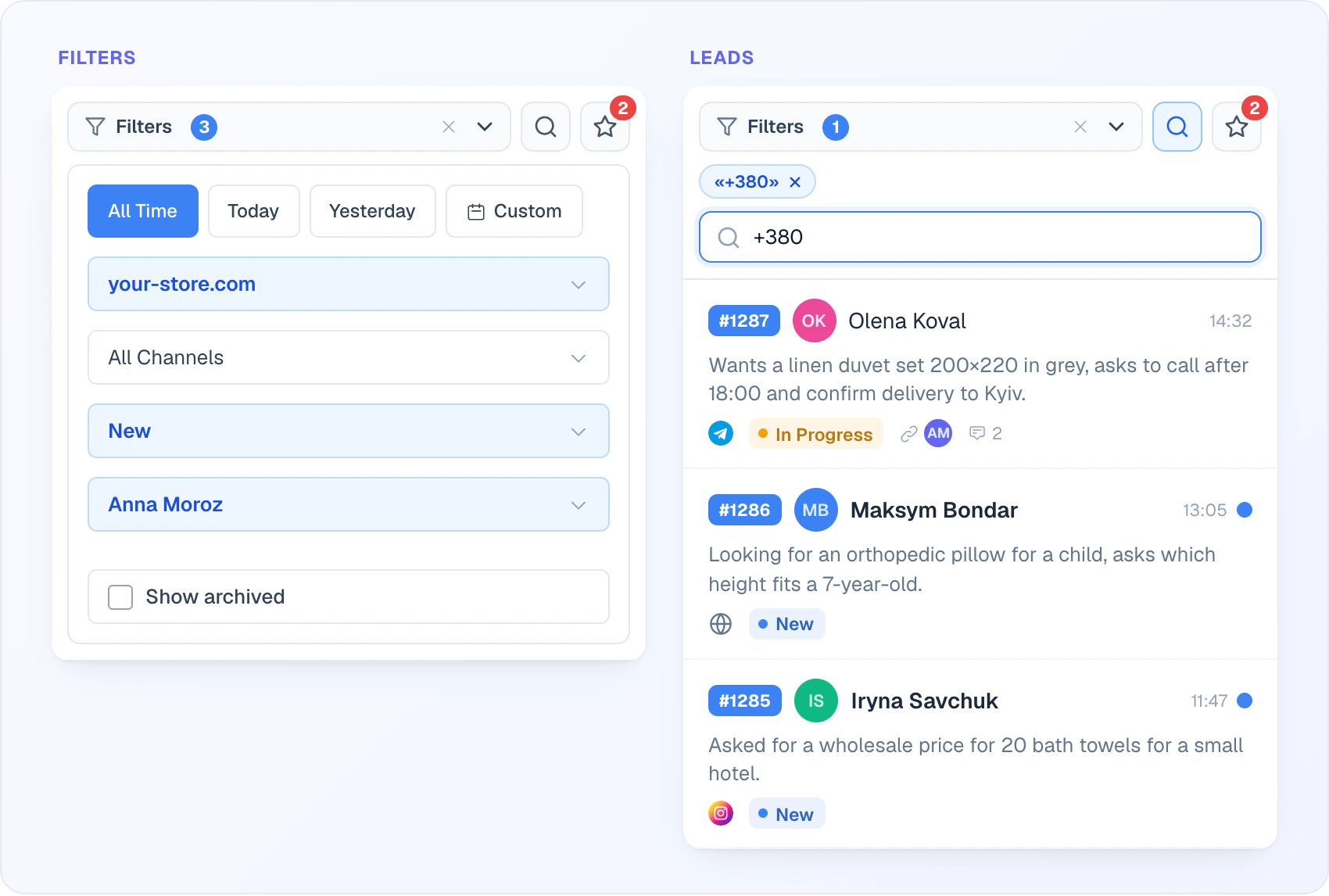
Click Filters to expand the panel (on a phone it opens as a bottom sheet). It offers:
- Period tabs — All Time, Today, Yesterday, Custom (pick a date range in the calendar; the tab then shows the chosen range)
- All Sites — narrow to one site
- All Channels — narrow to one connected channel by its name; shown only when the account has connected channels
- All Statuses — narrow to one status
- All Operators — narrow to leads assigned to one teammate
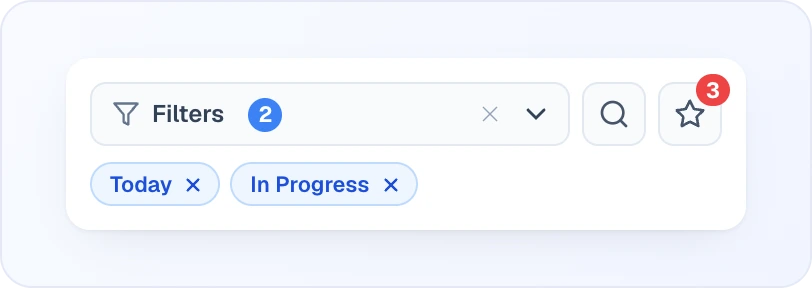
A drop-down with a value chosen is highlighted in blue, so you can see at a glance what is narrowing the list. The Filters button shows a count badge with the number of active filters. While the panel is collapsed, the active filters appear as chips under it — click a chip to remove that filter. Clear all filters (the cross on the button) resets everything.
The magnifier icon next to Filters opens the search field. It matches the lead description, the collected data (name, email, phone and other fields) and the session ID. It does not match the visitor's display name. A search also counts as a filter and gets its own chip with the query in quotes.
The star badge counts New leads — click it as a one-click shortcut to the New-status filter (click again to remove it). The count refreshes about every 10 seconds, and the sidebar badge and the list update over WebSocket the moment a lead arrives or changes.
Status bar
Above the list a Status bar shows the lead statuses as buttons with counters; click one to filter the list, All to clear. The counters follow the other filters (site, period, operator and so on), so they always describe the list you are looking at. A status appears there only while it has at least one lead (the one you are filtering by stays visible) and only if its Show in bar switch is on. When the bar does not fit the screen, arrows at its edges scroll it.
The gear at the end of the bar (Manage statuses) opens the status editor — see Status workflow.

Detail panel
Click any lead to open its card in the middle column.
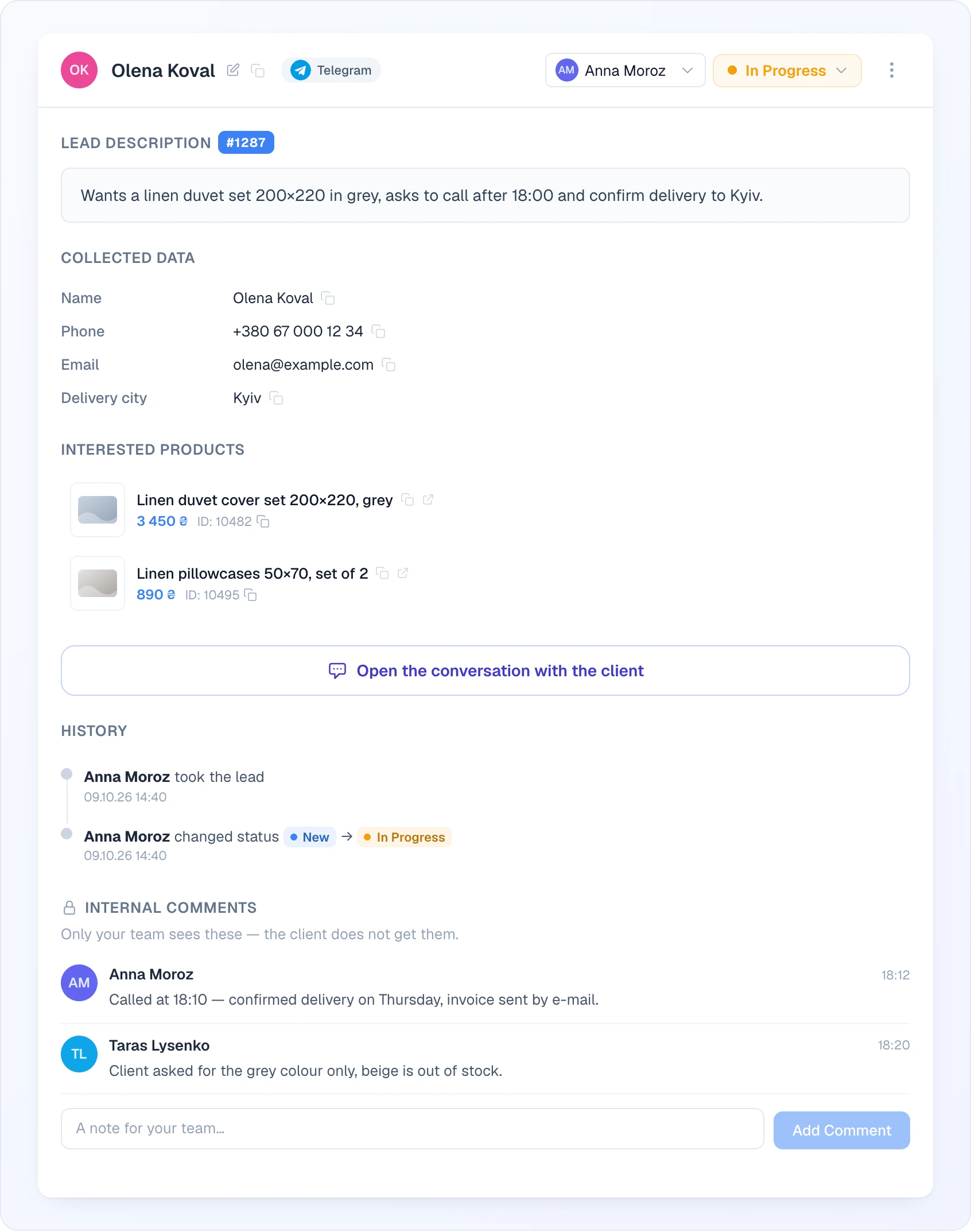
Header

- Avatar + visitor name — pencil icon to rename internally (Enter saves, Esc cancels), copy icon to copy the name
- Source — the channel name for messenger leads (for example Telegram), or the site name for website-widget leads
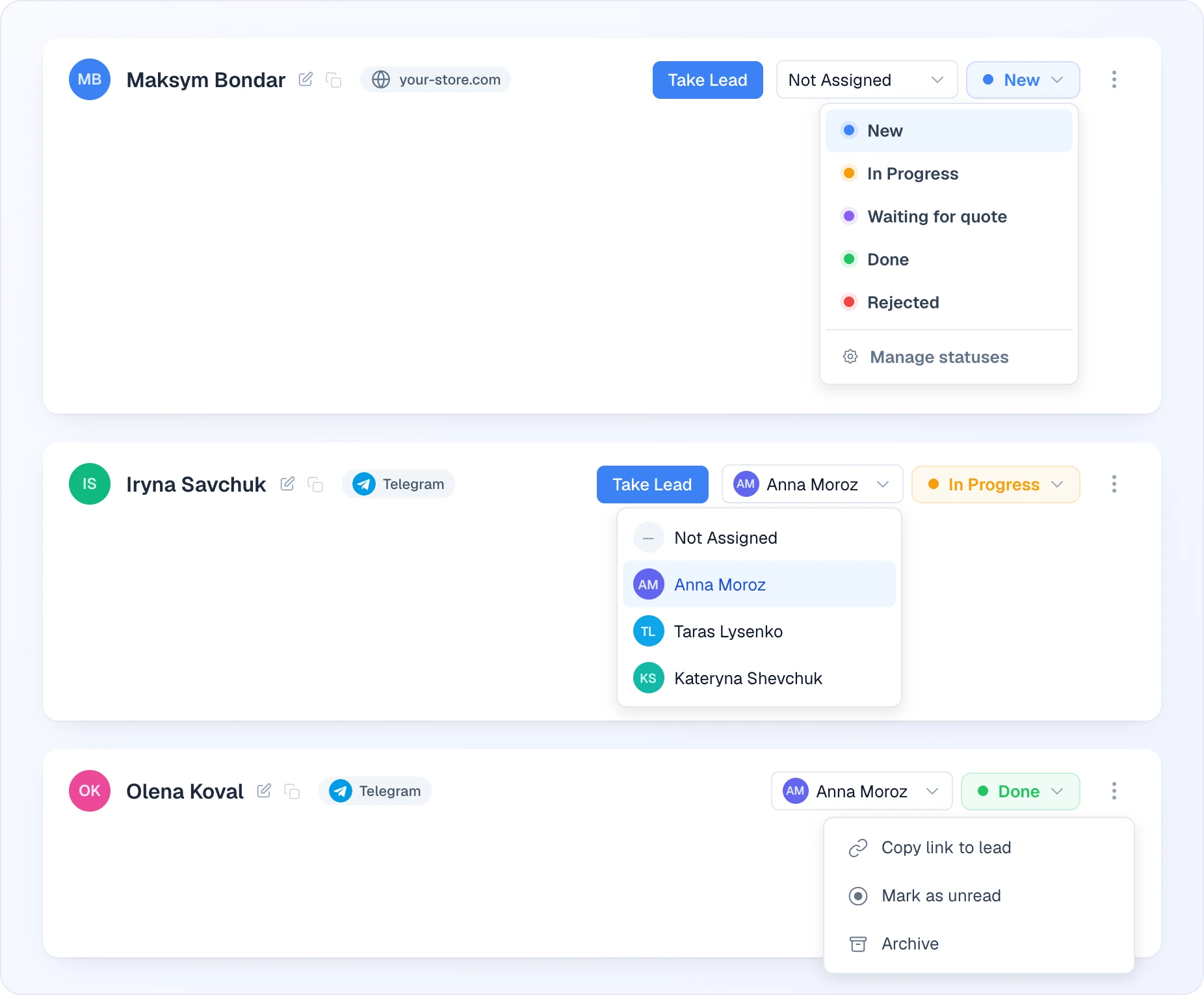
- Status dropdown — change between New / In Progress / Done / Rejected (or your custom statuses). Only enabled statuses are offered. Status changes are logged in History.
- Operator dropdown — assign to a teammate, or pick Not Assigned to remove the assignment. Not shown to users with the Chat user role.
- Take Lead — shown when the lead is not assigned to you. It assigns the lead to you and sets the status to In Progress (only if the lead was still New). Chat users see it only on unassigned leads.
- Return lead — Chat users only, on a lead assigned to them: removes the assignment.
- ⋮ menu — Copy link to lead and Mark as unread
Body
Sections without data are hidden, so a lead from a short messenger chat may show only the description and the buttons.
- Lead Description — the original message that triggered the lead, with the lead's #ID
- Collected Data — every field captured (Email, Phone, custom fields you configured), each with a copy icon. Custom fields are shown under the labels you gave them in Lead Collection.
- Interested Products — products the visitor viewed before reaching out (image, title, price, ID). Each has icons to copy the title or ID and Open on site.
- Open the conversation with the client — an outlined button that opens the chat that produced this lead on the Chats page. This is the place to write to the client: lead comments never reach them
- Calls — appears when calls are available on your account: an Offer a call button (the client gets an invitation in the widget or in their messenger), a line explaining why a call can't be offered right now (for example, "The client is offline" or "The visitor is blocked"), and the client's latest calls. Go to calls opens the client's calls on the Calls page in a new tab.
- History — timeline of changes: "changed status" (old status → new status), "assigned to" a teammate, "removed assignment", "took the lead". Each entry shows who did it and when; changes made without an operator (such as the automatic status rules) show System.
- Internal comments — notes for your team, marked with a lock and the line "Only your team sees these — the client does not get them." Type a note (the field is labelled "A note for your team…") and press Cmd/Ctrl + Enter (or click Add Comment) to post. Each comment shows author and date. Until there are comments the section says "No comments yet". To answer the client, use the conversation button above, not a comment.
Client Information
A collapsible right sidebar (click its header to fold it into a narrow strip on desktop). It shows:
- Client ID (for messenger clients, the messenger and its user ID, with a copy button) and Total Dialogs — how many conversations this client has had
- Contact details (email and phone as clickable links, notes) with an Edit button — change the name, email, phone and notes from here, then Save
- Block client / Unblock client — block or unblock the visitor
- Device & Browser, Location (country, city, region), Technical Data (IP, landing page, Referrer), UTM Parameters (UTM Source, UTM Medium, UTM Campaign), Timing (Date From — when the lead was created, and Last Message — when it was last updated), Viewed Products (with a counter; each product opens on your site) and Viewed Pages
It is the same data as in the Chats right panel. Each block folds by its title. Drag the ⋮⋮ grip to reorder the blocks; Reset block order restores the default. The order and folded state are remembered in your browser.
Status workflow
The default statuses:
- New — just arrived, not yet handled
- In Progress — someone took it / started contacting the visitor
- Done — sale closed, question answered, follow-up finished
- Rejected — not qualified or no longer relevant
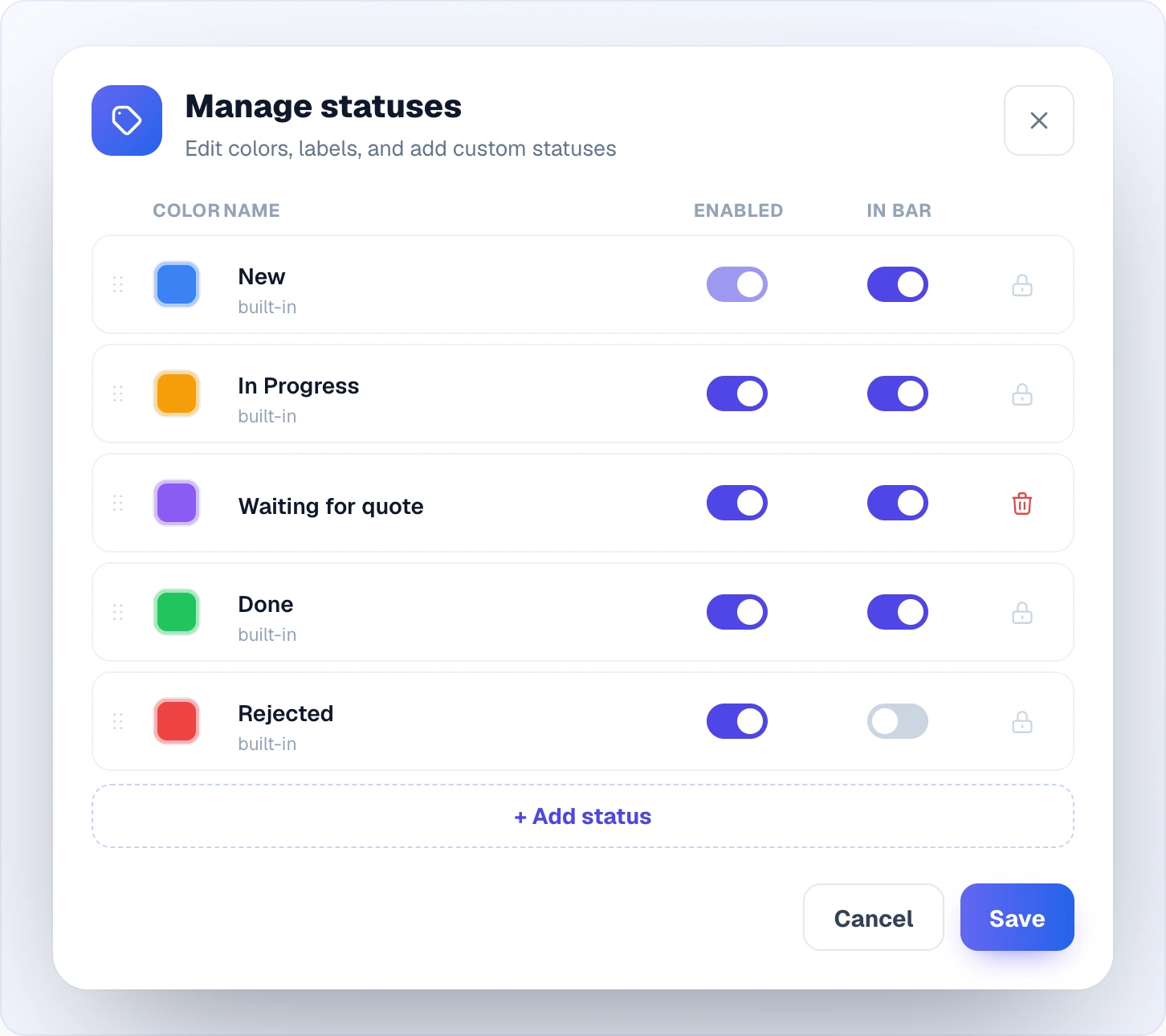
Manage statuses opens from the gear on the Status bar or from the bottom of the status dropdown. Each row has:
- a ⋮⋮ grip — drag to change the order (the bar, the dropdown and the filter follow it)
- a colour swatch — click to pick a colour
- the name — click to rename; built-in statuses are marked built-in
- Enabled — a switched-off status is no longer offered in the status dropdown and the filter. New can't be switched off
- In bar — whether the status appears in the Status bar
- a lock for built-in statuses (they can be renamed and recoloured but not deleted) or a bin for your own ones; deleting a custom status moves its leads to New
Add status adds a row for your own status. New statuses, names, colours, switches and order are stored when you click Save; deleting an already saved custom status with the bin takes effect at once. The same editor is on the Team page under Lead statuses. Chat users can open it only if Allow chat users to edit is switched on there; otherwise the gear is hidden for them.
Status changes are normally manual. The one exception is the Change the lead status after a while automation on the Automations page, which is on for every account and moves untouched leads by rules (by default: New for 7 days with nobody assigned, or In Progress for 21 days → Rejected, only for leads created from 9 October 2026 until you save your own rules). Those changes appear in the lead history as System. When you change status on an unassigned lead, you're auto-assigned to it.
Lead archive
Archive (three-dot menu in an open lead) removes the lead from the list without touching its status: the lead disappears from the list, from search and from the counters on the status bar. Nothing is deleted, and archiving sends nothing to a connected CRM. Any team member can archive and return leads.
- Tick Show archived in the filters to see archived leads — they carry an amber Archive label in the list and next to the lead number.
- Return from archive in the same menu brings the lead back to the list. Changing the status of an archived lead returns it as well.
- Archiving and returning are written to the lead history.
- The Archive closed leads automation on the Automations page does it for you: a lead nobody has changed for 90 days goes to the archive. New and In progress leads are never archived; you can change the period or turn the rule off.
On a phone
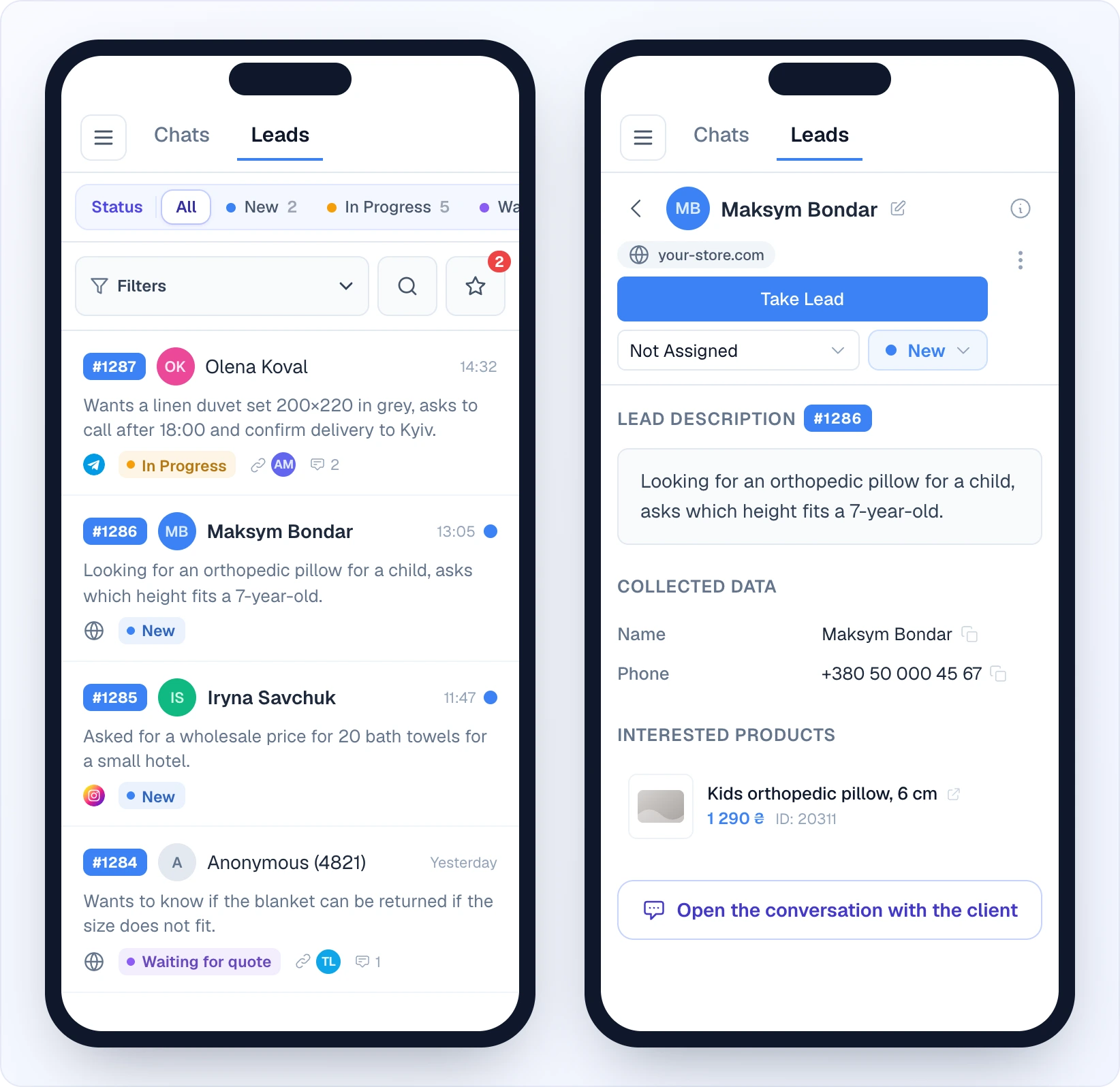
On a phone the list and the lead card take turns: tap a lead to open its card, use the back arrow (Back to leads list) to return. In the card header Take Lead gets its own full-width row, with the operator and status drop-downs under it. The filters open as a bottom sheet, and the client information opens over the card with the ⓘ button in the lead header (close it with the cross).
Notifications
When a new lead arrives, Looma notifies your team in several ways:
- The star badge in the Leads tab and the sidebar counter go up
- A New lead toast with an Open button appears in the dashboard
- A browser push notification, if the operator allowed notifications
- An email to operators, based on assignment rules
Each team member sets their own notification preferences in their profile.
Marking unread for follow-up
Three-dot menu in the detail panel → Mark as unread. The blue dot re-appears in the list so it stays in your attention queue. Useful for "I'll get back to this tomorrow" cases.
Permissions
- Owners / Administrators / Supervisors — see all leads, can assign, edit and change status
- Chat users — see all leads in the account, but can only take unassigned leads and change the status of leads that are unassigned or assigned to themselves. They cannot reassign someone else's lead or change its status; the server rejects such attempts.
Leads cannot be deleted from the page. See Team for the full role matrix.
Tips
- Set up custom statuses that match your real workflow (e.g. "Hot lead", "Waiting for quote", "Sample sent")
- Use internal comments aggressively — context decays fast, and the next person to touch the lead will thank you (but remember the client never sees them)
- Filter by your own name under All Operators plus the In Progress status for your daily worklist
- Always open the linked conversation before contacting — context from the chat shapes the right opening line
- Use Copy link to lead to hand a lead to a teammate in your work chat — the link opens exactly that lead
Related
- Lead Collection — what fields get captured and when
- Chats — the chat the lead was created from
- Email Delivery — emailing the customer from chat or lead
- Team — assignment / notifications / role permissions