

Dashboard
The Dashboard is your analytics overview — the first item of the sidebar, available to the Owner, Administrator and Supervisor roles. It is split into tabs — Dialogs, Visits, Quick search, Audience, Ask AI and AI Magic Report — that summarize chats, leads, visits to your store, search performance and visitors for any site and time period you choose, and let you ask the AI questions about your customers' chats.

The counters on the tabs are a quick preview: Visits shows how many site visits Looma brought in the selected period, Quick search shows how many search queries visitors made. A tab without activity shows no counter.
Choosing a period and site
Two controls next to the tabs drive the Dialogs, Visits, Quick search and Audience tabs. Every card, chart and table on those tabs reacts to both at once. The Ask AI and AI Magic Report tabs hide these controls — they have their own scope.
- Period — quick buttons Today (the default), Yesterday, 7 Days and 30 Days, plus Custom with a calendar icon for an exact date range. Custom opens a date-range picker: choose the start and end dates and click Apply (or Cancel). A custom range can be at most 90 days — if you pick a longer one, it is cut to 90 days with the message "Maximum period is 90 days". Once applied, the button shows the chosen dates instead of the word Custom.
- Site — pick All Sites to combine numbers across every site on your account, or select one specific site to focus on it alone.
Change either control and the page reloads its figures for the new selection. Looma remembers the tab you were on and opens it next time.
Comparisons with the previous period. Small green or red figures next to the big numbers (for example +11%) compare the selected period with the previous period of the same length — for 7 Days, with the seven days before it. Green means better, red means worse; for the response time a smaller number counts as better, so a drop shows in green. When there is nothing to compare with (the previous period was empty), no figure is shown.
Dialogs tab
The default tab: how your chats are going, who handles them and how fast.
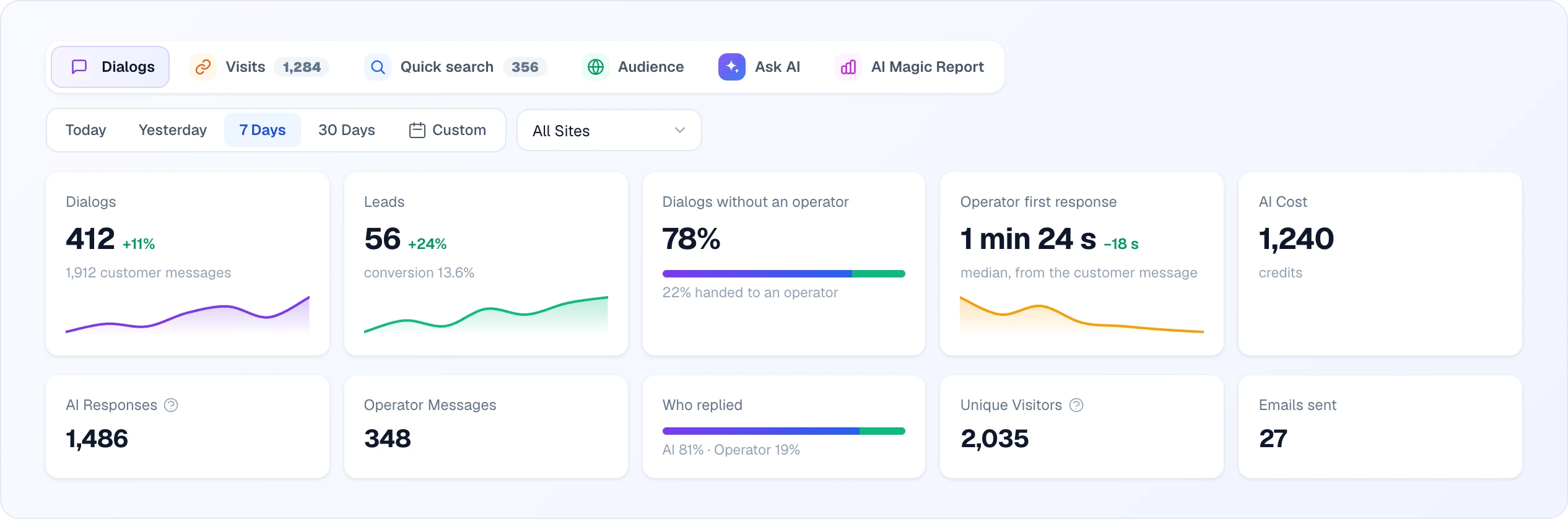
Headline cards
- Dialogs — how many conversations had chat messages in the period, with the change against the previous period and the line "N customer messages" below. The small trend line shows how the number moved day by day (hour by hour for Today and Yesterday).
- Leads — how many leads were collected, with the conversion — leads as a share of dialogs.
- Dialogs without an operator — the share of dialogs where no team member wrote and nobody was assigned, i.e. the AI handled them alone. The bar shows the AI part (violet) and the operator part (green); the line below says what share was handed to an operator.
- Operator first response — the median time between a customer's message and the operator's first reply in a dialog. Median means that half of the first replies were faster; a few very slow replies do not distort it. The trend line shows it by day.
- AI Cost — what the AI assistant spent in the period, in credits.
Smaller cards
- AI Responses — how many replies the AI sent to customers (the tooltip explains that follow-up calls, such as clarifying queries, may be counted too).
- Operator Messages — how many messages your team wrote.
- Who replied — the split of all replies between the AI and operators, as a bar and percentages.
- Unique Visitors — users who opened the widget.
- Emails sent — how many e-mails were sent to customers from chats (see Email Delivery).
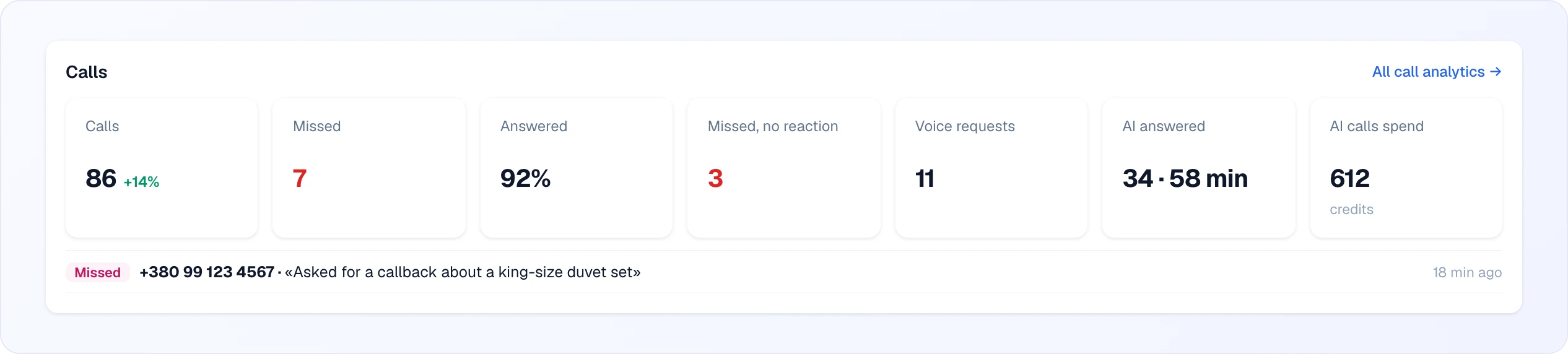
If the calls module is on, one more row of cards appears under these — Calls, Missed, Answered, Missed, no reaction and Voice requests — with a list of missed calls nobody has reacted to and an All call analytics → link. Once the AI has answered at least one call in the period, two more cards join the row: AI answered (how many calls, and the total minutes talked) and AI calls spend (what those calls cost, in credits) — separate from the AI Cost headline card above, which is the AI chat's spend only.
Needs attention, AI dialog score, chat statuses
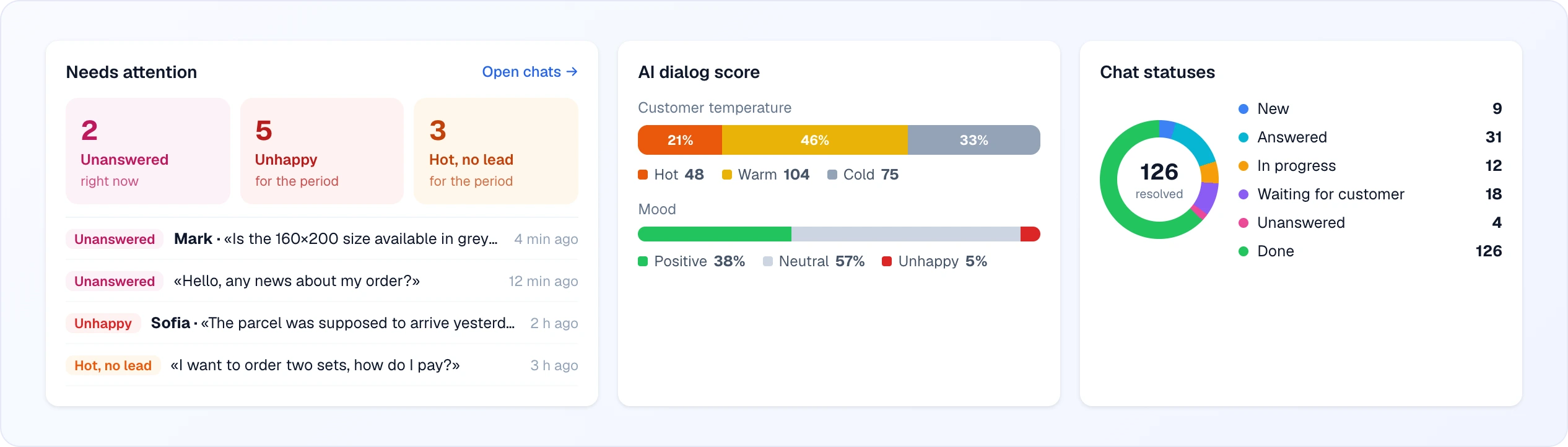
- Needs attention — three tiles: Unanswered — chats that are waiting for your reply right now (the current state, regardless of the period); Unhappy — dialogs the AI scored as unhappy, and Hot, no lead — hot dialogs that did not end with a lead, both for the period. Under the tiles, up to six such dialogs are listed — unanswered first — with the customer's name (if they left it), their last message and how long ago it was. Click a row to open that chat; click a tile or Open chats → to go to Chats. When there is nothing to show, the card says "All under control".
- AI dialog score — how many dialogs are Hot / Warm / Cold (customer temperature, with counts) and Positive / Neutral / Unhappy (mood, in percentages). The AI sets these as the conversation goes and re-reads the dialog after an operator hands the chat back (see Automations). Until at least one dialog is scored the card says "No scored dialogs yet".
- Chat statuses — a ring of your chats by work status in the same colours as in the chat list, with the number of resolved (Done) chats in the middle and the count for each status beside it. See Chats for the statuses.
Operators and lead statuses
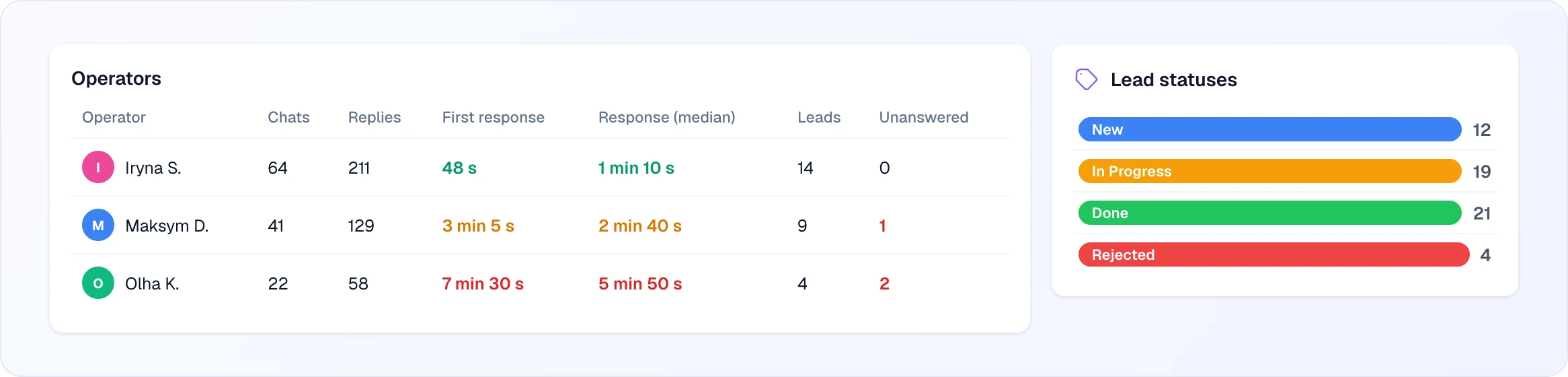
- Operators — one row per team member who wrote to customers in the period, sorted by the number of chats:
- Chats — conversations where they wrote; Replies — how many messages they sent.
- First response and Response (median) — median time to the first reply in a dialog and to every reply. The colour helps you spot problems: green — up to 2 minutes, amber — up to 5 minutes, red — longer.
- Leads — leads created in the period that are assigned to this operator.
- Unanswered — chats assigned to them that are waiting for a reply right now; highlighted in red when above zero.
- With the calls module on, a Calls · avg talk column is added.
- Lead statuses — leads of the period grouped by status, in your status colours (see Leads).
Charts
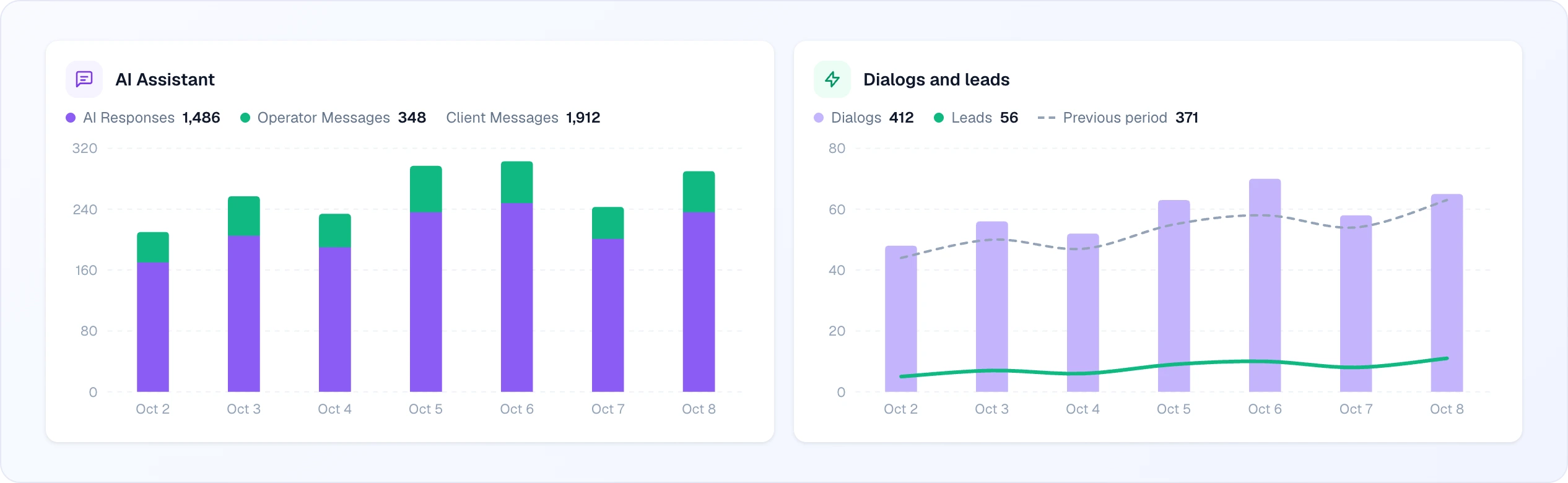
- AI Assistant — per day, how many replies came from the AI and how many from operators, stacked in one bar. Above the chart are the period totals: AI Responses, Operator Messages and Client Messages.
- Dialogs and leads — dialogs per day as bars, leads as a green line and the Previous period as a dashed line, so you can see at a glance whether this week is busier than the last one.
For Today and Yesterday both charts are drawn by hour instead of by day.
Widget-driven sales
Appears only when you have connected a shop: Orders from widget, Revenue, Average order, Click → purchase and, when there are any, Likely orders (the same product was viewed in the widget and bought within a week — shown separately and not counted in revenue), plus Top products from widget. See Shop connection.
Visits tab
Who brought customers from Looma to your site, and where they went. The numbers count each visit once per dialog (or quick-search session) and product or link — repeat opens and messenger link previews are not counted.
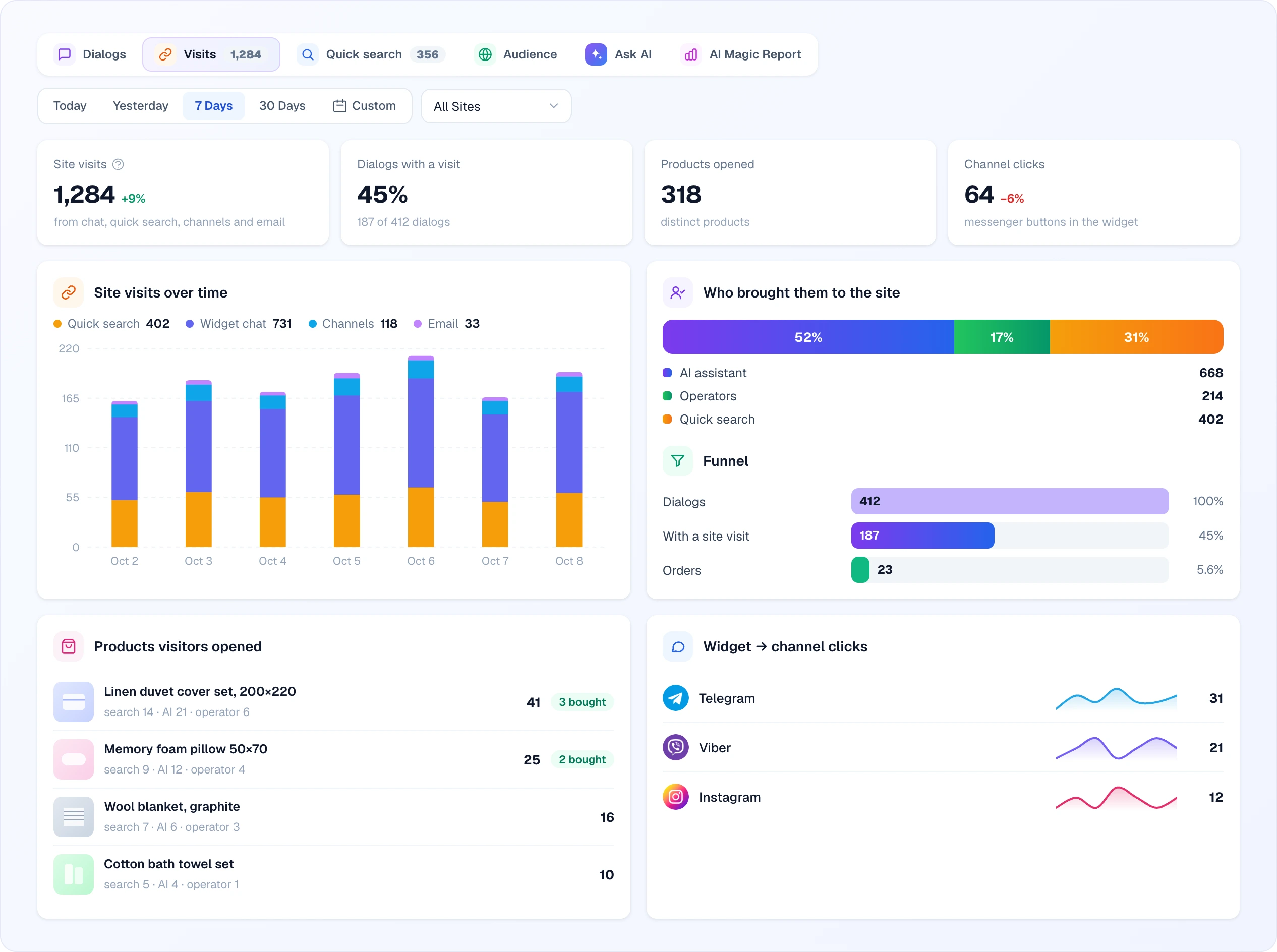
- Site visits — total visits from the chat, quick search, channels and email, compared with the previous period.
- Dialogs with a visit — the share of dialogs after which the customer went to your site ("187 of 412 dialogs").
- Products opened — how many distinct products customers opened.
- Channel clicks — clicks on the messenger buttons in the widget.
- Site visits over time — the visits per day, stacked by source: Quick search, Widget chat, Channels and Email.
- Who brought them to the site — how the visits split between the AI assistant (links the AI gave in chat), Operators (links your team sent) and Quick search.
- Funnel — all Dialogs, those With a site visit and, when your shop reports linked orders, Orders. The Orders step is hidden if the shop does not pass this data, so a missing step does not mean nobody bought.
- Products visitors opened — each product with the number of visits and the split "search · AI · operator"; "N bought" appears when orders are linked to the product.
- Other operator links — non-product links your team sent that customers opened.
- Widget → channel clicks — which messenger buttons in the widget were clicked, with a small trend for each.
- Categories from quick search — categories visitors opened from the search widget.
If there were no visits and no channel clicks in the period, the tab says "No data for this period".
Quick search tab
Performance of the Quick Search widget.
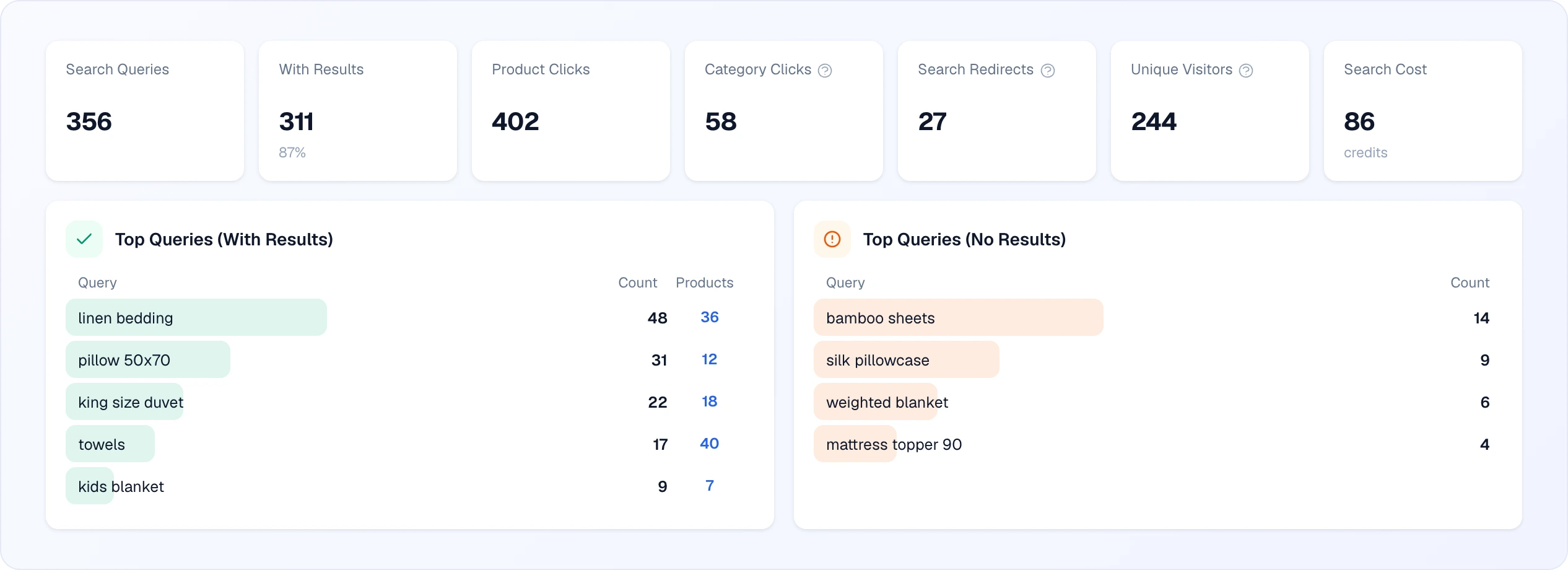
- Search Queries — how many searches visitors made; With Results — how many of them found something (with the share in percent).
- Product Clicks and Category Clicks — clicks on products and on categories in the results (category clicks come from the categories database, see Categories).
- Search Redirects — how many times a visitor pressed Enter and went to your site's own search page.
- Unique Visitors — users who opened the widget; Search Cost — what search spent, in credits.
- A chart of queries With Results and No results per day.
- Top Queries (With Results) — the most frequent queries with their count; the number in the Products column is clickable and opens a window with the top 10 products that query found.
- Top Queries (No Results) — what visitors searched for and did not find. This is the most practical list on the tab: it shows products you could add to the catalogue, or words (synonyms, misspellings) the search should understand.
Each list shows 10 queries per page with arrows to page through.
Audience tab
Who your visitors are: Geography (switch between Countries and Cities), Devices, Browsers, Operating Systems, Referrers, Landing Pages and the UTM breakdown (UTM · Source, UTM · Medium, UTM · Campaign). Each row shows the count and its share of the list; long lists are paged by 10.
Ask AI tab
Ask AI lets you ask questions about your customers' chats in plain language and get an answer with counts, breakdowns and links to real chats. It is available to Owner, Administrator and Supervisor. The tab shows a NEW badge until you open it for the first time.
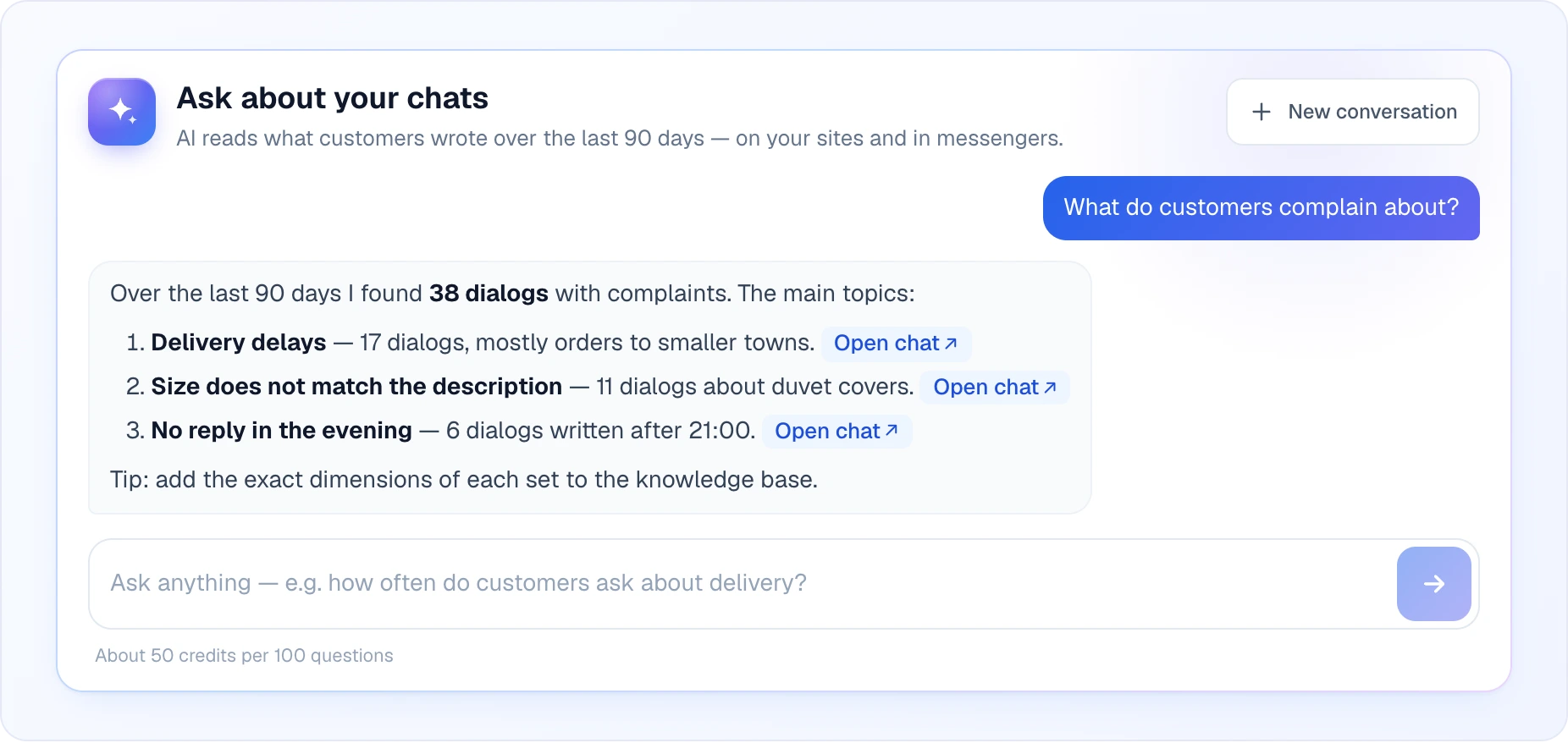
- What it reads — customer messages from your site widgets and connected messengers for the last 90 days. The same assistant can also look at your dashboard figures (chats, leads and lead statuses, operator response times, traffic sources, geography, quick search), so questions like "How many leads did we get this week and where did they come from?" work too, and the numbers match the cards on the Dialogs tab.
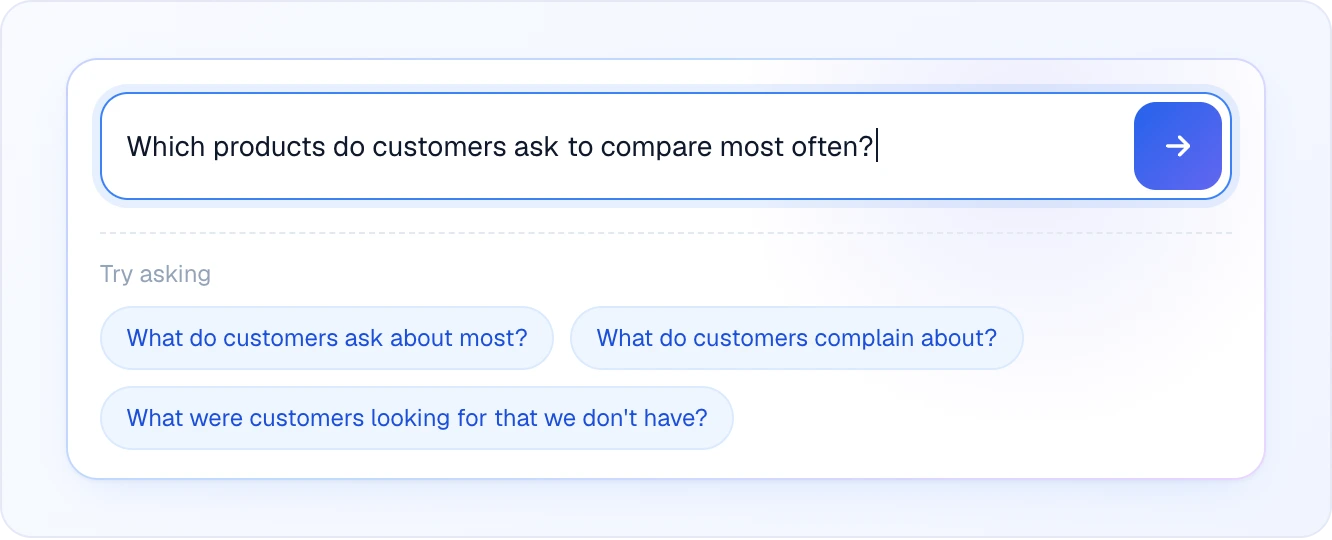
- How to ask — type a question and press Enter or the send arrow (Shift+Enter adds a new line), or pick one of the examples under Try asking (for example "How often do customers ask about delivery?" or "What do customers complain about?"). Follow-up questions keep the context of the conversation; New conversation starts over. While it works you see short progress lines such as "Searching similar messages…", "Counting and grouping…" and "Writing the answer…".
- Links to chats — answers can include Open chat links to the real conversations they are based on; a link opens the chat in a new tab, so your conversation with the AI stays in place.
- History — the conversation is kept in your own browser, so it survives a reload but does not follow you to another device or browser.
- Cost — each question is charged in credits. The tab shows the hint "About 50 credits per 100 questions"; newly arriving customer messages are also indexed for this search at the account's expense. You need a positive balance to ask.
- Empty state — until customers have written at least one message, the tab shows "Answers will appear here once customers start writing" instead of the input.
Good questions to start with: what customers ask about most, what they complain about, what they looked for but you don't have, which products they mention most often, and what your operators answered when asked about price. Ask for a breakdown ("by week", "by channel") when you need numbers, then open a couple of the linked chats to see the real wording.
AI Magic Report tab
AI Magic Report is a tab of the Dashboard, shown while the module is on. It is on by default — turning it on costs nothing by itself, a report is made (and charged) only when you set one up or run it. The tab holds the Reports and Report settings sub-tabs; the period and site controls are hidden here. If you switched the module off (Modules page), the Dashboard shows a strip with an Enable button instead of the tab (the cross on the strip hides it for a month); enabling it from there opens the tab straight on the settings so you can create your first report. See AI Magic Report for the full walkthrough.
Typical ways to use the Dashboard
- Morning check (Today): look at Needs attention first — unanswered chats are people waiting right now. Then glance at the Operators table for red response times.
- Weekly review (7 Days): compare Dialogs and Leads with the previous period, check Dialogs without an operator to see how much the AI handles alone, and the AI dialog score for a rise in unhappy customers.
- Catalogue and content (30 Days): open Quick search → Top Queries (No Results) and Ask AI → "What were customers looking for that we don't have?" — both point at gaps in your range or your knowledge base.
- Marketing: Visits shows whether the chat actually sends people to products; Audience shows where visitors come from and which UTM campaigns bring them.
When you have no sites yet
The Dashboard needs at least one site to have data to show. If your account has no sites, opening the Dashboard automatically redirects you to the Sites page so you can add your first site. Once a site exists, the Dashboard opens normally and starts reporting its activity.
If your subscription lapses
If your subscription has expired, the Dashboard shows a banner at the top — "Your subscription has expired. Sites and features are blocked." — with a Renew subscription button that takes you to the Billing page. The analytics stay visible, but renewing restores full access. See Billing to manage your plan and payment.
Related
- AI Magic Report — plain-language PDF business reports from your data
- Quick Search — the search widget whose performance the Dashboard tracks
- Chats — the inbox behind the chat and message metrics
- Leads — where collected leads are managed
- Automations — the background rules that set statuses and AI scores
- Shop connection — what feeds the Widget-driven sales block
- Billing — renew or change your plan