

Profile
Your Profile is your personal account and preferences page: your name and avatar, interface language, notifications, chat preferences and keyboard shortcuts, password, and the «What's new» feed. It opens from the user menu and is available to every team role; the settings here apply only to you, not to the whole account.
How the page is laid out
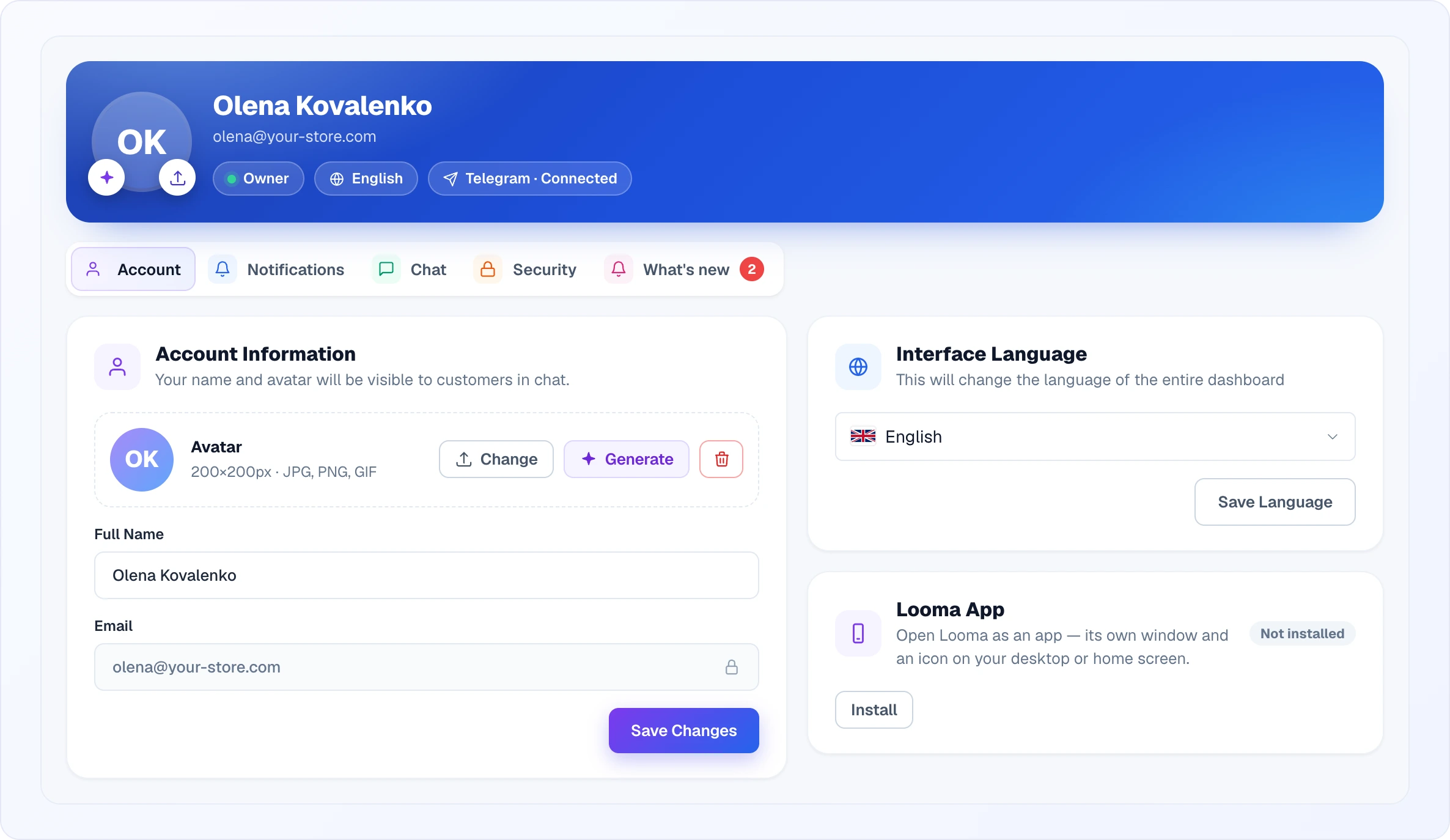
At the top is a blue header with your avatar, name and email, and three chips under them: your role in the team, your chosen interface language, and the Telegram state (Connected / Not connected). The two round buttons on the avatar are shortcuts: the sparkle opens the avatar generator, the arrow uploads your own picture.
Below the header there are five tabs: Account, Notifications, Chat, Security and What's new. The open tab is written into the page address (for example /profile#notif), so a link can open the right tab directly. On the What's new tab a red counter shows how many updates you haven't seen yet.
Account
Account information
Your basic identity inside Looma. Set your full name — this is what teammates and customers in chat see next to your messages (the card header reminds you of that). Your email is shown for reference with a lock: it can't be edited here, since it's tied to how you log in. If you signed up with Google or Facebook, a Connected via Google (or Facebook) note appears above the fields. Name changes are saved with Save Changes.
Your avatar is the picture next to your name in chats, in the team list and in the widget for customers. Recommended size is 200×200 px, JPG, PNG or GIF. The avatar row has three buttons:
- Change — upload your own image (after picking a file you can crop it).
- Generate — create an avatar with AI if you'd rather not upload a photo.
- Trash — remove the avatar and fall back to your initials.
Avatar generator
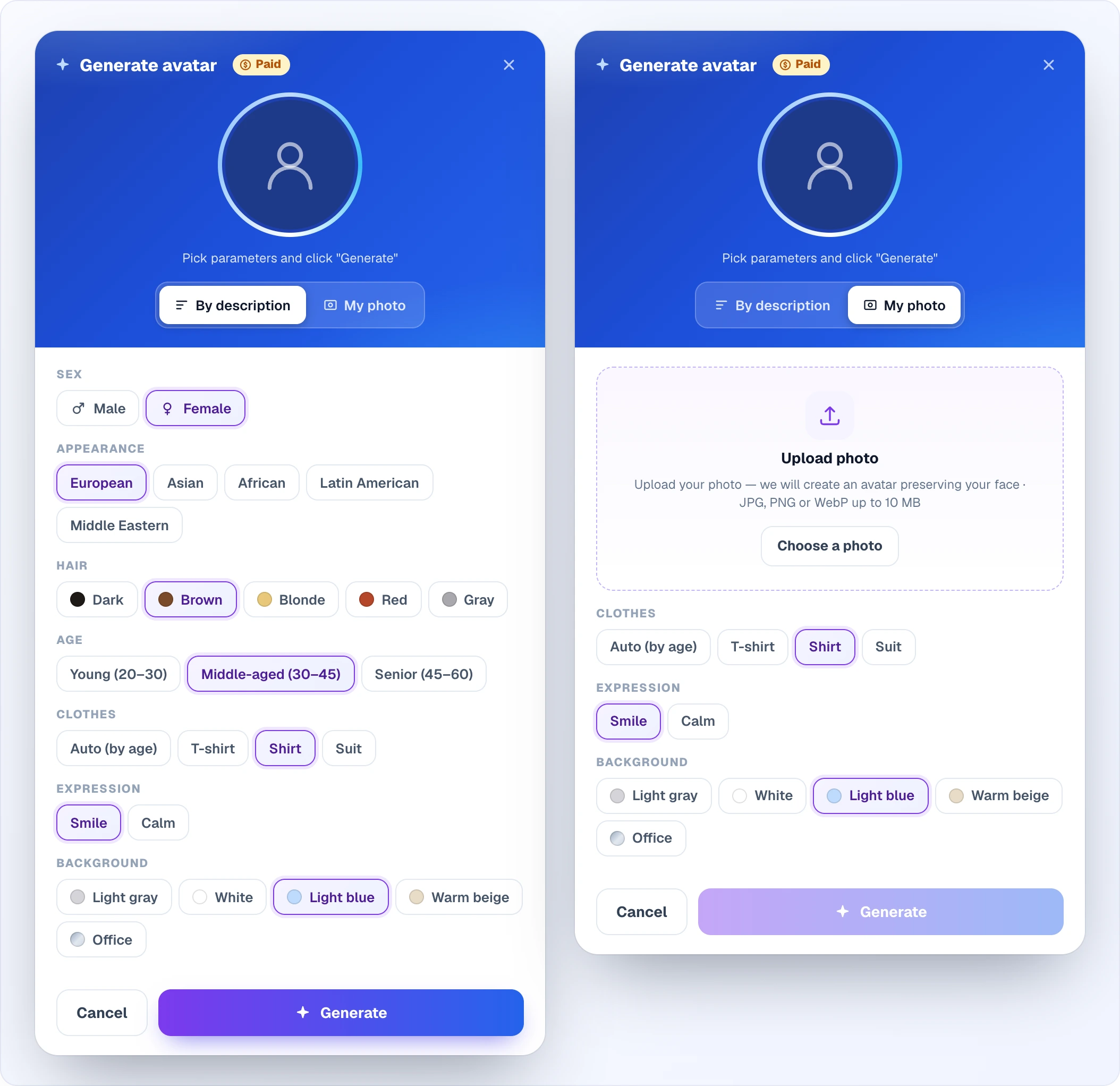
Generate opens the Generate avatar window, marked Paid. It has two modes:
- By description — pick Sex, Appearance, Hair and Age. The Generate button becomes active only once all four are chosen.
- My photo — upload a photo of yourself (JPG, PNG or WebP up to 10 MB) and the AI creates an avatar that keeps your face.
In both modes you can also choose Clothes (Auto (by age), T-shirt, Shirt, Suit), Expression (Smile or Calm) and Background (Light gray, White, Light blue, Warm beige, Office). After you click Generate, the round preview spins for a few seconds and then shows the finished avatar — the main button turns into Apply. One opening of the window gives one generation: if you don't like the result, click Cancel and open the generator again.
Every generation charges credits to the account balance — only when the image is actually delivered. If the balance has run out, the window says «Insufficient balance». For team members, the tip on the Paid badge suggests agreeing it with the account owner first.
Interface language
The language of the dashboard UI — menus, buttons, labels — for your account only. Pick a language from the list (it has search and flags) and click Save Language; the change applies to what you see, not to your teammates.
This setting does not change what customers see in the widget. The widget detects each customer's own language from their messages (or browser, for the first turn) on a per-message basis, independently of your dashboard language. So switching your interface to, say, Ukrainian makes your dashboard Ukrainian while customers continue to be served in whatever language they write in.
Looma App
Looma can be installed as a desktop/mobile app (PWA) so it opens in its own window with an icon on your desktop or home screen. The Looma App card shows one of three states:
- Not installed — installation is available; click Install to add Looma as an app.
- Installed — Looma is already installed on this device; a hint under the status says where to find the icon (Start menu, Launchpad, home screen and so on).
- Unavailable — your current browser doesn't support installing web apps. Try a browser that does (most modern Chromium-based browsers).
Installing doesn't change your account or settings — it's just a more app-like way to open the same dashboard.
Notifications
How and when Looma alerts you about chat activity. The tab has three cards: where to send, what to notify about, and other notifications.
Where to send
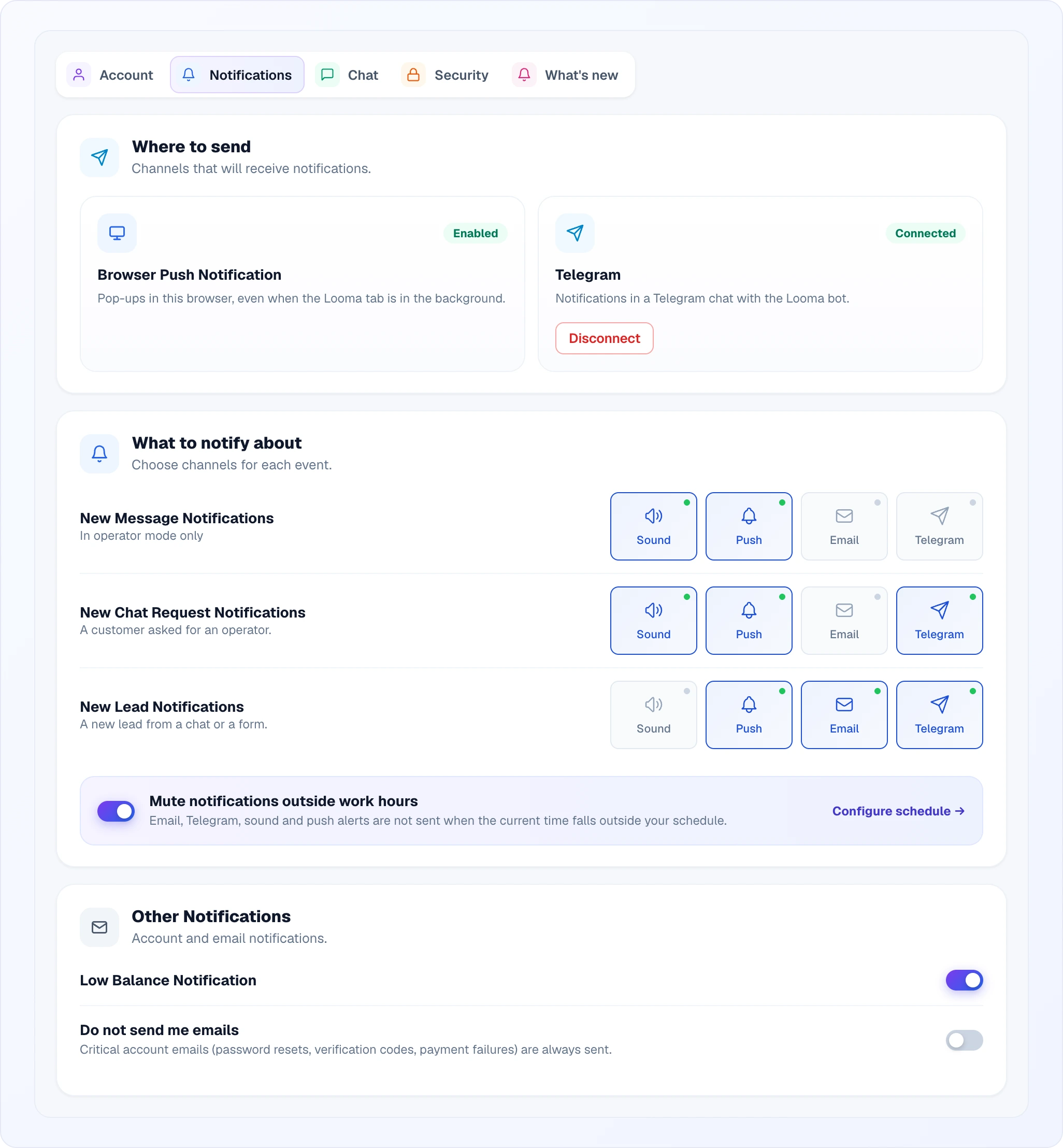
The channels notifications can reach you through at all:
- Browser Push Notification — pop-ups in this browser, even when the Looma tab is in the background. The first time, click Enable and allow notifications in the browser; the status then changes to Enabled. The permission is per browser, so on another device you grant it again.
- Telegram — notifications in a chat with the Looma bot. Click Connect: Telegram opens, start the bot, and within a few seconds the status changes to Connected. Disconnect (with a confirmation) removes the link.
Sound and email need no separate connection — they work right away.
What to notify about
For each event you choose channels with the Sound, Push, Email and Telegram tiles — an enabled tile turns blue and gets a green dot:
- New Message Notifications — a new message in a chat; works only while you handle chats in operator mode.
- New Chat Request Notifications — a customer asked for an operator.
- New Lead Notifications — a new lead from a chat or a form.
The Telegram tile only makes sense once Telegram is connected in the card above.
Mute notifications outside work hours — when on, email, Telegram, sound and push alerts are not sent while the current time is outside the work schedule. There is one schedule for the whole account and it is set on the Team page — the Configure schedule → link takes you straight there.
Calls
If the Calls module is on in your account and you take calls, the tab also shows a Calls card. It has My call status (Taking calls, No sound, Do not disturb — the same switch as in Looma Phone, the two stay in sync) and Push, Email and Telegram tiles for incoming calls.
Other notifications
- Low Balance Notification — an alert when the account balance drops below the minimum threshold, so you can top up before widgets are affected. Only the Owner and Administrators see this switch.
- Do not send me emails — a master email opt-out. When on, Looma stops sending you non-essential system emails (welcome, reminders, operator-request and new-message/lead alerts, low-balance and analytics notices). Critical emails always go out — address verification, confirmation codes, password resets, payment-failure notices and invoices. Marketing and notification emails also carry a one-click unsubscribe link, which flips this same switch.
Chat
Per-operator settings that shape how you work inside the chat console.
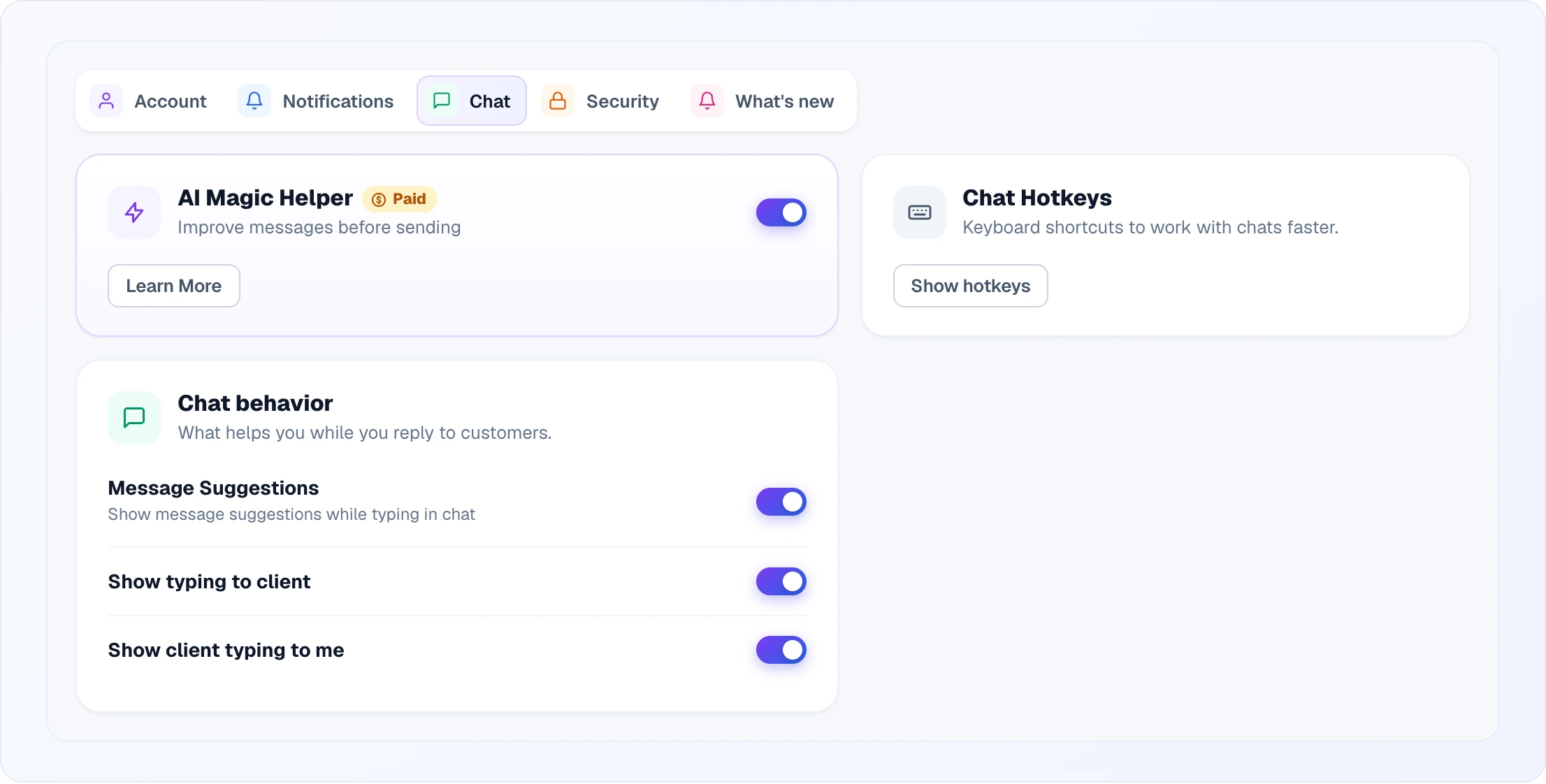
- AI Magic Helper — a paid AI writing assistant. Select text or click the button in the message field and it rewrites, translates, fixes grammar, changes tone, or expands/shortens your message in one click before you send it. Turn it on with the switch in the card; Learn More opens a description of what it does, a pricing note and a View usage link. Usage draws credits from the account balance — see Credits & Plans.
- Message Suggestions — shows ways to finish your reply while you type, so you complete common phrases faster. Turn it off if you prefer to type freely.
- Show typing to client and Show client typing to me — two independent typing indicators: whether the customer sees that you're typing, and whether you see that the customer is typing.
Keyboard shortcuts
Show hotkeys in the Chat Hotkeys card opens the cheat-sheet in the app. Shortcuts are grouped by context:
Message input
| Shortcut | Action |
|---|---|
Enter | Send message |
Shift + Enter | New line |
Ctrl + / | Quick replies (toggle) |
Ctrl + . | Emoji picker (toggle) |
Autocomplete
| Shortcut | Action |
|---|---|
↑ ↓ | Navigate |
Tab / Enter | Select |
Escape | Close |
Emoji picker
| Shortcut | Action |
|---|---|
← → ↑ ↓ | Navigate emojis |
Space | Insert emoji |
Escape | Close |
Quick replies
| Shortcut | Action |
|---|---|
↑ ↓ | Navigate |
Tab / Enter | Select |
Escape | Close |
Security
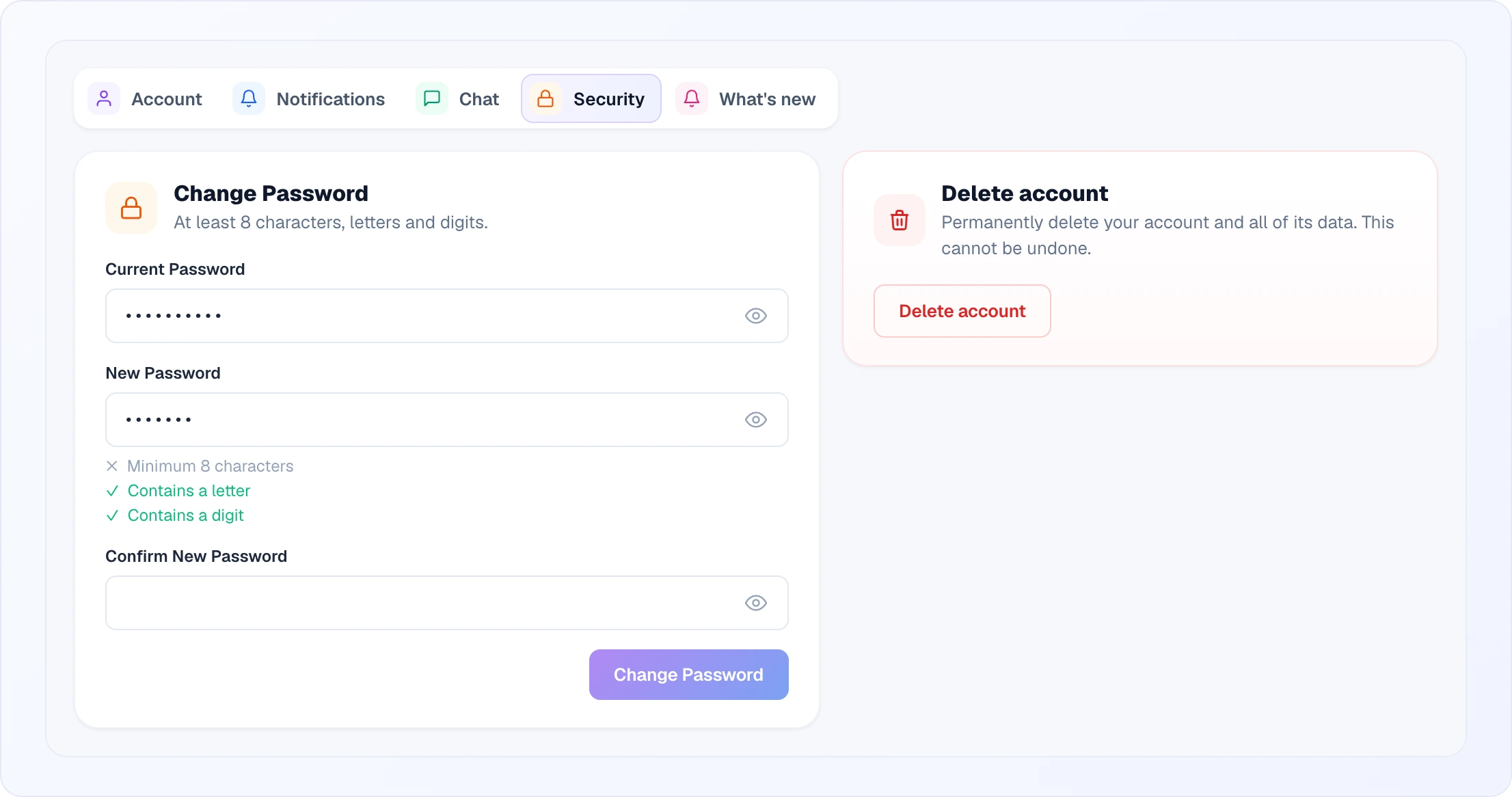
Password
How you set or change the password used to sign in with email.
- If you created your account through Google or Facebook and never set a password, the card is called Set Password — set one so you can also log in directly with email, not only through the social login.
- If you already have a password, you'll see Change Password: enter your current password, then the new password and its confirmation.
Password requirements: at least 8 characters, with at least one letter and one digit. Under the new-password field each rule turns green as soon as it's met, and the save button is active only when all three are. The eye icon in each field shows what you typed.
Signing in on several devices
You can stay logged in on up to 3 devices at the same time — for example your computer, a second browser and your phone. Logging in on a new device no longer signs you out everywhere else. When you log in on a 4th device, Looma keeps the 3 most recently used sessions and signs out the one you have not used for the longest time; that device will ask you to log in again the next time you open it. This applies to every way of signing in — email and password, Google and Facebook.
Deleting your account
The Delete account button sits in the red card next to the password. Deletion is a two-step, confirmed action: you confirm the warning, Looma emails you a 6-digit code, and you enter that code to finish. This proves it's really you before anything is removed.
What gets deleted depends on your role:
- Owner — deleting removes the whole organization: the account, its sites, products, chats, and team members. Any active subscription is cancelled as part of the process.
- Team member (administrator / supervisor / chat user) — your personal access is removed and your operator identity is anonymized; the organization and its data stay with the owner.
Either way you're logged out once it completes. This is permanent and can't be undone, so export anything you need first.
What's new
A feed of Looma updates that concern you: each entry has a date, a title, a short description, a topic (Chats, Leads, Channels, Dashboard, Automations, AI, Widget…), who it's for (For everyone or a list of roles), and an Open → link to the relevant section. Entries meant for particular roles are seen only by those roles — the Owner and Administrators see all of them.
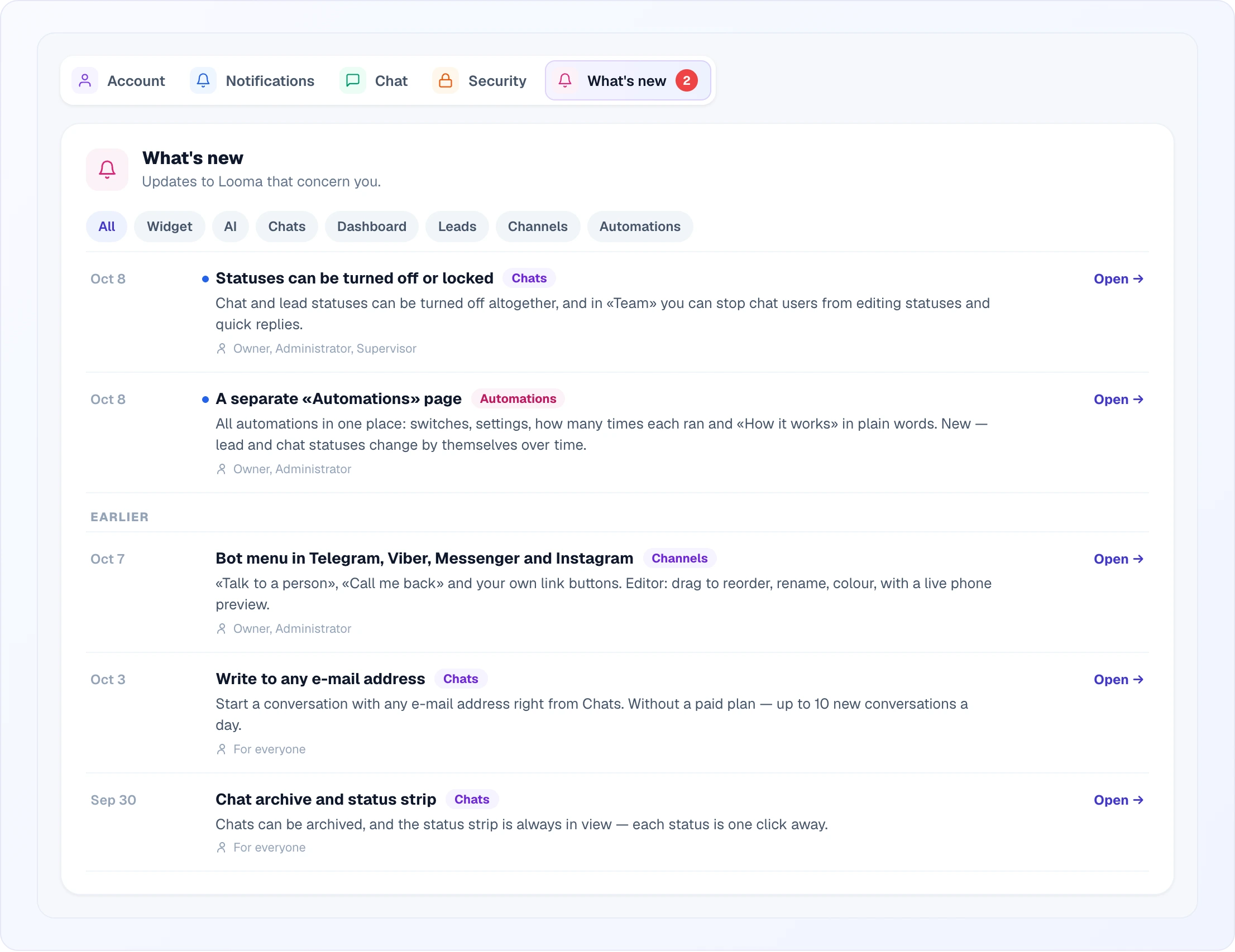
How it works:
- While there are unread updates, a What's new button with a counter appears in the dashboard header. It opens a popup with every unread entry plus the five latest read ones and an All updates in profile → link. The same popup opens from the user menu.
- The profile tab has the full feed: new entries carry a blue dot and come before the Earlier divider, the chips at the top filter by topic, and Show more loads the next 20 entries.
- As soon as you open the popup or the tab, everything shown counts as read — the header button disappears and the counters reset.
Related
- Team — invite operators, roles, and the account-wide work schedule that drives «Mute notifications outside work hours»
- Billing & Payments — subscription, balance, and payment methods
- Credits & Plans — how credits and usage-based pricing work (including AI Magic Helper and the avatar generator)