

Product data sources
Your catalogue is what the AI assistant and the search widget actually work with — titles, descriptions, prices, images, availability and every other attribute. Looma can read it from five different places, and this page covers all of them.
How It Works
- You pick a data source for the site and point Looma at it
- Looma reads the whole catalogue from that source and parses it
- Products are stored in the database with all their attributes
- The catalogue is re-read every day — new products are added, products that disappeared are removed (after a short grace period — see Auto-Sync Schedule), and changed products are updated
- After sync, AI Magic Data processes new/changed products (if enabled)
Supported sources
Pick the source in Site settings → Products → Data source. Each option opens its own panel with a short description, where to find the data, and which fields are required.
| Source | What it is | Refresh |
|---|---|---|
| Google Merchant | Google Merchant XML feed (RSS 2.0 or Atom 1.0) with g: fields | daily |
| YML | YML catalogue (Yandex Market Language). Covers Horoshop exports too — those are standard YML | daily |
| CSV | a plain CSV file, either at a public URL or uploaded from your computer. Delimiter (; or ,) and encoding (UTF-8 or Windows-1251) are detected automatically | daily for a URL; once for an uploaded file |
| Google Sheets | a catalogue in a private Google Sheet, read directly — no need to publish it to the web | daily |
| Direct shop connection | the catalogue is pulled straight from your shop's API, with no feed file at all — see Direct shop connection | daily |
An uploaded CSV does not refresh itself
A file from your computer leaves no address for Looma to come back to, so there is nothing to re-read. Upload a new file whenever the catalogue changes. Every other source refreshes daily on its own.
Setting Up Your Feed
This section covers the URL-based sources. Google Sheets, an uploaded CSV and a direct shop connection are set up differently — see Supported sources and the guides linked from it.
Step 1: Find Your Feed URL
Your e-commerce platform typically generates the feed automatically. Common locations for a Google Merchant feed:
| Platform | Feed URL |
|---|---|
| Shopify | Via Google & YouTube Channel app |
| WooCommerce | Via Product Feed PRO plugin |
| OpenCart | /index.php?route=feed/google_merchant |
| PrestaShop | Via Google Merchant module |
| Magento | Via Google Shopping Feed extension |
| CS-Cart | Built-in Google export add-on |
| Horoshop | Built-in feed generation |
| BigCommerce | Via Channel Manager → Google Shopping |
For detailed instructions on generating feeds for your platform, see the Installation Guides.
Step 2: Add Feed URL in Dashboard
- Go to your site in the Looma Dashboard
- Open the Products tab → Source sub-tab
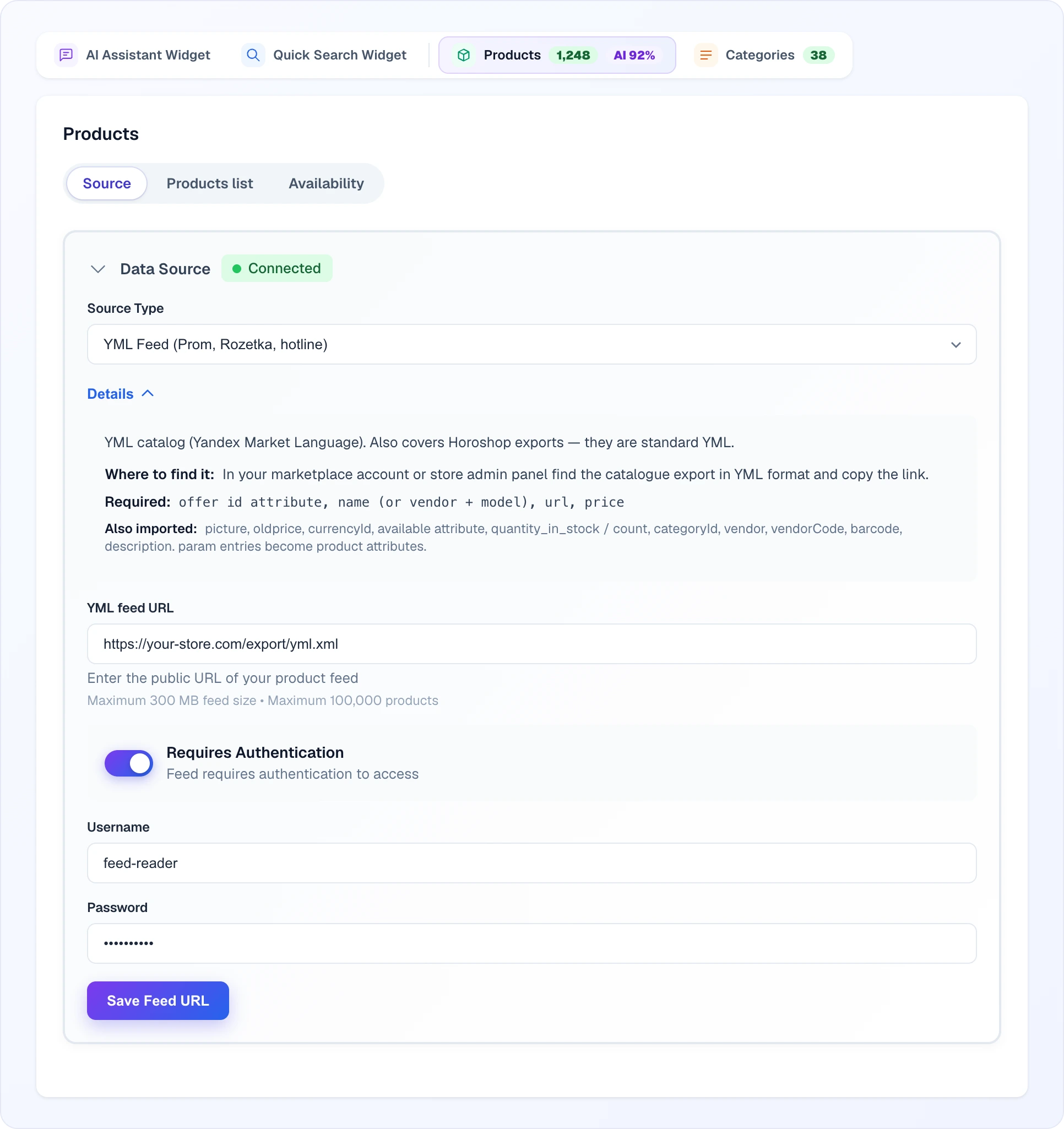
- In the Data Source block, choose the Source Type — see Supported sources
- If needed, expand Details: it briefly describes the format, where to find the link, which fields are required and what else Looma also imports
- Paste your feed URL into the field below (its name follows the type — for example YML feed URL or XML feed URL)
- Click Save Feed URL — Looma checks the link and starts the first import
The limits are shown under the field: a feed of up to 300 MB and up to 100,000 products.
Plan product limit
If your catalogue exceeds your plan's product allowance, the Products tab shows a warning banner with your current limit and an upgrade link. When you run several sites, the banner also explains how the total limit is split across your active sites.
Step 3: Feed Authentication (Optional)
If your feed is protected by HTTP Basic Authentication:
- Enable the Requires Authentication toggle
- Enter the Username and Password
- Click Save Feed URL
This is useful when your feed is not publicly accessible and requires credentials.
Authentication applies to the three URL-based sources — Google Merchant, YML and CSV by URL. A Google Sheet is authorised by sharing it with the Looma service account instead, while an uploaded file and a direct shop connection need no credentials at all.
Feed Fields
The names below are the Google Merchant ones. Other sources carry the same data under their own names — YML uses offer, name, url, price; CSV and Google Sheets use column headers that you map yourself. Each source panel in the dashboard lists what it requires.
Looma extracts the following fields from a Google Merchant feed:
Required Fields
| Feed Field | Description |
|---|---|
id | Unique product identifier |
title | Product name |
link | URL to the product page |
price | Product price with currency |
availability | Stock status (in stock, out of stock, preorder) |
Recommended Fields
| Feed Field | Description |
|---|---|
description | Product description text |
image_link | Main product image URL |
additional_image_links | Additional product images |
sale_price | Discounted price (if applicable) |
brand | Product brand or manufacturer |
gtin | Global Trade Item Number |
mpn | Manufacturer Part Number |
item_group_id | Groups product variants together (e.g., same shirt in different sizes) |
condition | Product condition (new, refurbished, used) |
google_product_category | Google product taxonomy category |
Custom Attributes
Any additional fields in your feed (like size, color, material, gender) are also imported automatically. The AI uses them for smart filtering and search — for example, customers can search by size, color, or material and get accurate results.
Product Variants & Grouping
item_group_id
Products with the same item_group_id are treated as variants of the same product (e.g., a T-shirt in sizes S, M, L, XL). Looma groups them together so customers see one product card with variant selectors instead of multiple separate cards.
One variant is automatically selected as the main product — the first one encountered in the feed (the lowest feed position within the group). The main product appears in search results, while other variants are available through selectors on the product card.
Show All Product Variants
By default, Looma groups variants and shows only the main product in search results. You can change this behavior:
- Off (default) — Only main products appear in search results. Variants are accessible via selectors on the product card. This prevents duplicates and provides a cleaner experience.
- On — All variants appear as separate products in search results. Useful if your variants are significantly different products (e.g., different furniture pieces in a collection).
This setting is available in:
- AI Assistant Widget → Show All Product Variants
- Quick Search Widget → Settings → Show All Product Variants
Availability rules
Lives in Site Settings → Products → Availability as a dedicated sub-tab.
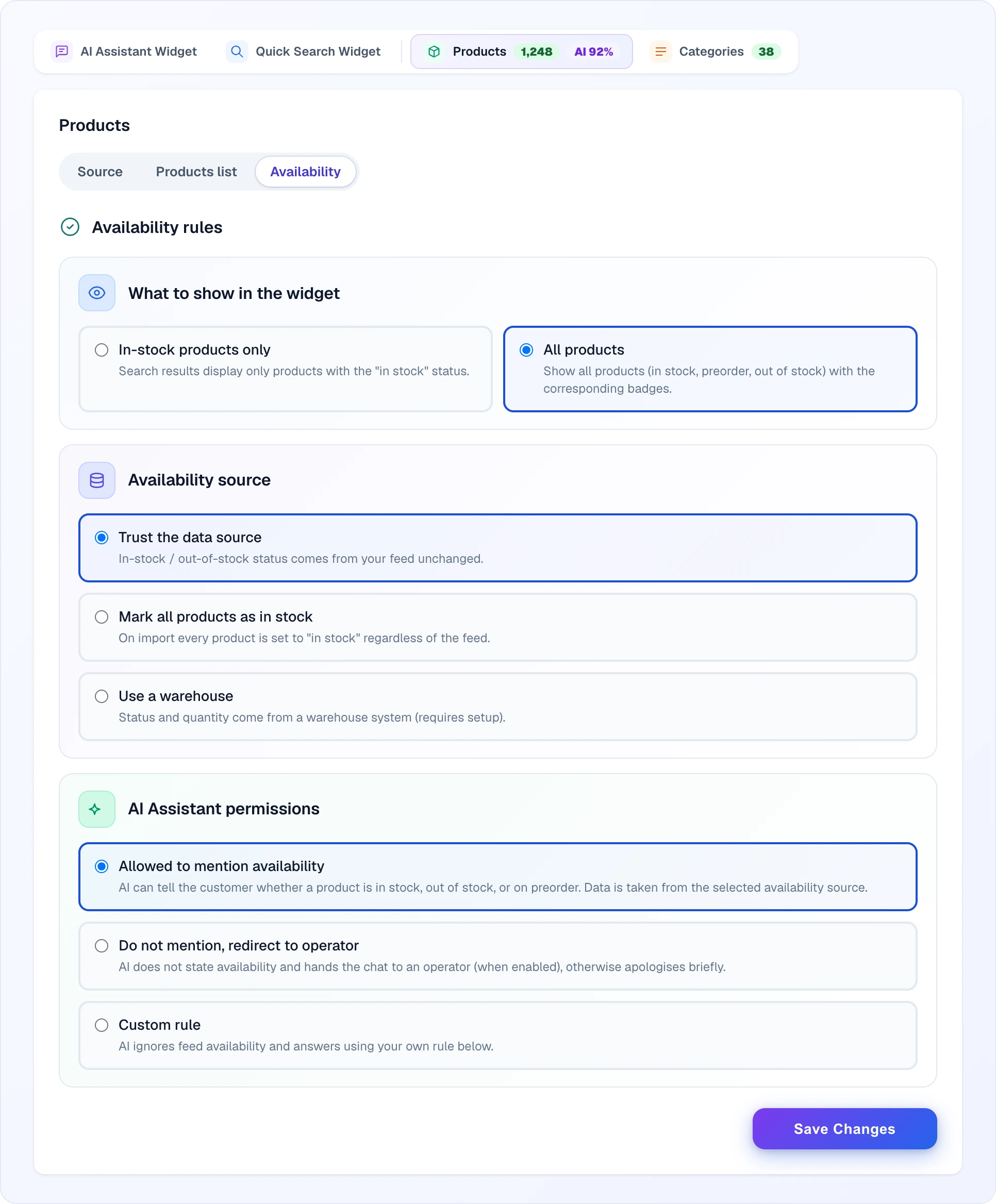
Three sections that work together — pick one option in each. The first two sections affect the entire widget (both Quick Search and AI Assistant); the third governs only the AI's wording.
1. Display rule
Which products are shown in search results and chat suggestions at all.
- In-stock products only — out-of-stock items are filtered out of every search. Customers never see them. Good for catalogues with a wide variant range and reliable stock data.
- All products — every item is in the search index. Customers can see out-of-stock products too. An availability badge is rendered on the card. Pair with the AI permission below so the AI can mark them honestly.
2. Source
Where the platform reads the live availability status from. Used by both the display filter above and the AI when it speaks about stock.
- Trust the data source — read the
availabilityfield from your product feed (Google Merchant standard:in stock/out of stock/preorder). Most stores use this. Status is as fresh as your feed. - Mark all products as in stock — ignore whatever the feed says, treat every item as in stock. Use when your feed is incomplete or you sell only made-to-order and stock isn't a meaningful concept.
- Use a warehouse — read from an external warehouse system (Google Sheet / API mapping). Configure the sheet URL and SKU mapping via the Configure button that appears on the card. Use when stock lives in your back-office system and the feed is just for ads.
This section is greyed out as "Not used" when the AI permission below is set to anything other than Allowed to mention availability — there's no point picking a source if the AI is never going to read it.
3. AI permission — what the AI may say about stock
Three modes — pick one. Affects only AI Assistant replies, not Quick Search.
Allowed to mention availability
The AI reads the status from the chosen source above and tells the customer plainly ("in stock", "out of stock", "available on pre-order"). Pick this when your data is accurate and live — every wrong "in stock" turns into a complaint, so honesty depends on data freshness, not on a setting.
Do not mention, redirect to operator
The AI never says anything about stock. When a customer asks whether an item is available, the AI hands the conversation to a live operator (if handoff is enabled). If handoff is off, the AI apologises briefly. Pick this when:
- Your feed lags behind real stock and the operator has a faster source (warehouse system, supplier call).
- You want every availability question to become a touch-point with a human.
Custom rule
The AI doesn't read availability from the source at all — instead it replies according to a free-form rule you write in the field below this option. Pick this when neither default fits: e.g. "Always say 'in stock, ships in 1–2 days'", or "Say 'check with operator — most items are available on pre-order'", or "For brand X say 'in stock', for the rest say 'pre-order 2 weeks'". The rule is consulted on every availability question instead of the source.
Auto-Sync Schedule
Your catalogue is re-read every day — an uploaded CSV file being the one exception, since there is nothing to come back to:
- New products from the feed are added to the database
- Removed products (no longer in the feed) are deleted, not just hidden. To protect against a temporarily broken or truncated feed, deletion isn't immediate: an absent product is first flagged as pending deletion and only permanently removed after a 3-day grace period. If the product reappears in the feed within that window, it's restored automatically.
- Updated products (price changes, stock changes, description updates) are refreshed
- AI Magic Data automatically processes any new products that need AI descriptions
You don't need to manually trigger syncs — it happens automatically. You choose how often: the Your Data block on the Source sub-tab has an Auto-update selector — every 24 hours (the default) or every hour. An uploaded CSV file has no such selector. To sync right now, click Update Data in the same block.
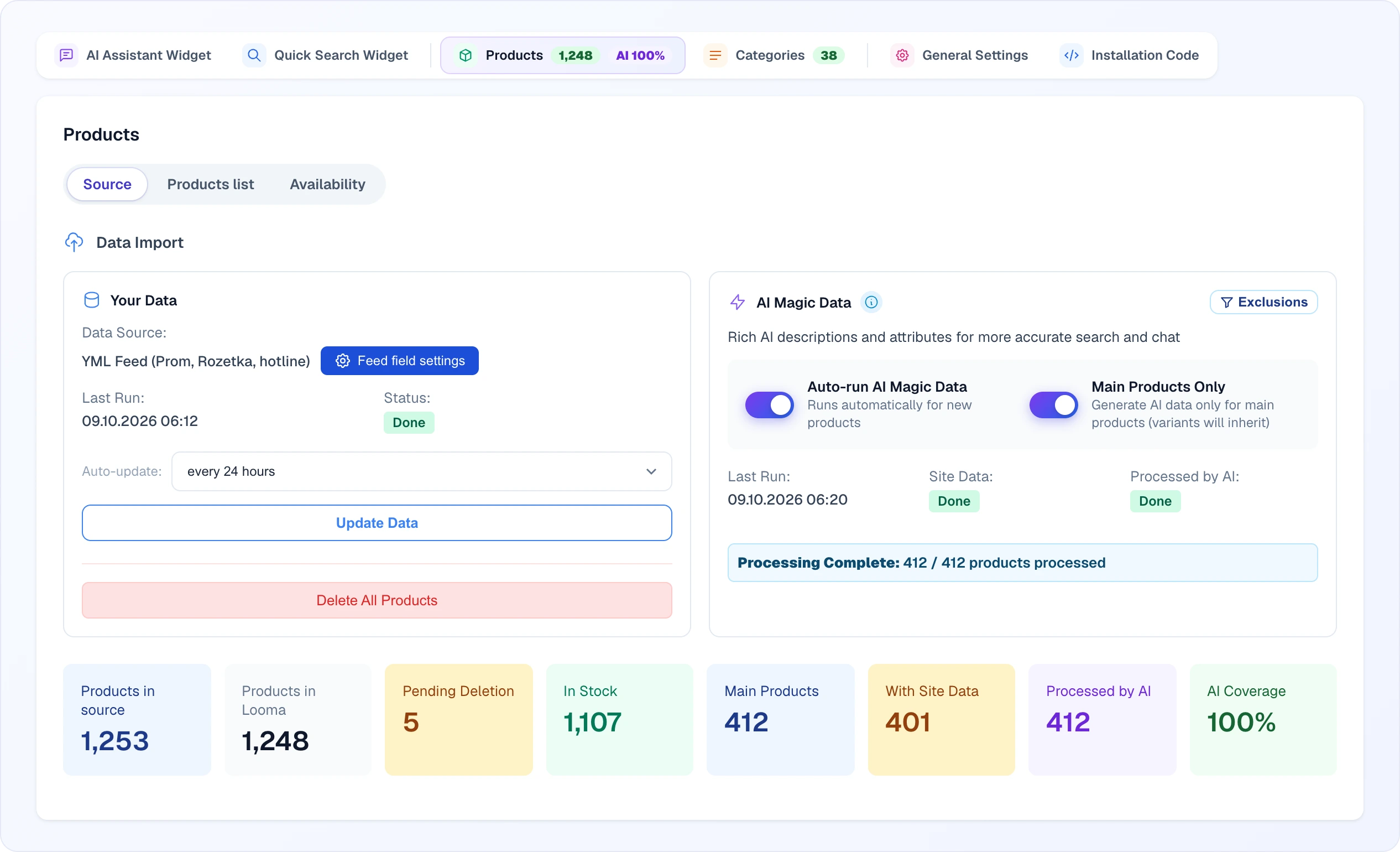
Under the blocks are the catalogue counters:
- Products in source — how many items the feed had at the last parse
- Products in Looma — how many of them were actually stored (can be lower because of the plan limit)
- Pending Deletion — products that left the feed and wait for the grace period to end (the card appears only when there are any)
- In Stock, Main Products — in-stock products and the main products of variant groups
- With Site Data and Processed by AI — how many products have already gone through page rendering and AI processing
- AI Coverage — the share of processed products
Pending-deletion badge
While products are in the 3-day grace window, the products list header shows a Pending deletion badge with the count of feed-absent products awaiting removal. This is your early warning that a feed problem dropped products you didn't mean to lose — fix the feed before the grace period ends and they'll be kept.
Feed Field Mapping
Click the gear button in the Your Data block — Map columns for CSV and Google Sheets or Feed field settings for XML feeds — to configure how Looma interprets your feed data. The button appears after the first import. This opens a settings panel where you can:
Column mapping (CSV and Google Sheets)
A CSV file or a spreadsheet has no standard field names, so once Looma has read the first rows you map the columns yourself: which one holds the ID, the title, the link, the price and the rest. Recognised English and Ukrainian header names are matched for you — you only correct what was guessed wrong. Columns you leave unmapped become product attributes.
XML feeds skip this step: their field names come from the format itself.
SKU Field
Looma needs to identify each product uniquely. Choose how the SKU (article number) is determined:
- AI Magic SKU → Product ID (Recommended) — AI automatically detects the best product identifier from your product page (recommended if your feed doesn't have a clear SKU field)
- Product ID only — Uses the feed's
idfield as the product identifier - Specific feed field — Select a particular field from your feed to use as the SKU
Currency
The currency is automatically detected from your feed's price field (e.g., 199.99 UAH). If auto-detection doesn't work correctly, you can manually set the currency code (USD, EUR, UAH, CZK, etc.).
Shipping and repeated fields
Looma keeps every value of a field that repeats, instead of only the last one:
- Google Merchant: a
<g:shipping>group keeps its parts by name (country, service, price), and several<g:shipping>tags on one product are all kept. In the dashboard and for the AI one shipping option reads as a single line such asUA · Nova Poshta · 320 UAH, several options are separated by;. The shipping price is also indexed, so the AI can answer delivery-cost questions for that product. - YML: delivery is read as well. Each
<delivery-options>option becomes a shipping entry with its cost and days (for example300 UAH,1-3 days); if there are no options,<local_delivery_cost>becomes the shipping price. The<delivery>and<pickup>flags are imported as they are. - YML
<param>: a parameter that appears twice under one name (for example twoКолірvalues) keeps both values.
Existing products pick this up the next time they are synced from the feed.
Custom Fields
If your feed has custom fields with additional product data, you can add descriptions for them here. This helps the AI better understand what each field contains and use it more effectively in search and chat responses.
Processing Pipeline
When you add products to Looma, they go through a clear sequence of steps:
Step 1: Load from Feed
Products are imported from the data source you configured. All standard fields (title, price, images, availability, etc.) and custom attributes are stored.
Step 2: Render Product Pages
Looma visits each product's page on your website and downloads the full content — detailed descriptions, specification tables, images, and any additional information not available in the feed.
Step 3: AI Magic Data
Using the combined data from the feed and the product page, AI generates descriptions, extracts attributes, and upgrades the search index. Products become searchable as soon as they're imported (Looma builds a lightweight vector straight from the feed), so search and the AI assistant work right away — this step raises the quality of those results rather than being a prerequisite for them.
All three steps happen automatically during initial setup and daily sync. You don't need to trigger them manually.
Browsing the Products List
The Products → Products list sub-tab shows your catalogue with tools to find and inspect individual products.
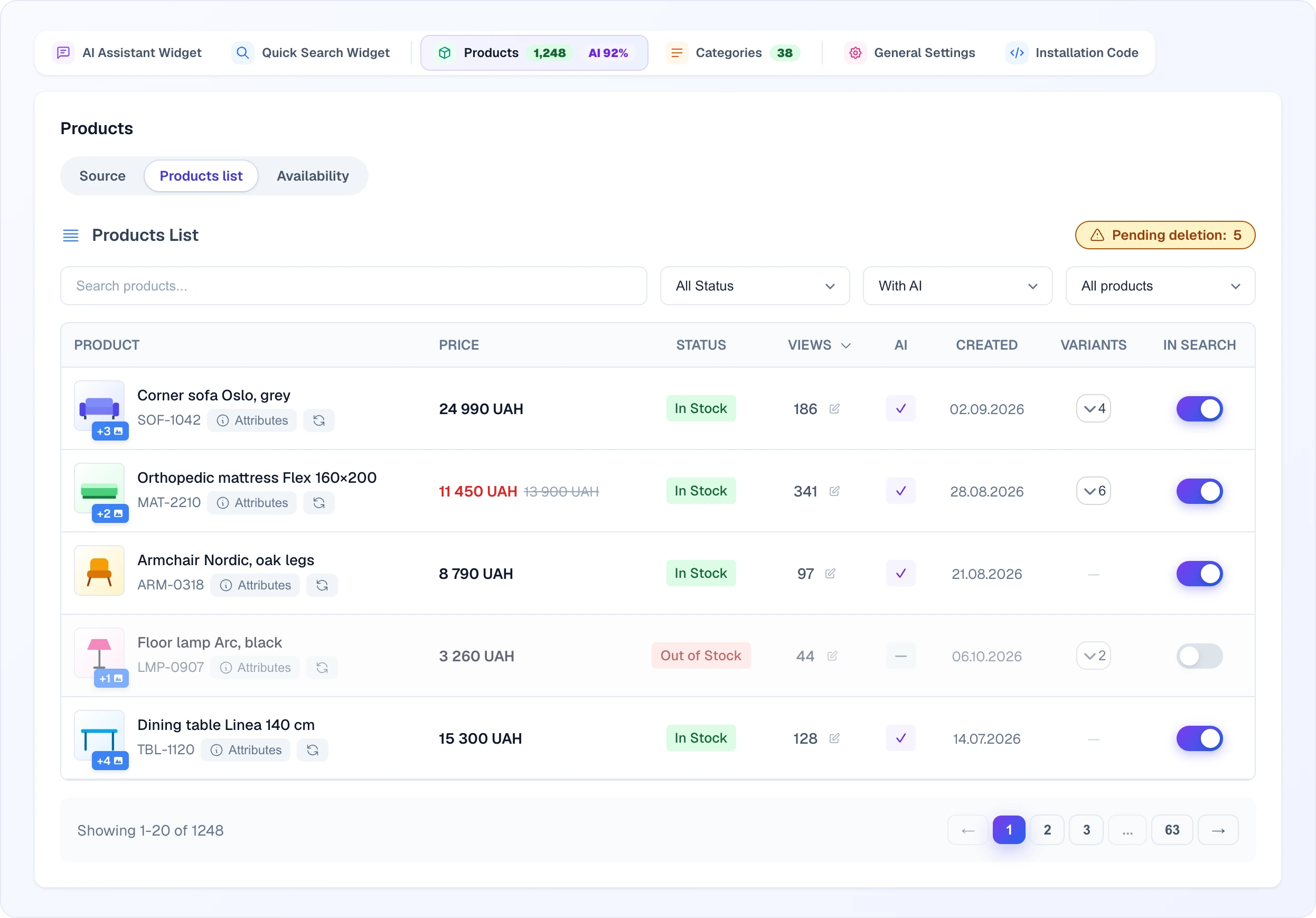
Search, Filter, and Sort
- Search — type into the search box to find products by title.
- Filters — three dropdowns narrow the list: availability (In stock / Out of stock), AI status (With AI / Without AI), and search visibility (Only in search / Only excluded).
- Sortable columns — click a column header (product, price, status, views, AI, created, variants) to sort by it; click again to reverse the direction.
Views Column
Each product shows a Views count. This number is editable: click the pencil icon next to it, enter a value, and save. Adjusting views lets you influence how popularity factors into search ranking — useful for seeding new products or correcting imported counts.
Image Gallery
Click a product's thumbnail to open the image gallery. A small badge on the thumbnail (e.g. +3) indicates how many additional images that product has beyond the main one.
Managing Individual Products
Refresh a Single Product
If you've updated a product on your website (changed description, added photos, updated specs), you can refresh just that product without reloading the entire catalog:
- Go to the Products tab → Products list
- Find the product in the list
- Click the refresh button (circular arrow icon) next to the product
This will re-download the product page, regenerate the AI description, and update the search index — all in one step. It costs about the same as processing one product (~0.6 credits). This is useful when you want to quickly update a specific product without waiting for the daily sync.
Edit Product Attributes
You can manually edit the AI-extracted attributes of any product:
- Find the product in the products list
- Click the attributes button (list icon) to open the attributes modal
- You'll see all AI-generated attributes (product type, size, color, material, etc.)
- Click on any attribute value to edit it
- Save your changes
This is useful when the AI incorrectly identified an attribute — for example, if it detected the wrong product type or color. Your manual edits will be preserved and used in search and chat.
Exclude a Product from Search
You can disable individual products so they don't appear in search results or chat recommendations, even if they're marked as "in stock" in your feed:
- Find the product in the products list
- Click the toggle switch next to the product to exclude it
When you exclude a product:
- It won't appear in search results
- The AI assistant won't recommend it to customers
- If the product has variants, all variants are excluded together
- The product remains in your database — you can re-enable it at any time
This is useful for products you don't want to promote (discontinued items, test products, products with issues), without having to remove them from your feed.
Reload All Products
Click Update Data (on the Source sub-tab) to re-import your entire feed. This will:
- Fetch the latest version of your feed
- Add new products
- Update changed products
- Remove products that are no longer in the feed (immediately on a manual reload; the daily sync applies the 3-day grace period described above)
Delete All Products
If you need to start fresh (e.g., changed your feed URL completely or want to reconfigure from scratch):
- Click Delete All Products in the Your Data block
- Confirm the action
- All product data, AI descriptions, and search index will be removed
- You can then set up a new feed URL and reload
WARNING
Deleting all products is irreversible. AI Magic Data will need to re-process all products from scratch, which consumes credits.
Troubleshooting
Products not loading
- Verify the feed URL is accessible (try opening it in a browser)
- Check if the feed requires authentication
- Make sure the file matches the source type you picked — a YML catalogue selected as Google Merchant will not parse
- On Google Sheets, check that the sheet is shared with the Looma service account
- Check the Your Data block for error messages
Missing product data
- Some fields may be missing in your feed — add them through your e-commerce platform's feed settings
- The
item_group_idfield is important for proper variant grouping - Image links should be absolute URLs (starting with
https://)
Products showing wrong prices
- Check the currency setting in Feed field settings (or Map columns)
- Verify that prices in the feed include the correct currency code
- If you have
sale_price, Looma will show the sale price when available
Feed sync issues
- Make sure your feed URL is stable and doesn't change
- If you change the feed URL, click Update Data to trigger a fresh sync
- Large feeds (50,000+ products) may take several minutes to process
Next Steps
- AI Magic Data — how AI processes your products
- AI Assistant — configure the chat widget
- Quick Search — set up the search widget