

Lead Collection
Lead collection allows the AI to automatically gather customer contact information and create orders (leads) during chat conversations. When a customer expresses interest in buying a product, the AI naturally asks for their details and saves everything as a lead in your dashboard.
How It Works
Customer: "I want to order this mattress"
     ↓
AI: "Great choice! Could you share your phone number for the order?"
     ↓
Customer: "0501234567"
     ↓
AI: "Thank you! And your email?"
     ↓
Customer: "[email protected]"
     ↓
✅ Lead created:
   - Product: Mattress XYZ
   - Phone: 0501234567
   - Email: [email protected]
   - Lead text: "Customer wants to order Mattress XYZ, size 160x200"
The AI collects fields one by one naturally in conversation — it doesn't present a form. This feels like talking to a real consultant, not filling out a checkout page.
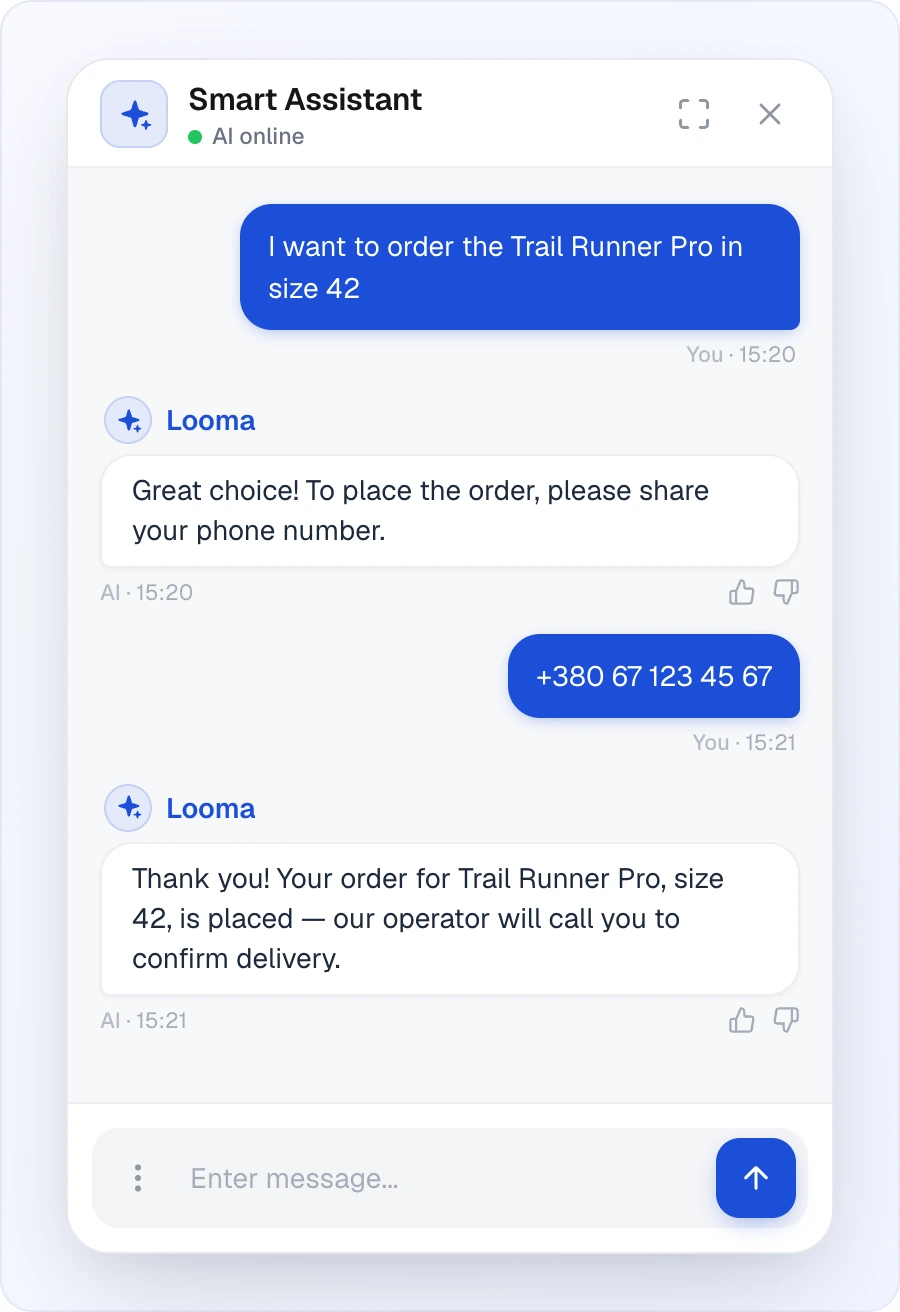
If this visitor's email or phone is already known (they left it earlier), the AI won't ask for it again — only for the fields that are still missing. Custom fields are always asked.
When Leads Are Collected
The AI creates leads in these situations:
- Customer wants to order — says "I want to buy this", "How do I order?", "I'll take it"
- Customer clicks "Order" button — on a product card in the chat
- Customer asks to be contacted — "Call me back", "I need a consultation"
- Customer provides contact info proactively — shares phone/email during conversation
The AI is smart about timing — it won't ask for contact info during a casual browsing conversation. It waits until the customer shows buying intent.
Configuring Fields
Go to Site Settings → AI Assistant → Settings tab and find the purple AI Order Processing block. Switch it on and click the Settings button next to the toggle. In Direct Chat mode the block is hidden unless "AI answers outside working hours" is on.
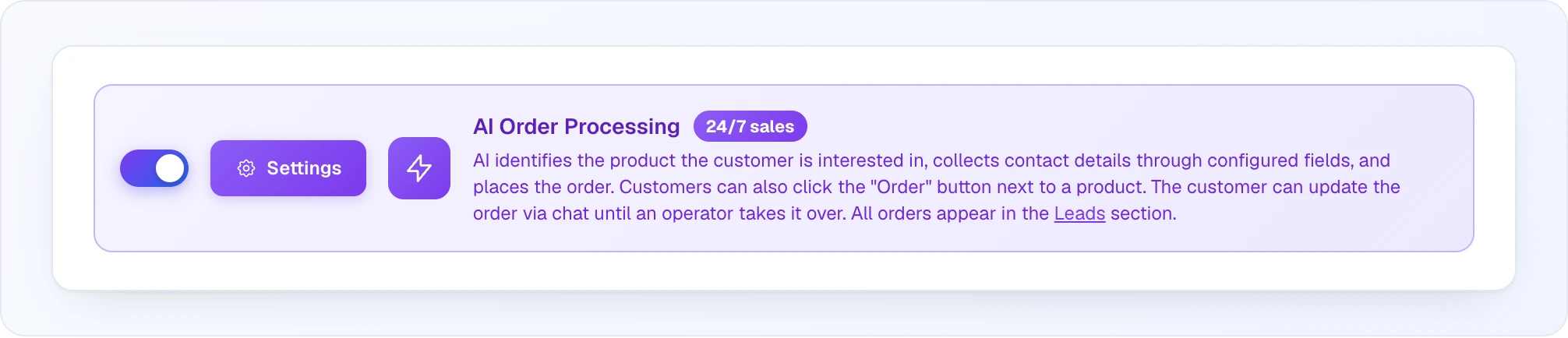
The button opens the "Lead Collection Settings" window, where each field has its own toggle:
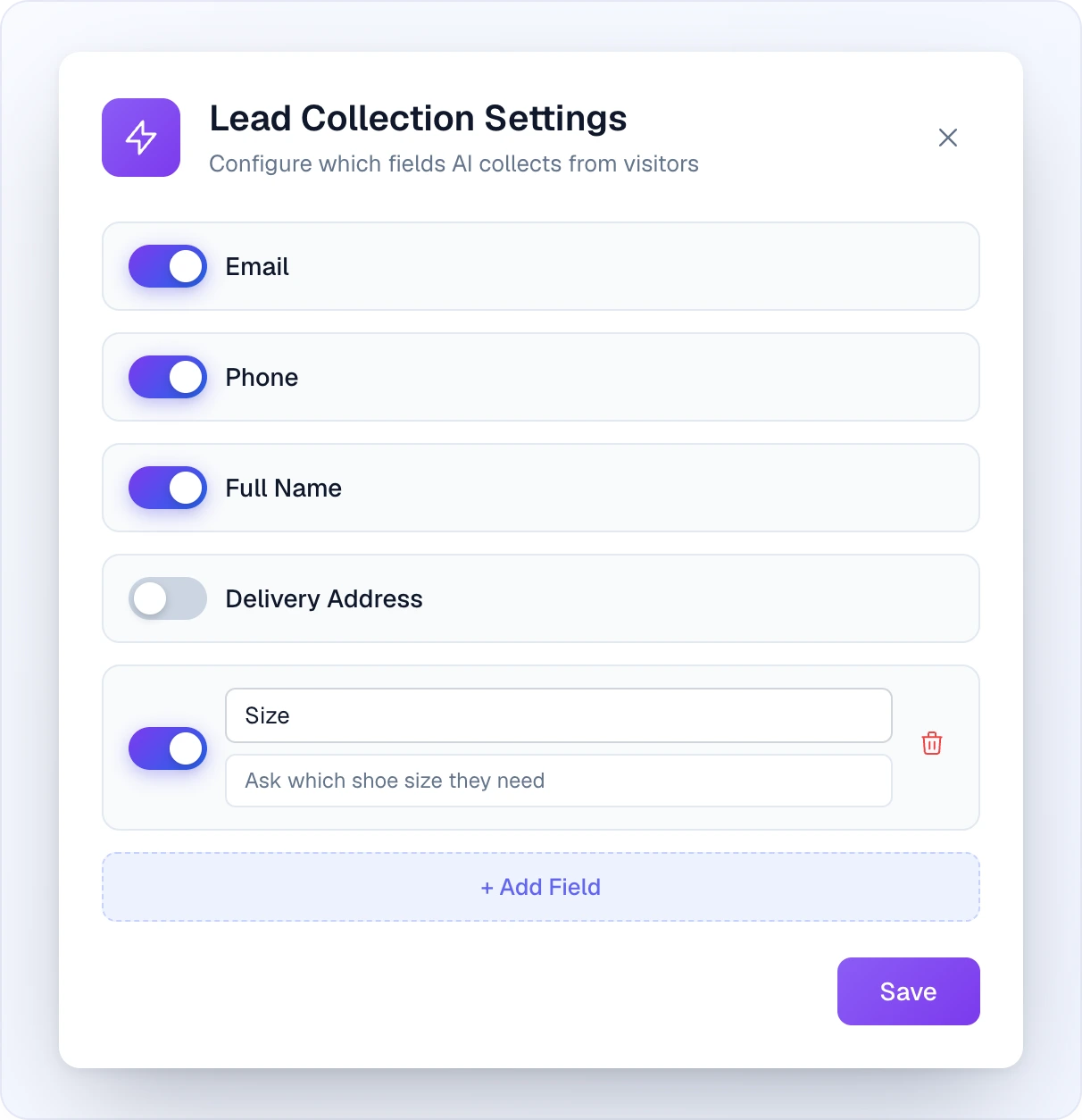
Available Fields
| Field | Description | Notes |
|---|---|---|
| Customer's email address | Recommended to keep enabled | |
| Phone | Phone number | Most common field for orders |
| Full Name | Customer's full name | Optional but recommended |
| Address | Delivery address | Useful for physical goods |
| Custom fields | Any additional data | Add with name + AI instruction |
Email and Phone — Always One Contact Channel
We recommend keeping the email field enabled. It ensures you always have a way to contact the customer, even if they don't answer the phone. You can disable it if your workflow doesn't require email — but Email and Phone are paired: a lead must always have at least one contact channel, so turning one off automatically turns the other on. You can't have both disabled at the same time.
Custom Fields
You can add any custom field:
- Click + Add Field
- Enter the field name (what the customer sees)
- Optionally add an instruction for the AI — how to ask for this field
Examples:
- Field: "Company name", Instruction: "Ask if this is a business order"
- Field: "Preferred delivery time", Instruction: "Ask when they'd like to receive the order"
- Field: "Size", Instruction: "Ask what size they need for the product"
How Leads Appear
In the Dashboard
All leads appear in the Leads section of your dashboard:
- Lead text — AI-generated summary of what the customer wants
- Products — linked products the customer discussed
- Contact fields — all collected information
- Status — New → In Progress → Done / Rejected
- Chat link — direct link to the full conversation
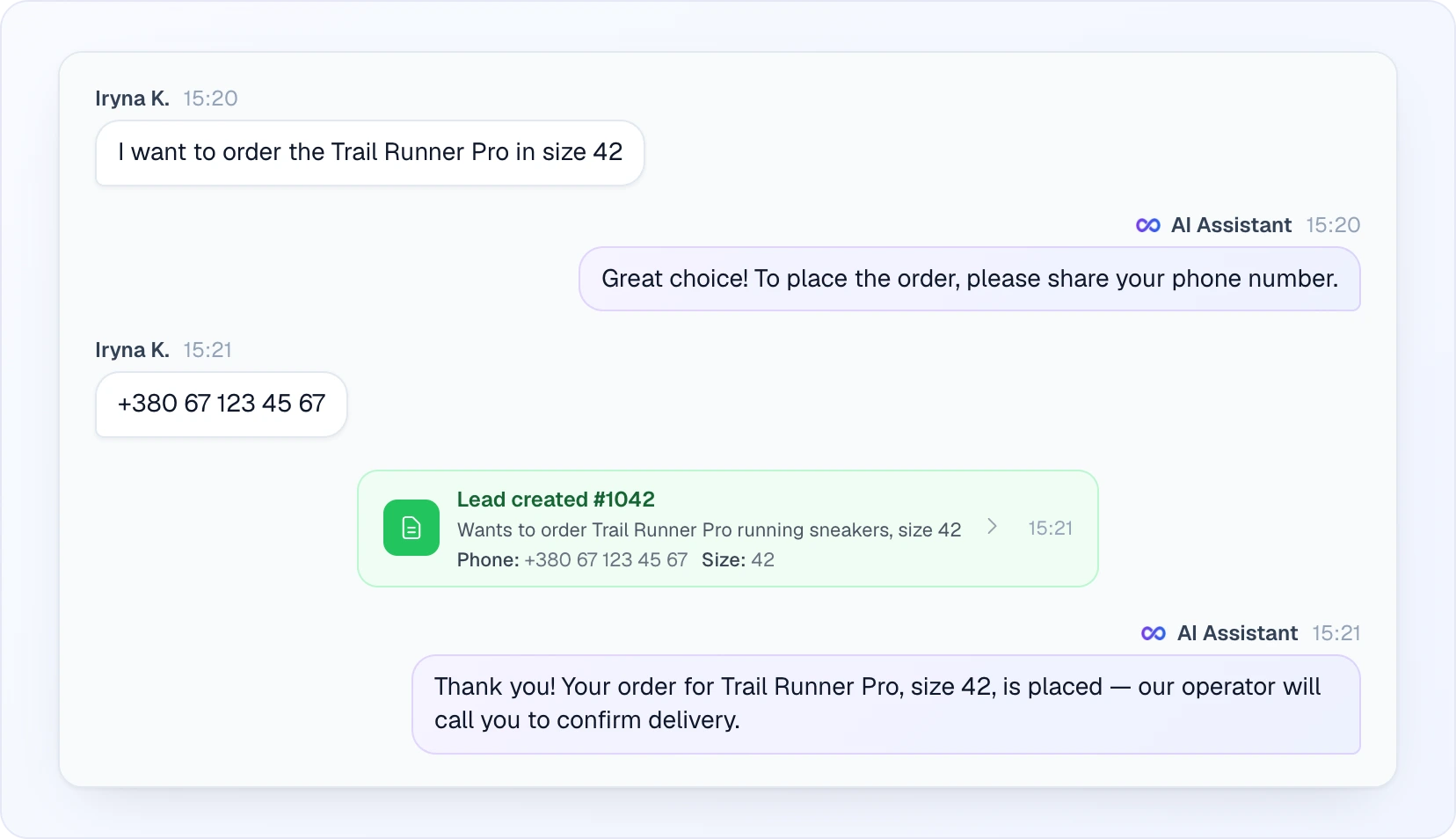
In the conversation itself (the Chats section) a green Lead created #… card appears the moment the lead is created, with a short summary and the collected fields; clicking it opens the lead. If the customer later adds to the order, a blue "Lead updated" card appears.
Notifications
When a new lead is created:
- A notification appears in the dashboard
- If you have Telegram/Viber connected, you get a push notification
- Email notifications can be configured
Lead Lifecycle
 ┌─────────┐     ┌──────────────┐     ┌──────┐
 │   New   │ ──→ │ In Progress  │ ──→ │ Done │
 └─────────┘     └──────────────┘     └──────┘
      │
      └──────────────────────────────→ Rejected
Statuses
- New — just created by AI, nobody has looked at it yet
- In Progress — an operator has taken the lead and is working on it
- Done — order completed or customer contacted successfully
- Rejected — lead is invalid, duplicate, or customer changed their mind
Comments and History
Each lead has:
- Comments — operators can leave notes (e.g., "Called, customer will pick up tomorrow")
- History — automatic log of all status changes with timestamps
Updating Leads from Chat
Customers can update their order through the chat:
- Add products — "I also want to add a pillow to my order"
- Change details — "Actually, my phone is 0507654321"
- Add information — "My name is John Smith"
The AI automatically updates the existing lead with new information. This continues until an operator marks the lead as "In Progress" — after that, the lead is considered taken and the AI creates a new lead for new orders.
Lead Collection Modes
How leads are collected depends on your Chat Mode:
AI Only Mode
The AI collects all leads by itself. Since there are no operators, lead collection is the primary way customers place orders. Make sure it's enabled!
Full Mode — On Request
The AI collects leads when customers want to order. If the customer asks for an operator, they're transferred — the operator can then collect order details manually in the chat.
Full Mode — Proactive ("Operator priority")
During working hours the AI does not collect leads — it offers the customer an operator instead. Leads are collected only outside the work schedule. If no work schedule is enabled, leads are not collected in this mode at all — choose "On customer request + lead collection" or set up a schedule.
Tips
- Keep fields minimal — the fewer fields you require, the more leads you'll get. Phone + Email is often enough.
- Don't ask for address too early — address is a high-friction field. Consider collecting it only if needed for delivery estimation.
- Review leads daily — respond quickly while the customer's interest is fresh.
- Use custom fields wisely — each additional field reduces conversion. Only add fields you truly need.
Next Steps
- Chat Modes — configure how AI and operators work together
- Chats — manage customer conversations
- Channels — get lead notifications via Telegram/Viber