

Overview
Looma is an AI-powered platform designed specifically for e-commerce stores. It provides two main products — an AI Chat Assistant and an AI-Powered Search — that help your customers find products, get answers to their questions, and place orders directly through conversation.
What Looma Does
AI Chat Assistant
A smart chat widget that lives on your website and acts as a virtual sales consultant:
- Answers product questions — customers can ask about sizes, materials, colors, specifications, and get instant accurate answers based on your actual product data
- Recommends products — understands customer needs and shows relevant products with images, prices, and direct links
- Collects orders (leads) — when a customer wants to buy, the AI collects their contact information (phone, email, name) and creates a lead in your dashboard
- Connects to operators — if the customer needs a human, the AI transfers the chat to your team. You can respond from the Looma dashboard, Telegram, Viber, or other connected channels
- Works 24/7 — answers customer questions at any time, even when your team is offline. Collects leads around the clock
- Speaks any language — automatically detects the customer's language and responds in the same language
AI-Powered Search
A search widget that can replace your store's default search:
- Understands meaning — searches by meaning, not just keywords. "Comfortable chair for working" finds office chairs even if the word "comfortable" isn't in the product title
- AI synonyms — knows that "couch" = "sofa", "sneakers" = "running shoes", "fridge" = "refrigerator"
- Typo tolerance — finds products even when customers make spelling mistakes
- Smart filters — AI extracts product attributes (size, color, material, brand) and creates dynamic filters automatically
- Category search — shows relevant product categories alongside search results
- Fast and visual — instant results with product images, prices, and availability badges
How the System Works
Looma is built on three layers:
Layer 1: Product Data
Your products come from a Google Merchant XML feed — the standard format used by Google Shopping. Most e-commerce platforms (Shopify, WooCommerce, OpenCart, PrestaShop, Magento, etc.) can generate this feed automatically or via plugins.
The feed is synced every day — new products are added, removed products are cleaned up, prices and availability are updated.
Requirement
A Google Merchant product feed is required for Looma to work. Without it, the system has no product data to search or chat about. If your store doesn't have one, check the Installation Guides for your platform — most have plugins or built-in tools to generate one.
Layer 2: AI Processing (Magic Data)
After products are loaded from the feed, Looma's AI processes each product:
- Visits your product pages — downloads the full product page from your website to get detailed descriptions, specifications, and images that may not be in the feed
- Generates AI descriptions — creates rich, structured descriptions optimized for search and understanding
- Extracts attributes — identifies product type (mattress, chair, phone), size, color, material, brand, and dozens of other characteristics
- Builds search index — prepares processed data so the AI can instantly find relevant products for any customer query
This process is automatic and runs in the background. For a catalog of 1,000 products, initial processing takes about 15–30 minutes.
Layer 3: Intelligent Interaction
When a customer interacts with the chat or search widget:
- Chat: The AI analyzes the customer's message, understands their intent, searches your product catalog, and generates a personalized response with product recommendations
- Search: The AI understands what the customer is looking for and finds the most relevant products, even when the exact words don't match
Both systems use the same processed product data, so the quality of results depends on having a good product feed and allowing AI Magic Data to fully process your catalog.
Getting Started
New accounts start with 200 free credits for testing, so you can run the chat, search, and AI processing right away before choosing a plan.
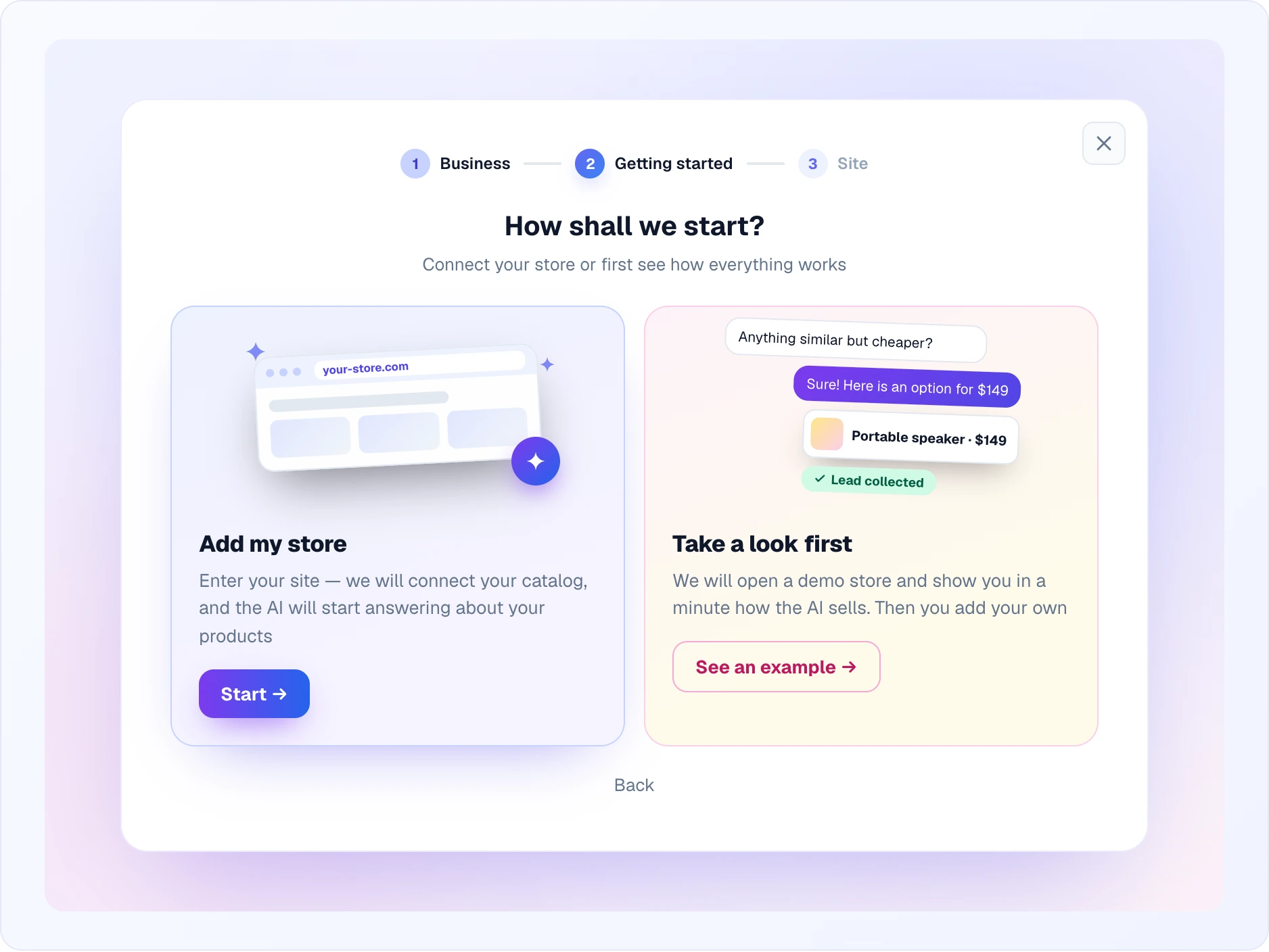
The first time you open the dashboard with no site yet, a short onboarding walks you in:
- Welcome — Looma greets you by name and asks whether you run an online store. Answer Yes, continue to go on. No, I have a different business ends the flow: Looma is built for online stores and is not useful without a product catalog; you can leave a short note about what you would want the AI assistant to do.
- How shall we start? — choose Add my store (enter your site and Looma connects your catalog) or Take a look first (See an example): Looma creates a Demo store with sample products and dialogs so you can see how the AI sells before adding your own.
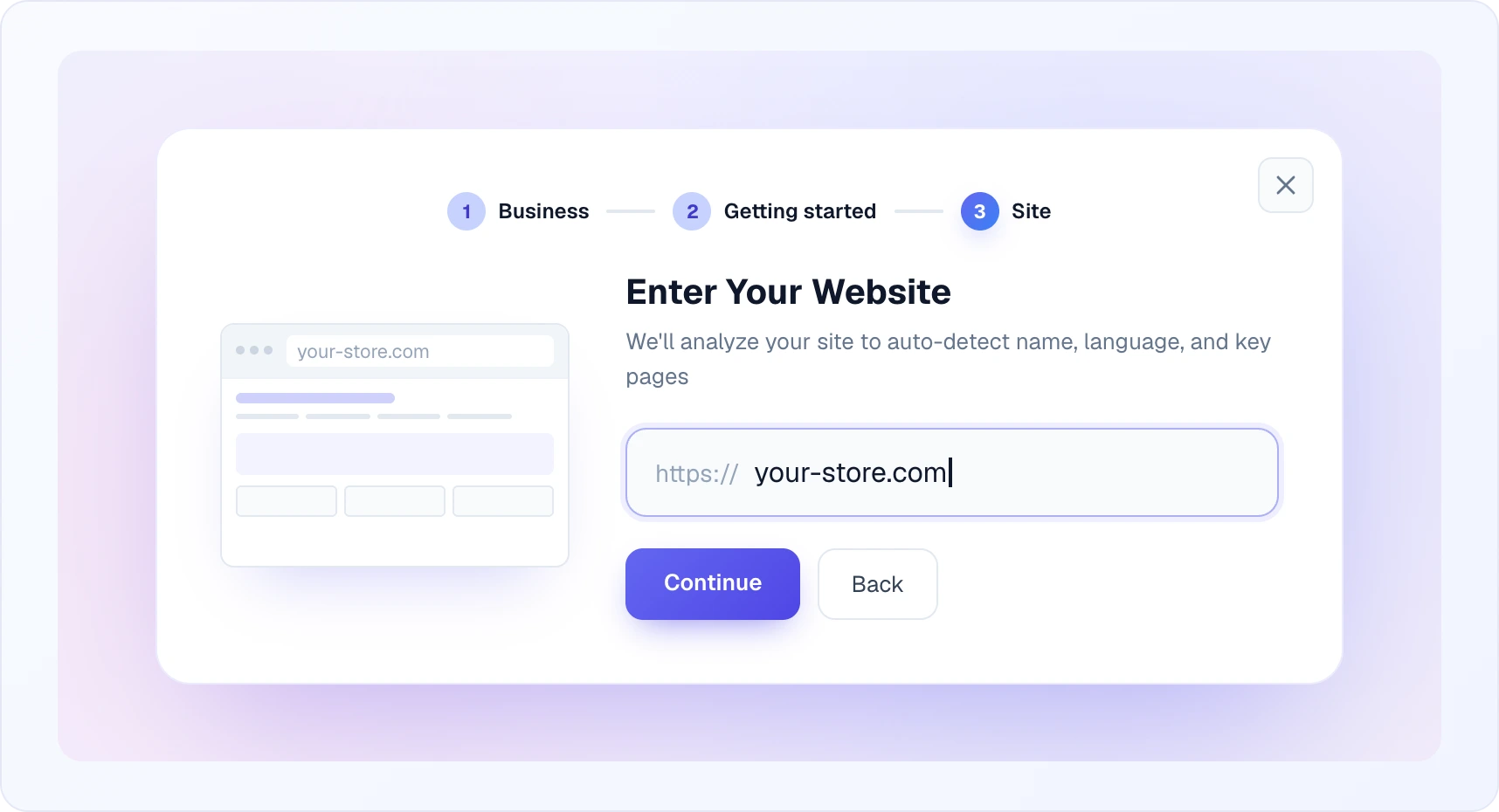
- Site — for your own store, enter the website address; Looma detects its name and language and looks for service pages.
If the analysis finds useful service pages (delivery, payment, returns), a single Service Pages step offers to add them to the Knowledge Base; skip it and add pages later from the Knowledge Base tab. After that you land on the Products tab, where you connect the feed — it is not mandatory to finish onboarding, you can add it later.
The demo store
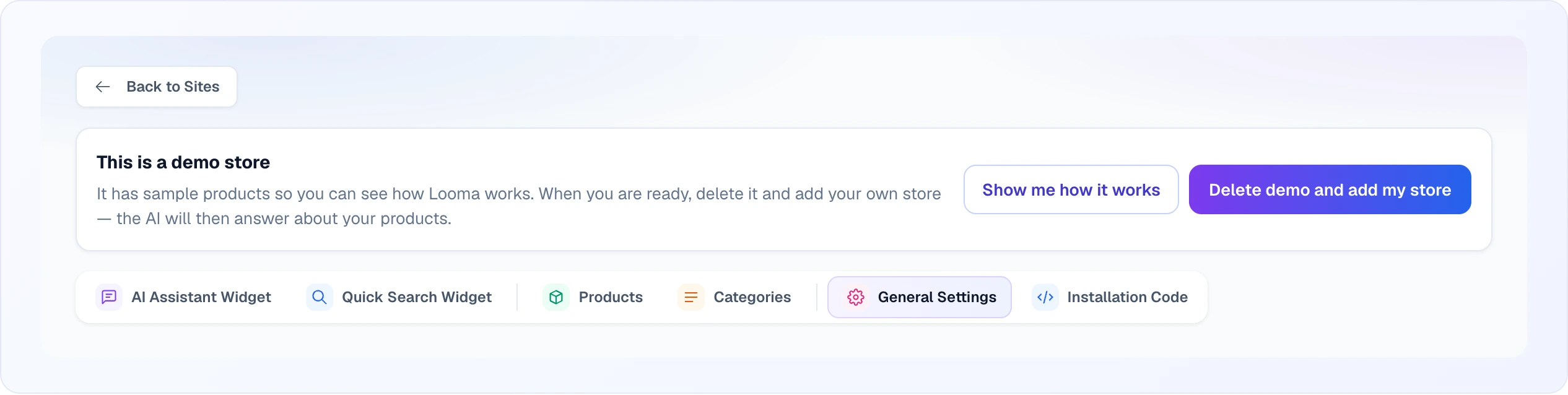
The demo store has ready sample products processed by AI Magic and four sample dialogs (a product with a cheaper alternative and a lead, a gift request with a lead, a comparison, and an operator request with a brief). A banner on the site settings page explains it is a demo and offers Delete demo and add my store; an own store can be added only after the demo is deleted. If you do not connect a real data source or domain, the demo is removed automatically after 14 days; you get one warning email on day 7. Connecting a real source turns it into a normal site.
Dashboard tour
A 14-step tour shows where products, the knowledge base, categories, AI settings, widget style, the chat and search links, installation, chats, leads, team and help are. It starts once on its own right after the site is created. You can run it again any time from the Dashboard tour card on the General tab (Start the tour), or from the Show me how it works button on the demo banner.
Step 1: Create an Account
- Go to app.looma.chat/register
- Enter your name, email, and password
- Verify your email address — you'll receive a confirmation link
- After verification, you'll be redirected to the dashboard
Step 2: Add Your Website
- On the Sites page, click Add Site
- Enter your store's domain (e.g.,
your-store.com) — thehttps://prefix is already there, and pasting a full link is fine - Looma analyzes the domain and automatically detects your site name and language, finds your favicon, and scans available pages via sitemap (used later for category search). Prefer to enter the details yourself? Switch to manual entry.
No "Add Site" button? It is hidden when your plan's site limit is reached or the subscription has expired — it is replaced by an Upgrade plan to add a site button that takes you to Billing. Adding a site is not restricted by role: administrators (not only the Owner) can add sites, and they belong to the owner's account. If you can't add another site, you need a higher plan, not a different role.
Step 3: Connect Your Product Feed
- Go to the Products tab in your site settings
- In Data Source → Source Type, select Google Merchant Feed (YML, CSV, a Google Sheet or a direct shop connection are also available)
- Enter your XML feed URL (e.g.,
https://your-store.com/feed.xml) - Click Save Feed URL
- Your products will be imported within a few minutes depending on catalog size
Don't know your feed URL? Check the Installation Guide for your specific platform.
Step 4: Wait for AI Processing
After products are loaded, AI Magic Data starts automatically:
- Product pages are rendered and analyzed
- AI descriptions and search index are generated
- Progress is shown on the Products tab
For small catalogs (under 1,000 products), this takes 15–30 minutes. Larger catalogs may take longer.
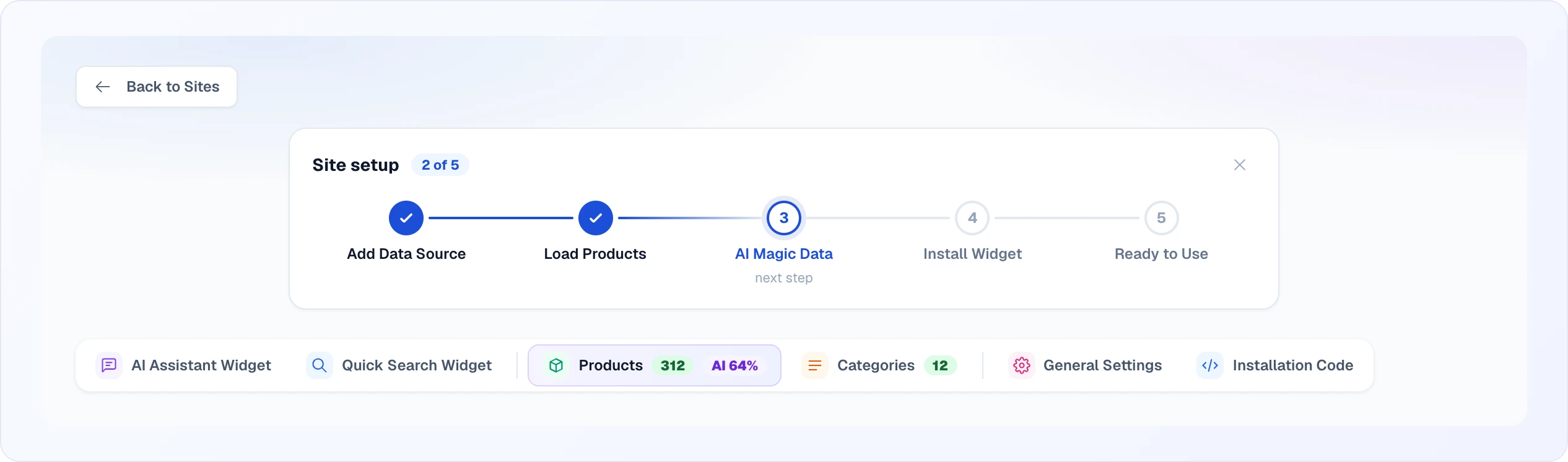
Above the site settings tabs there is a Site setup strip with five steps: Add Data Source, Load Products, AI Magic Data, Install Widget and Ready to Use. Finished steps get a check mark, the next one is highlighted and labelled next step, and the counter shows how many are done (for example, 2 of 5). The cross hides the strip. The Products tab itself carries the product count and the share processed by AI (AI 64%).
Step 5: Install the Widget
Add a single script tag to your website. Go to the Installation Code tab in your site settings, copy the code, and paste it into your site's <head> section:
<script>
(function(d) {
    var s = d.createElement('script');
    s.defer = true;
    s.src = 'https://widget.looma.chat/loader.js?token=YOUR_SITE_TOKEN';
    if (d.head) d.head.appendChild(s);
})(document);
</script>
The Installation Code tab also offers a Download PDF button (export the step-by-step instructions to share with a developer) and a Google Tag Manager option for sites where you can't edit the HTML directly. For detailed instructions for your specific platform, see the Installation Guides section in the sidebar.
Test Before Installing
You can test the widgets without installing anything on your site:
- Chat:
https://widget.looma.chat/chat.html?token=YOUR_SITE_TOKEN - Search:
https://widget.looma.chat/search.html?token=YOUR_SITE_TOKEN
Replace YOUR_SITE_TOKEN with your actual token from the dashboard.
Step 6: Configure and Customize
Once the widget is installed, you can customize everything:
- AI Assistant — chat behavior, welcome messages, AI model, operator mode
- Quick Search — search widget, layout, filters, categories
- Lead Collection — what data to collect from customers
- Channels — connect Telegram, Viber, Facebook, Instagram
- Team — invite team members and set roles
Dashboard Overview
After setup, your Looma dashboard gives you:
- Overview — key metrics, recent activity, balance
- Chats — all customer conversations (AI and human), real-time messaging
- Leads — collected customer orders and contact information with status tracking
- Analytics — detailed statistics on conversations, searches, and conversions
- Site Settings — products, AI configuration, widgets, channels, team
Managing your sites
The Sites page (in the sidebar) lists every site on your account as a card, with a counter of used sites against your plan limit (used / allowed, or ∞ when unlimited). You can run multiple sites from a single account — how many depends on your plan, and the page tells you when a site exceeds your plan limit or prompts you to upgrade to add more.
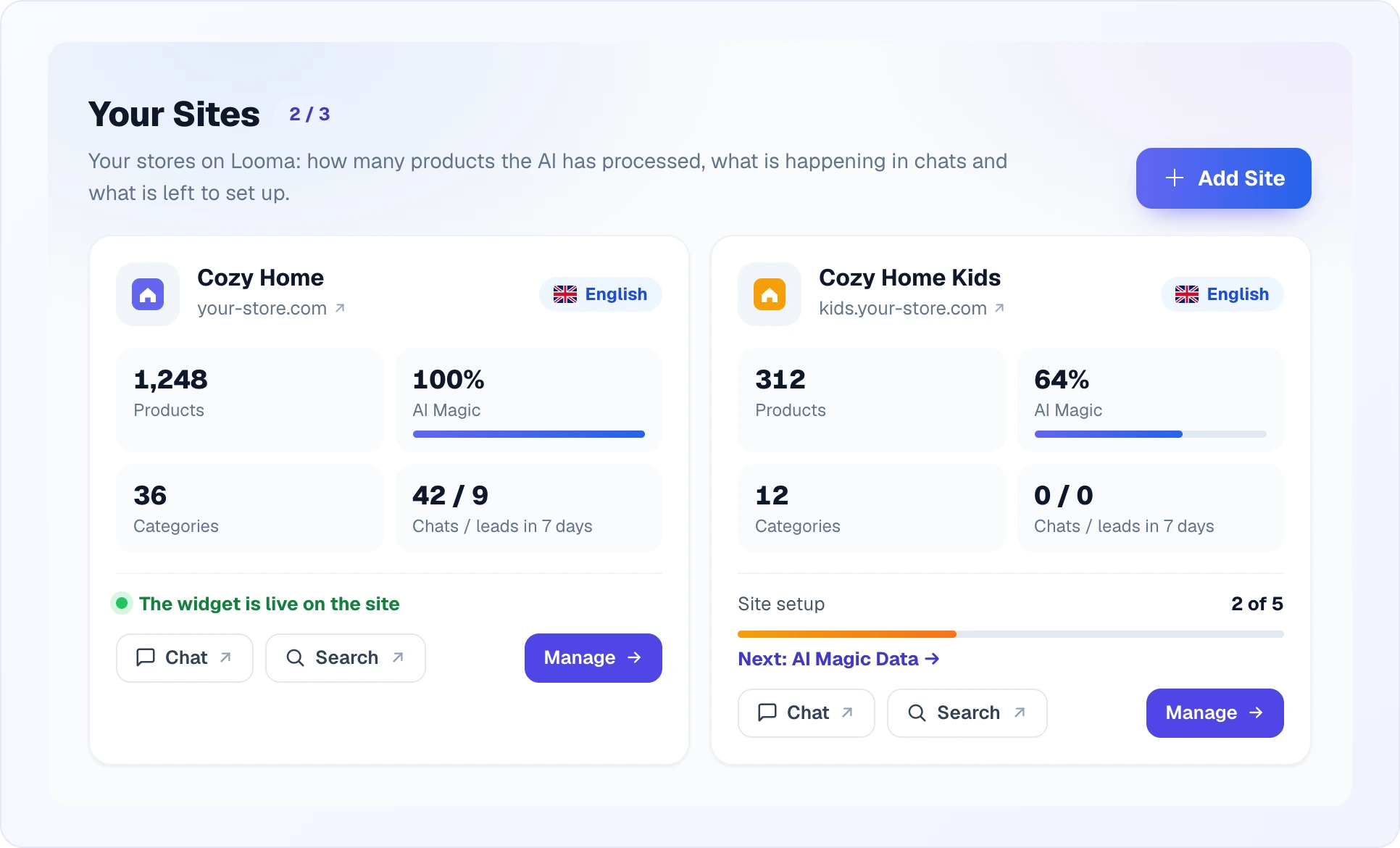
Each card shows:
- the site name, domain, favicon and a language flag with the site language. The demo store has the Looma mark instead of a favicon;
- four numbers: Products, AI Magic (the share of products the AI has processed), Categories and Chats / leads in 7 days;
- Site setup progress with the Next step (Add Data Source, Load Products, AI Magic Data, Install Widget, Ready to Use) and a link to it; once everything is done the card says The widget is live on the site;
- three buttons: Chat and Search open the live widgets in a new tab, Manage opens the full site settings.
A site over your plan limit shows a Blocked badge, and an expired subscription shows Expired; both link to Billing. Site name, language, feed URL and widget options are changed inside the site's settings tabs (General, Products, AI Assistant, Quick Search, Installation Code, and so on).
Pricing
Looma uses a credit-based system:
- AI Chat — Looma AI Start (based on GPT-4.1) — ~2 credits per message
- AI Chat — Looma AI Max (based on GPT-5.1) — ~5 credits per message
- AI Search queries — 2 credits per search
- AI Product Processing — ~0.6 credits per product (one-time)
Credits are included in subscription plans and can also be purchased separately. See Billing for details.
Next Steps
Choose your platform and install the widget:
- Shopify
- WordPress / WooCommerce
- OpenCart
- Other platforms → (see Installation Guides in sidebar)
Or configure your widgets:
- Google Merchant Feed — feed setup and product settings
- AI Magic Data — how AI processes your products
- AI Assistant — chat configuration
- Quick Search — search configuration