

Calls
Calls is the voice-call module built into every Looma account — turned on by default, even for a brand-new signup. Customers call for free, right from the browser: no phone number is involved on the site's widget, and in Telegram or Viber a customer opens a call page from the bot's menu or a link an operator sends. Who picks up is up to you — your team, the AI (answering in a voice you choose, using the same catalog and rules as the AI chat), or both together — and every answered call is recorded, transcribed and scored. You can also connect a real phone number from a telephony provider so landline and mobile callers reach the same team.
Last updated: 2026-10-18.
Video guide
The whole section in 4:42 — who takes calls, how a customer calls, the operator and the AI on the line, the call log, the call card, analytics, your own number and costs. Subtitles are in the player menu.
Where the client sees "Call"
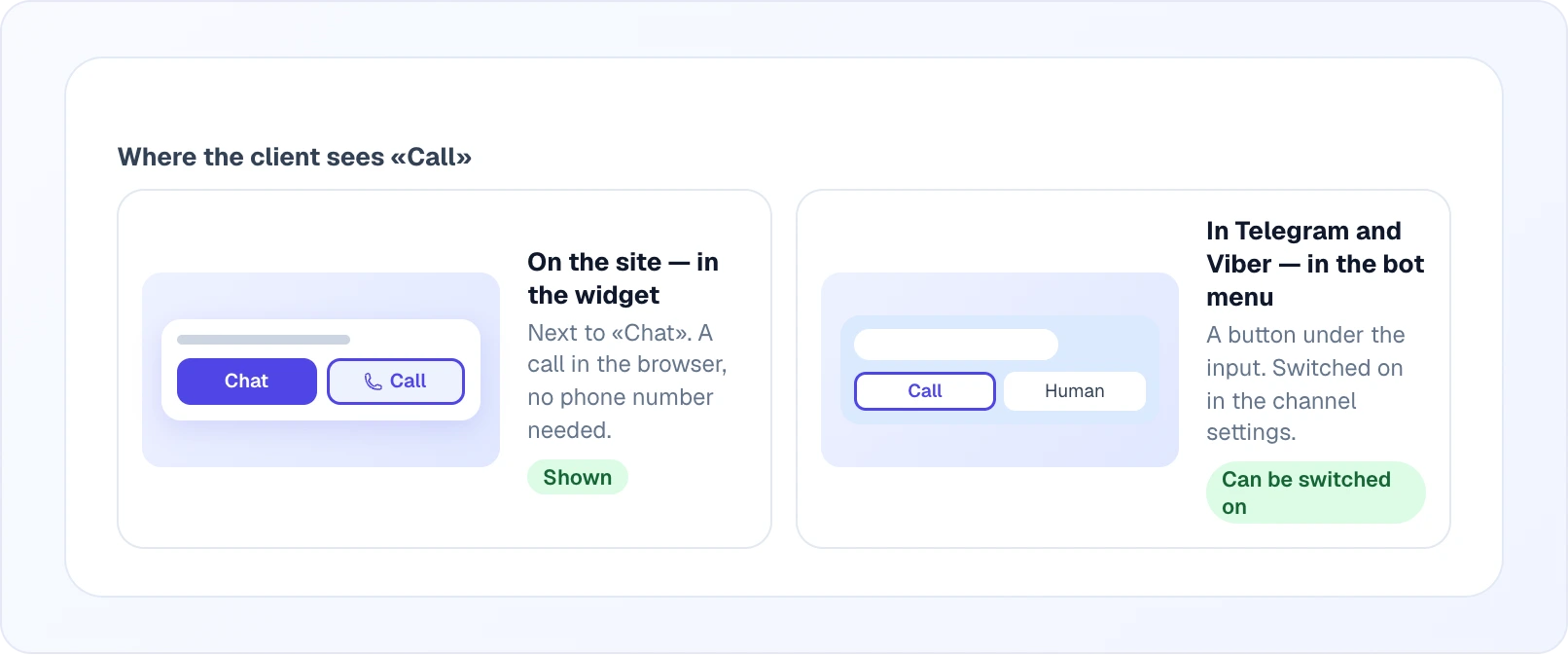
- On the site — the widget shows Call right next to Chat: a call in the browser, no phone number needed.
- In Telegram and Viber — the bot menu gets a Call us button (off by default — turn it on per channel in Channels → the channel's settings → the Calls tab → Take calls). An operator can also invite a customer to a call directly from the chat, or send them a one-time call link.
The Call button shows only when at least one team member has Takes calls switched on (online or not) — that is the Operators and AI + operator modes. Without anyone taking calls it shows only in AI full autopilot; in the other two modes it is hidden everywhere until someone turns the switch on.
Calling from the widget
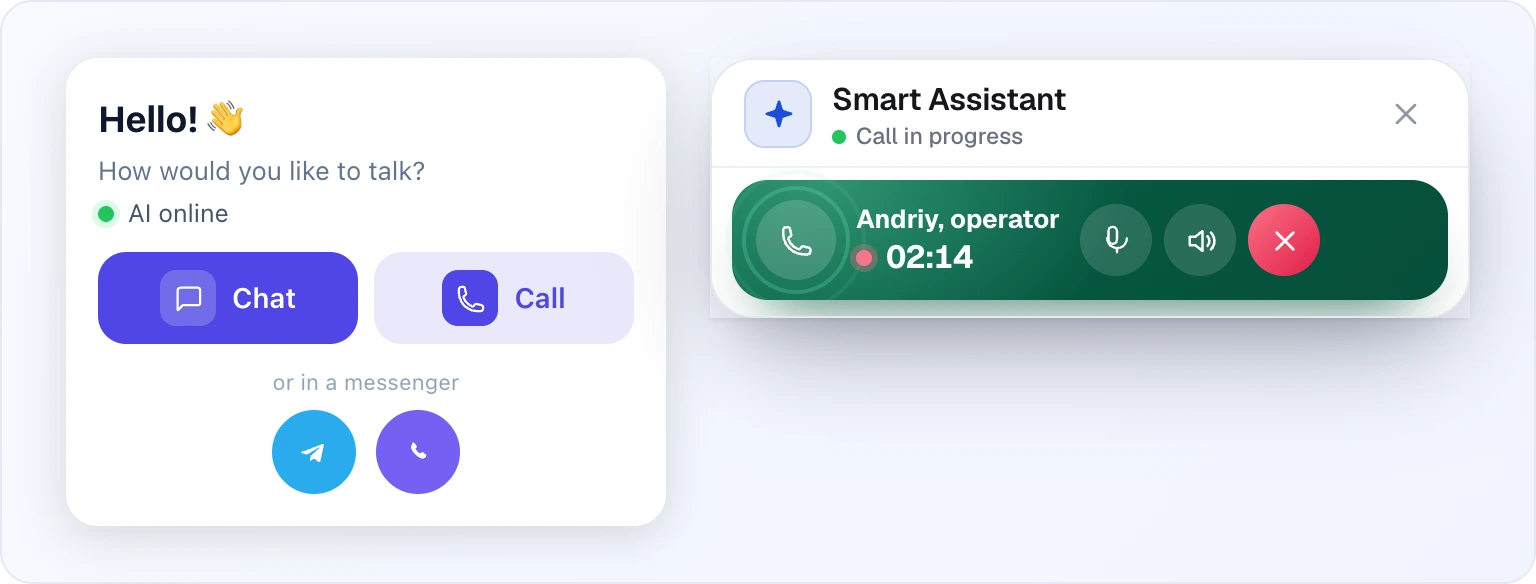
If the widget shows several ways to talk to you (the multichannel popup), Call sits next to Chat there too. Once a call starts, the panel between the chat messages and the input turns into a call screen: who you are talking to, a running timer, a sound wave while they speak, and three buttons — mute the microphone, mute the other side, end the call. Leaving the widget open keeps the call going; closing the tab ends it.
Calling from a messenger
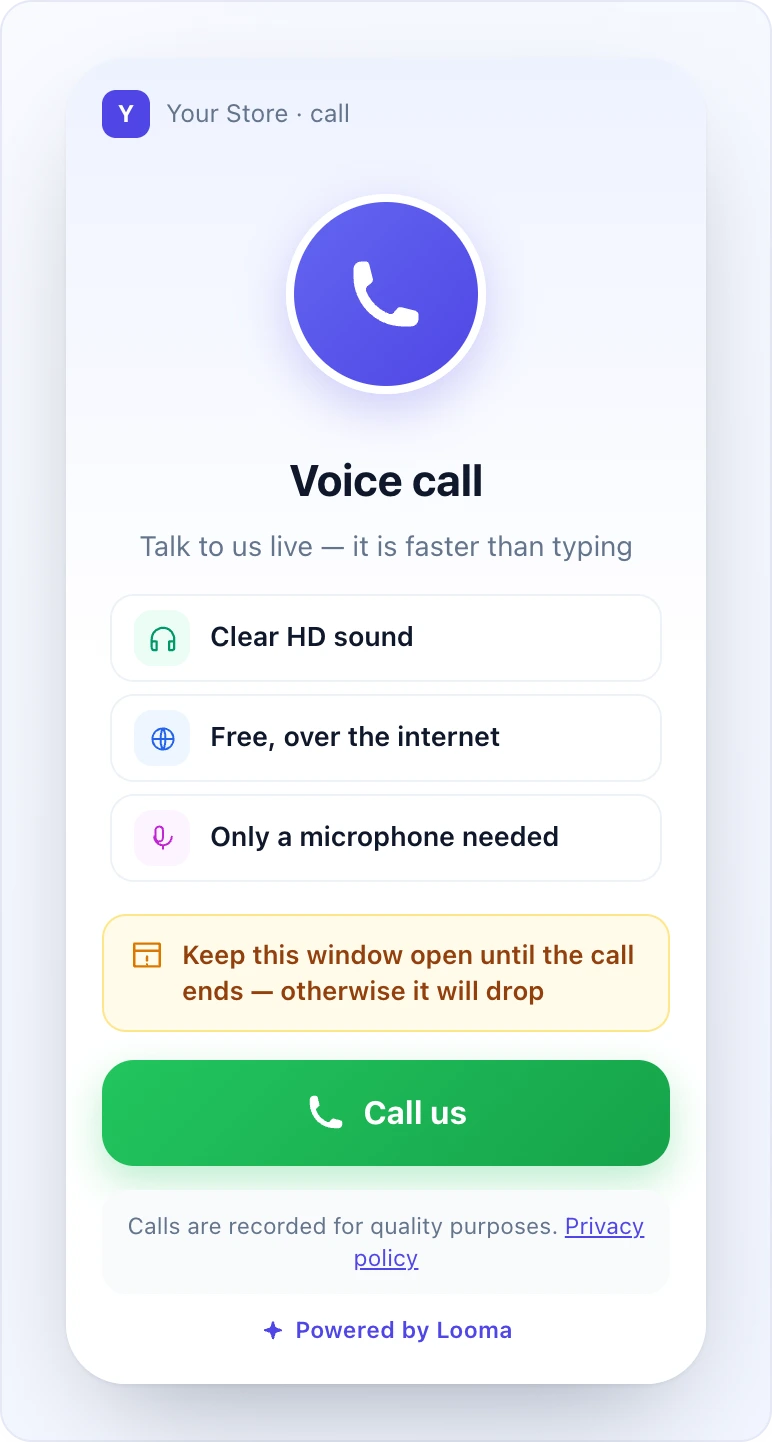
Tapping Call us in the bot menu, or a call link an operator sent, opens a call page inside the messenger's own built-in browser (Telegram, Viber). It looks like a small app: the shop's name and avatar, a short explanation that the call is free and needs only a microphone, and a big Call us button. A warning asks the customer to keep the window open — in a messenger's built-in browser, minimizing or closing it drops the call. The page carries the "Powered by Looma" mark unless the site has branding hidden.
Who answers
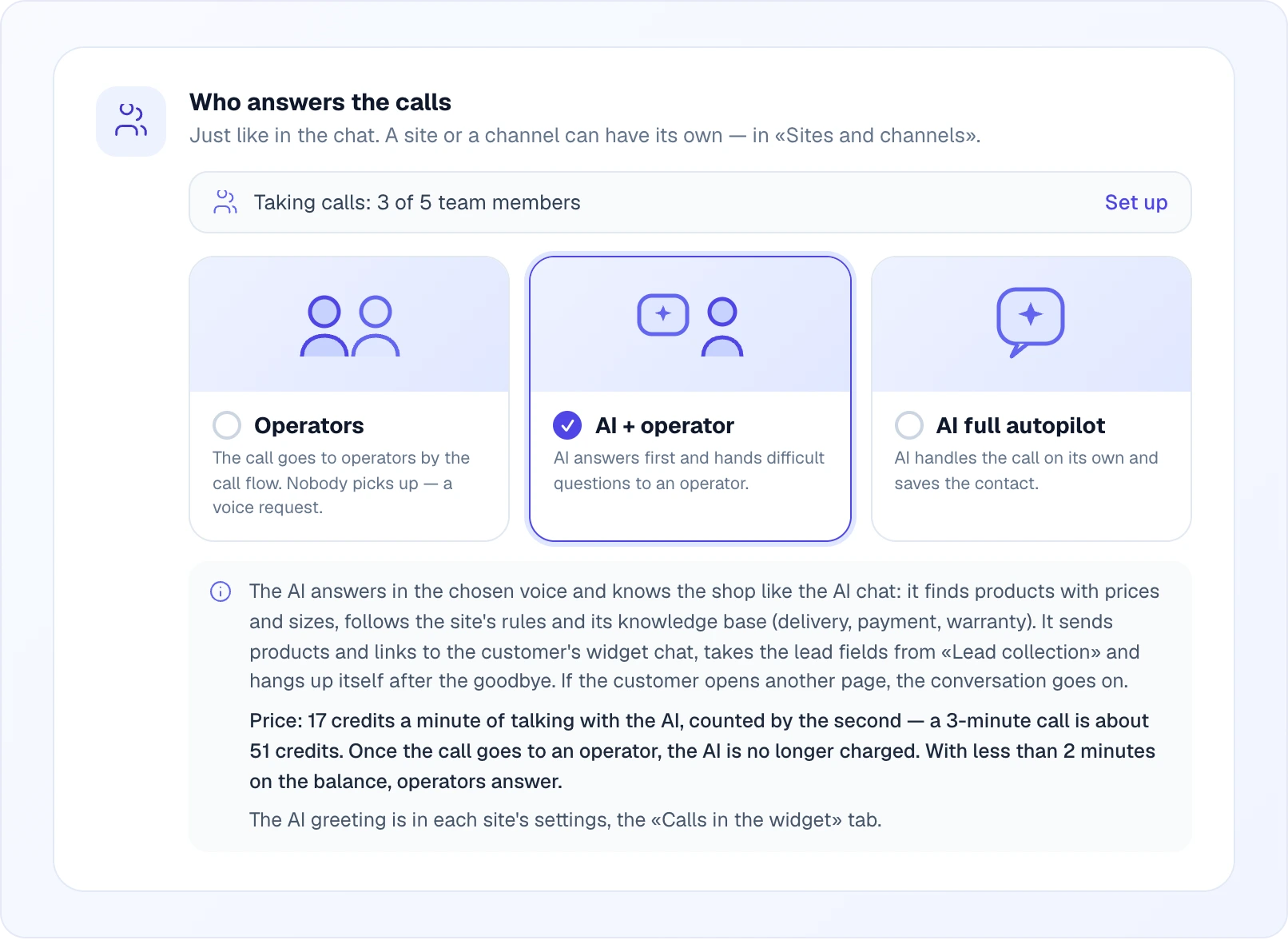
Calls → Settings → General sets who answers calls for the whole account, in three modes — the same idea as chat modes:
| Mode | What happens |
|---|---|
| Operators | The call rings your team by the ring scenario below. Nobody picks up — the caller gets the voice request. |
| AI + operator | The AI answers first, in the chosen voice, and hands the call to an operator when it is needed. |
| AI full autopilot | The AI handles the whole call itself and saves the contact — no operator involved. |
A site or a channel can override the account default — see Sites and channels below. A direct-chat channel (not bound to a site) always rings operators: without a site the AI has no catalog or rules to answer with.
What the AI does on a call
The AI speaks in the voice you picked and knows the shop exactly like the AI chat: it finds products with prices and sizes, follows the site's rules and knowledge base (delivery, payment, warranty), and sends product cards and links into the customer's chat — the widget chat, or the same Telegram/Viber chat the call came from. It collects the fields set up in Lead collection, and hangs up by itself once it has said goodbye. If the customer opens another page of the site, the conversation carries on rather than ending. The AI's greeting for calls is set per site, in that site's AI Assistant settings.
Price: 17 credits a minute of AI talk, charged by the second — a 3-minute call costs about 51 credits. Once the call is handed to an operator, the AI stops being charged. If the balance covers less than 2 minutes, operators answer instead of the AI. Calls an operator handles are always free.
Voice and phrases
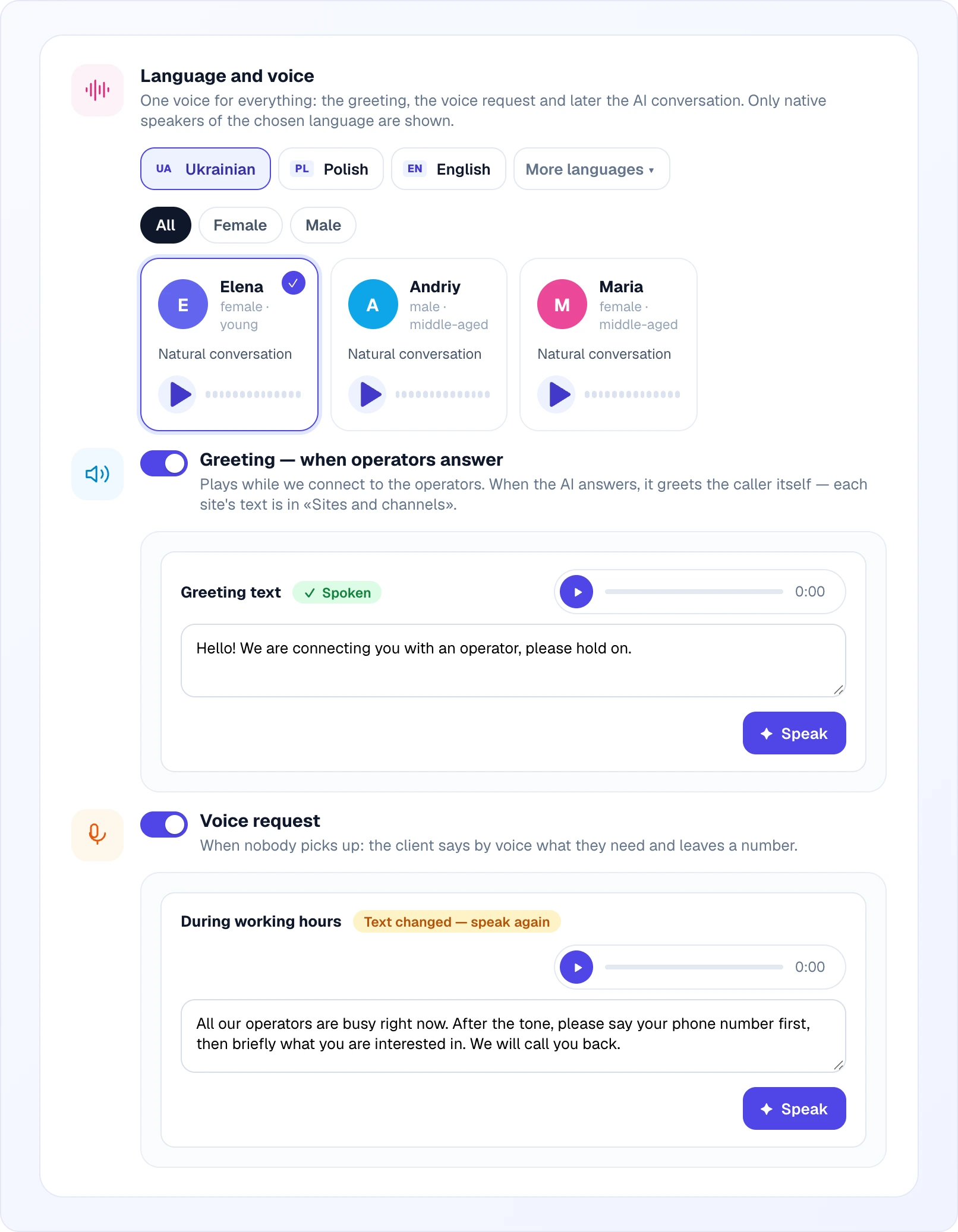
Calls → Settings → General also picks one language and one voice for the whole account — used for the greeting, the voice request and later the AI conversation itself. Only voices that are native speakers of the chosen language are shown, and you can filter by gender and listen before choosing.
Three phrases are spoken with that voice:
- Greeting — plays while a call connects to operators. (When the AI answers, it greets the caller itself in its own words — set per site.)
- Voice request, in two variants — during working hours and outside working hours (linked to the work schedule).
Edit the text and press Speak to generate the audio — a small per-character charge. A pill next to each phrase shows its state: spoken, outdated (text changed since the last generation) or not spoken yet. The three phrases are spoken automatically in the site's language the first time you open Calls.
How an incoming call is routed
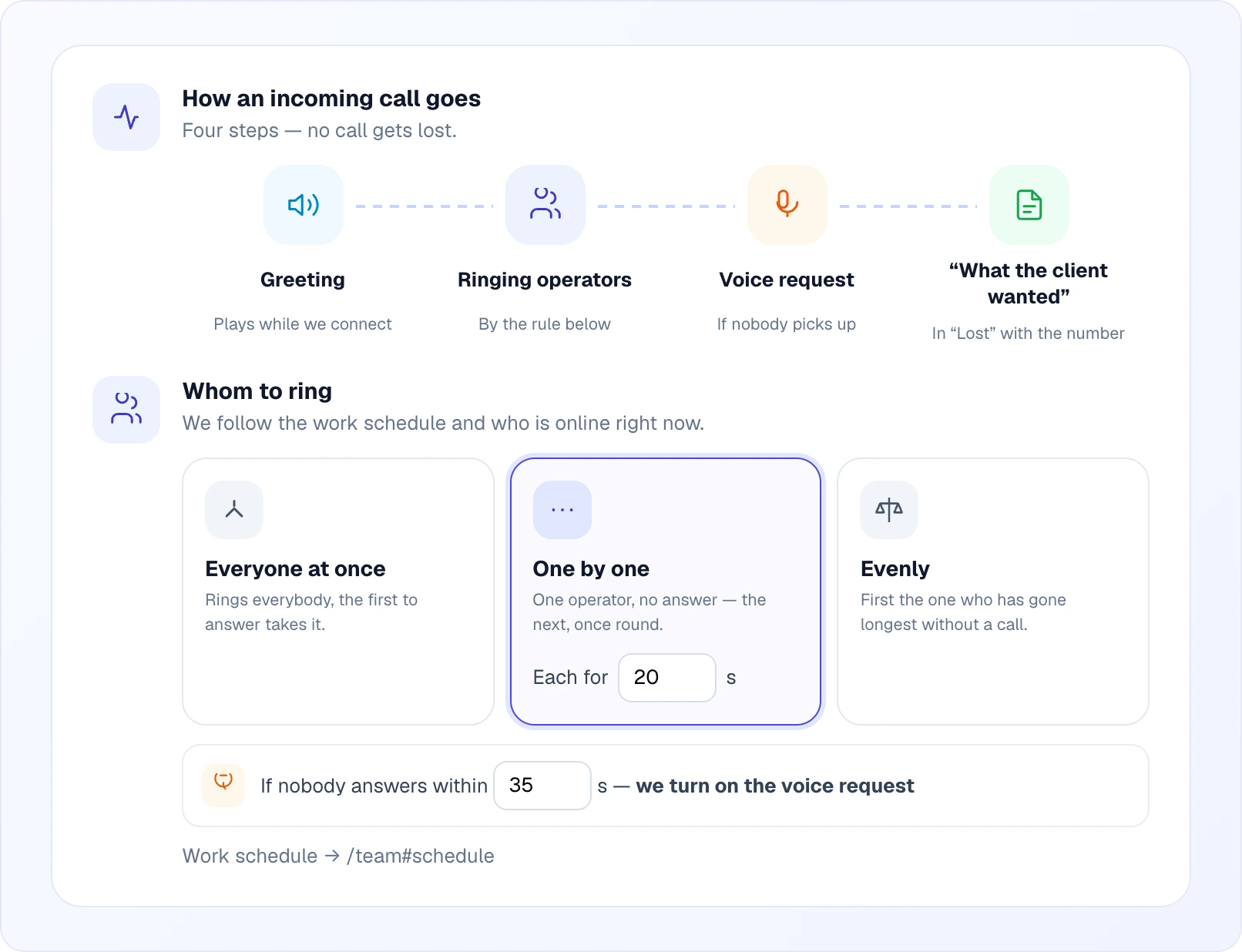
A call that rings operators follows four steps: the greeting plays, the call rings the team, a voice request kicks in if nobody picks up, and if the customer leaves a message it is saved as "what the client wanted" with their number.
Whom to ring — Looma follows the work schedule and who is online right now:
- Everyone at once — rings every available operator, the first to answer takes the call.
- One by one — rings one operator for a set number of seconds, then the next, once around.
- Evenly — rings the operator who has gone longest without taking a call first.
If nobody answers within the chosen number of seconds, the voice request turns on (or the call simply ends as missed, if the voice request is off).
Sites and channels
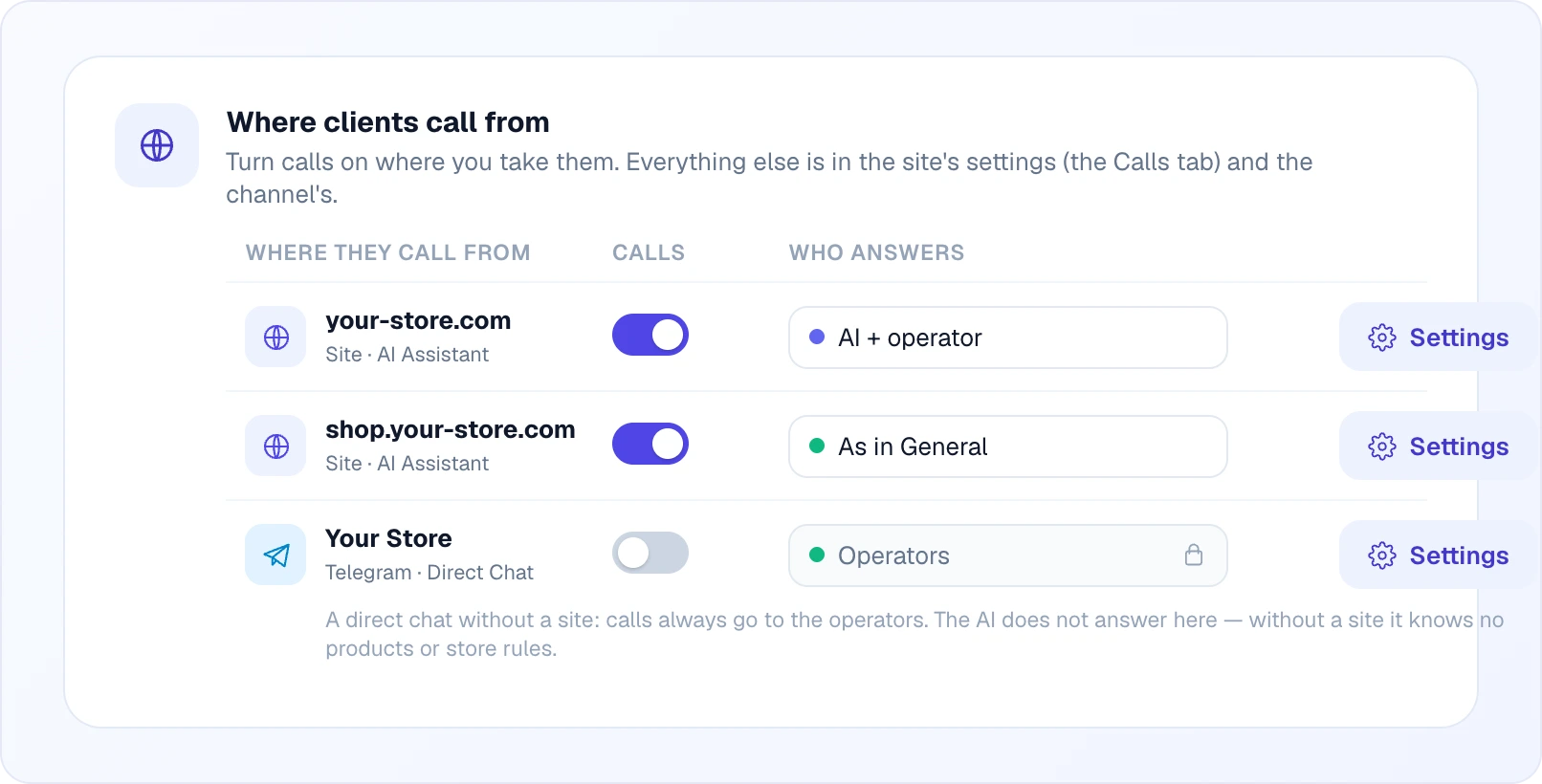
Calls → Settings → Sites and channels turns calls on per site or channel and lets each one override the account's default Who answers — useful when one site should stay AI-only and another should always ring an operator. Everything else (the call button's visibility per channel, the privacy-policy link) lives in that site's own Calls in the widget tab or the channel's own settings in Channels. A direct-chat channel has no catalog for the AI to use, so its Who answers is locked to Operators.
Provider numbers
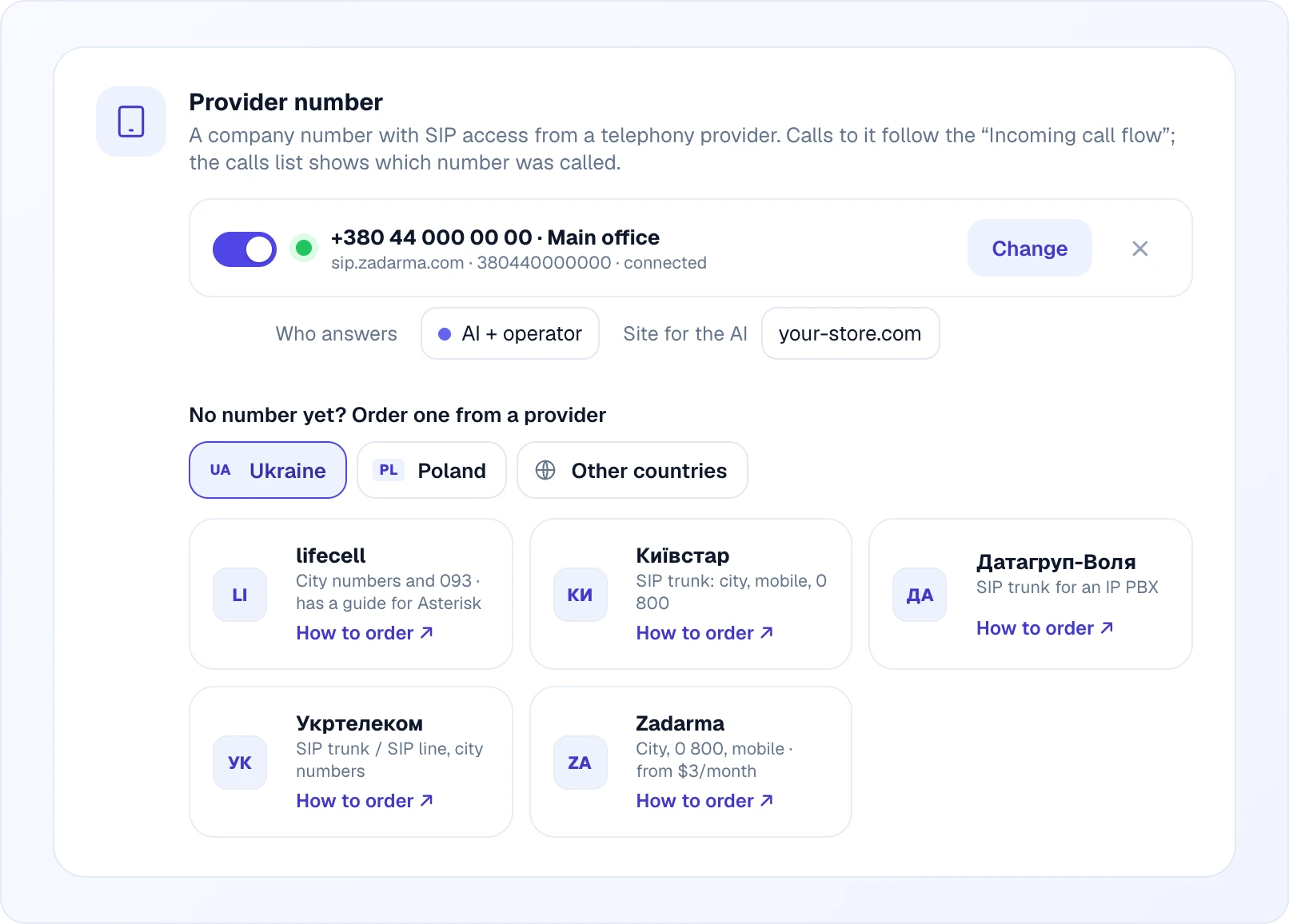
Calls → Settings → Provider number connects a SIP number from a telephony provider — your existing landline, mobile or toll-free number, or a new one bought from a provider such as lifecell, Kyivstar, Datagroup-Volia, Ukrtelecom, Zadarma or Telnyx (the exact list depends on your country). For each number you pick Who answers and, for an AI mode, a Site for the AI — whose catalog, rules and knowledge base the AI should use for calls to that number. On a phone call the AI only talks — it does not send product cards, since there is no chat to send them into — but it does see the caller's number, and the call is recorded like any other.
Team and apps
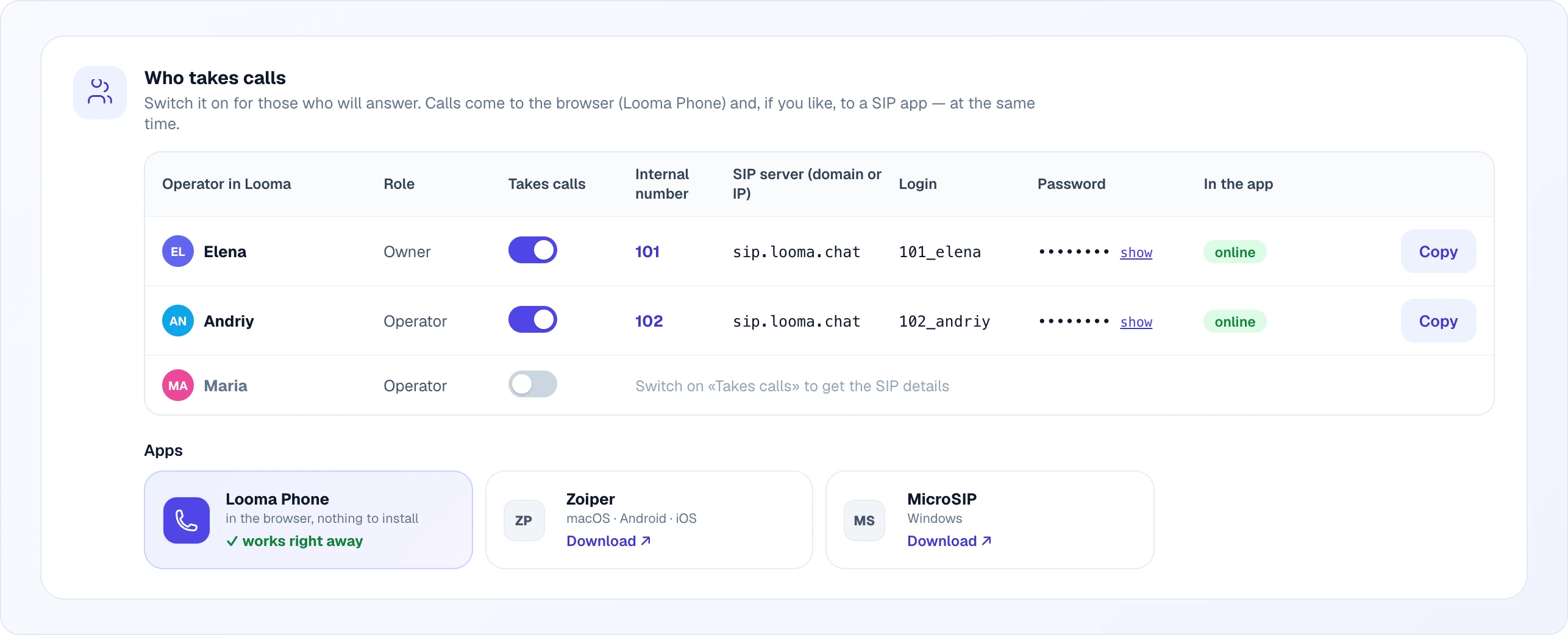
Calls → Settings → Users (or the Team page) turns Takes calls on per team member. Calls then ring that person in two places at once, if they want both:
- Looma Phone — right in the browser, nothing to install, works the moment the switch is on.
- A SIP app on desktop or mobile — Linphone, Zoiper or MicroSIP — using the server, login and password shown in the table (hidden by default, a show link reveals the password).
Without anyone taking calls, the Call button disappears from your sites and channels — except in AI full autopilot mode, where the AI can still take calls on its own.
Call analysis
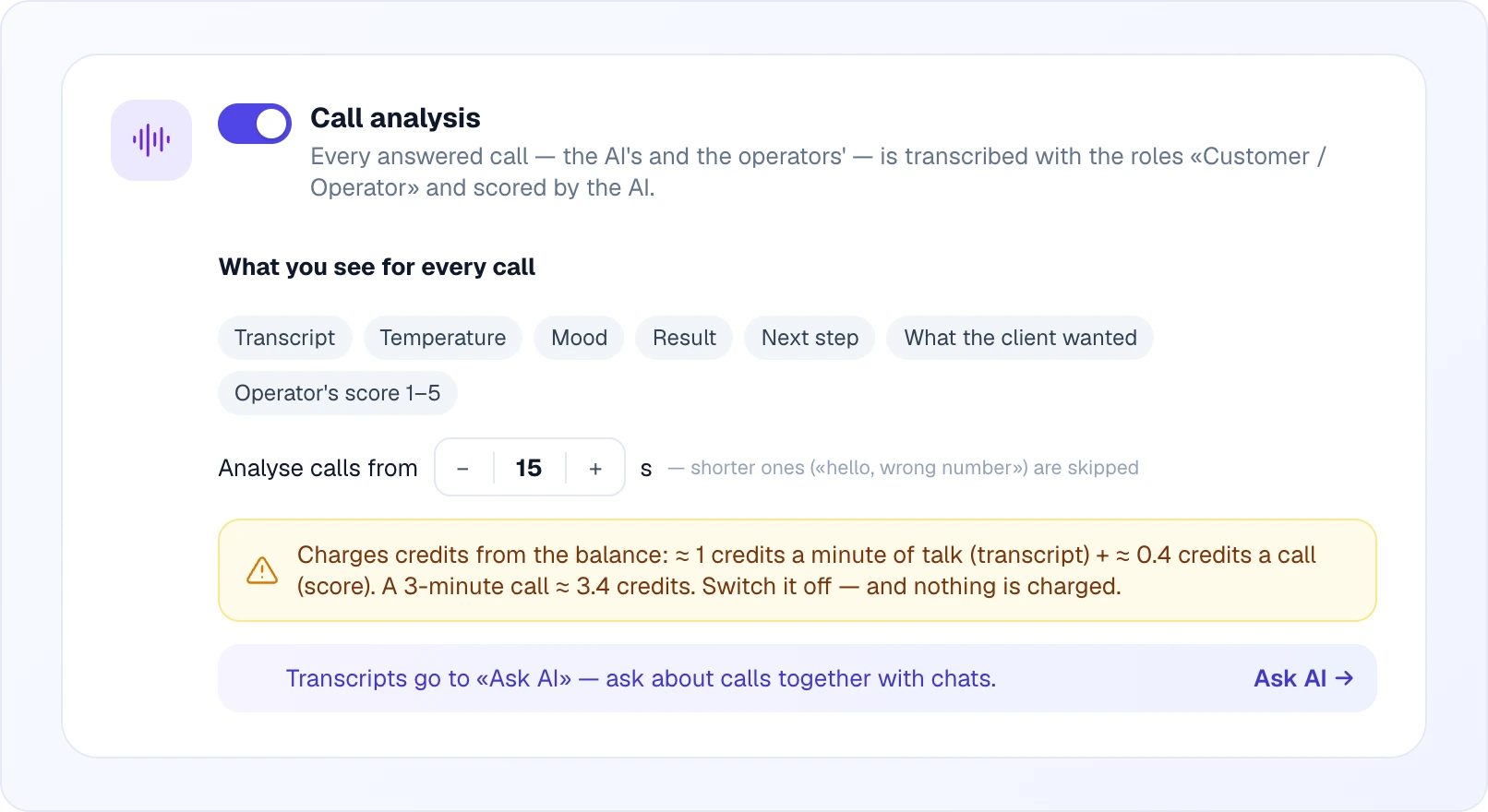
Calls → Settings → Call analysis is on by default. Every answered call long enough to matter — 15 seconds or more by default, adjustable — is transcribed in stereo (the customer on one channel, the operator or AI on the other) with the roles "Customer" and "Operator", and scored by the AI: temperature (cold / warm / hot), mood, the result (order, call back, question, complaint or none), a suggested next step, what the client wanted, and — for an operator's call — a 1-to-5 score and a short note.
Price: about 1 credit per minute of talk for the transcript, plus about 0.4 credit per call for the score — a 3-minute call costs roughly 3.4 credits. AI calls are not charged for the transcript again, since the AI already has one from the conversation itself. Turn the toggle off and nothing is charged. Transcripts also feed Ask AI on the dashboard, so you can ask about calls together with chats; usage shows "Calls: analysis" as its own line, separate from the AI's talking minutes.
The call journal
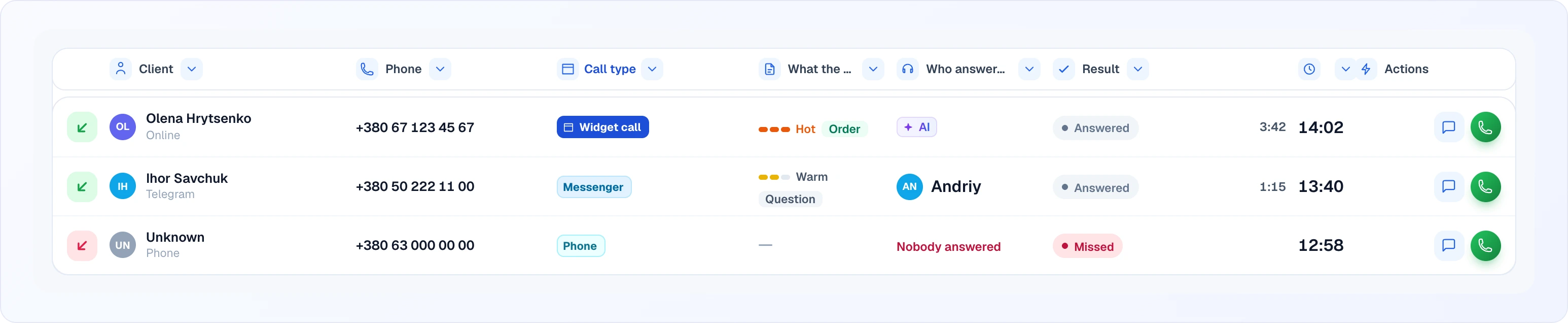
The Calls page lists every call — from the widget, a messenger or a provider number — newest first by default. Column headers double as filters: client name, phone number, call type (widget / messenger / phone / internal), what the client wanted (with the AI score — hot, order, complaint), who answered, and the result. Sort by newest, oldest or longest talk time. An AI chip marks calls the assistant answered; any call with a recording can be played straight from the row.
The call card
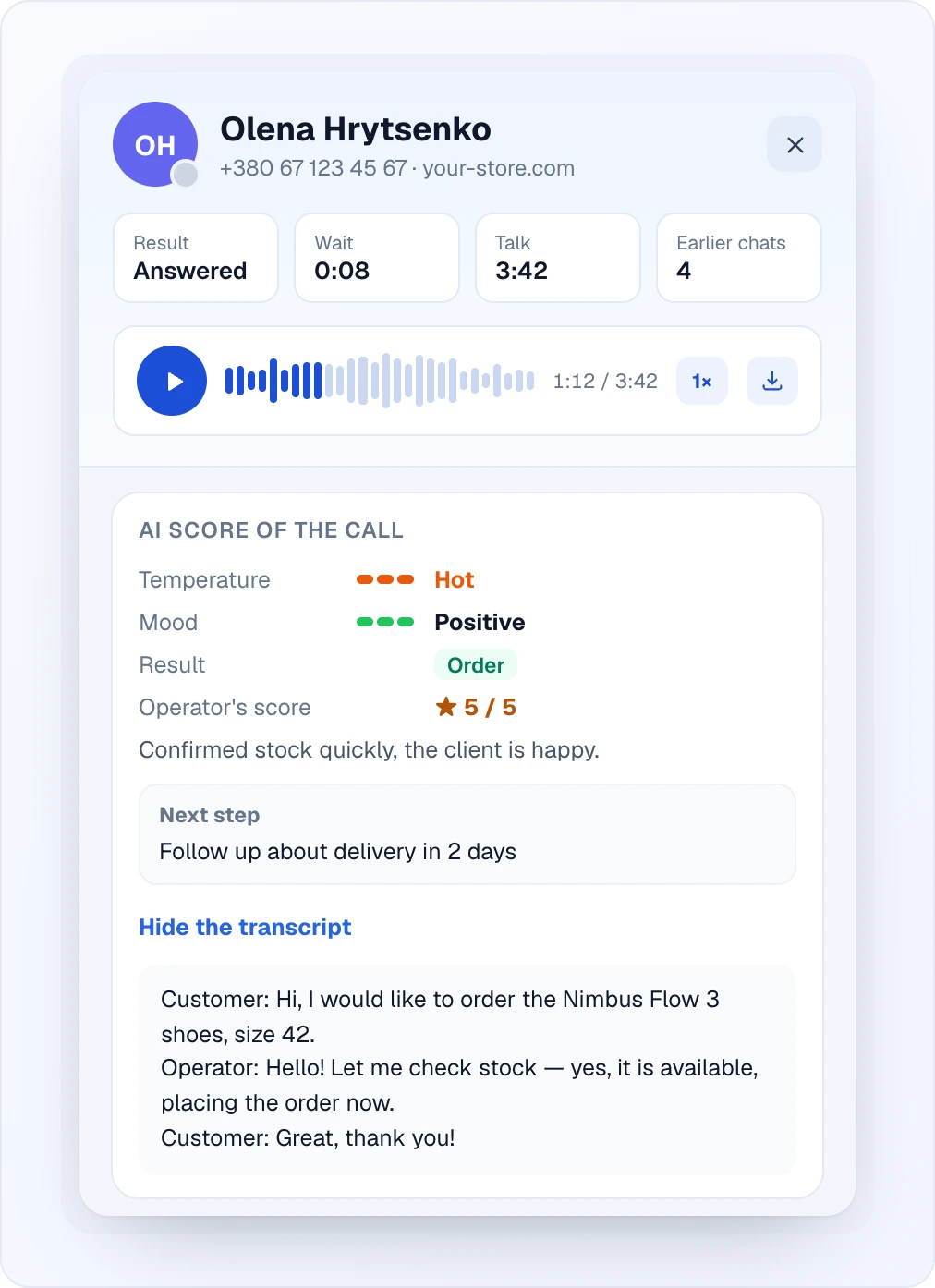
Click a row to open the call card: the recording with a player (play, speed, download), the AI's score of the call, and — when the transcript is shown — the conversation line by line, labeled by who said what.
Calls analytics
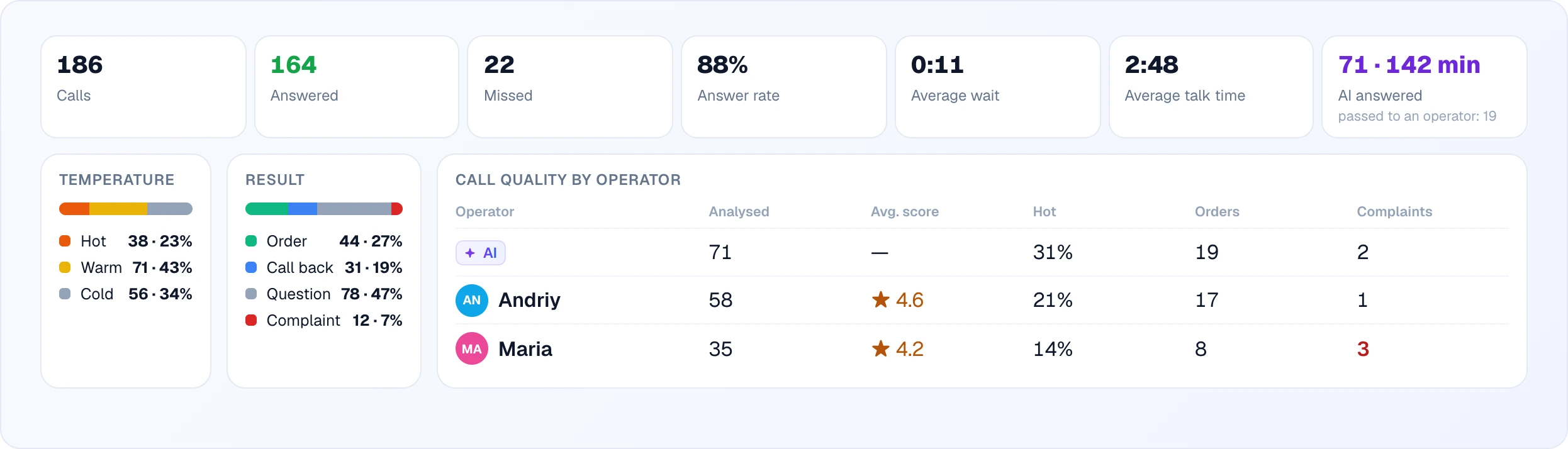
Calls → Analytics rolls everything up: totals, answer rate, average wait and talk time, how many minutes the AI spent on calls and how many it handed to an operator, the spread of temperatures and results among analysed calls, and a quality table comparing operators (and the AI) by analysed calls, average score, how often calls run hot, orders and complaints.
Related
- Chats — the AI chat the AI assistant uses on calls
- Chat Modes — the same Operators / AI + operator / AI-only idea for text chats
- Channels — the Calls tab in a channel's own settings, and the bot-menu Call button
- Lead Collection — the fields the AI collects on a call
- Team — work schedule and the per-member Takes calls switch
- Credits & Plans — credit rates for AI calls and call analysis