

Installation
Add Looma to your website with a single script tag. No build tools or dependencies required.
Installation Code
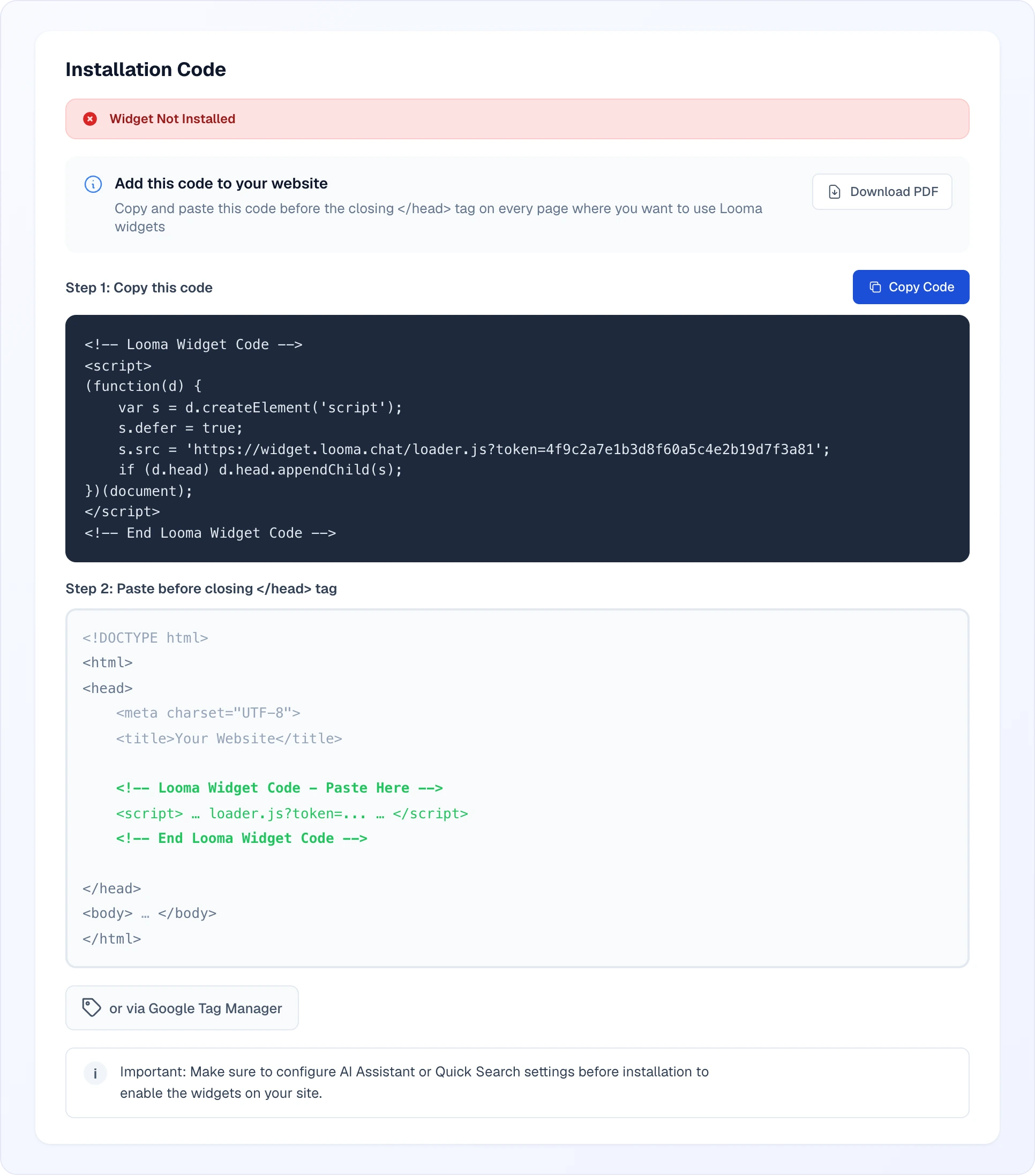
Go to the Installation Code tab in your site settings in the Looma Dashboard and copy the installation code. It looks like this:
<script>
(function(d) {
    var s = d.createElement('script');
    s.defer = true;
    s.src = 'https://widget.looma.chat/loader.js?token=YOUR_SITE_TOKEN';
    if (d.head) d.head.appendChild(s);
})(document);
</script>
Paste this code into the <head> or before the closing </body> tag on every page of your site.
WARNING
Replace YOUR_SITE_TOKEN with your actual site token from the dashboard. Each site has a unique token.
The Installation Code tab also has a Download PDF button that exports the step-by-step instructions (handy for handing off to a developer) and a Google Tag Manager option for sites where you can't edit the HTML directly.
At the top of the tab is the installation status (Widget Not Installed until the widget has loaded on your site), then the code itself under Step 1: Copy this code with a Copy Code button, and under Step 2 an example of where exactly in the page the code goes. The note at the bottom reminds you to set up the AI Assistant or Quick Search first — those settings decide which widgets appear on the site.
Via Google Tag Manager
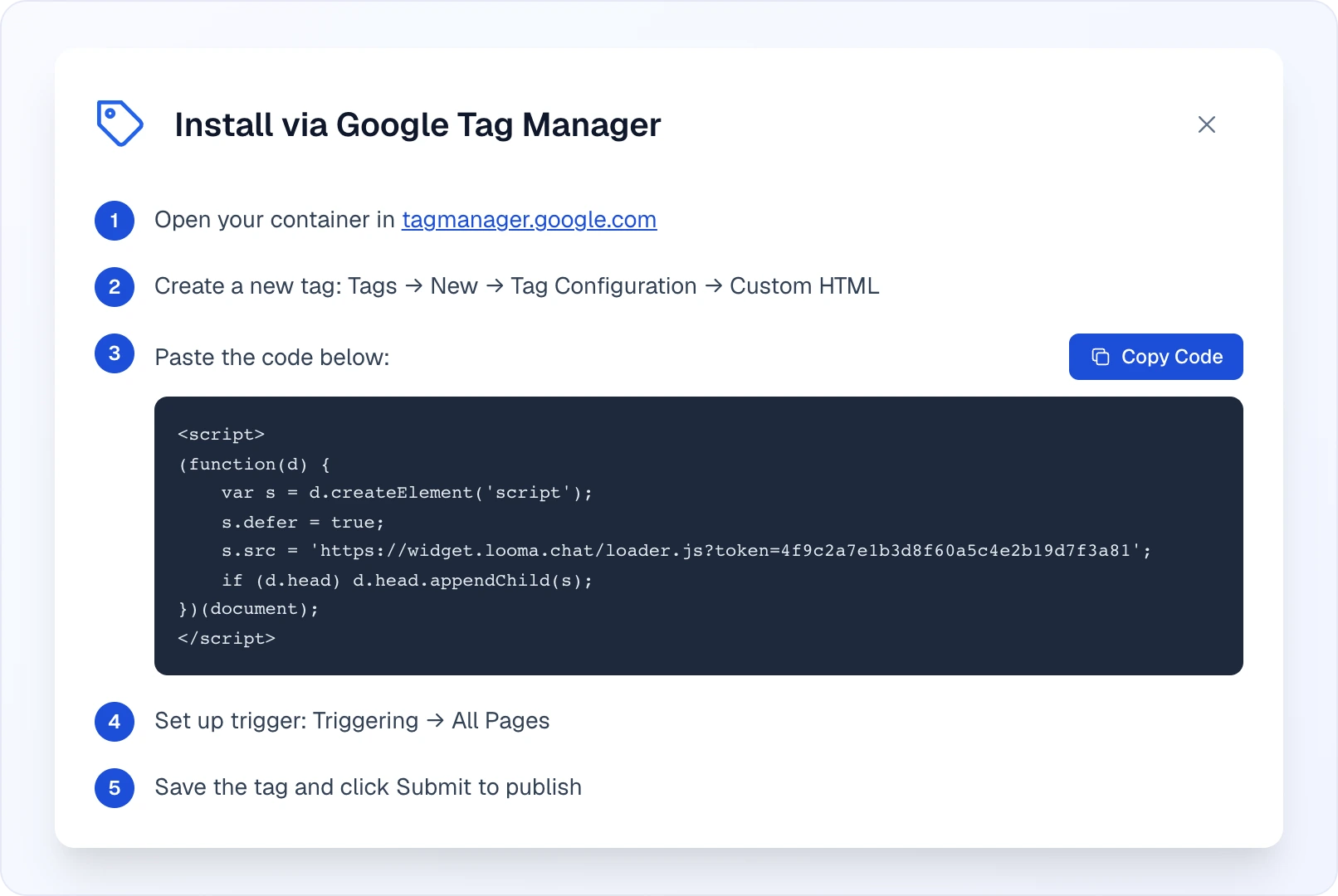
If your site already runs Google Tag Manager and you can't edit the template, click or via Google Tag Manager on the same tab. The instruction window walks you through five steps: open your container at tagmanager.google.com, create a Custom HTML tag, paste the code (the Copy Code button is right there), set the All Pages trigger, then save the tag and click Submit to publish.
What Gets Installed
The loader script automatically adds two widgets to your site:
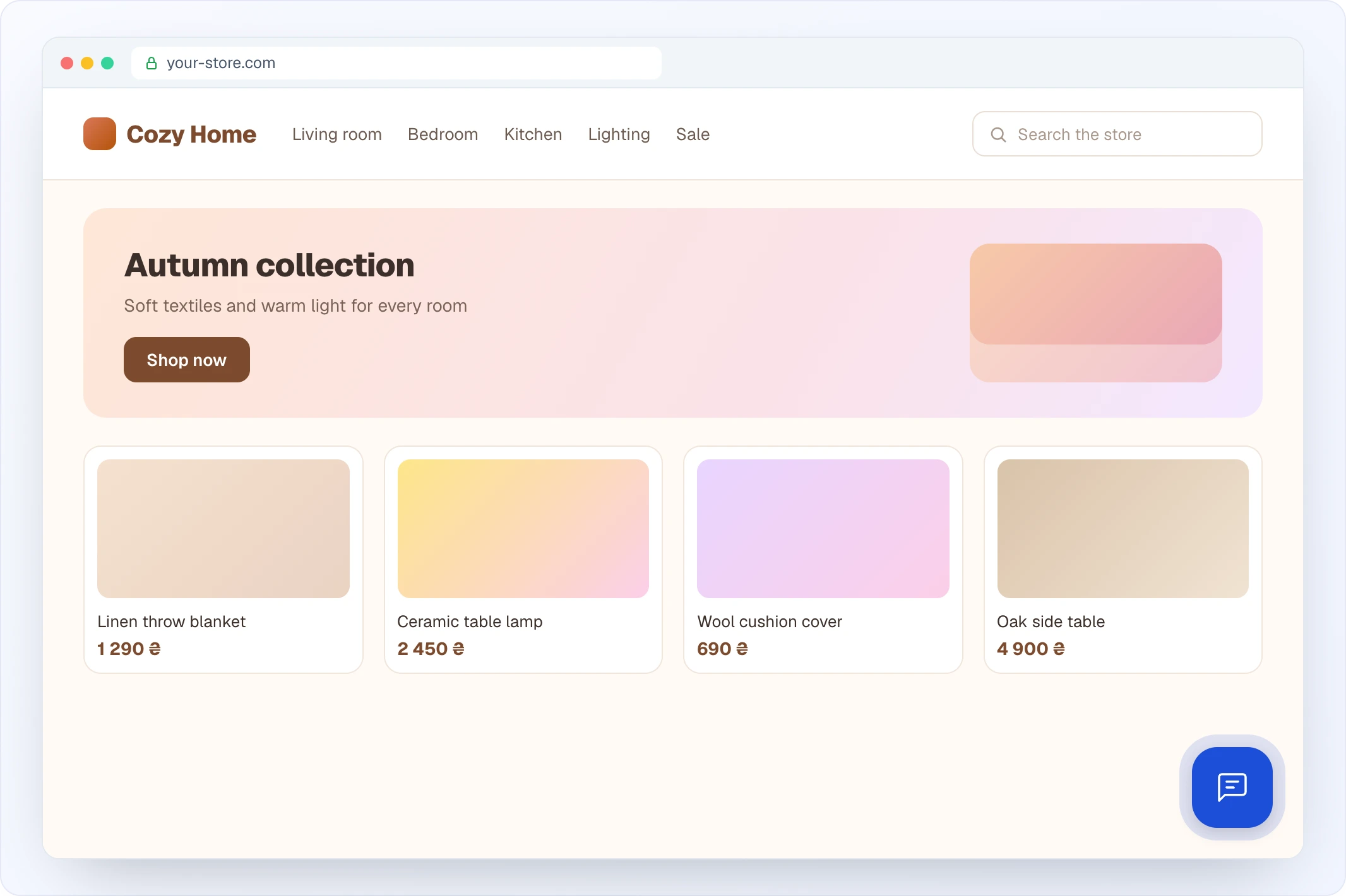
- AI Chat — an intelligent assistant bubble in the bottom-right corner
- Quick Search — a search bar that can replace your store's default search (optional, requires configuration)
Out of the box the chat button is a blue icon button with rounded corners in the bottom-right corner; its position, shape, colour and label are set in the AI Assistant widget settings.
Platform-Specific Instructions
Shopify
- Go to Online Store > Themes > Edit code
- Open the
theme.liquidfile - Paste the installation code before the closing
</head>tag - Click Save
WooCommerce / WordPress
- Go to Appearance > Theme File Editor
- Open
header.php(orfunctions.php) - Paste the code before the closing
</head>tag - Click Update File
Alternatively, use a plugin like Insert Headers and Footers:
- Install and activate the plugin
- Go to Settings > Insert Headers and Footers
- Paste the code in the "Scripts in Header" section
OpenCart
- Go to Design > Theme Editor (or edit template files directly)
- Open the header template (
common/header.twig) - Paste the code before
</head> - Save changes
PrestaShop
- Go to Design > Theme & Logo > Advanced
- Or edit
themes/your-theme/templates/_partials/head.tpl - Add the installation code
- Clear cache
Wix
- Go to Settings > Custom Code (under Advanced)
- Click Add Custom Code
- Paste the installation code
- Set placement to Head and apply to All pages
- Publish your site
Tilda
- Go to Site Settings > More > HTML in head
- Paste the installation code
- Save and republish
Custom / Static HTML
Simply add the script tag to your HTML template in the <head> section or before </body>.
Verify Installation
After adding the code:
- Visit your website
- You should see the Looma chat bubble in the bottom-right corner
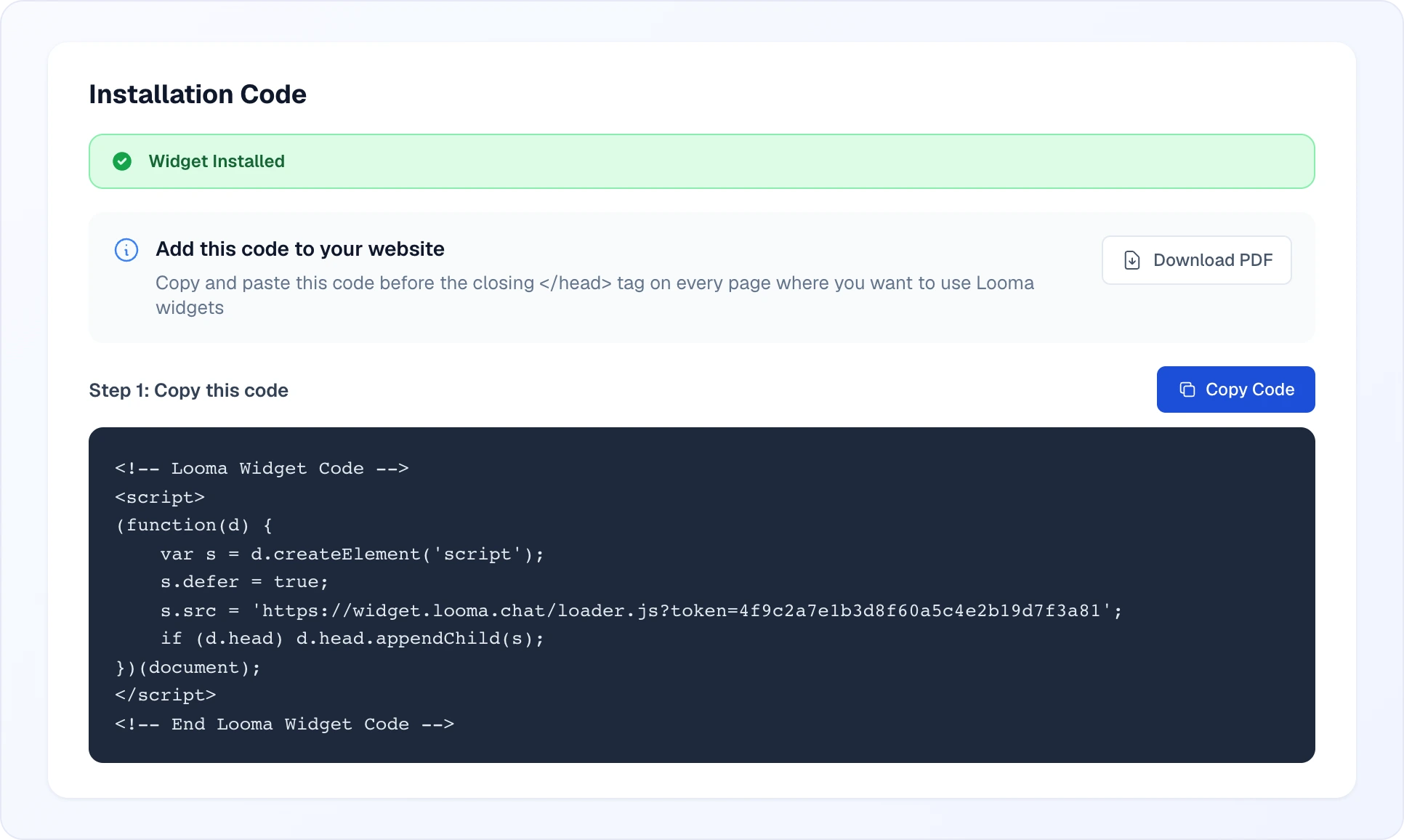
- On the Installation Code tab in the Looma Dashboard, the status changes to a green Widget Installed
The status follows real loads of the widget: it turns green after the widget has loaded on your site, and goes back to Widget Not Installed if the widget hasn't loaded for more than 6 hours (for example, the code was removed or the page is served from an old cache).
Testing
You can test the widget before installing on your site:
- Chat:
https://widget.looma.chat/chat.html?token=YOUR_SITE_TOKEN - Search:
https://widget.looma.chat/search.html?token=YOUR_SITE_TOKEN
Next Steps
- Configure AI Assistant — customize chat behavior
- Set up Quick Search — enable the search widget
- Products & AI Magic Data — manage your product catalog