

AI Magic Report
AI Magic Report turns your real chat and operator activity into plain-language business reports written for a store owner — what's working, what's losing sales, and what to do next. It lives in its own tab on the Dashboard (AI Magic Report) and produces downloadable PDF reports, either on demand or on a recurring schedule.
Where it lives and turning it on
AI Magic Report is available to all accounts and is on by default. Turning it on costs nothing by itself — a report is generated (and charged) only when you set one up or run it. The module appears as the AI Magic Report tab on the Dashboard, next to the analytics tabs (the period and site controls are hidden on it). The same page also opens at its own address, which is what the links in report emails use.
If you switched the module off (account-level switch on the Modules page), the Dashboard shows a strip with an Enable button instead of the tab. Click it: the module turns on and the tab opens straight on Report settings, ready to create your first report.
The two tabs
Inside the AI Magic Report tab there are two sub-tabs.
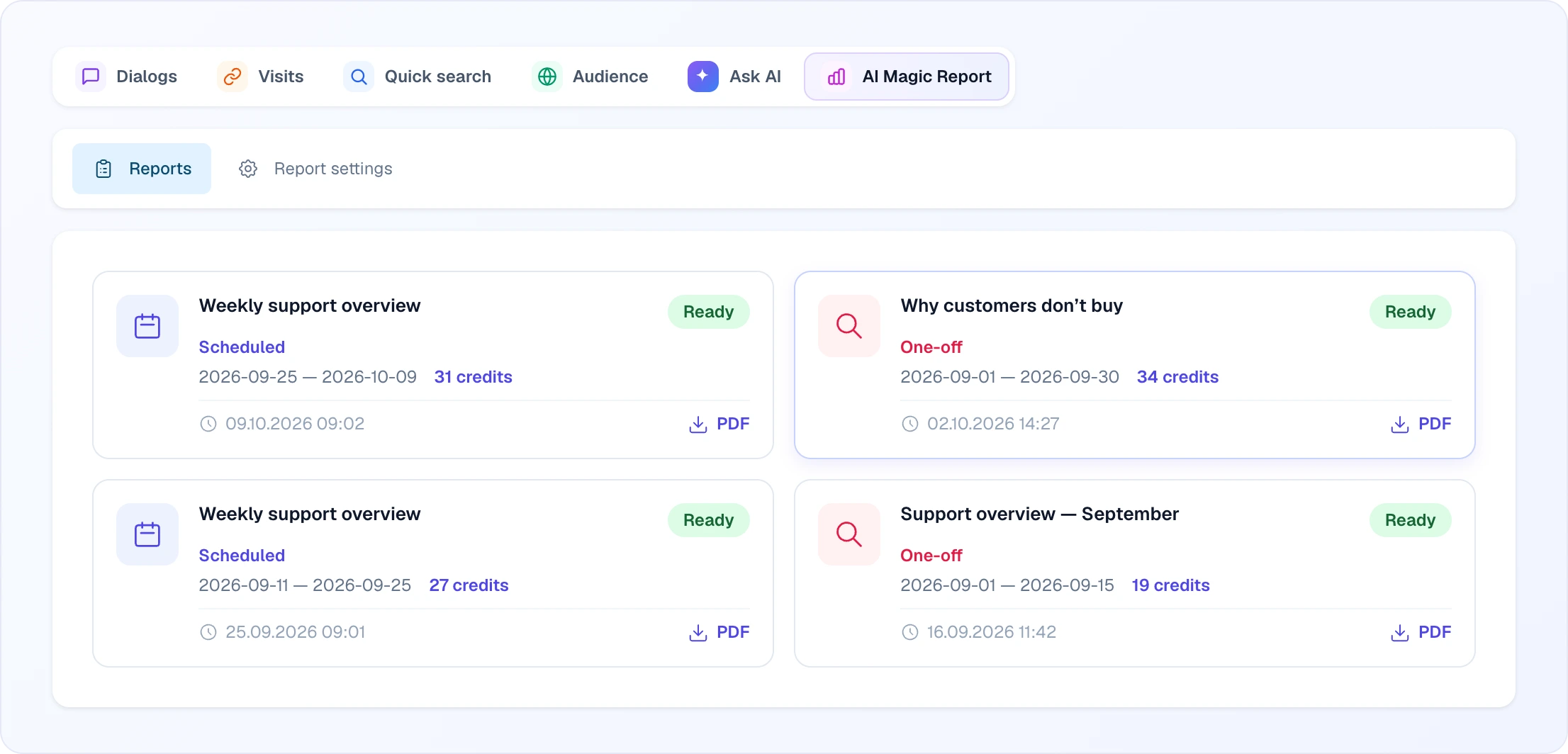
- Reports — your finished reports. Each tile shows the name, type (Scheduled / One-off), period, credit cost and when the report was generated. Click a tile and the PDF opens in a new tab. Only ready reports appear here; while a report is queued or being generated, its status (Queued / Processing) shows on its row in Report settings.
- Report settings — where you create and manage report configurations (one-off runs and recurring schedules).
Report types
- One-off — generated on demand for a date range you pick. Use it for a quick look or to ask a specific question. After saving, click Run now — saving alone does not start the report.
- Scheduled — generated automatically every N days (a rolling window over the last N days), so you get a fresh report at a regular cadence without touching the dashboard. The first report arrives N days after you create it; the next date is shown on the configuration row ("next report").
Creating a report
In Report settings, click Create report and fill in:
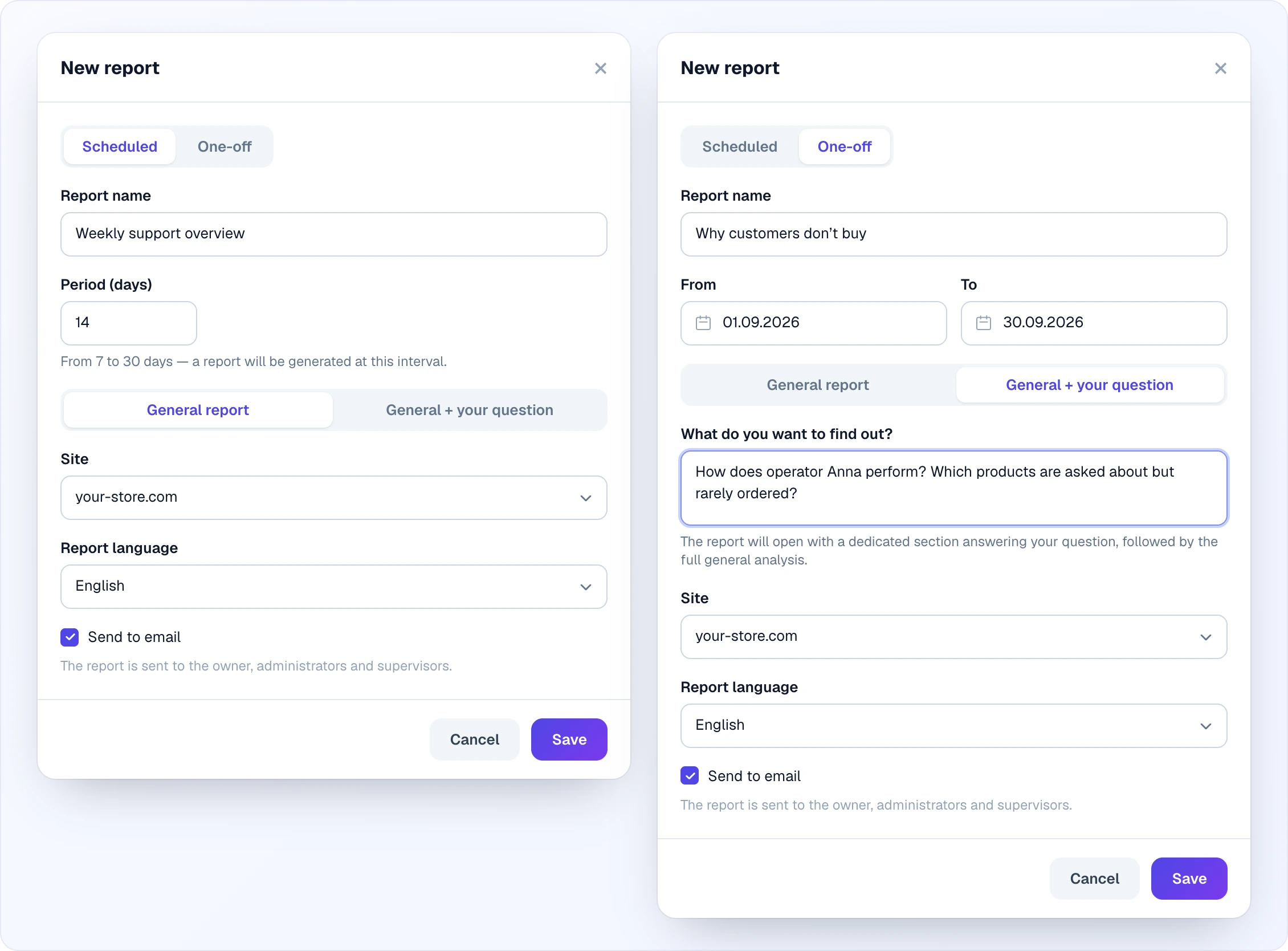
- Report name — how the report is labelled in the list, in the PDF and in the email (e.g. "Support overview").
- Period — for a Scheduled report, Period (days), from 7 to 30 — a new report is generated at this interval. For a One-off report, pick From and To dates instead.
- Mode — General report (full analysis), or General + your question — you type a question in "What do you want to find out?" (e.g. "How does operator Anna perform? Which products are asked about but rarely ordered?") and the report opens with a dedicated section answering it, followed by the full general analysis. Both report types can carry a question.
- Site — one site per report. Channels connected to that site and the quick search widget data are included automatically.
- Report language — the language the report is written in (40 languages). Defaults to your dashboard language. The report is written in this language even if customers chatted in another one.
- Send to email — when on, the finished report is emailed to the account owner, administrators and supervisors (operators don't get it). Each recipient gets the email in their own dashboard language, with the PDF.
Managing reports
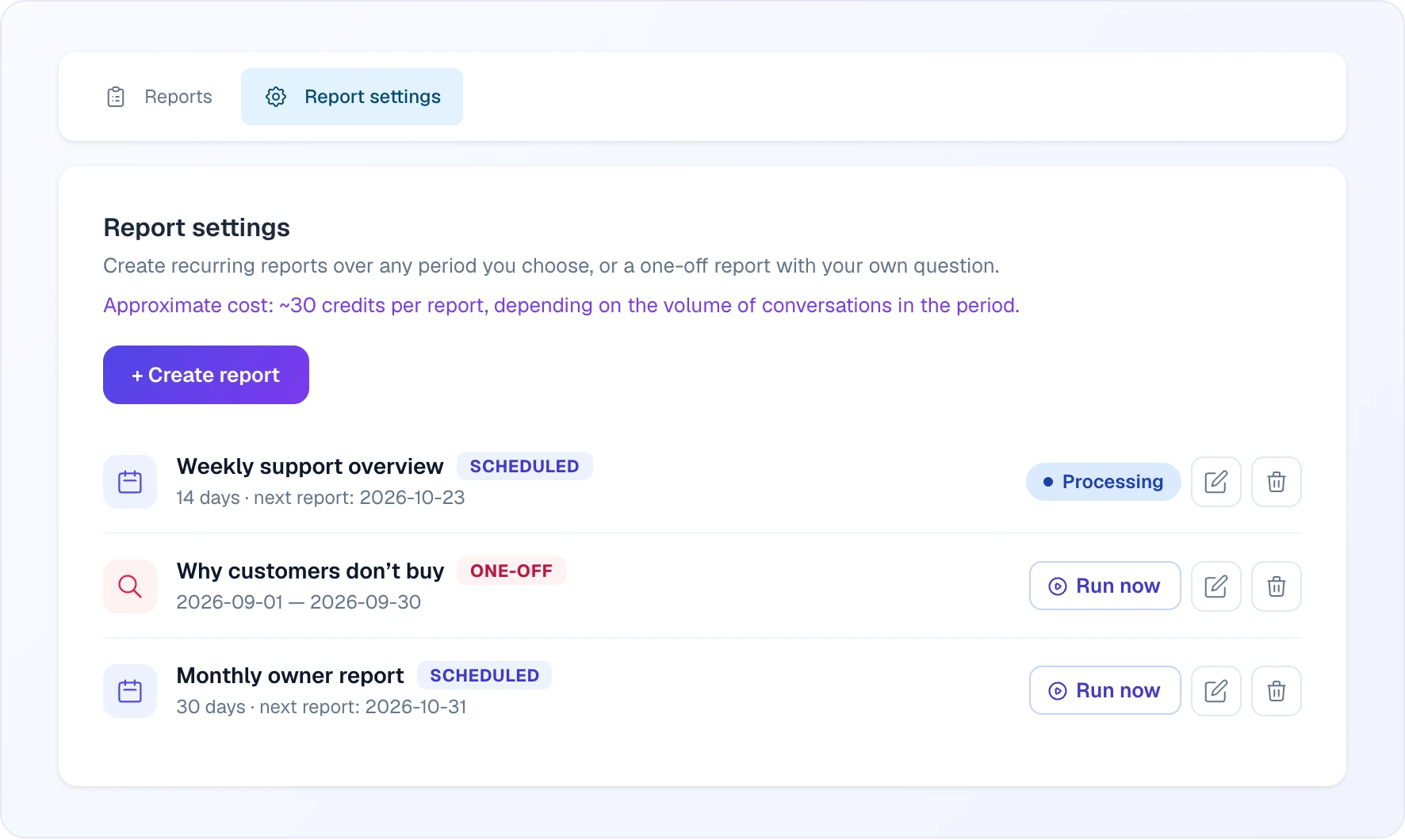
Each configuration is a row in the Report settings list: a type icon and badge, the name, and the period under it ("14 days · next report: …" for a scheduled report, or the date range for a one-off).
- Run now — generates a report immediately for the current period (for a scheduled report — the last N days). While a report is queued or processing, a Queued / Processing status replaces the button, and the same report can't be started again.
- Edit (pencil) — change any field. Changing the number of days on a scheduled report recalculates the next report date.
- Delete (bin) — removes the configuration and its scheduled runs.
Reports can be created, run and changed by the Owner and Administrators.
When a report is not generated
- Balance is zero or negative — the report is skipped and no credits are spent. Run now shows an insufficient-balance error in that case.
- No activity in the period — not a single dialog and not a single quick search query on that site. An empty report is neither generated nor charged.
A scheduled report in these cases simply moves on to the next period. If it is skipped 3 times in a row, the configuration is removed automatically so skipped runs don't pile up.
What's in a report
The report is written for a marketer / business owner in everyday language — no technical jargon, no internal identifiers — and focuses on practical insights from the period's conversations. It usually covers:
- an executive summary;
- the most common customer problems and questions;
- which products customers ask about, which ones the AI suggested and whether customers clicked those suggestions;
- where and why customers go silent, and which conversations turn into leads;
- a breakdown of each operator's work (tone, responsiveness, strengths and weaknesses);
- the audience (countries, cities, channels, devices) where relevant;
- a separate section on quick search — top queries and searches with no results;
- concrete, prioritised recommendations.
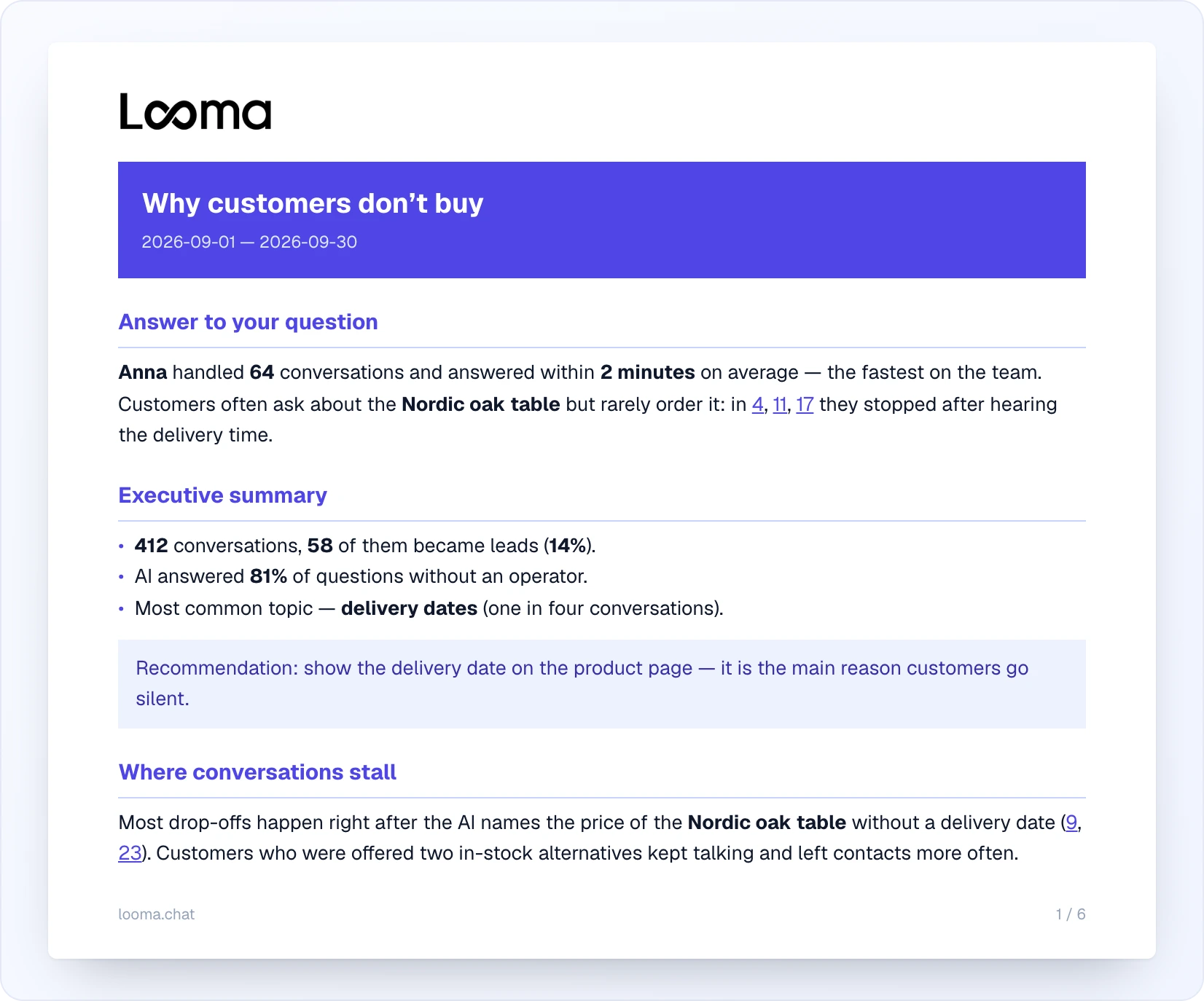
The report draws on both the dialogs themselves and the exact numbers from the dashboard statistics for the period. Dialog numbers the report cites as examples are clickable links in the PDF — they open that conversation in Chats. All cost figures in the report are in credits, never in dollars (product prices customers mentioned are kept as they are).
Cost
There's no fixed price — each report is charged for what it actually analyzes, so the cost scales with the volume of conversations in the period (more conversations = more to analyze). As a rough guide, a typical report lands around ~30 credits, but yours may be lower or higher depending on your chat volume. The exact amount is computed when the report is generated, deducted in credits, and shown on the report tile. Very large periods are capped so a single report stays bounded.
Tips
- Start with a One-off General report over the last couple of weeks to see what the analysis looks like for your store.
- Add a Scheduled report (e.g. every 7–14 days) once you want a regular pulse without remembering to run it.
- Use General + your question when you have a specific thing to learn — operator performance, product demand gaps, recurring complaints.