

Billing & Payments
Everything about paying for Looma: your credit balance, the plan subscription, top-ups and auto-recharge, usage statistics, payment history and what happens when a payment fails. All of it lives on the Billing page of the dashboard.
Only the Owner and Administrator can open the page; other roles cannot.
How the page is laid out
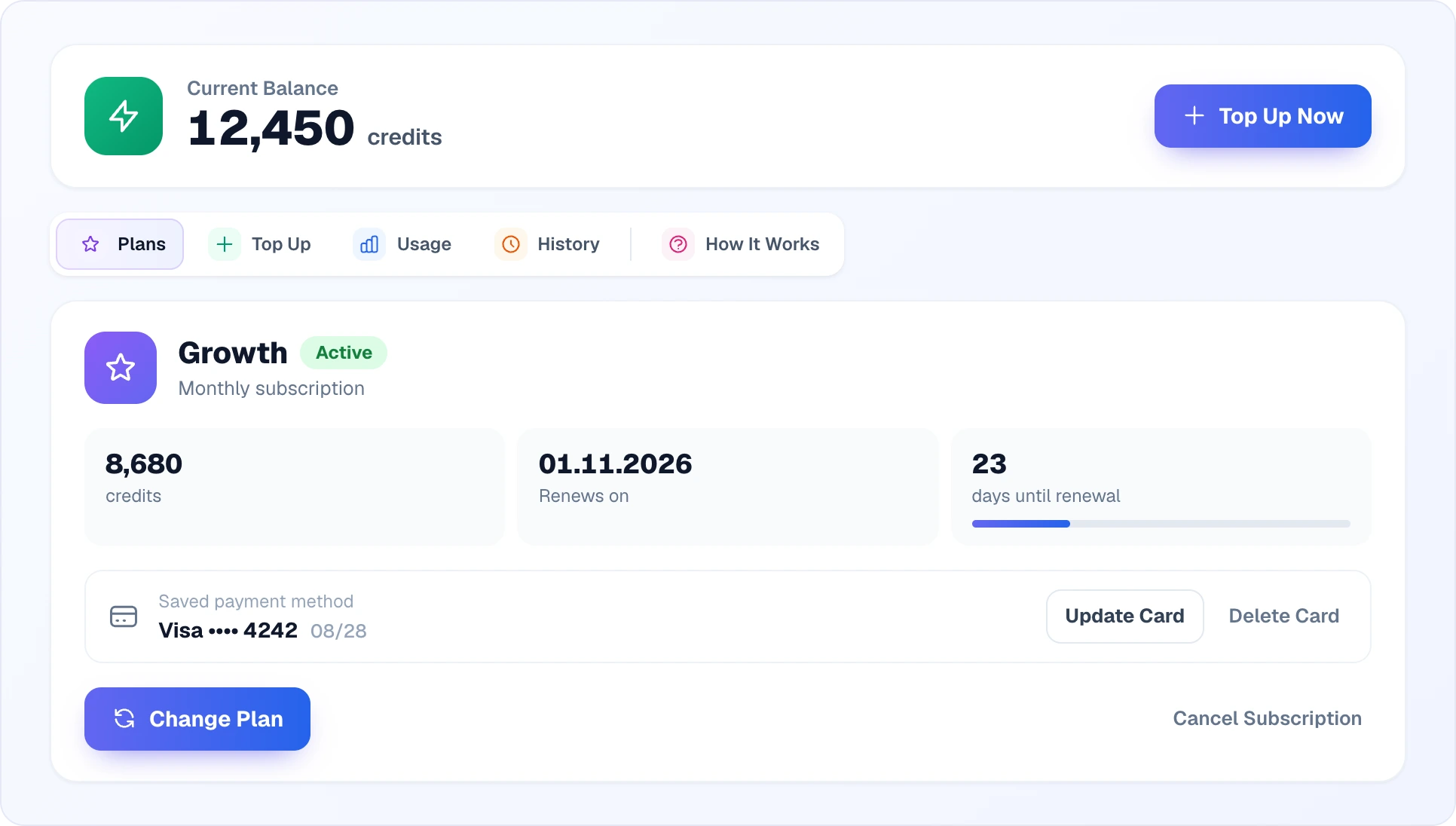
At the top is the Current Balance card: how many credits your account has right now. The number refreshes by itself every few seconds, so you can watch spending live. While your subscription is active, a Top Up Now button next to it opens the top-up tab.
Below the balance are five tabs:
| Tab | What is there |
|---|---|
| Plans | Your subscription (if any) and the plan cards |
| Top Up | Auto-recharge and one-off manual top-ups |
| Usage | How many credits were spent in a period, and on which modules |
| History | Every payment: subscriptions, top-ups, failed attempts |
| How It Works | A short cheat sheet: subscription, credits, rollover, top-ups, cancellation |
The same balance is shown on every dashboard page — in the credits pill in the header. Its blue "plus" opens the top-up.
Demo mode — new accounts start here
Free start, no card needed
New accounts get 200 credits as a gift. All features are unlocked — try everything before you pick a plan.
Available in demo:
- AI Chat and Quick Search widgets
- AI processing of product descriptions
- Knowledge base, operators, channels, analytics
- The same features as the paid plans
Not available in demo: top-ups and auto-recharge. Without a subscription the Top Up tab shows "Subscription required" and a button to the plans — extra credits can only be bought on an active plan.
When the credits run out:
- When the balance goes slightly below zero, the widgets are hidden from your site — the AI stops answering and searching. You get an email about it.
- Your catalog, rules, chats and leads are kept — nothing is deleted.
- Choose a plan in Billing → Plans, and the widgets come back as soon as there are credits on the balance.
Plans and subscription
The Plans tab has four cards: Starter, Growth, Business and Enterprise. The Monthly / Yearly switch above them shows a plan per month or for the whole year.
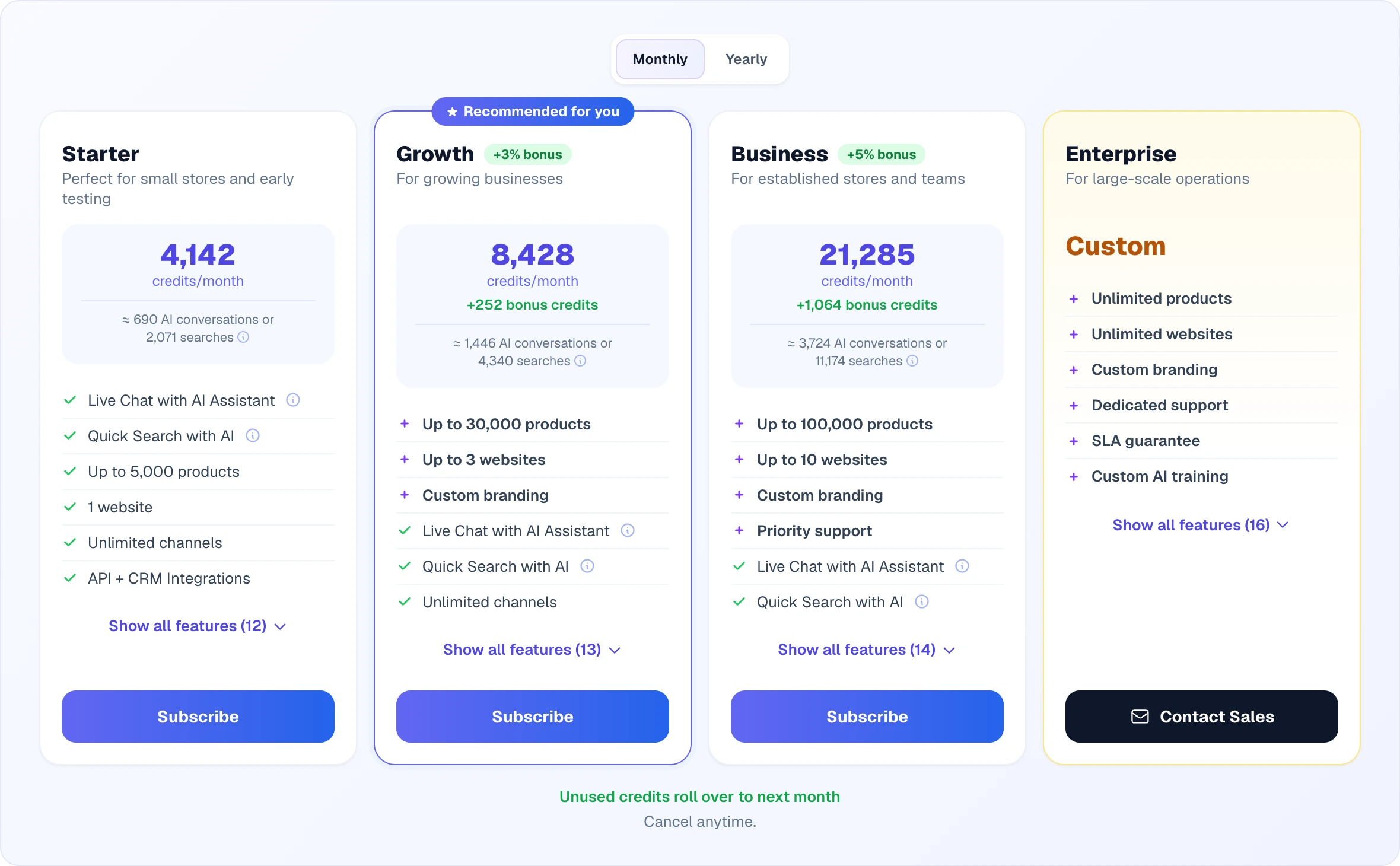
What a plan card shows:
- Credits per period — the big number. If the plan comes with a bonus, a "+3% bonus" or "+5% bonus" label sits next to the name, and the line under the number says how many bonus credits are added on top.
- The "≈ N AI conversations or M searches" estimate — roughly how far the plan's credits go. It is counted with the base AI model: a conversation is about three AI replies at 2 credits each, a search is 2 credits. On pricier models you get fewer conversations.
- Features. A green check is something every plan has; a purple "plus" is what sets the plan apart from the smaller ones (product and site limits, custom branding, support). The first six are shown, the rest are under Show all features.
- Recommended for you. If your catalog does not fit a smaller plan, or you have already set up custom branding (it opens from Growth), Looma highlights the plan that covers all of it and explains why in a banner above the cards.
Plan limits: Starter — up to 5,000 products and 1 website, Growth — up to 30,000 products and 3 websites, Business — up to 100,000 products and 10 websites, Enterprise — unlimited. Details are in Credits & Plans.
How to subscribe
- Open Billing → Plans
- Pick the period — Monthly or Yearly
- Click Subscribe on a plan card — the payment provider's secure page opens
- After payment the subscription is active, and the plan's credits reach your balance within a minute
For Enterprise, Contact Sales opens a short request form: tell us about your volume and requirements and we will prepare a custom offer. If paying by invoice is available for your language, there is an or pay by invoice link under the cards — the same kind of form, after which we send an invoice for a bank transfer.
Your subscription
Once you have a subscription, the Plans tab shows its card first, and the plan cards stay hidden until you click Change Plan.
| Field | What it means |
|---|---|
| Plan name and status | Active, Canceling (you cancelled, it runs to the end of the period) or Past Due (the renewal failed) |
| Monthly / Annual subscription | The billing period |
| Credits | How many credits each renewal brings (bonus included) |
| Renews on | The date of the next charge; for a cancelled one — Ends on |
| Days until renewal | How many are left, with a bar showing how much of the period has passed |
| Saved payment method | The card that renewals and auto-recharge are charged to |
Saved card
- The card is stored by the payment provider after your first payment. Looma only sees its type and last four digits.
- Update Card — replace it with another one (via the provider's page).
- Delete Card — after you confirm, the card is removed and auto-recharge is turned off.
- With no card, the field says "No card on file — your subscription will not renew automatically", and the buttons are replaced by Add Card.
- Customers who pay by invoice have no card — they receive invoices.
Changing the plan
Change Plan unfolds the plan cards; on your current plan the button is inactive — "Current Plan". The new plan is paid in full, like a new subscription: after payment the previous subscription is closed, a new period starts, and the new plan's credits are added to your balance — whatever was left on it does not disappear. When moving to a smaller plan the dashboard asks you to confirm, since some features may become unavailable.
Cancelling
Cancel Subscription is a quiet link on the right, so it is not clicked by accident. After you confirm, the status becomes Canceling: the subscription runs to the end of the paid period and then does not renew. Until that date you can change your mind with Reactivate Subscription. Credits on the balance are not lost when you cancel.
Renewals
The subscription renews automatically from the same saved card at the end of each period (month or year).
| Event | What happens |
|---|---|
| End of period | The plan is charged and a fresh pack of credits is added to the balance |
| Charge succeeds | Confirmation email and new credits |
| Charge fails | Status → Past Due, a failed-payment email; Looma retries once a day for 3 days, then the subscription is paused |
| You cancelled | Access continues to the end of the period, then the subscription ends |
The renewal charge runs at 10:00 in your time zone (taken from your working hours, otherwise from your country), at most once a day, so a failed-payment email reaches you during the working day.
Credits roll over
Unused credits do not expire — they carry over to the next period and keep adding up while the subscription is active.
When a payment fails
The subscription card turns red ("Past Due"), and a Renewal payment failed box appears under it with the bank's decline reason, when it is known.
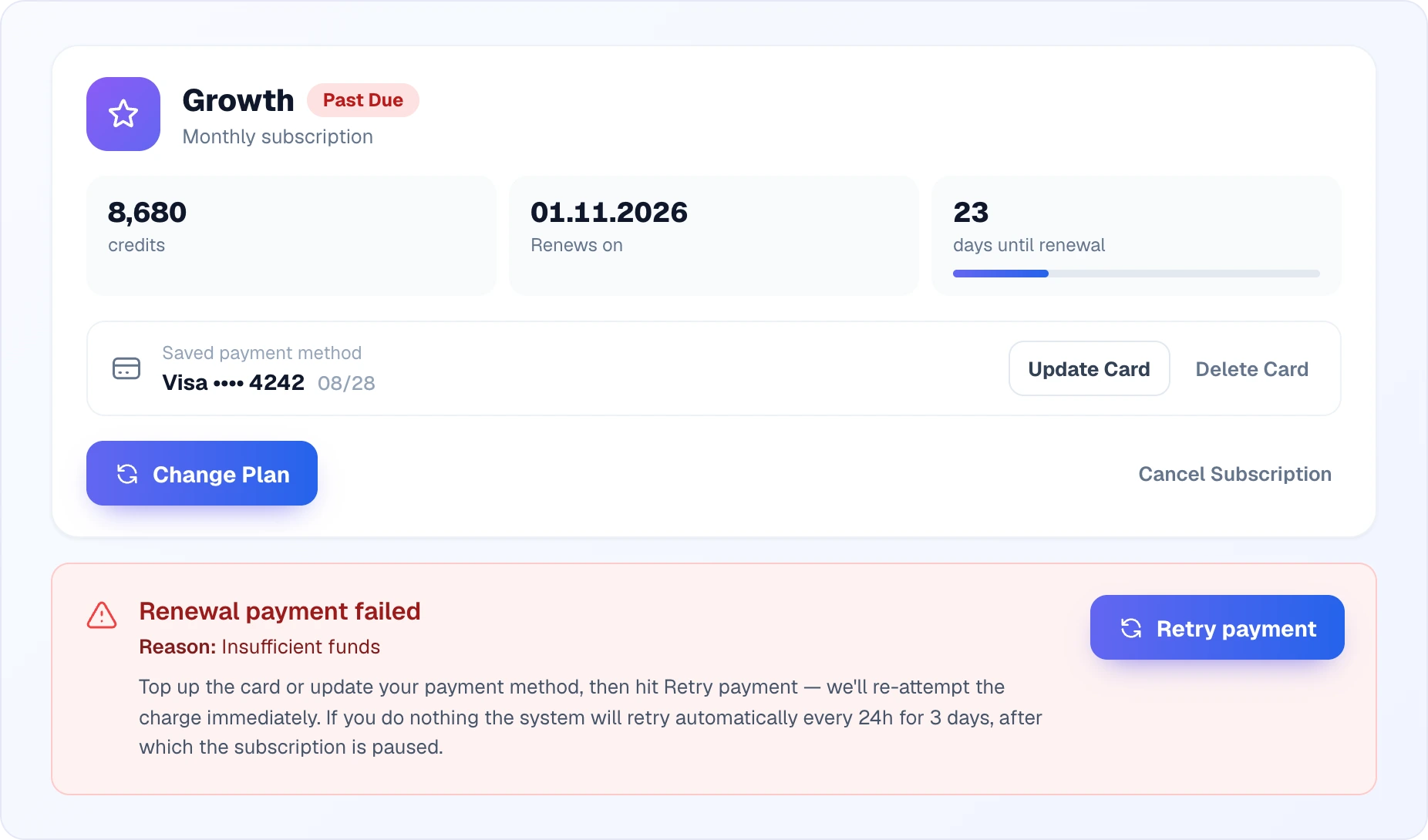
What to do:
- Top up the card, or click Update Card and add another one
- Click Retry payment — Looma tries the charge right away, and within a minute the subscription is active again
- If you do nothing, the system retries every 24 hours for 3 days, then pauses the subscription
While the subscription is past due, top-ups are blocked: the Top Up tab asks you to renew the subscription first.
Top-ups
The Top Up tab is available on an active subscription and has two modes: Auto-Recharge and Manual Top Up. You enter the amount in your payment currency, and next to it Looma shows at once how many credits you will get — bonus included.
A bigger payment earns a bonus
The larger the payment, the more bonus credits — up to +7%. The bonus is added automatically, and the box says "Includes +N% bonus!". The same rule applies to plan payments, which is why the bigger plans include bonus credits.
Auto-recharge
Off by default. Turn it on so the balance never hits zero and the widgets never disappear from your site.
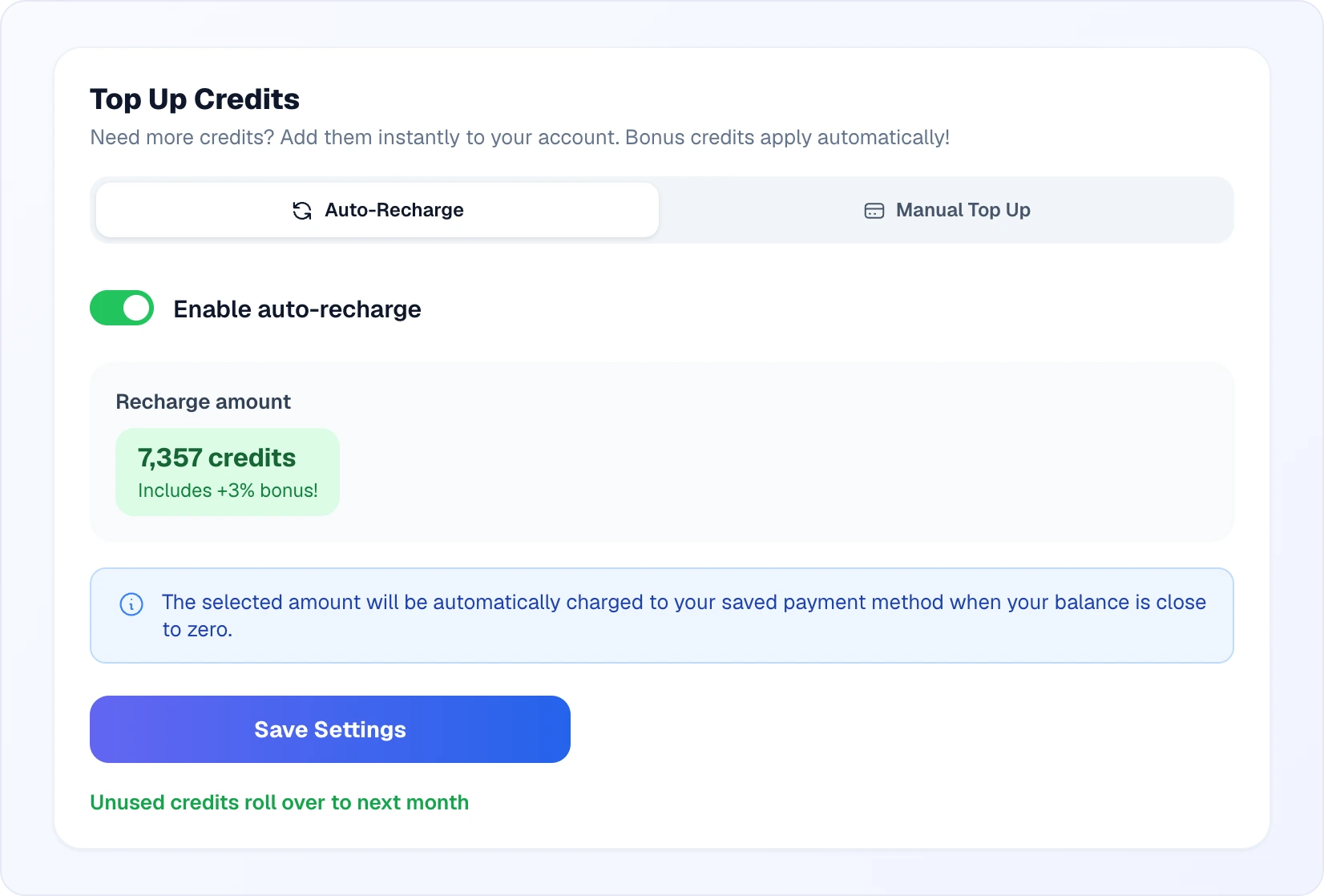
- Billing → Top Up → Auto-Recharge
- Turn on Enable auto-recharge
- Set the Recharge amount — type it or click one of the preset buttons; the credits it buys are shown next to it
- Click Save Settings
What happens next:
- When the balance drops to about 140 credits, Looma charges the chosen amount to your saved card and adds the credits.
- This threshold is deliberately above the low-balance email threshold (about 70 credits): auto-recharge fires first, and the warning email only comes if the recharge failed.
- You get an email after every auto-recharge; if the card declines the charge, you get a failed auto-recharge email.
- A saved card is required. Delete the card and auto-recharge turns off.
- To turn it off, just flip the switch: it saves immediately, no button needed.
Manual top-up
Any time, any amount within the limits:
- Billing → Top Up → Manual Top Up (or Top Up Now / the "plus" on the pill)
- Enter an amount or pick a preset — presets that earn a bonus are marked "+N%"
- If a card is saved, click Pay … · Visa •••• 1234 — the dashboard asks "Charge this amount from your saved card?", and after Confirm the charge goes through without leaving the page. Pay with another card opens the provider's page.
- Credits appear on the balance within seconds (rarely within a minute: "Payment accepted — your balance will update shortly")
The minimum and maximum for one top-up are shown under the form.
Top-up credits never expire
Credits bought one-off stay on your balance for months — just like plan credits.
Tracking usage
The Usage tab shows how many credits were spent and on what.
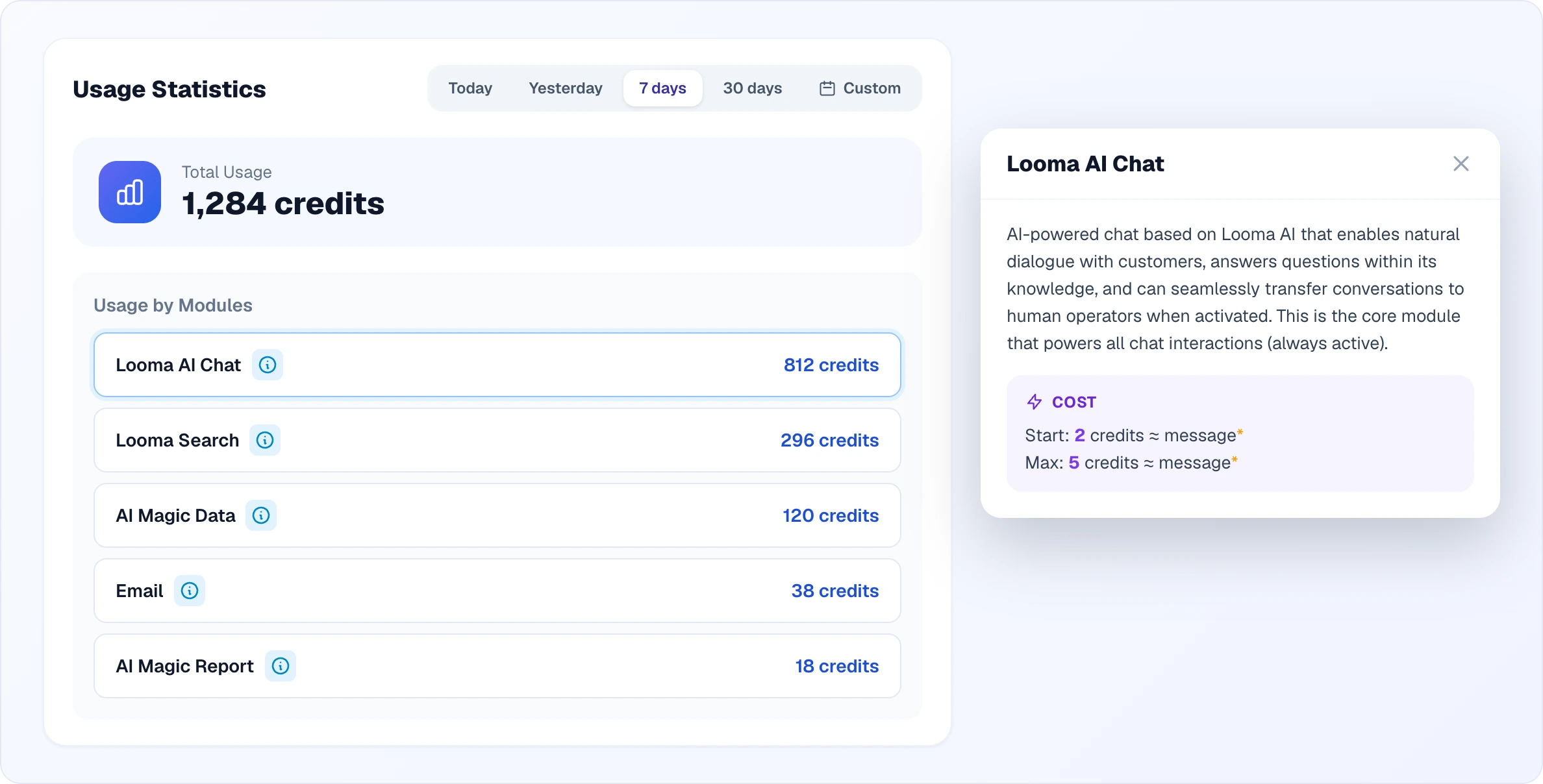
- Period — Today, Yesterday, 7 days, 30 days or Custom (your own range of up to 90 days).
- Total Usage — credits spent in the period across the whole account.
- Usage by Modules — the breakdown by module: AI chat, search, AI product processing, category database, AI helper, AI reports, customer emails, plus calls (when the module is on) and image generation (when there was any). Only modules with spending in the period are listed.
- The i button next to a module opens a window with the module's description and its cost in credits — for example, what one AI reply costs on the cheapest and the most expensive model.
Use it to see whether your plan is enough and to find the module that spends the most. Automation costs are covered in Automations.
Payment history
The History tab lists every financial event of the account, newest first, 10 per page.
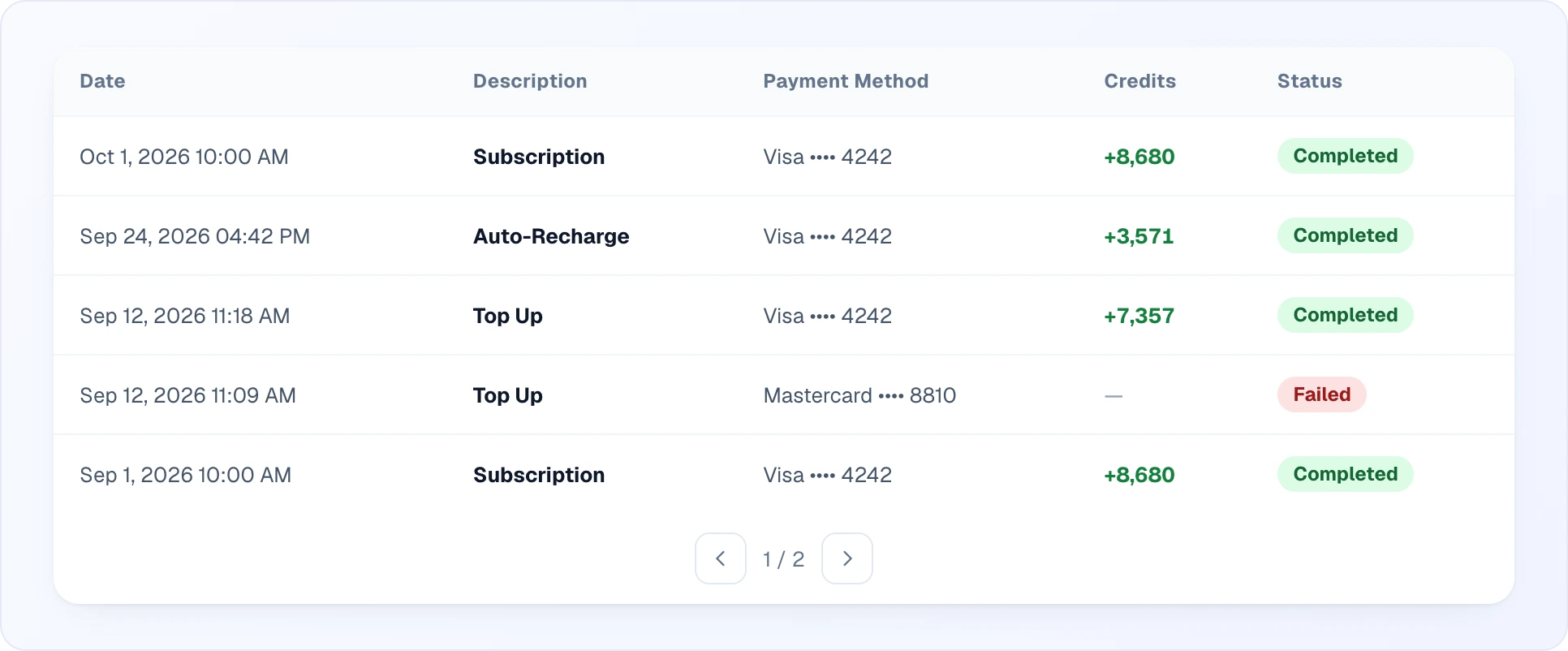
| Column | What it shows |
|---|---|
| Date | When the payment was created |
| Description | Subscription, Top Up or Auto-Recharge |
| Amount (excl. tax) | The payment amount without your country's tax |
| Payment Method | The card type and its last digits |
| Credits | How many credits were added. Credits are only added for a successful payment — other rows show a dash |
| Status | Completed, Pending, Failed or Refunded |
Emails you'll receive
| When | |
|---|---|
| Subscription activated | After the first plan payment |
| Subscription renewed | After every successful renewal |
| Payment failed | A renewal could not be charged — with information on retries |
| Top-up successful | After a manual top-up |
| Auto-recharge completed / failed | If auto-recharge is on |
| Low balance | When about 70 credits are left (at most once a day) |
| Widgets hidden | When the balance went below zero and the widgets disappeared from your site |
| Subscription cancelled / ended | Confirmation of cancellation and of access ending |
Notification settings
You can turn off the low-balance email in Profile → Notifications → Low Balance Notification (available to the Owner and Administrator). Payment and subscription emails always arrive — even if you unsubscribed from other emails.
If your subscription ends
What stops
- AI replies in the widget
- AI search
- AI processing of new product descriptions
What's kept
- Catalog, AI descriptions, embeddings
- Chat history, leads
- Rules, settings, integrations
- Credits on the balance
Reactivating a plan brings the AI features back immediately — no re-import, no re-processing.
Next steps
- Credits & Plans — what each action costs and what each plan includes
- Automations — which automatic actions spend credits
- AI Assistant Overview — core chat settings