

Clients
Clients is your directory of everyone who has interacted with your store through the widget or chat — their contact details, location, traffic source and conversation history in one searchable list. It lives in the sidebar and is visible to every team role; follow-up automations (contact collection, chat copy and product reminder emails) have moved to the separate Automations page, available to Owners and Administrators.
What Clients is
A "client" here is an end customer — a visitor who talked to your store through the website widget or a connected chat channel. It is not a Looma account, not one of your team members, and not something you create by hand. Looma builds the directory automatically from real conversations: anyone whose visit produced at least one message shows up. Every team role — Owner, Administrator, Supervisor and Chat User — can open Clients and browse the list, search it, open client details and export. Follow-up emails and contact collection are no longer a tab here — they live on the Owner/Administrator-only Automations page.
The clients list
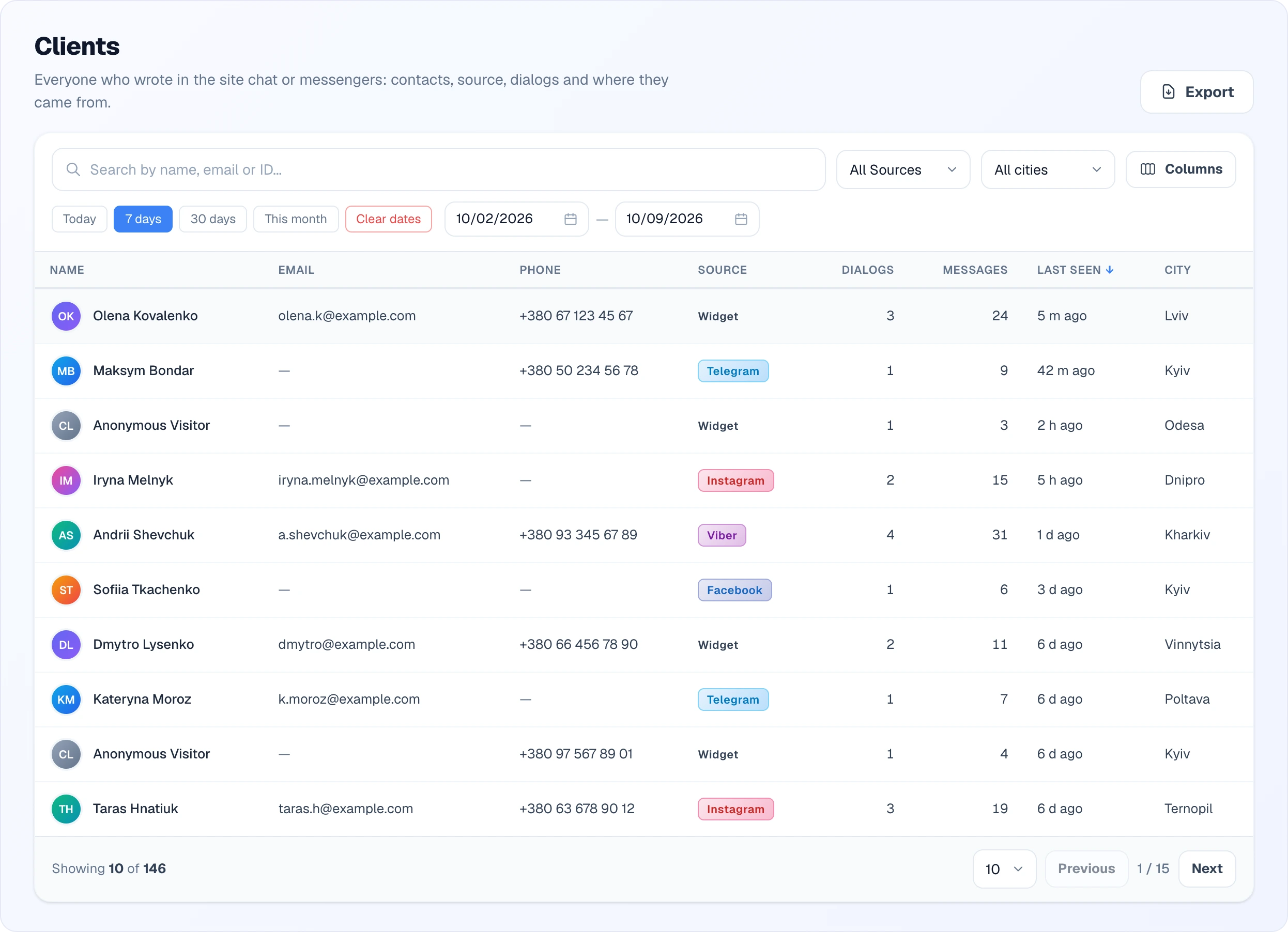
The list is one row per client, sortable and paginated. The first column is always the name with an avatar (or Anonymous Visitor when the person never gave one). By default it is followed by email, phone, source, dialog and message counts, last seen and city; the most recently active clients are on top.
The Columns button opens the list of fields grouped into Contact, Activity, Location and Marketing sections. Tick a field and it appears as a column; the checkbox next to a section name turns the whole section on or off at once (it shows a dash when only some of its fields are on). Your choice is remembered in your browser, so the list opens the same way next time.
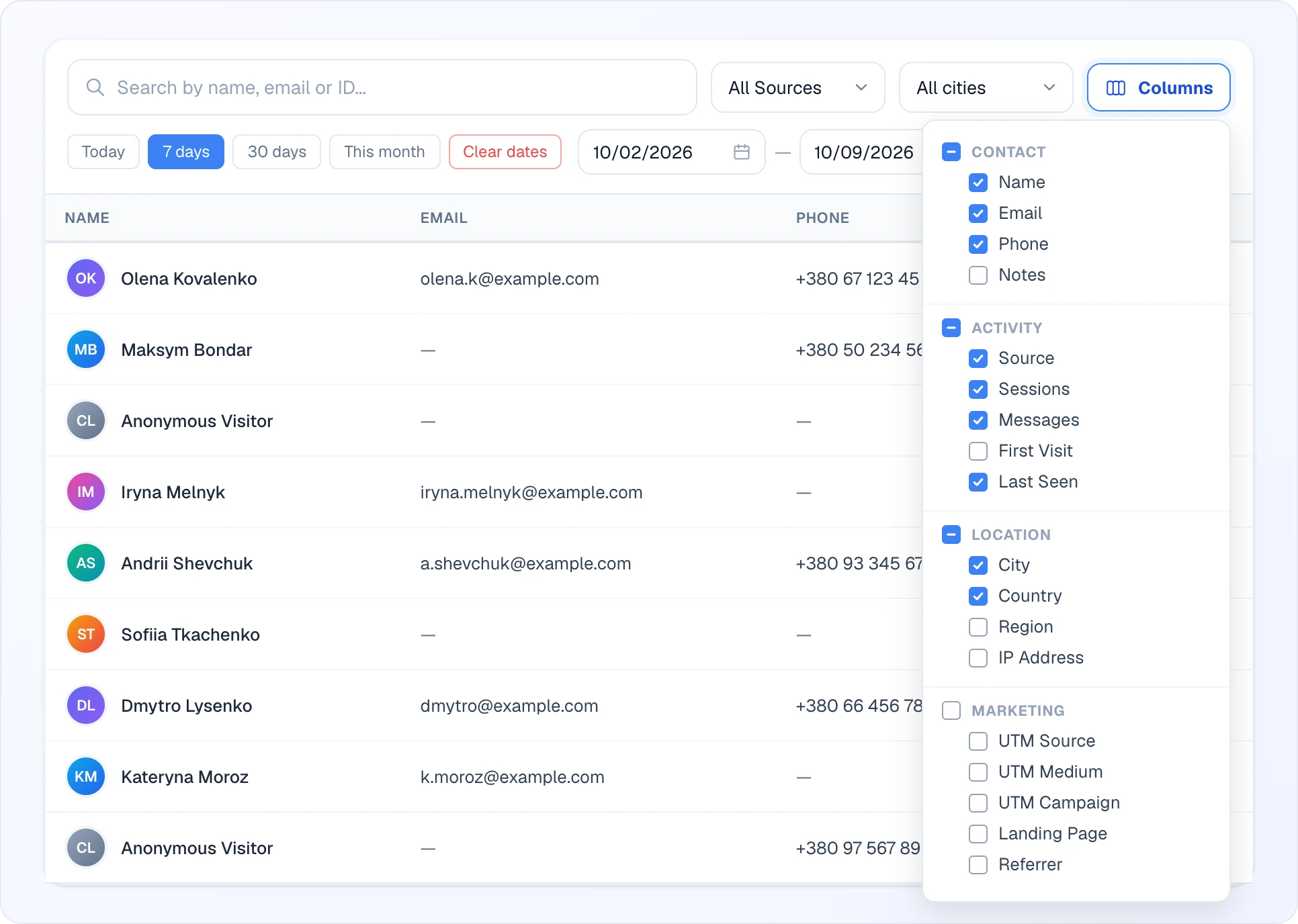
The full set of available columns:
- Name and Email, Phone, Notes
- Source — where the visitor came from (website widget, Telegram, Viber, Facebook, Instagram)
- Dialogs (number of chat sessions) and Messages (total messages exchanged)
- First visit and Last seen timestamps
- Country, Region, City
- IP address
- Landing page and Referrer
- UTM source, UTM medium, UTM campaign
On a phone the table collapses into cards showing the name, source, city, dialog and message counts, and email. Open any row to see the full detail panel.
Finding a client
A toolbar above the list narrows it down without reloading the page:
- Search — free-text box matching name, email, phone, or visitor ID
- Source filter — Widget, Telegram, Viber, Facebook or Instagram, or All Sources
- City filter — pick one city, or All cities (the list only holds cities your clients have actually come from)
- Quick periods — Today, 7 days, 30 days, This month, plus from/to date fields and a Clear dates button; the date filter looks at the client's last seen activity
- Sortable columns — click a column header to sort ascending or descending
- Pagination — choose 10/20/50/100 per page, step with Previous / Next, and a "showing … of …" count tells you where you are
Every filter you apply also scopes the Export — you download exactly the slice you are currently looking at.
Client details
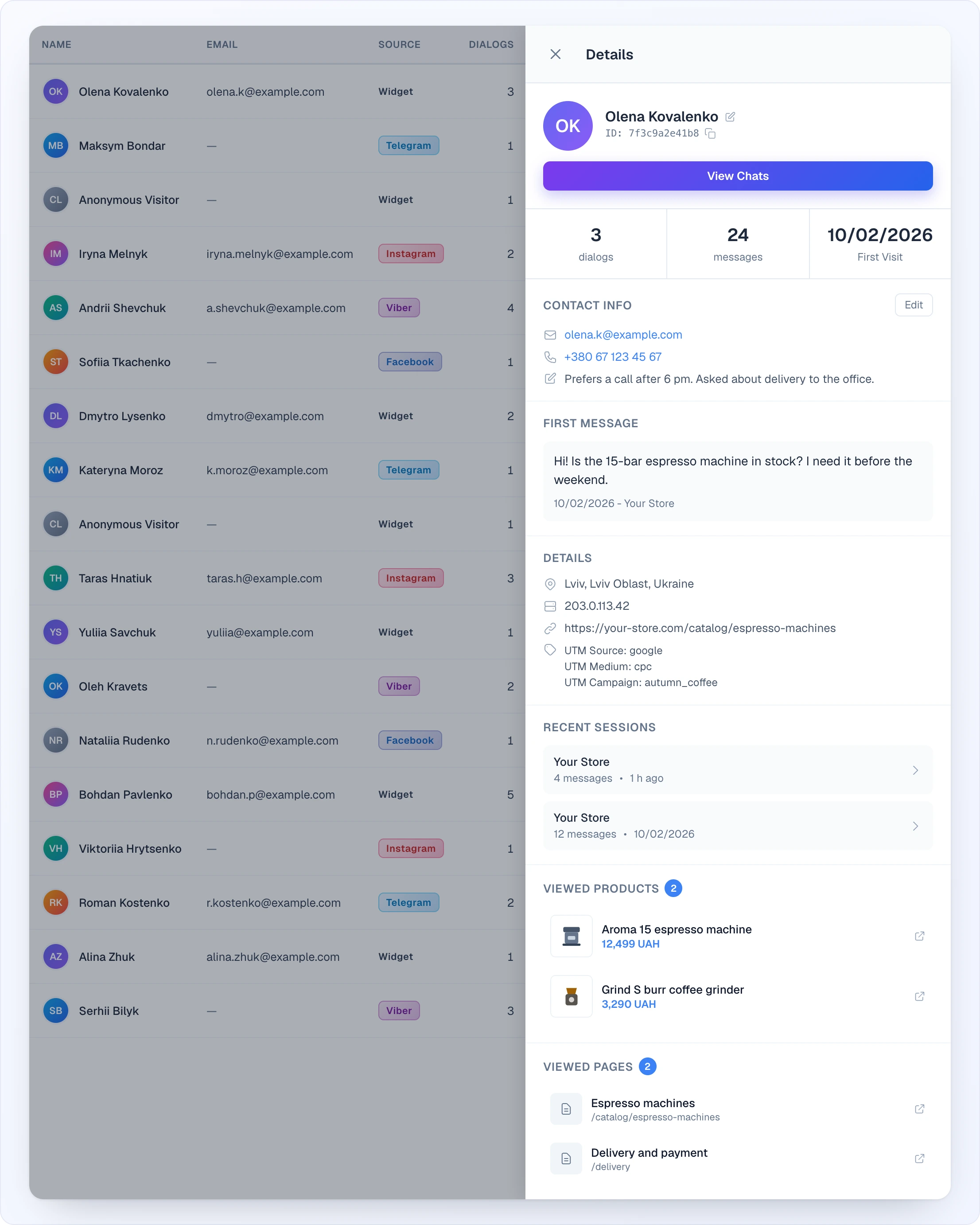
Clicking a client opens a slide-over panel with everything Looma knows about that contact. At the top: the avatar and display name (rename it inline with the pencil icon), the visitor ID with a copy button, the source badge, and a View chats button that jumps straight into Chats filtered to this person. Below that:
- Contact info — email, phone and notes. Click Edit to change the display name, email, phone or notes and Save; if nothing has been captured yet you get an "add contact info" prompt instead.
- Stats — dialog count, message count, and the first-visit date.
- First message — the opening message that started the relationship, with date and site.
- Location & details — city, region, country, IP address, landing page and the UTM tags the visitor arrived with.
- Recent sessions — a list of this client's chat sessions, each linking into the matching conversation.
- Viewed products — products the visitor looked at, with image, title and price.
- Viewed pages — pages the visitor browsed on your store.
Sections with no data (for example, no first message or no viewed products) are simply not shown. Close the panel with the cross, the Esc key or a click on the dimmed list.
Exporting
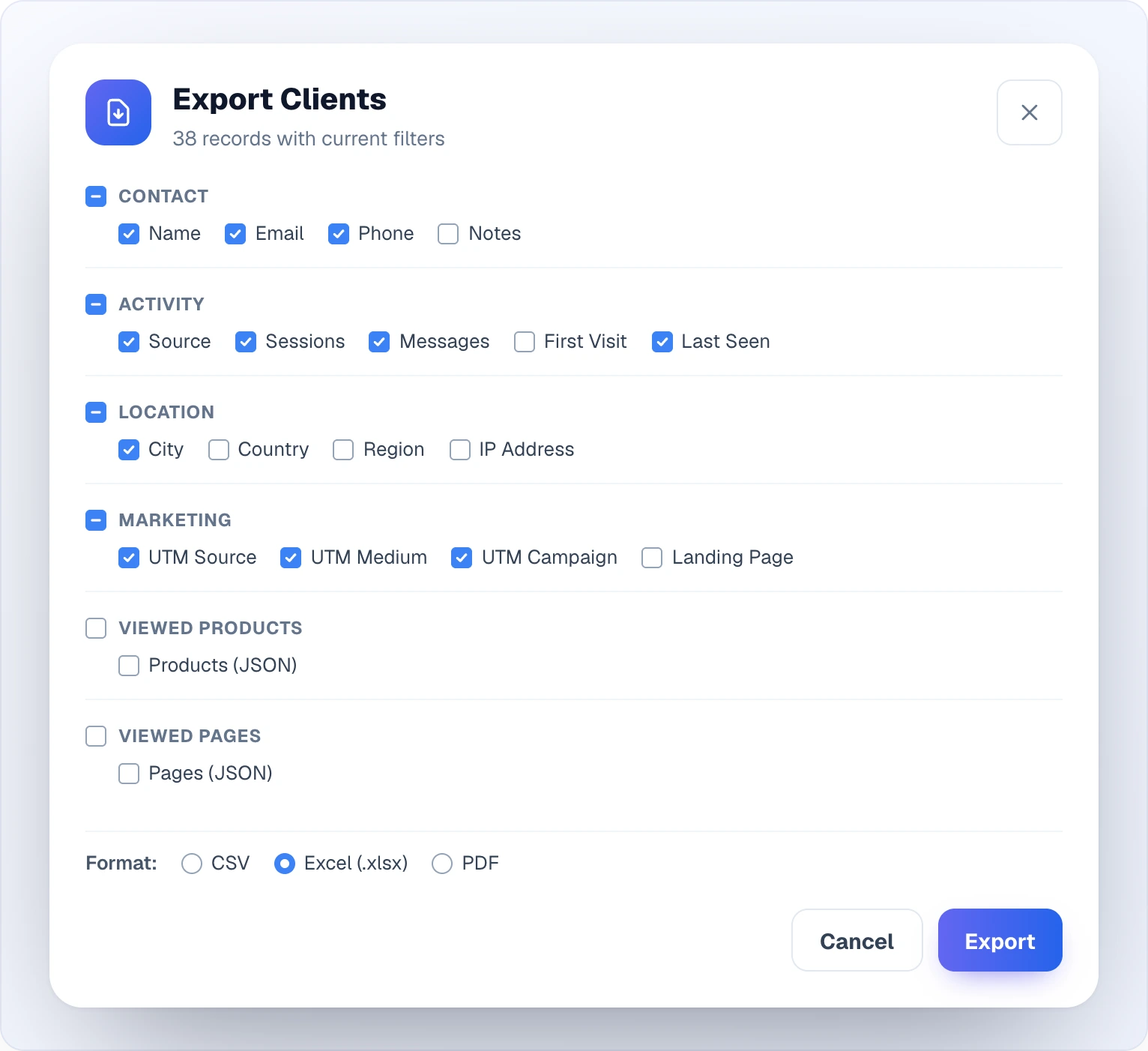
The Export button opens a dialog that downloads the current (filtered) list as a file. You choose which fields to include, grouped into sections you can tick on or off:
- Contact — name, email, phone, notes
- Activity — source, sessions (dialogs), messages, first visit, last seen
- Location — city, country, region, IP address
- Marketing — UTM source, UTM medium, UTM campaign, landing page
- Viewed products and Viewed pages — each list goes into the file as a single JSON cell
Pick a format — CSV, Excel (.xlsx) or PDF — and click Export. Under the title the dialog shows how many records the file will contain, given the filters active on the list right now. If you untick everything, the export won't run and asks you to pick at least one column.
Automations
The old Automations tab no longer exists on this page. Contact collection (Collect email, Collect phone number), Send a copy of the conversation and Product reminder are now switches on the separate Automations page in the sidebar (Owners and Administrators only), together with the other automatic features. Opening the old /clients#automations link redirects there. Emails sent by these automations use credits; see Automations for the settings and Email Delivery for how email charges work.
Related
- Chats — the conversations these clients came from
- Leads — contacts captured as actionable sales leads
- Automations — contact collection, conversation copy and product reminder emails
- Email Delivery — how follow-up emails are sent and charged