

Integrations
Integrations is where you connect Looma to your own systems through the public API — create API keys, manage outgoing webhooks, and find ready-made integrations. It lives in the sidebar (Owner and Administrator roles) and requires a plan that includes API access.
Who can use the API
The Integrations page is available to the Owner and Administrator roles only. On top of that, your plan must include the API access feature. If your current plan doesn't include it, or your subscription has expired, the page replaces the API tools with an upgrade prompt that links to Billing — pick or reactivate a plan with API access to unlock keys and webhooks. Everything below assumes the feature is active.
API keys
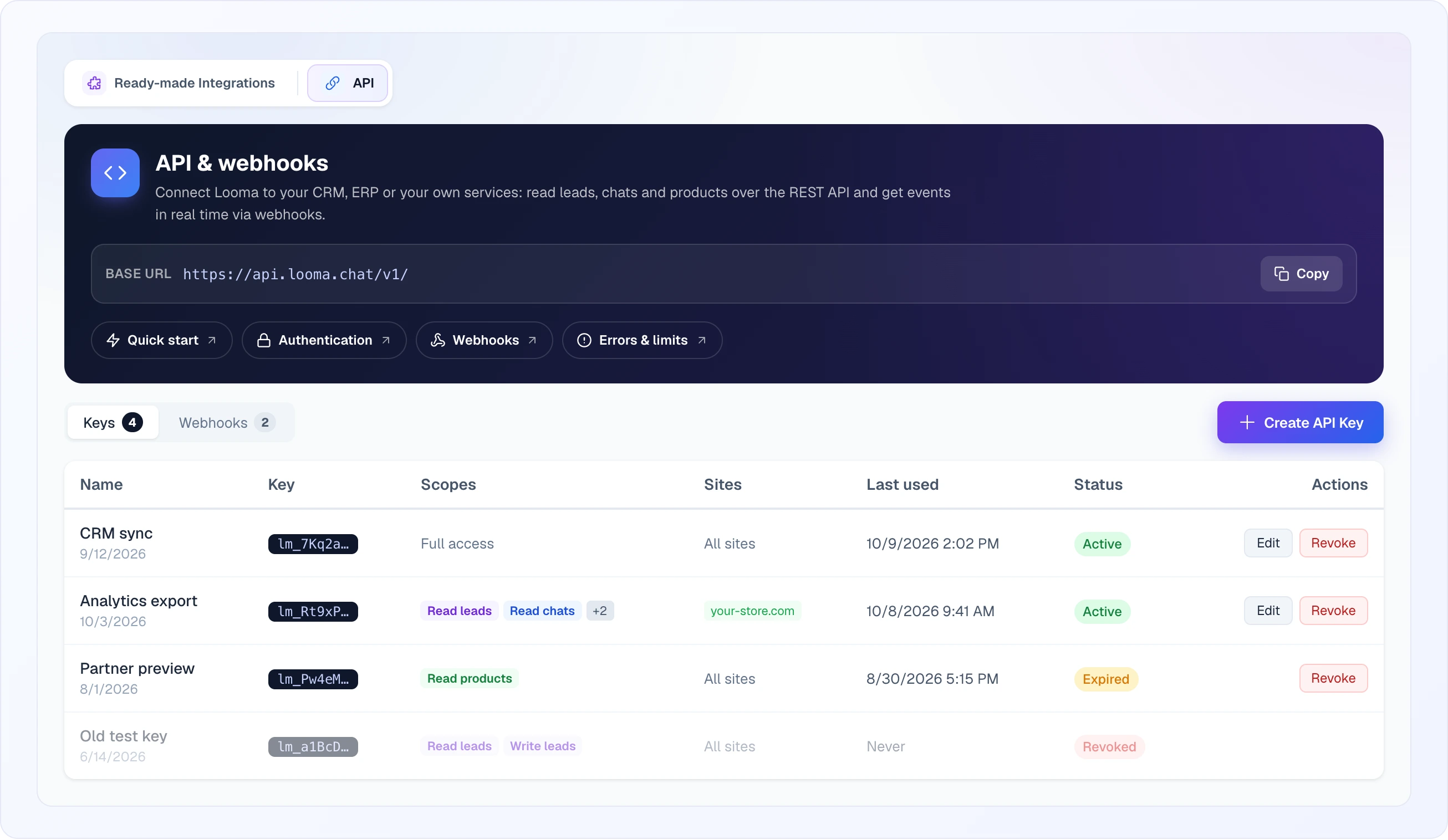
Open Integrations → API. The dark header at the top shows the Base URL of the API (https://api.looma.chat/v1/) with a Copy button and links to the documentation: Quick start, Authentication, Webhooks and Errors & limits. Below it, the Keys sub-tab lists your keys.
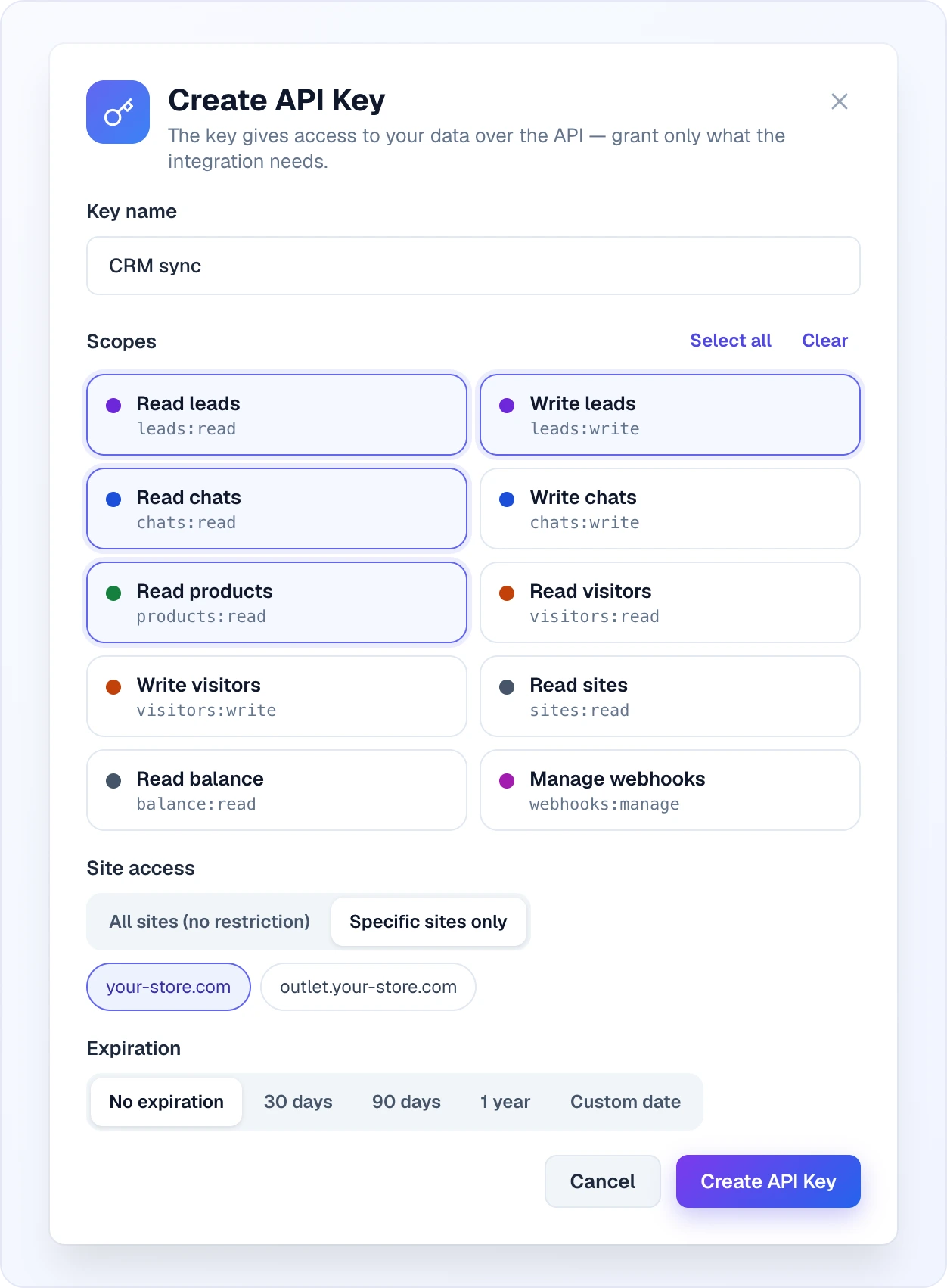
Click Create API Key and fill in:
- Key name — an internal label so you can tell keys apart (for example "Production" or "My App").
- Scopes — one card per scope with its name and code. All ten are ticked for a new key; Select all and Clear switch them in bulk. If you leave none selected, the key gets Full access.
- Site access — All sites (no restriction) or Specific sites only, then tick the sites as chips.
- Expiration — No expiration, 30 days, 90 days, 1 year or a Custom date picked in a calendar.
The full key secret is shown only once, in the API Key Created window ("Copy this key now. You won't be able to see it again."), together with a First request example — copy it there and store it safely, then confirm with I have saved the key. Afterwards Looma only ever displays the key prefix (e.g. lm_xxx); the secret itself is stored as a hash and cannot be retrieved again. If you lose it, revoke the key and create a new one.
The keys table lists each key with its name and creation date, the key prefix (the first eight characters, such as lm_7Kq2a…), scopes (the first two plus a "+N" counter), sites, the Last used time (Never if the key was never used) and the status — Active, Revoked or Expired. From the row you can:
- Edit an active key — change its name, scopes and sites. The expiration date cannot be changed after creation: create a new key instead.
- Revoke it — this immediately disables all requests made with the key and cannot be undone. An expired key can still be revoked; a revoked key stays in the table greyed out.
Available scopes
Scopes control what an API key is allowed to do. Your developer picks the scopes their integration needs. A key with no scope restriction has Full access. Otherwise you grant a subset of these ten scopes:
leads:read— read captured leads.leads:write— create or update leads.chats:read— read chat sessions and messages.chats:write— send messages and change chat state.products:read— read the product catalogue.visitors:read— read visitor events and sessions.visitors:write— record visitor events.sites:read— read site details. Channel endpoints are covered by this scope — there is no separatechannelsscope.balance:read— read your credit balance.webhooks:manage— create, edit, and delete webhooks via the API.
Webhooks
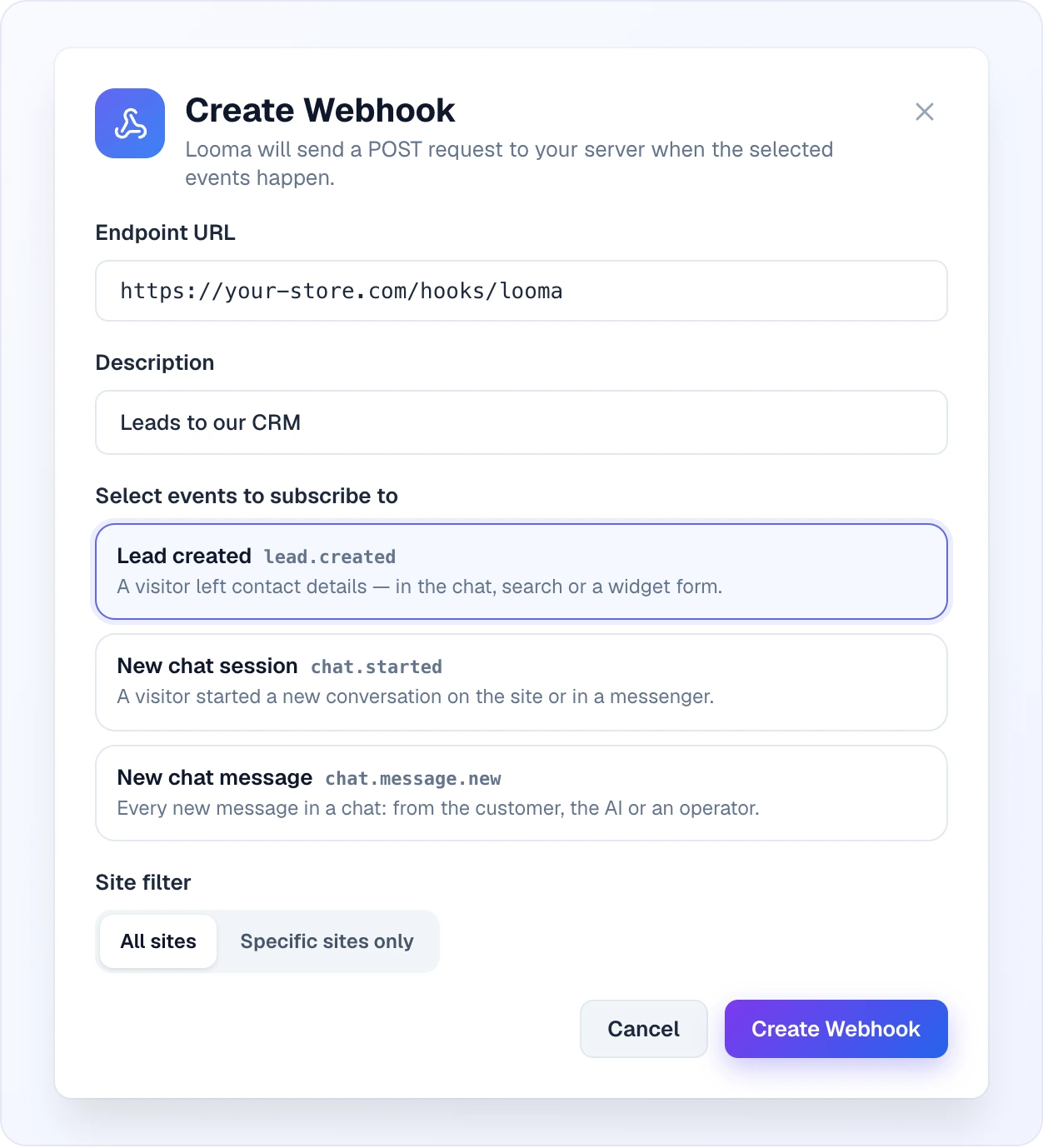
On the Webhooks sub-tab of Integrations → API you register endpoints that Looma calls when something happens in your account. Click Create Webhook and provide:
- Endpoint URL — your server address, e.g.
https://your-app.com/webhook. - Description — optional, for your own reference.
- Select events to subscribe to — one card per event with a short explanation; all three are ticked for a new webhook.
- Site filter — All sites or Specific sites only.
After creation the Webhook Created window shows the Signing secret — once only, like an API key — together with How to verify the signature. Copy it and confirm with I have saved the secret.
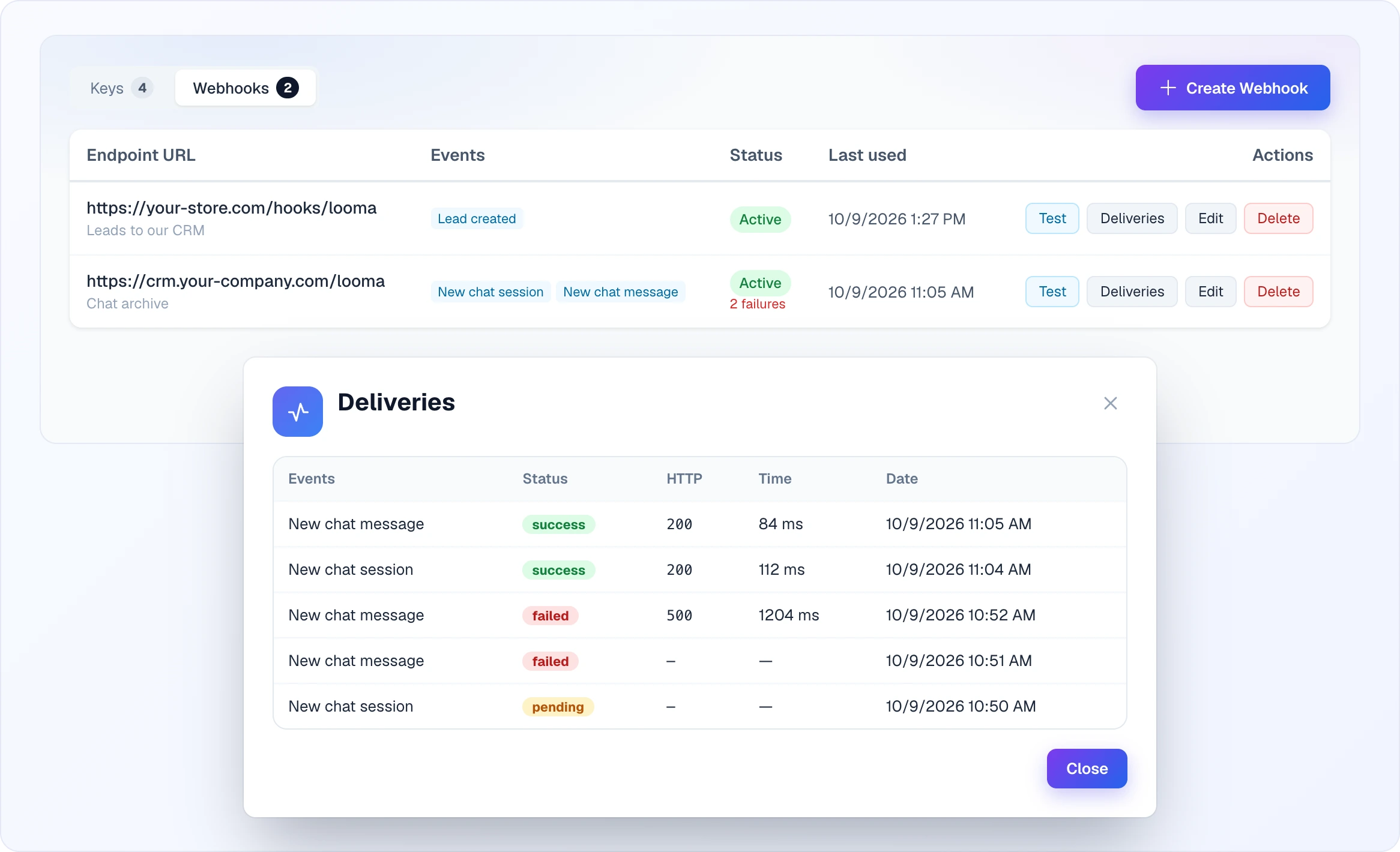
Each webhook row shows the endpoint, its events, the status (Active or Disabled, plus a red failure counter when recent deliveries failed) and the Last used time. The row buttons are:
- Test — sends a sample delivery; a toast says "Test delivery succeeded" with the response time, or "Test delivery failed" with the reason (for example the HTTP code your server returned).
- Deliveries — the log of recent attempts: event, status (
success,failedorpending), the HTTP code your server returned, the response Time and the Date. A failed attempt with "—" in the HTTP column means your server did not answer at all. - Edit — change the URL, description, events, or switch the webhook off and back on. The site filter is set only at creation.
- Delete — removes the webhook together with its whole delivery history.
If your plan stops including API access or your subscription expires, the sub-tab shows the banner Events are not being delivered: webhooks keep the Active status but receive nothing until you upgrade or renew.
The signing details below are for the developer who builds your endpoint — you can hand this section to them.
Every delivery is signed so you can verify it really came from Looma. Looma sends a POST with these headers:
X-Looma-Event— the event name (e.g.lead.created).X-Looma-Delivery— the unique delivery ID.X-Looma-Timestamp— the Unix timestamp used in the signature.X-Looma-Signature—sha256=<hmac>, where<hmac>isHMAC-SHA256(timestamp + "." + rawBody, webhook_secret).
To verify authenticity on your side: take the X-Looma-Timestamp value, concatenate it with . and the raw request body, compute HMAC-SHA256 with your webhook's secret, prefix the result with sha256=, and compare it (using a constant-time comparison) against X-Looma-Signature.
Webhook events
These are the three events you can subscribe a webhook to in the UI:
lead.created— a new lead is captured.chat.started— a visitor opens a conversation.chat.message.new— a new message is posted in a chat.
A single webhook can listen to any combination of these, and the site filter you set when creating the webhook restricts which sites trigger it.
Rate limits
The public API is rate-limited per key on a sliding one-minute window. Every API response carries three headers so you can pace your requests:
X-RateLimit-Limit— the maximum requests allowed in the window.X-RateLimit-Remaining— how many requests you have left in the current window.X-RateLimit-Reset— when the window resets.
The per-key limit is driven by your plan and key configuration rather than a fixed global number, so read the X-RateLimit-Limit header to learn the value that applies to a given key. When the limit is exceeded, requests are rejected until the window resets.
Ready-made integrations
The first top tab, Ready-made Integrations, is a catalog of prebuilt connectors to shop platforms, CRMs and automation services. Each card has a brand cover, country flags, capability tags, a short description, the number of your sites already connected (Sites connected: N) and a Set up connections button that opens the connector's own page.
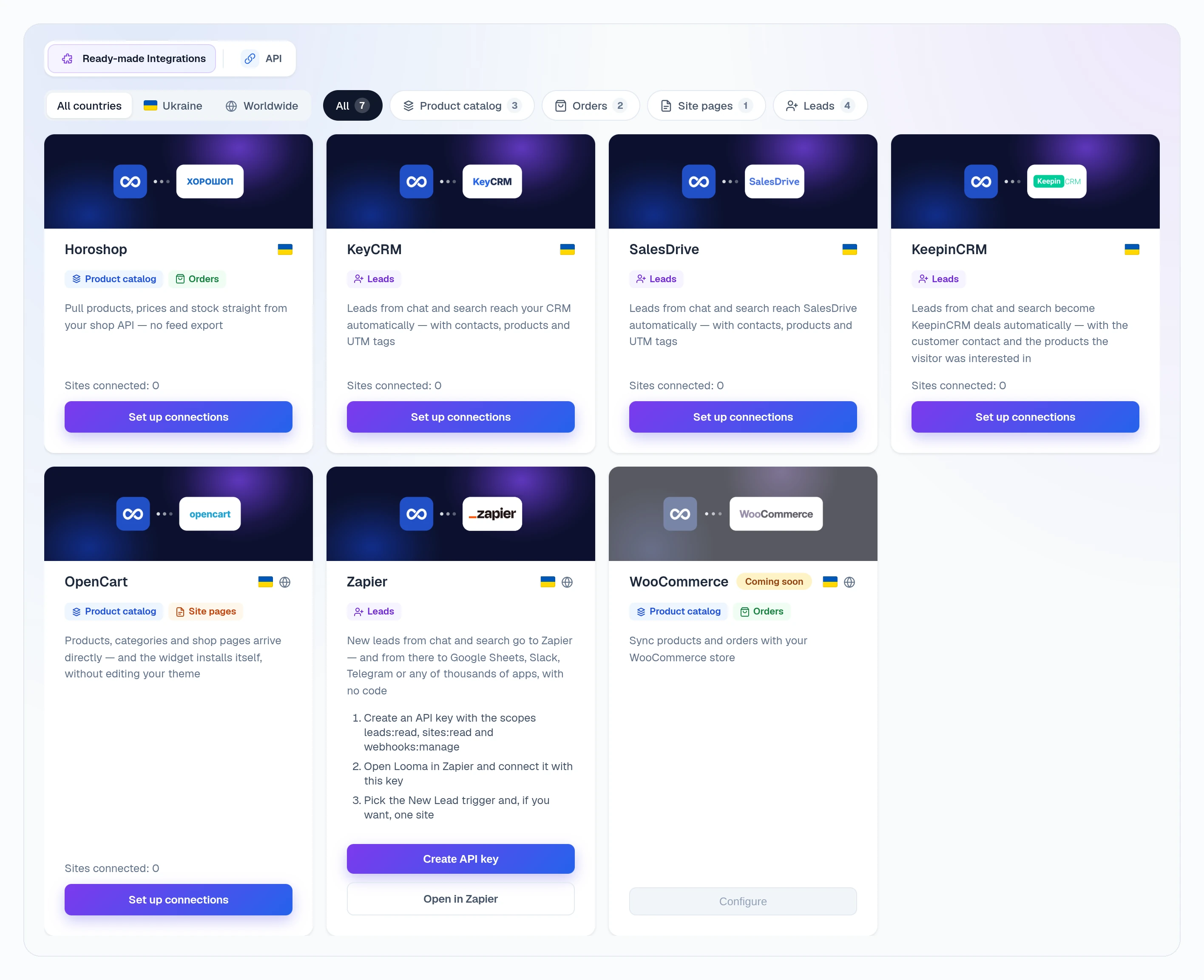
| Connector | Type | Tags on the card | Guide |
|---|---|---|---|
| Horoshop | shop | Product catalog, Orders | Direct shop connection |
| OpenCart | shop | Product catalog, Site pages | Direct shop connection |
| KeyCRM | CRM | Leads | KeyCRM |
| SalesDrive | CRM | Leads | SalesDrive |
| KeepinCRM | CRM | Leads | KeepinCRM |
| Zapier | automation | Leads | Zapier |
| WooCommerce | shop | Product catalog, Orders | marked Coming soon, its button is disabled |
The tags show what a connector really does today: Product catalog (products come from the shop, no feed), Orders (orders reach your analytics), Site pages (shop pages are read) and Leads (Looma leads are delivered to a CRM as deals or orders, or start a Zap in Zapier).
The Zapier card works differently: there is nothing to connect on the Looma side, so instead of Set up connections it shows three steps, a Create API key button (opens the key form with the scopes Zapier needs already ticked) and Open in Zapier. See Zapier.
Filter the catalog
- Country — All countries, Ukraine or Worldwide. Horoshop, KeyCRM, SalesDrive and KeepinCRM are marked Ukraine; OpenCart, Zapier and WooCommerce carry both flags.
- Capability chips — All and one chip per tag, each with a live counter. A chip with no connectors in the chosen country is hidden.
The two filters combine, and the counters follow the selected country.
Full API reference
For endpoints, request and response schemas, and code examples, use the full API reference at docs.looma.chat — the same destination as the documentation banner on the API tab. Authenticate every request with your API key in the Authorization header as a Bearer token: Authorization: Bearer lm_xxx. Send the raw key (the full secret shown once at creation), not the prefix.
Related
- Channels — connect messaging apps (channel endpoints use the
sites:readscope) - Leads — the leads delivered by the
lead.createdwebhook - Chats — conversations behind the
chat.startedandchat.message.newevents - Direct shop connection, KeyCRM, SalesDrive, KeepinCRM, Zapier — the ready-made connectors
- Billing & Payments — plans that include API access