

Chat Reminders
Chat Reminders let an operator set a personal follow-up on any conversation — a future time plus an optional note — so chats that need revisiting later don't get lost. A reminder is strictly personal: only the operator who created it can see it, and each operator can have one active reminder per chat. When the time comes, Looma sends a browser push (if enabled) and flags the chat in your list, so you're nudged back to the right conversation at the right moment. Reminders never touch the customer — they're a private workflow tool for your team.
Setting a reminder
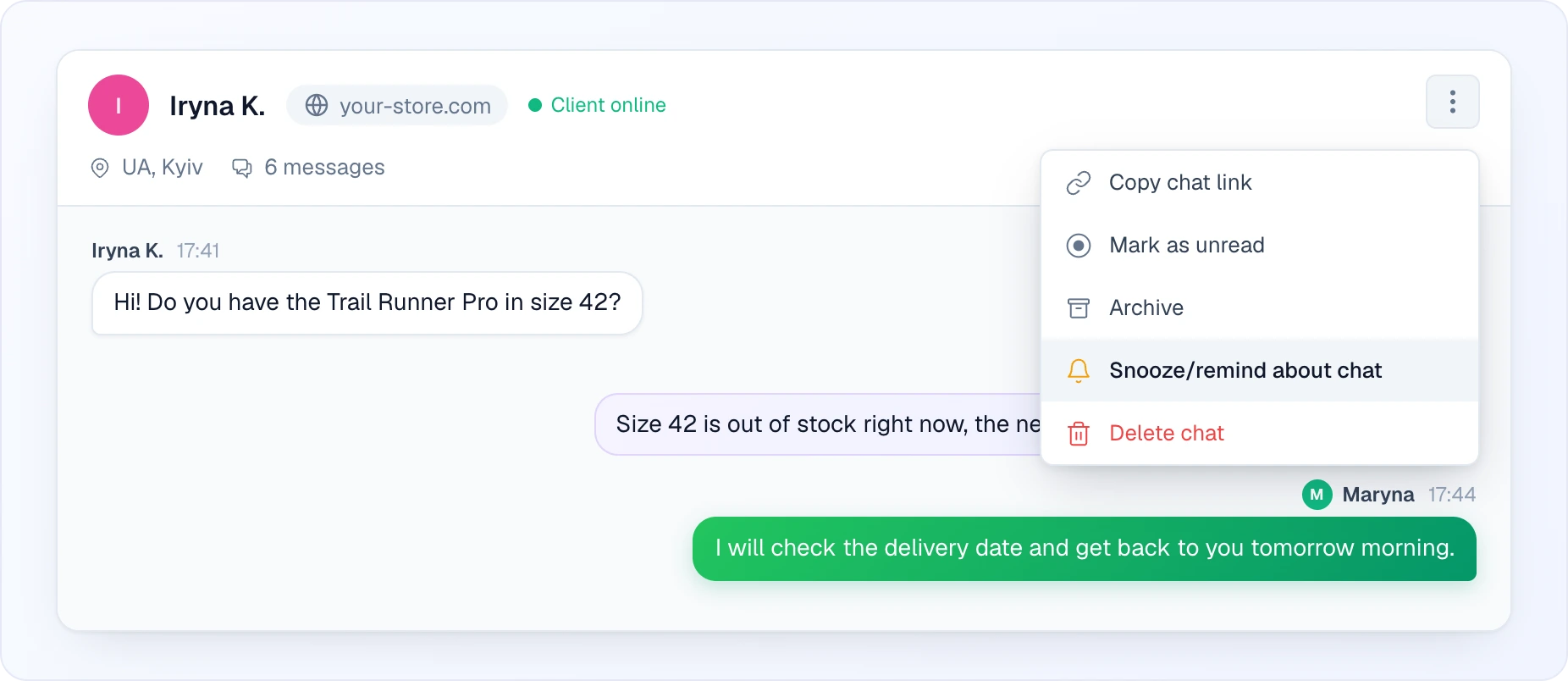
Open a chat and use the three-dot menu → Snooze/remind about chat. In the dialog you pick:
- When to remind — choose a quick preset (In 15 min, In 1 hour, This evening, Tomorrow at 9:00, Monday at 9:00) or set an exact date and time.
- Reminder text (optional) — a short note to yourself, e.g. "check if the size is back in stock", shown when the reminder fires.
Click Save. The time is interpreted in your own local timezone. Setting a new reminder on a chat that already has one simply replaces it.
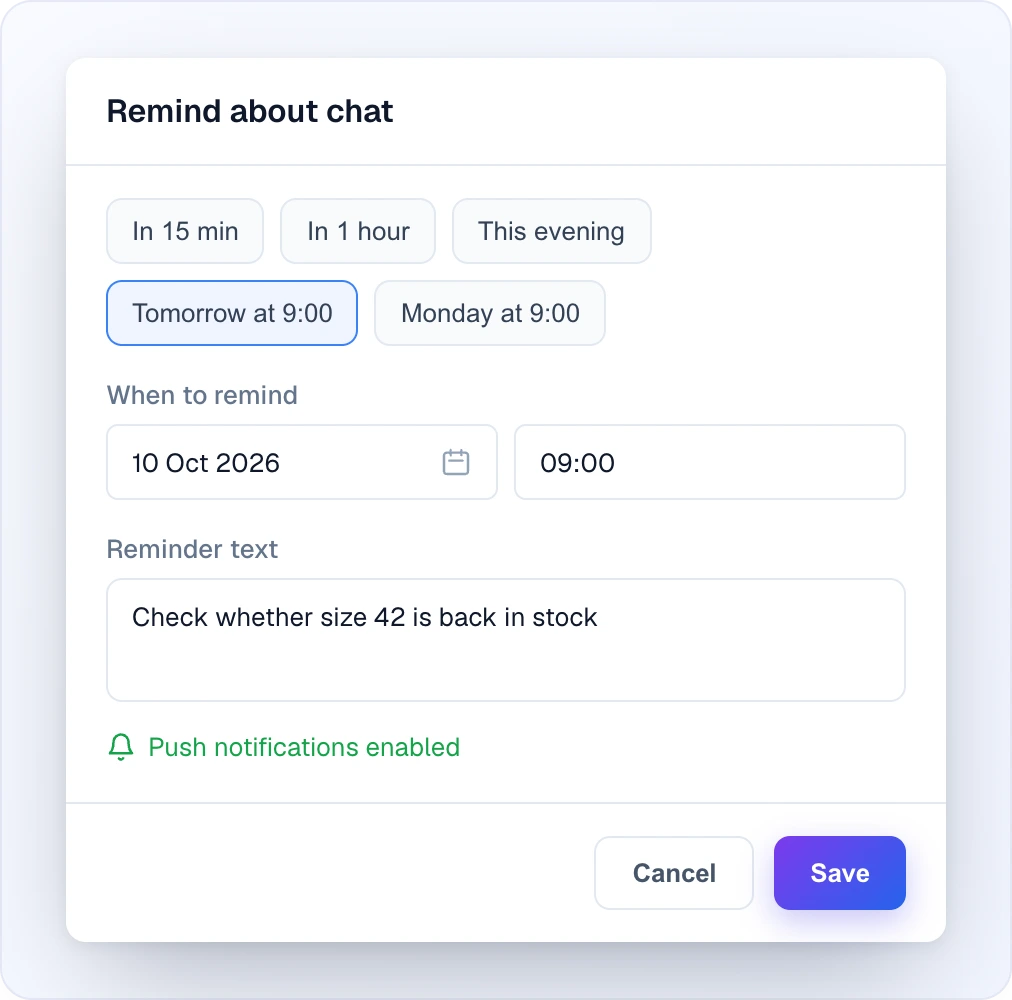
A preset only fills in the date and time — you can still adjust them before saving. "This evening" means 18:00 (or 18:00 the next day if it is already later), "Monday at 9:00" is the nearest Monday. The reminder text can be up to 500 characters.
The reminder card
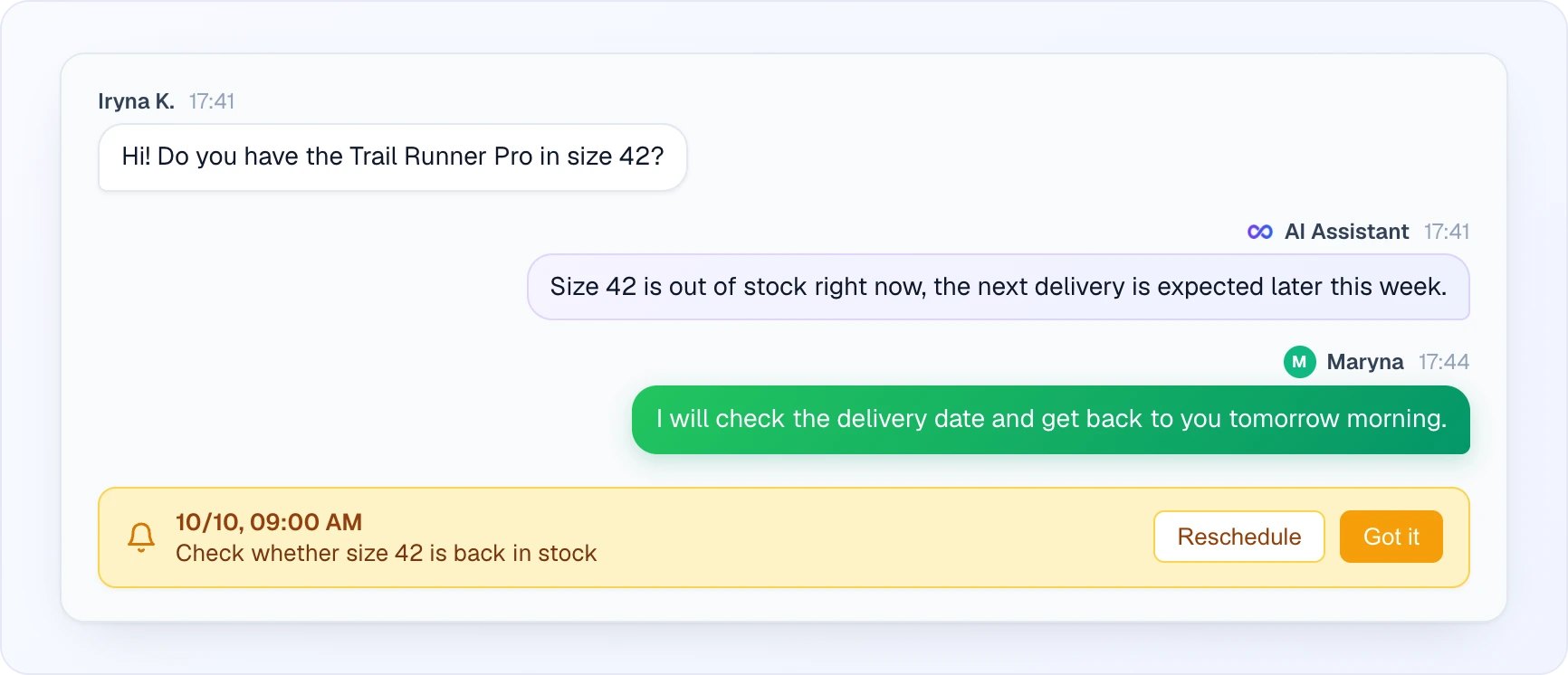
While a chat has an active reminder, an inline card appears in the conversation showing the scheduled time and your note, with two actions:
- Reschedule — pick a new time; the existing reminder moves to it (the old push is cancelled so it never fires twice).
- Got it — acknowledges and clears the reminder. Acknowledging removes it entirely; there's nothing left to fire.
The card sits at the end of the conversation, above the reply box. Until the time comes it is pale yellow; once the reminder is due it turns a deeper amber.
Bell and badges
Reminders surface in a few places so you don't have to keep the chat open:
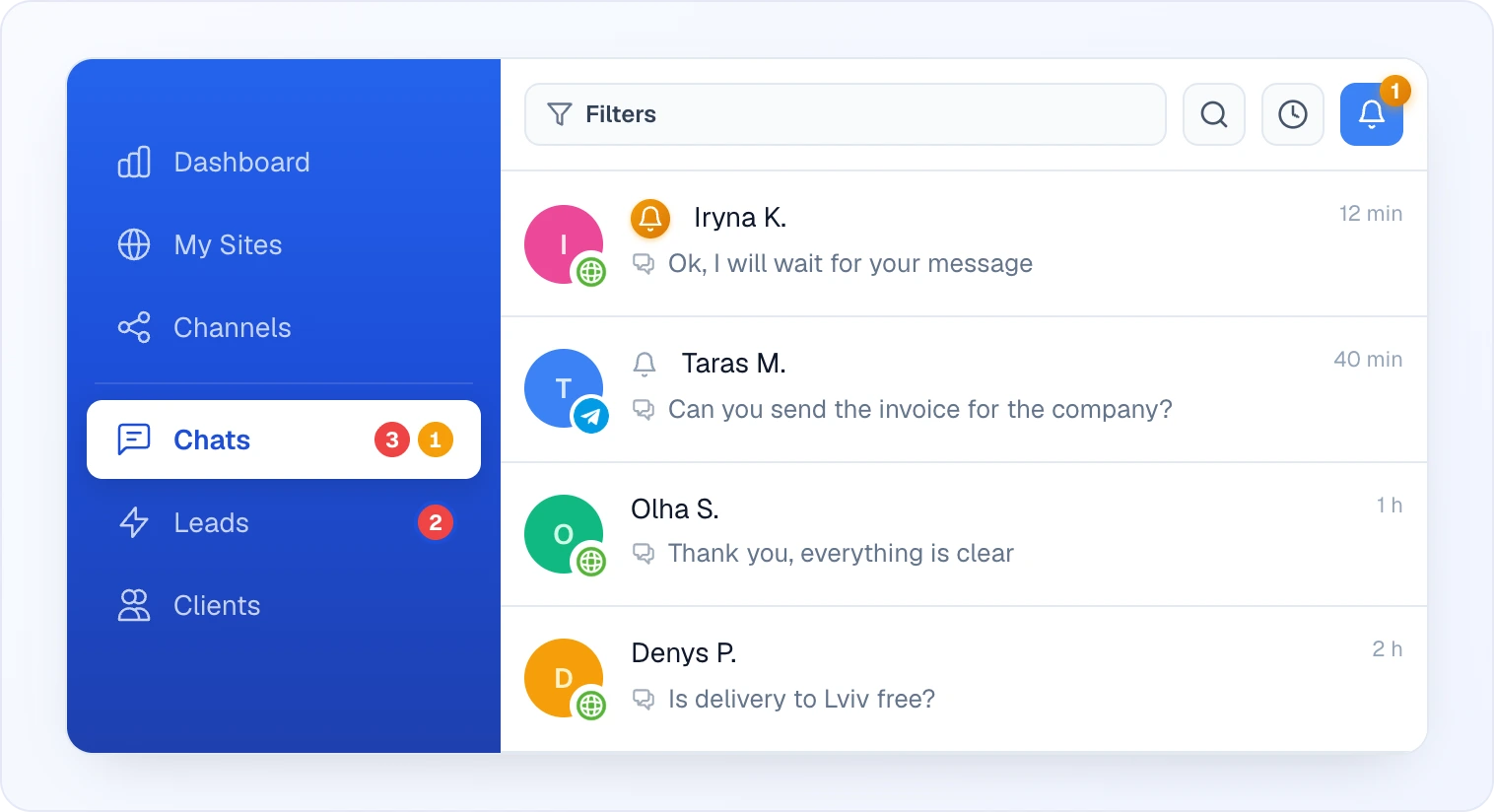
- A bell glyph sits on chats in the list — grey while the reminder is pending, amber once it's due (the scheduled time has passed).
- The sidebar Chats menu item shows an amber due-count badge totalling how many of your reminders are currently due across all sites.
- A Snoozed bell button appears in the toolbar above the chat list (next to search) when you have at least one active reminder; its amber counter shows how many reminders are already due. Clicking it shows only the chats you snoozed. The same Snoozed filter is also available in the expanded Filters panel.
Browser push
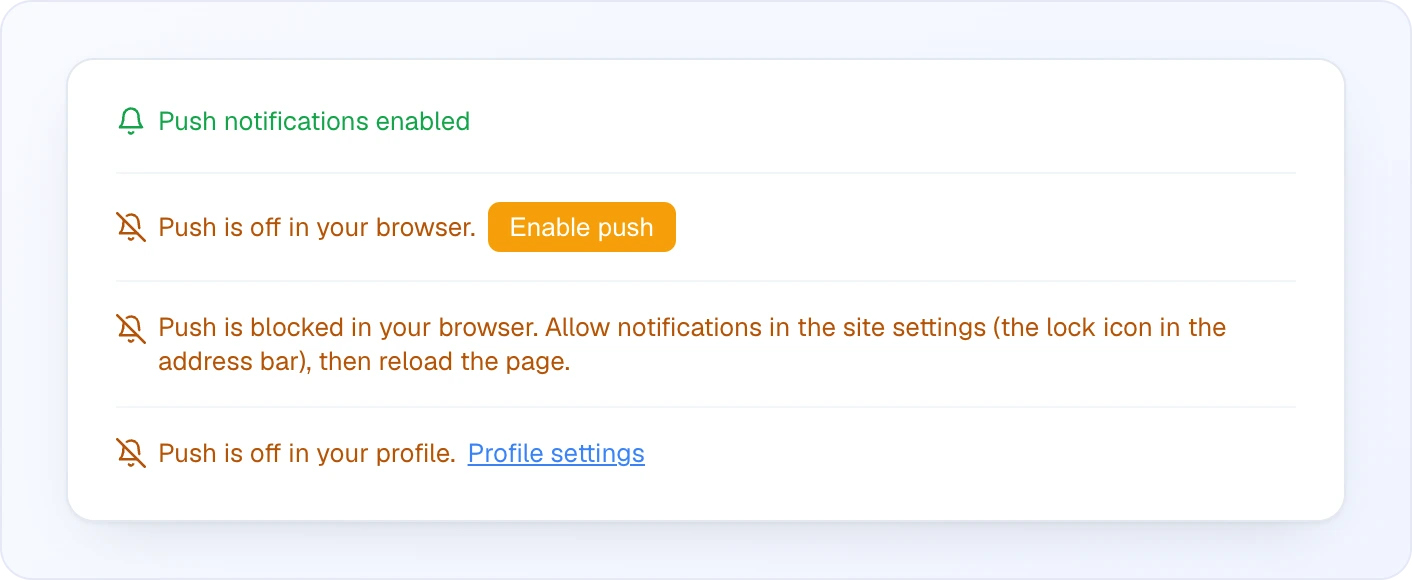
At the scheduled time Looma delivers a browser push notification; clicking it opens the chat. Push depends on your browser and profile settings, and the reminder dialog shows the current state:
- Enabled — push notifications are on; you'll get the reminder as a notification.
- Off in your browser — one click on Enable push requests permission.
- Blocked in your browser — you previously denied notifications; allow them via the lock icon in the address bar, then reload.
- Off in your profile — push is disabled in your notification settings; turn it on from your Profile.
Even if push is unavailable, the reminder still works — the in-list bell and the due-count badge always reflect it, so the notification is a convenience, not the only signal.
Personal scope
Reminders belong to the operator who creates them. Another teammate opening the same chat sees none of your reminders, and you don't see theirs — there's no shared or team-wide reminder. This keeps each operator's follow-up queue private and avoids one person's reminders cluttering everyone else's view.
Related
- Chats — the operator chat console and other per-chat actions
- Profile — enable browser push and other notification settings
- Chat Modes — AI, operator handoff, and how chats move between them