

Email Delivery
The Email tab under Site Settings → AI Assistant controls how the widget sends emails to your customers — product cards they asked for, AI recommendations, operator follow-ups, and chat transcripts. It does not control your account / login emails or the operator notification emails you receive yourself.
When the widget sends email
- Customer asks for it — types "send to email", "email me", or clicks the email button next to a product in the chat. The widget captures their email if it doesn't already know it.
- Operator replies — when an operator writes a message and the customer has gone offline, the message is delivered as an email (with any attached files or shared products).
- Chat transcript — when a conversation with an operator ends, the full thread is emailed to the customer as a record (if they left an address). Controlled by Send a copy of the conversation on the Automations page.
- Product reminders — a set number of days after the transcript, the customer gets an email listing the products they viewed in the chat. Controlled by Product reminder on the Automations page.
If the customer replies to any of these emails, their reply lands back in the chat (as a new message from them) — operators see it as if it had been sent directly through the widget. The chat → email → reply → chat loop is automatic.
Settings
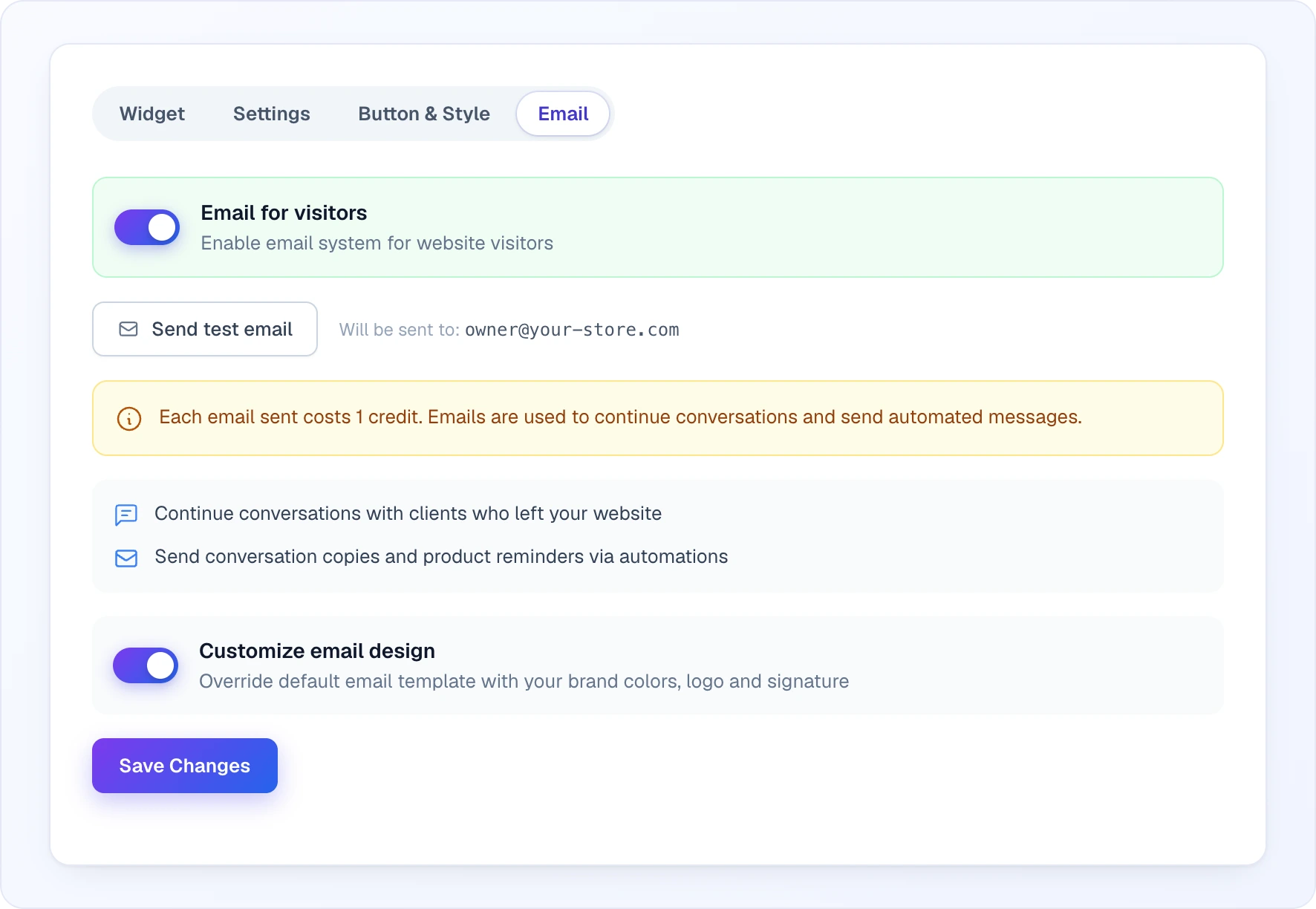
Open Site Settings → AI Assistant and pick the Email sub-tab (next to Widget, Settings and Button & Style).
Email for visitors
The master switch for the whole feature (Enable email system for website visitors). Off = the widget never sends email even if the customer asks, and the rest of the tab is hidden. On = all the scenarios above are unlocked. The transcript and reminder automations send only from sites where this is on; the Automations page lists the sites where it is off, with links.
Send test email
Sends a sample to your own account email — the address is shown next to the button after Will be sent to: — so you can see exactly what your customers will receive: same template, logo, colour, signature.
Below the button a yellow notice reminds you that each email sent costs 1 credit, and two lines sum up what emails are for: continuing conversations with clients who left your website, and sending conversation copies and product reminders via automations.
Customize email design
By default emails use a neutral universal layout with your site name in the header — while the switch is off, the tab says so: "Using default universal design. Enable customization to adjust the look." Turn on Customize email design to unlock the branding controls, then press Save Changes:
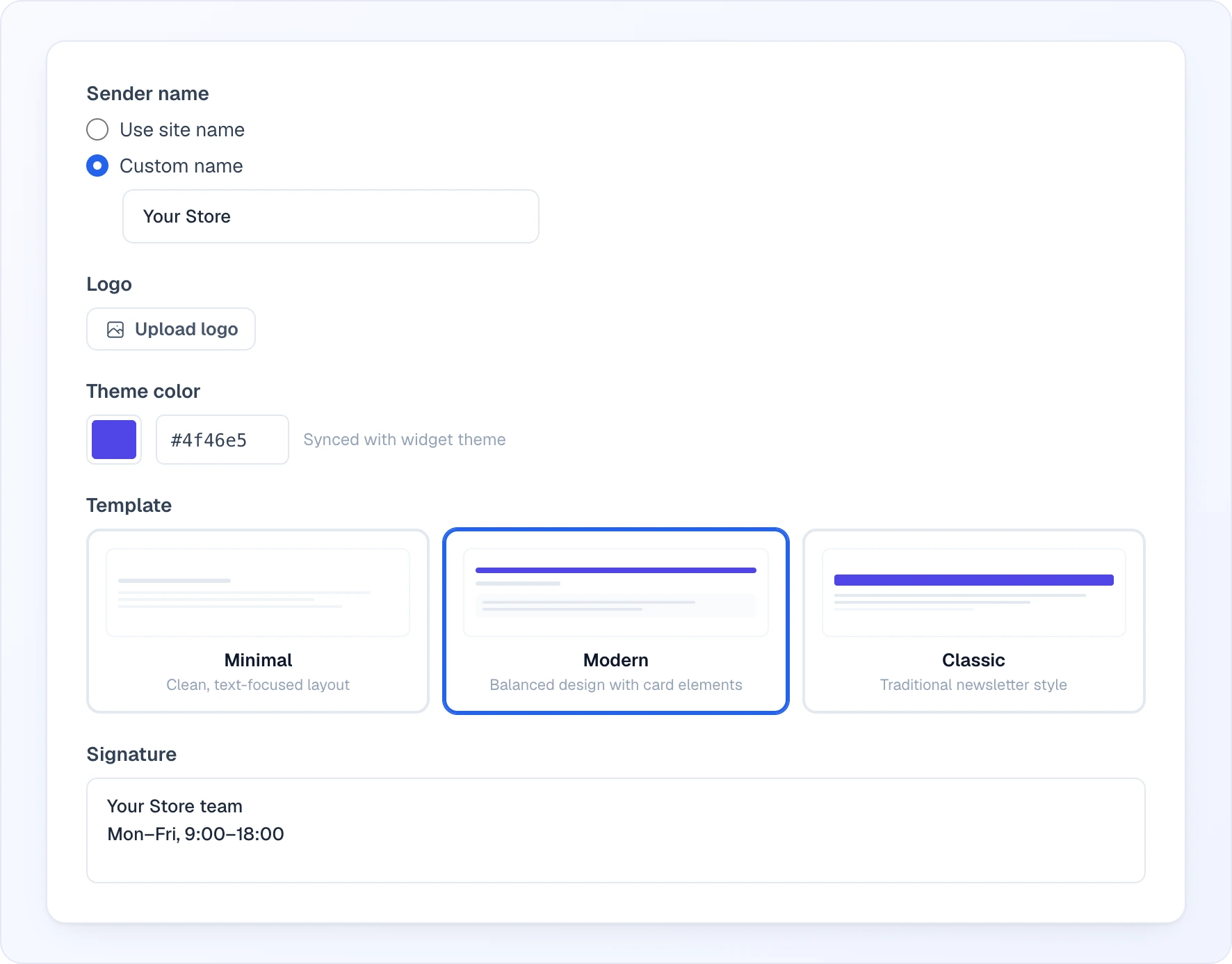
- Sender name — what shows in the customer's inbox as the sender. Choose Use site name (the default) or Custom name and type your own ("Anna from Sales", "MyStore Support").
- Logo — image at the top of every email, added with Upload logo. Recommended ~160-180px wide, ~40px tall. Use a PNG (best, supports transparency) or JPG — the upload is processed into one of those formats and fitted to 300×300. Remove it to fall back to a text header with your sender name.
- Theme color — accent for buttons, links and borders. Until you pick your own, it follows your widget's colour and the hint Synced with widget theme is shown; pick a colour in the swatch or type any hex code.
- Template — three layouts to choose from:
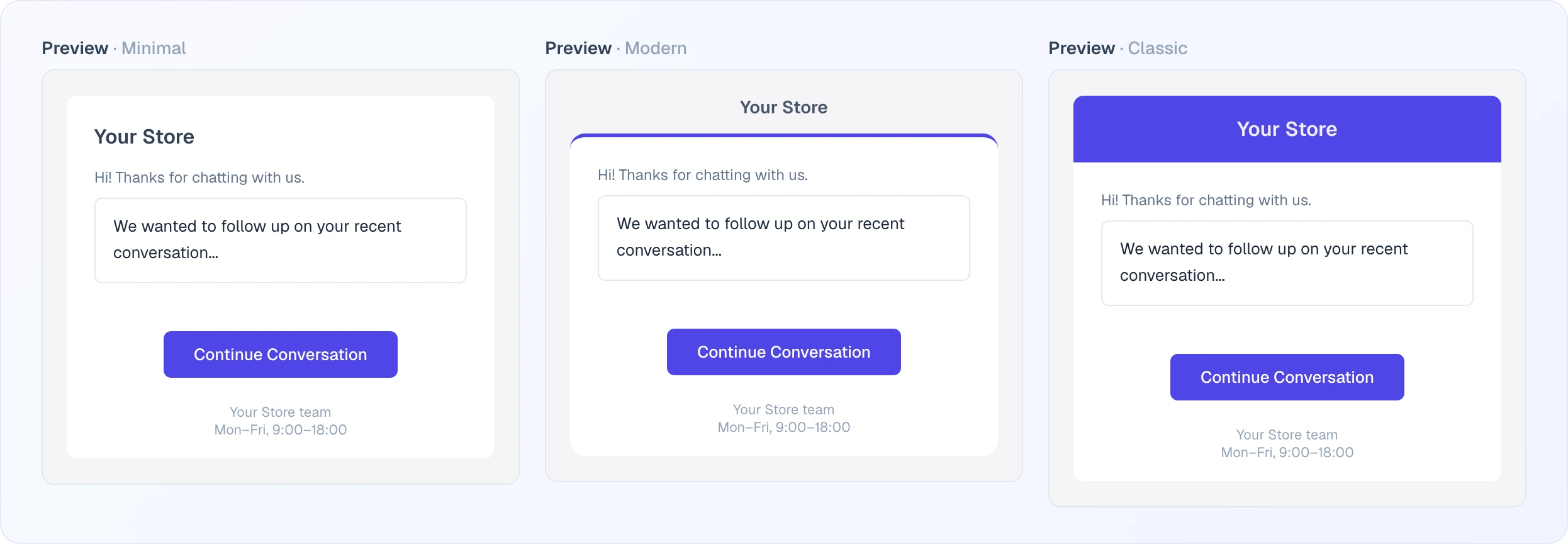
- Minimal ("Clean, text-focused layout") — no header bar. Logo (or sender name) sits inside the email body. Best for understated brands.
- Modern ("Balanced design with card elements") — logo above a white card with a coloured accent line on top. Best for trendy brands.
- Classic ("Traditional newsletter style") — bold coloured header strip with the logo. Best for traditional brands.
- Signature — text appended at the bottom of every email, for example the company name or legal info. Multiple lines OK. Optional.
The Preview block under the form updates as you change settings — what you see is what your customer gets.
Cost
Each email sent costs 1 credit, deducted from your Looma balance the moment the email is sent. The rates of all paid actions are in the Credits guide.
Why an email might not go out
- The Email for visitors switch is off.
- Your Looma balance is at or below zero — email sends are blocked until you top up.
- Anti-spam safeguards held the message back — the widget avoids flooding one recipient with repeated emails in a short window. This is automatic; normal use is unaffected.
- The customer provided an obviously invalid address — the widget will ask them to correct it.
What's fixed, what's customisable
- Customisable: sender name, logo, theme colour, template choice, signature.
- Fixed: the email body content is generated by the system (product details, recommendation text, transcript) — you don't author it template-by-template. The "Reply" mechanism and the Looma footer (with unsubscribe link) are always included.
Email footer
Every email includes a small "Powered by Looma.chat" line and an unsubscribe link in the footer. These are always present and are not removable, on any plan.
Common issues
- Customer says they didn't get the email — check (1) Email for visitors is on in the Email tab, (2) the email address they gave is correct (look at the chat transcript), (3) ask them to check spam / promotions folders, (4) verify your account balance is above zero.
- Customer reply doesn't land in chat — usually means the customer used an aggressive corporate email filter that rewrites reply addresses. Ask them to try a personal Gmail / Outlook account.
- Template looks broken on some clients — pick the Minimal template; it's the most forgiving across older email clients (Outlook 2016, etc.).
Related
- Lead Collection — capturing the customer's email in the first place
- Credits & Plans — per-email cost in context
- Automations — the switches for the transcript and product-reminder emails