

AI Magic Data
AI Magic Data is Looma's core feature that transforms your raw product catalog into an intelligent, searchable knowledge base. It processes each product using AI to generate rich descriptions, extract attributes, and build a smart search index.
What AI Magic Data Does
For each product in your catalog, the AI performs several processing steps:
1. Page Rendering
Looma visits each product's page on your website and downloads the full content. This gives the AI access to:
- Detailed product descriptions from the product page
- Specifications tables
- Feature lists
- Breadcrumbs and category information
- Any additional content not present in the feed
Page rendering is the first stage of the AI Magic pipeline, so it runs only when AI Magic is on (auto-run enabled, or you press Run AI Magic). When the site balance is negative, rendering is skipped until you top up.
2. AI Description Generation
Using the downloaded page content combined with feed data, the AI generates a comprehensive, structured description for each product. This description includes:
- Product type classification (e.g., "mattress", "sofa", "table")
- Key attributes extracted as structured data (size, color, material, brand, etc.)
- Rich text description optimized for intelligent search
- Synonym handling for product type and attributes (applied at the search layer, site-wide — not stored per product)
The AI description is what makes intelligent search genuinely good — it understands that "couch" and "sofa" are the same thing, that "120x200" is a bed size, and that "orthopedic" is a feature.
Search works before AI Magic finishes
You don't have to wait for full AI processing to get searchable results. As soon as products are imported, Looma builds a lightweight vector from the feed data, so semantic search and chat already return relevant products. AI Magic then upgrades that vector with the richer page-based description — it improves search quality rather than being a prerequisite for search to work at all.
3. Search Index
After generating descriptions and extracting attributes, the AI builds an intelligent search index for your catalog. This enables:
- Customers can search using natural language: "comfortable chair for working at computer"
- The search understands meaning, not just keyword matching
- Related products are found even when the exact words don't match
The search index is updated automatically whenever product data changes.
Processing Cost
AI Magic Data uses credits from your balance:
- ~0.6 credits per product for AI processing
- Processing runs automatically for new products
- Re-processing (e.g., after re-running AI Magic) costs the same per product
Estimate
For a catalog of 1,000 products, you'll need approximately 570 credits for initial processing. The dashboard shows a live estimate before you start. The daily sync only processes new or changed products, so ongoing costs are minimal.
Auto-Generation Settings
Auto-run AI Magic Data
When enabled (default), Looma automatically processes new products as they appear in your feed. Each daily sync triggers AI processing for products that don't have descriptions yet.
- On (default) — New products are automatically processed
- Off — Products are loaded from the feed but not AI-processed. You can trigger processing manually.
Exclusion rules
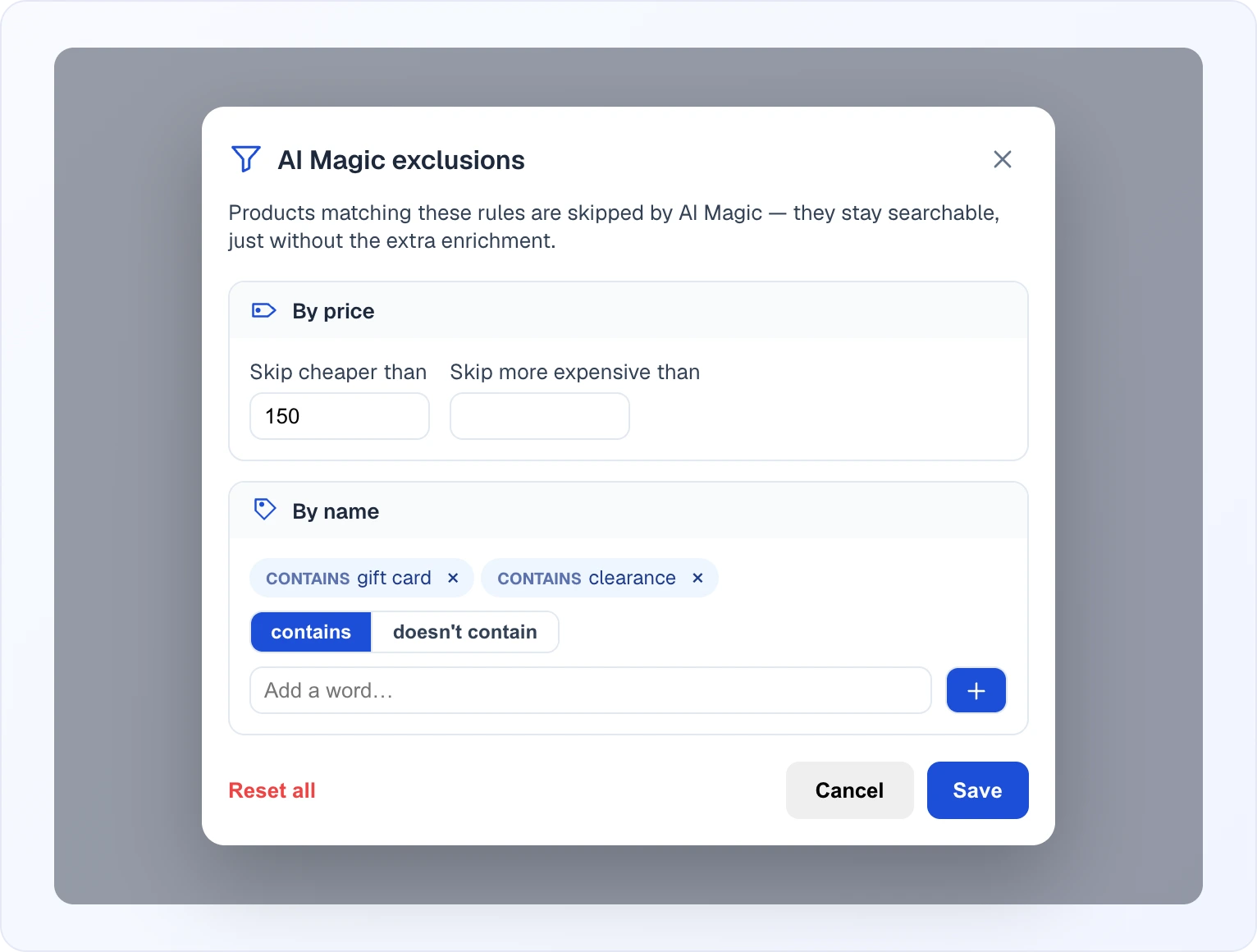
Open Exclusions on the AI Magic card (the funnel button in its header; the number on it shows how many rules are active) to skip products you don't want to spend credits enriching. Excluded products are still imported and stay searchable from their feed data — they just don't get the extra AI processing. You can exclude:
- By price — Skip cheaper than and/or Skip more expensive than a given amount (e.g. skip low-margin items under a threshold).
- By name — keyword rules: contains (skip products whose title includes a word) or doesn't contain (skip products whose title is missing a required word). Add as many keywords as you need; Pick a mode, type a word into Add a word… and press "+"; each rule becomes a chip you can remove with its cross. Reset all clears every rule, and changes take effect after Save.
Process Main Products Only
Controls whether AI processes all product variants or only main products:
- On (default) — Only main products (one per
item_group_idgroup) are processed. This saves credits since variants typically share the same description. - Off — All products including variants are processed separately. Use this if your variants have significantly different descriptions.
Running AI Magic Data
Running AI Magic draws credits from your balance. If your balance is negative, the Run AI Magic button is disabled until you top up.
Run and Stop
- Run AI Magic — manually start processing for products that don't yet have AI data. Use this when auto-generation is off, or to process products immediately instead of waiting for the daily sync.
- Stop Task — while a run is in progress, this button appears so you can halt processing. Products already processed keep their AI data; the rest stay queued for the next run.
Initial Processing
When you first add a site and load products:
- Products are imported from the feed
- Page rendering starts automatically
- AI descriptions and search index are generated
- Progress is shown on the Products → Source tab, in the AI Magic Data card
Updating Individual Products
If you've updated a specific product on your website, you can refresh just that product:
- Go to the Products tab → Products list
- Find the product in the list
- Click the refresh button (circular arrow icon)
This will re-download the product page, regenerate the AI description, and update the search index for that product. This is much faster and cheaper than re-processing the entire catalog.
Full Re-processing
If you need to re-process all products from scratch (e.g., after major changes to your website), you can Delete All Products in the Your Data block (Products → Source) and then reload them from the feed. This will trigger the full processing pipeline again.
WARNING
Full re-processing will consume credits for all products again (~0.6 credits per product). Make sure you have sufficient balance before starting.
Monitoring Progress
Everything is visible in the AI Magic Data card on the Products → Source tab:
- Last Run, Site Data and Processed by AI — when processing started and the status of its two stages (page rendering and AI generation): In Progress, Done, or an error with an explanation
- the cost block — Estimated Cost of the remaining work in credits, Remaining Products and Your Balance; if the balance is not enough, a warning with a top-up button appears right there
- Processing Progress — a bar with the processed-vs-total count and a completion percentage (counted against the products that will be processed — main products only by default; see Process Main Products Only)
Once processing is finished, the block shows Processing Complete: N / N products processed instead. The overall catalogue counters (Processed by AI, AI Coverage and others) sit under the cards — see Product data sources.
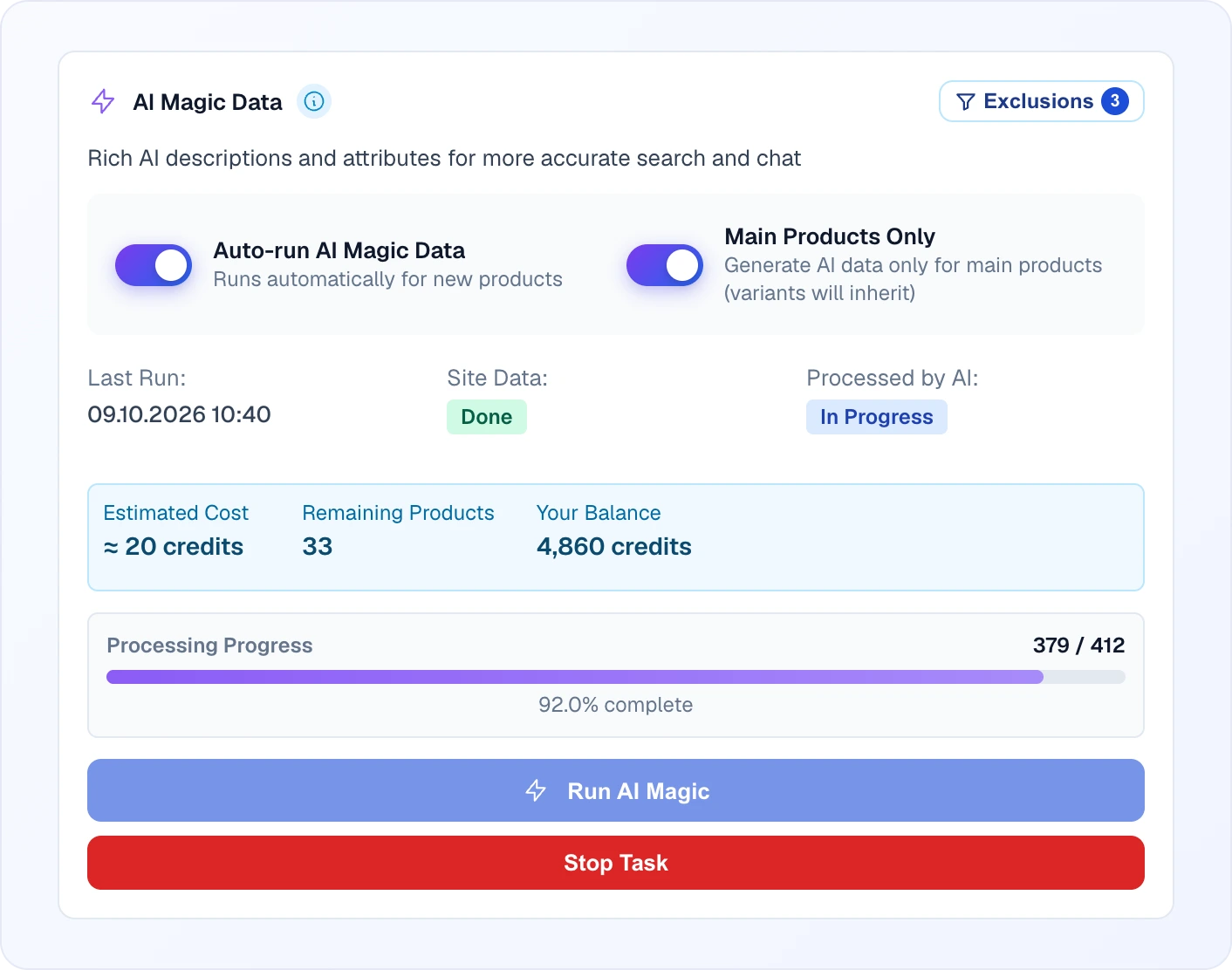
You can press Stop Task at any point during a run to halt processing.
Product Attributes
After AI processing, each product has structured attributes that power search and filtering:
The AI extracts and organizes attributes from both your product feed and product pages:
- Product type — automatic classification (e.g., mattress, sofa, phone)
- AI description — rich text description generated from page content
- Feed attributes — all fields from your Google Merchant feed (size, brand, color, etc.)
- Extracted attributes — additional attributes found on product pages (material, weight, dimensions, etc.)
All attributes are used together for search and filtering, providing the most comprehensive results.
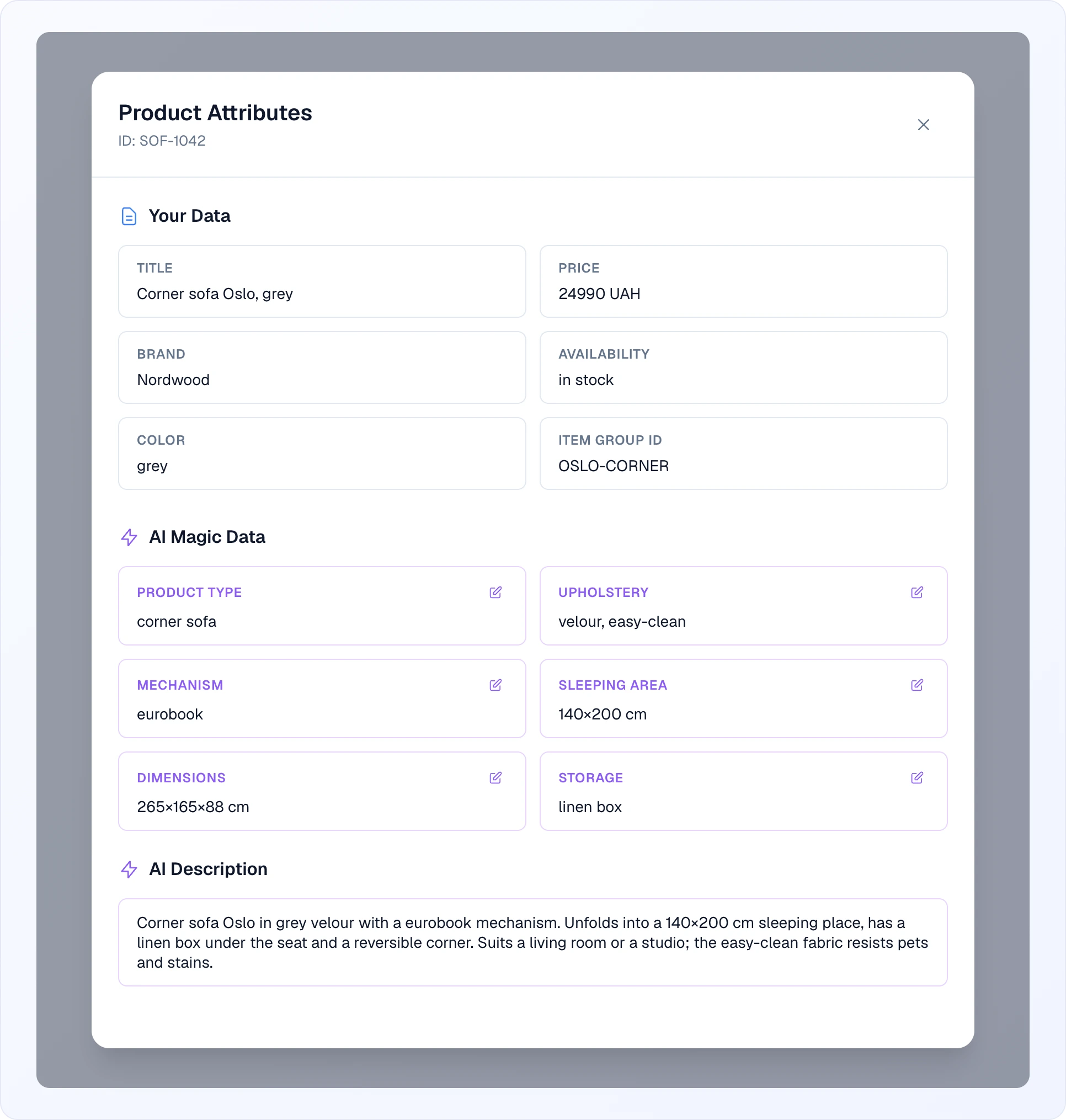
To see what was collected for a particular product, click Attributes in the products list. The Product Attributes modal has three sections: Your Data (fields from the feed), AI Magic Data (attributes extracted by AI — each can be corrected with the pencil) and AI Description. Manual edits are kept and used in search and chat.
How Search Uses AI Data
When a customer searches for products:
- Query understanding — AI interprets what the customer is looking for
- Smart matching — finds products that match the meaning of the query, not just keywords
- Attribute filtering — applies filters based on extracted attributes (size, price, color)
- Ranking — results are ranked by relevance, popularity, and attribute matches
This multi-layered approach means customers find what they need even with vague or complex queries.
Troubleshooting
Products not being processed
- Check your balance — processing requires credits
- Verify that Auto-run AI Magic Data is enabled
- Make sure the product isn't caught by an Exclusion rule (price or title)
- Check the Tasks section for any failed tasks
Low quality descriptions
- Make sure your product pages have detailed content
- Products with minimal page content will get shorter descriptions
- The AI uses both feed data and page content — better source data = better descriptions
Processing is slow
- Large catalogs (5,000+ products) take time
- Multiple products are processed simultaneously for speed
- Multiple parallel workers handle products simultaneously
Next Steps
- Google Merchant Feed — feed setup and configuration
- AI Assistant — configure the chat widget
- Quick Search — set up the search widget