

Direct shop connection
Connect your online store to Looma directly — products come straight from the shop with no feed, and orders show up in your analytics. Horoshop and OpenCart are supported.
The shop connection handles data. On Horoshop the widget script still has to be installed separately; on OpenCart the extension adds the widget itself, so there is nothing to copy.
What you get
Products without a feed. No need to generate a Google Merchant feed, host it somewhere and keep it fresh. Looma reads the catalogue straight from the shop — with categories, brands and the "Hit" / "New" / "Sale" labels you already set.
Sales in your reports. The Dashboard gains a Widget-driven sales section: how many orders came through the widget, their revenue, average order value and the click-to-purchase rate. That is the answer to how much money Looma brings in.
Knowledge about the shop. Catalogue categories arrive with their URLs, and information pages ("Delivery", "Payment", contacts) become assistant knowledge — exactly what answers the most common shopper questions.
The platforms differ in what they can do:
| Horoshop | OpenCart | |
|---|---|---|
| Products from the shop | yes | yes |
| Widget-driven sales | yes | no — the shop does not expose orders |
| Catalogue categories with URLs | no | yes |
| Pages in the knowledge base | no | yes |
| Widget on the site | you install it | the extension installs it |
Before you start
Common to both platforms: the Owner or Administrator role — only they can see the Integrations section. A plan with API access is not required for connecting a shop: it only unlocks the neighbouring API tab (keys and webhooks).
Horoshop: the Pro or B2B plan with API data transfer enabled — on Basic and Standard the Horoshop API is not available. In the Horoshop admin panel create a separate administrator for Looma and use its login and password: such an account can be revoked without touching anyone's personal access, and its actions are visible in the shop log.
OpenCart: a 3.0.x or 4.0.x store on https, with the Looma extension installed — that is what opens access to the data. Looma never asks for the admin password: you invent your own connection key and paste it in two places.
Is it safe to share access
Access details are stored encrypted and are never shown in plain text. Looma uses them only to read products and orders — nothing in your shop is modified. You can revoke access at any time with one button.
Step 1. Connect the shop
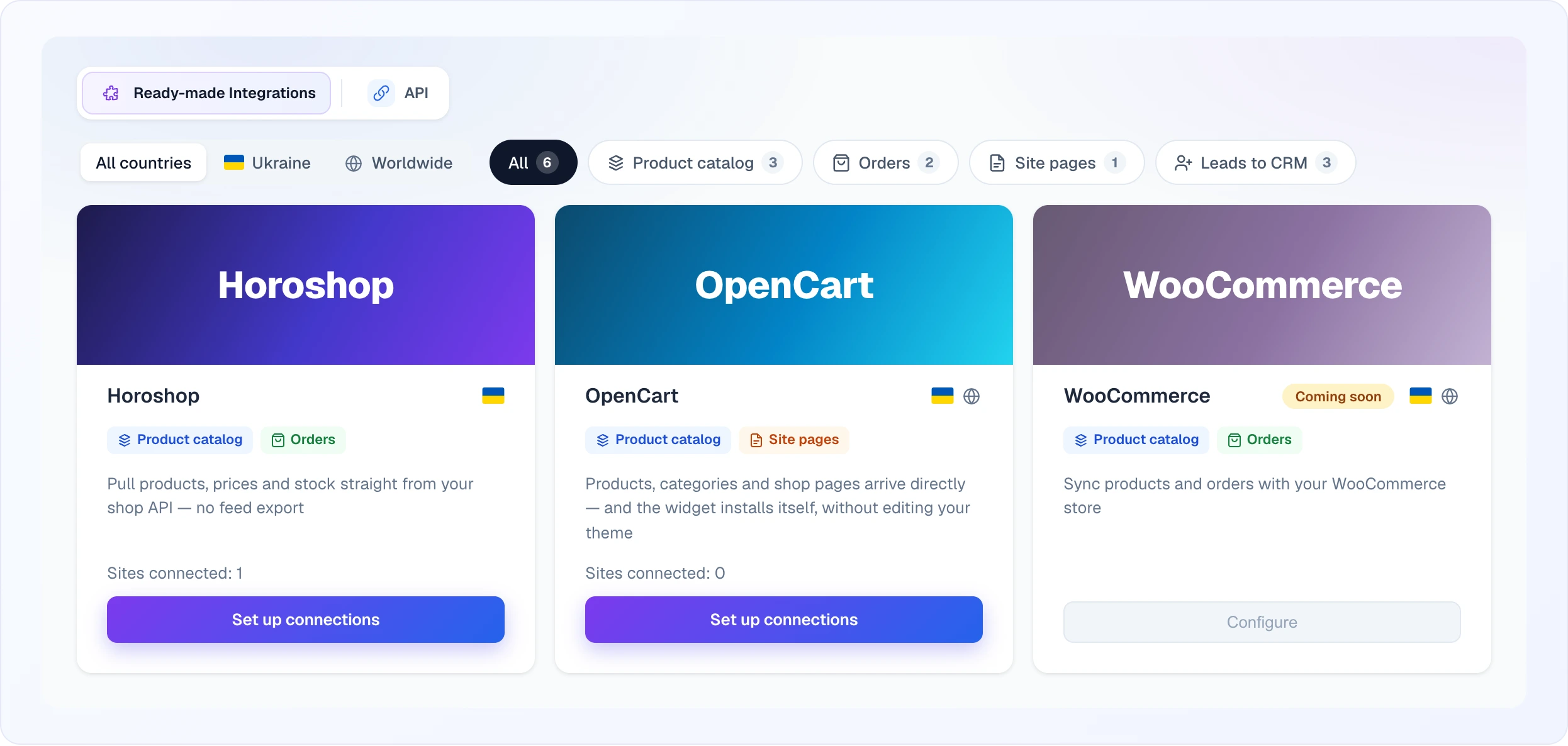
Open Integrations in the sidebar and go to the Ready-made Integrations tab. Every card shows the countries the platform works in and what it can do (Product catalog, Orders, Site pages, Leads to CRM); the chips above the grid filter cards by country and capability. A card says how many of your sites are connected, and Set up connections opens that platform's page.
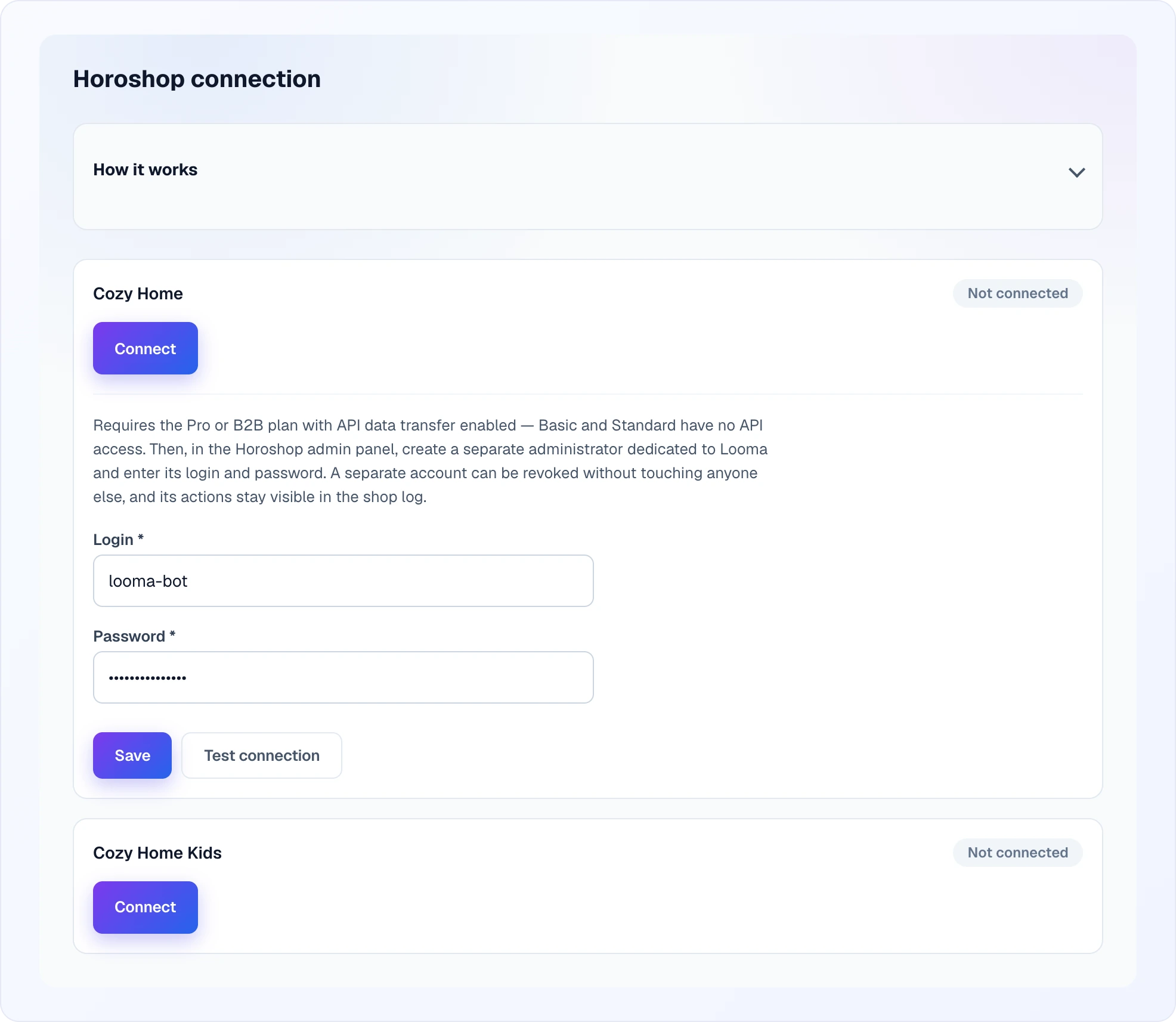
Horoshop: pick the Horoshop card, find your site in the list, click Connect and enter the login and password of the Looma administrator. The fields are marked with an asterisk — both are required.
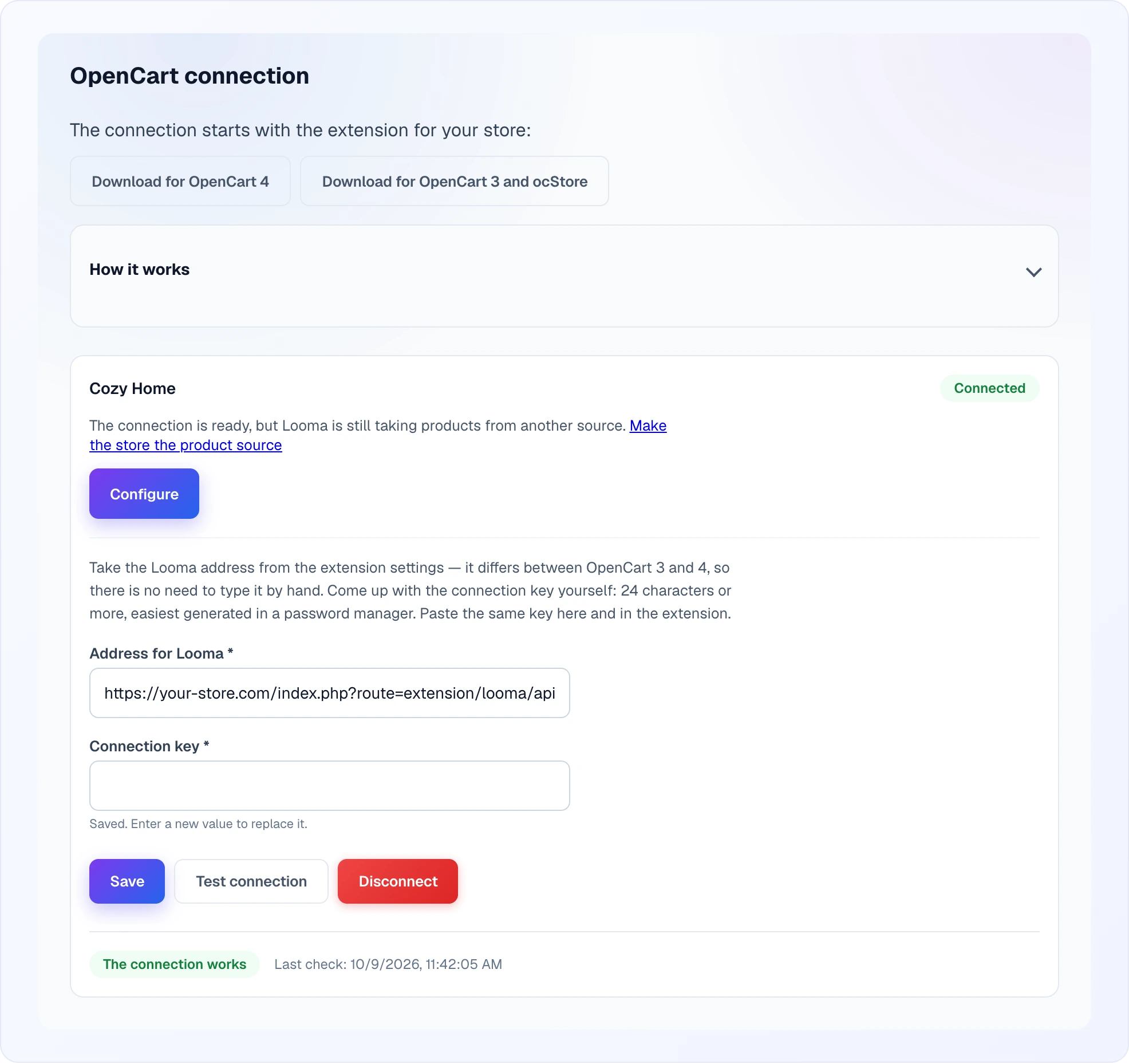
OpenCart: install the Looma extension in your store first — it shows you the address for Looma. Then pick the OpenCart card, find your site and paste that address together with the connection key you set in the store.
From there it is the same: Save the details and click Test connection. After a successful check the form shows The connection works with the time of the Last check, and the site row gets a Connected badge. Saved secrets are never shown again: the field stays empty with the hint Saved. Enter a new value to replace it. If the shop is connected but products still come from another source, the row says so and links to Make the store the product source (step 2).
Step 2. Switch products to the shop
This step is optional — skip it if your existing feed works for you.
- Site settings → Products.
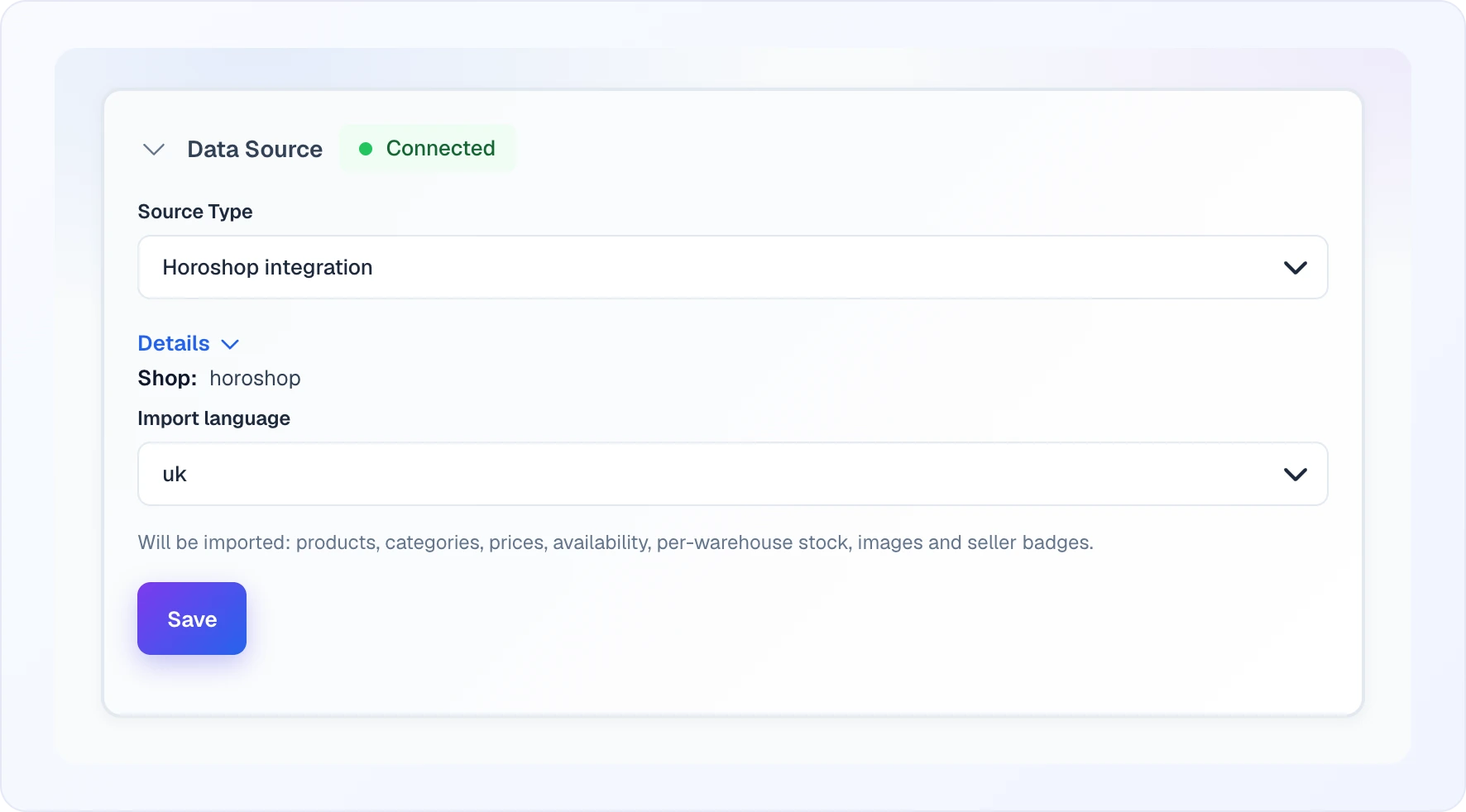
- In Data Source → Source Type pick Shop integration — once a shop is connected the option is named after it, for example Horoshop integration.
- Choose the Import language.
- Save, then Update Data.
Under the language the form lists what will be imported: products, categories, prices, availability, per-warehouse stock, images and seller badges. If the shop is not connected yet, you see a Connect the shop button instead of the form.
The first import takes anywhere from seconds to a few minutes depending on catalogue size. After that products refresh once a day automatically; the Update Data button runs it on demand.
Step 3. Wait for orders (Horoshop)
Nothing to switch on — orders start syncing as soon as the shop is connected. The last 90 days of history arrive within a few minutes, and new orders are picked up every 10 minutes.
The "Widget-driven sales" section appears as soon as the shop is connected.
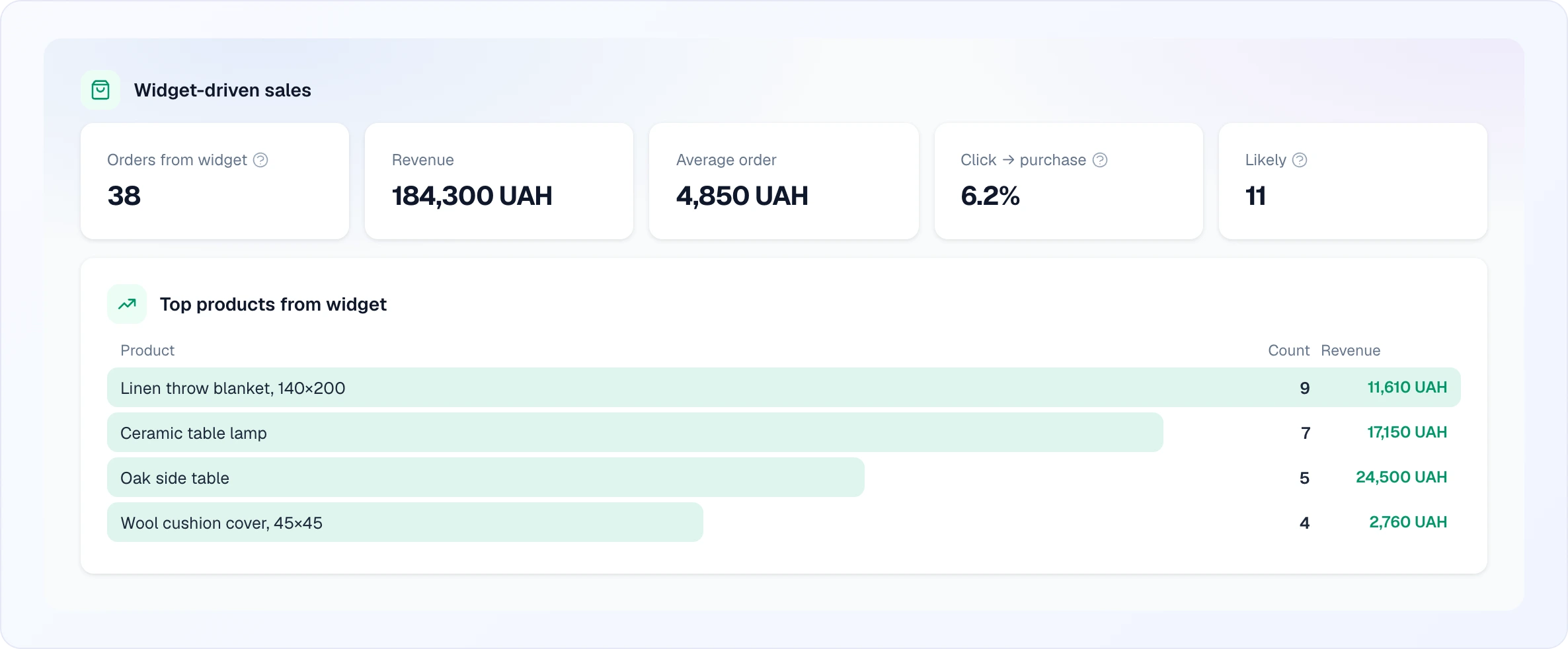
What Sales shows
It does not include all of your orders — only those that could be tied back to the widget: the shopper searched in Looma, clicked through and bought.
| Metric | Meaning |
|---|---|
| Orders from widget | orders with a proven source |
| Revenue | their total |
| Average order | revenue ÷ count |
| Click → purchase | share of clicks that ended in an order |
| Likely | the same product was viewed in the widget and bought within a week — a coincidence, not a proven link; excluded from revenue |
Cancelled orders never count towards revenue.
Why this number is lower than the one on the product card
The counter on a product card counts all sales over 90 days regardless of source, while "Widget-driven sales" counts only those with a proven source. A severalfold difference is normal.
Limitations
Horoshop
- Warehouse stock is not supported. Horoshop does not expose it over the API, so availability comes from the product status: In stock, Out of stock, Preorder.
- Catalogue sections are not imported as links — Horoshop does not return their addresses.
- One label per product. If a product carries several, the strongest wins: Sale → Hit → New.
OpenCart
- Orders are not read, so there is no "Widget-driven sales" section for OpenCart — purchase attribution is available on Horoshop only.
- The extension is required. Without it OpenCart has no API to hand over the catalogue; connecting to the shop is impossible.
- https only. Looma will not accept an
http://address.
Other platforms are not supported yet. WooCommerce is next; for everything else the Google Merchant feed remains.
Troubleshooting
I cannot see the Integrations section. It is available to the Owner and Administrator roles only — ask the account owner to change your role in Team.
Authentication error. On Horoshop this usually means the admin password was changed: enter the new one on the same page and test the connection again. On OpenCart it means the keys in Looma and in the store differ — set a new key in both places (the stored one cannot be read back).
"The shop is not responding" on OpenCart. Most often the + button in Extensions → Extensions → Modules was never pressed in the store — without it the extension route does not exist. The rest of the causes are in the OpenCart guide.
No "Widget-driven sales" section. The shop is either not connected or has not passed the check — go back to step 1.
Zero orders. Most likely there have been no click-throughs from the widget yet — only those count. Test it end to end: find a product through the widget, click through and place a test order; it should appear within ~10 minutes.
Products did not update after a change in the shop. The catalogue refreshes once a day. Press Update Data to skip the wait.
How to disconnect
Integrations → your platform → Disconnect. If the shop was also your product source, the confirmation dialog says so — you will need to pick another source afterwards.