

Team
The Team page (sidebar → Team) is where you invite operators, give them roles and manage everything the team shares: quick responses for chats, the operator work schedule and the work statuses of chats and leads.
The page opens for the Owner, Administrators and Supervisors. Chat users don't see it — they work in Chats and Leads, and get the templates and statuses set up here over there.
At the top of the page there are five tabs:
- Team Members — who's on your team, with what role, who is online and how much work went through each person (the number next to the name is the member count)
- Work Schedule — the hours when operators are available for chats
- Quick Responses — message templates the team drops into a chat in a couple of clicks
- Chat statuses — the work statuses of chats: name, colour, order, whether to show them in the bar above the list
- Lead statuses — the same for leads
The tab you are on is kept in the page address (for example /team#schedule), so a reload keeps you on it and you can send a colleague a link to a specific tab.
Roles
Four levels of access. The role is set when you invite someone and can later be changed by the Owner or an Administrator.
| Capability | Owner | Administrator | Supervisor | Chat user |
|---|---|---|---|---|
| Reply to chats / handle leads | ✓ | ✓ | ✓ | ✓ |
| Open the Team page | ✓ | ✓ | ✓ | — |
| Invite team members | ✓ | ✓ | Chat users only | — |
| Change a member's role | ✓ | ✓ | — | — |
| Edit a member's name and avatar | ✓ | ✓ (roles below their own) | Chat users only | — |
| Remove team members | ✓ | ✓ (except the Owner) | Chat users only | — |
| Create / edit quick responses and statuses | ✓ | ✓ | ✓ | if allowed by the switch |
| Set the work schedule | ✓ | ✓ | ✓ | — |
| Modules, automations, site settings | ✓ | ✓ | — | — |
| Billing & subscription | ✓ | ✓ | — | — |
| Delete account | ✓ | — | — | — |
- Owner — exactly one per account: whoever registered it. The Owner can't be removed and their role can't be changed; their card has no actions menu. Transfer ownership through support.
- Administrator — full operational control. The right role for a business partner or a trusted team lead.
- Supervisor — manages chat users and the workflow (templates, statuses, schedule) without touching site settings or billing. Right for a shift lead.
- Chat user — a front-line operator: works in Chats and Leads, doesn't manage people and doesn't see settings.
Roles are account-wide — there's no per-site role. If you have several sites, every member works on all of them according to their role.
Team Members
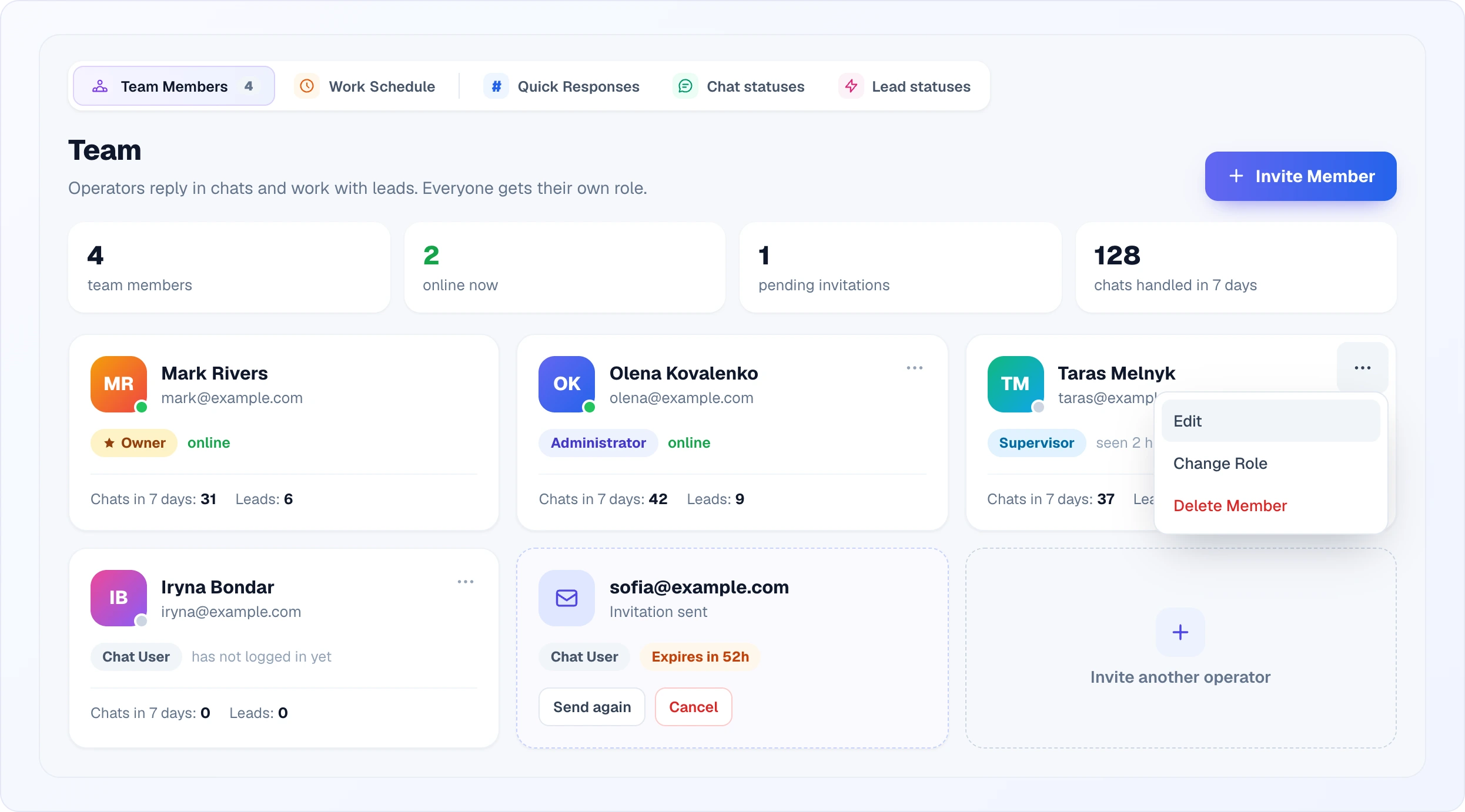
The tab opens with four numbers:
- team members — active members including the Owner;
- online now — how many of them are available right now;
- pending invitations — sent but not yet accepted;
- chats handled in 7 days — how many chats the team took on this week.
Below is a card for each member:
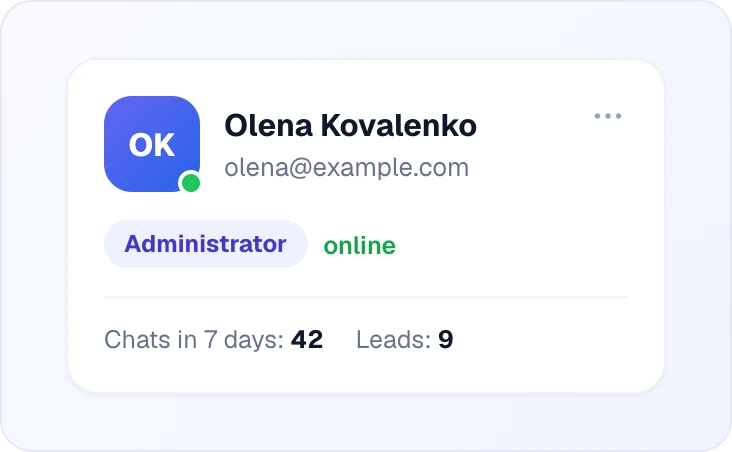
- Avatar — a photo or initials on a coloured background. The dot in the corner: green — online, grey — not.
- Name and email. If no name is set, the email is shown.
- Role badge — the Owner's has a star, each role has its own colour.
- Presence — "online", "seen 2 h ago" or "has not logged in yet" (the person accepted the invitation but has never opened the dashboard).
- Chats in 7 days and Leads — how many chats and leads were assigned to this member in the last week. Handy to see who is overloaded and who is free.
- The "⋯" menu in the top-right corner — actions on the member (see Editing and removing). It appears only if you have at least one action available for that person.
"Online" means two things at once: the member's own availability switch is on and they have the Chats page open. If Looma cannot tell, the dot and the online now counter are hidden rather than showing everyone as online.
If the calls module is on in your account, the card also gets an Accepts calls row with a switch and the member's extension ("ext. 101"). The Owner and Administrators can switch it for anyone, a Supervisor for themselves and chat users.
Inviting a member
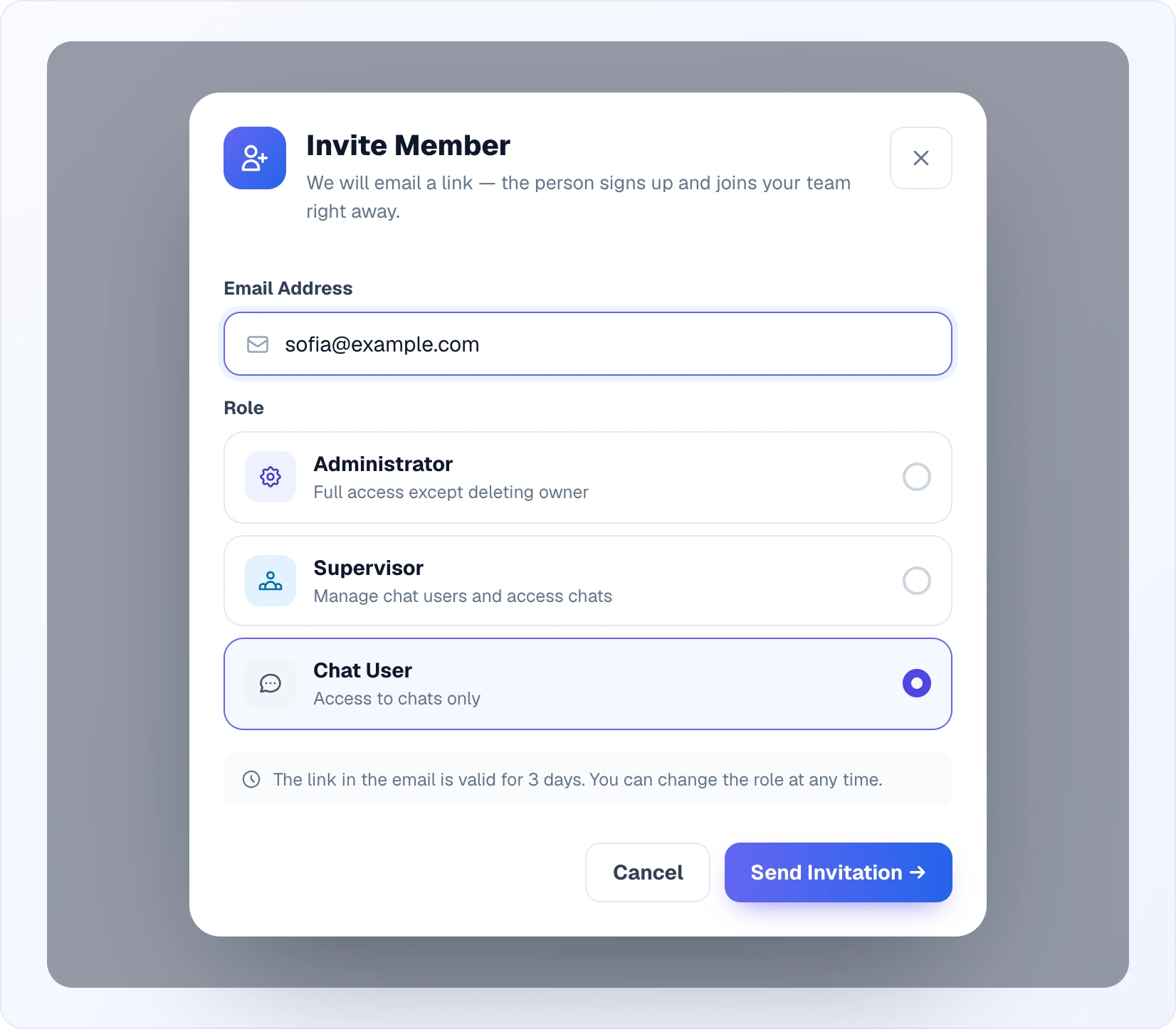
- Team Members tab → the Invite Member button at the top right (or the dashed Invite another operator card at the end of the list).
- Enter the person's Email Address.
- Pick a role. In the popup each role is a card with a short description. A Supervisor only sees the Chat User card: other roles are invited by the Owner and Administrators.
- Click Send Invitation.
The person gets a "You've been invited to join … on Looma" email with an accept button. They sign up through the link and join your team straight away with the chosen role.
The link is valid for 3 days. Until the invitation is accepted, the list shows a dashed card with the email, role and time left ("Expires in 52h"), plus two buttons:
- Send again — issues a fresh link (the previous one stops working) and gives it 3 more days. Use it when the invitation expired, landed in spam or the person deleted the email by accident.
- Cancel — withdraws the invitation; the link in the email no longer works.
The Owner and Administrators can resend or cancel any invitation; Supervisors only invitations for chat users.
The invitation is not sent if:
- a Looma account is already registered on that email — the person needs to use a different email;
- your team already has an active invitation for that email — use Send again on its card.
Editing and removing
The "⋯" menu on a member card has up to four items:
- Edit — the name the team sees and the avatar: upload a photo, generate an avatar or remove it. Available only for roles below yours: an Administrator edits Supervisors and chat users, a Supervisor edits chat users. Everyone changes their own details in their profile.
- Change Role — pick a new role from the list. Available to the Owner and Administrators; you can't change the Owner's role or your own.
- SIP access — the login, password and server for connecting a softphone. Shown only with the calls module and only for members who accept calls.
- Delete Member — after you confirm, the person is detached from the team, all their sessions end immediately and the email is freed up — you can invite them again later. A Supervisor can remove chat users only. You can't remove yourself or the Owner.
Before removing someone, look through their open chats and leads and hand them to colleagues so nothing gets lost.
Quick responses
Quick responses are pre-written message templates anyone on the team drops into a chat instead of typing the same thing every time: delivery terms, returns, size charts, payment details.
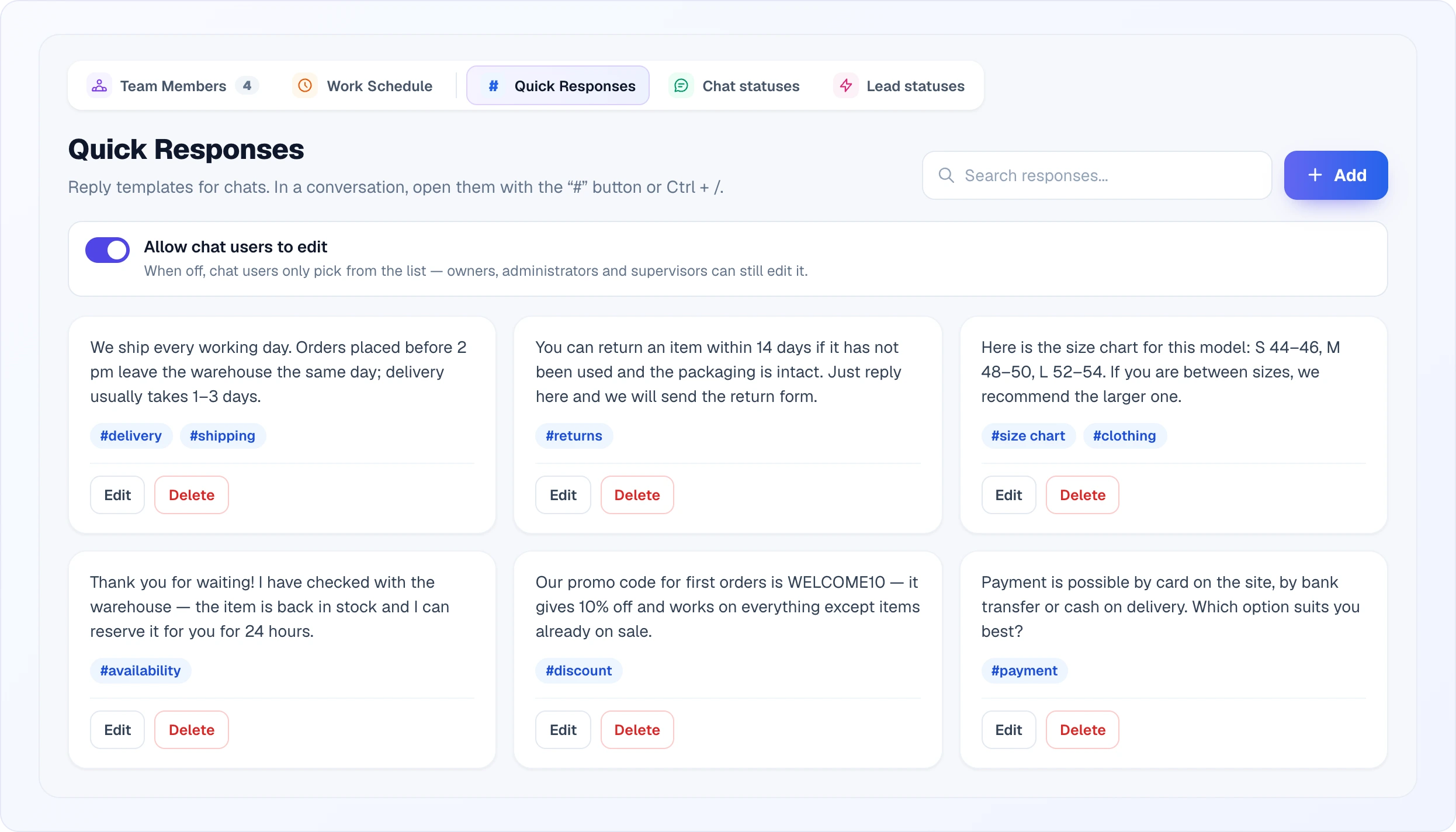
Each template is a card with the start of the text, its tags and the Edit and Delete buttons. The search box at the top looks through text and tags; clicking a tag on a card filters all templates with that tag.
Creating
Quick Responses tab → Add.
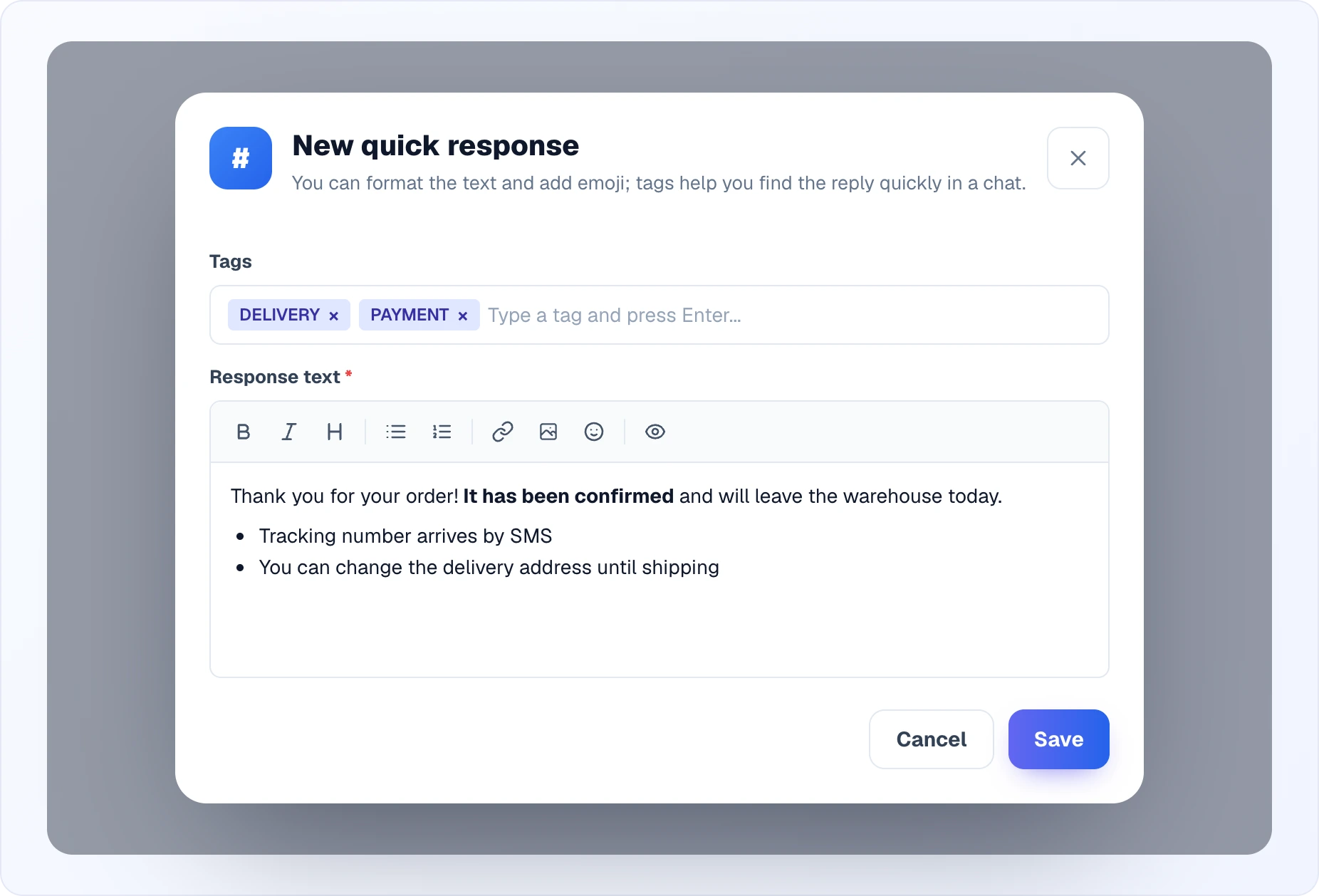
- Tags — keywords that make the template easy to find ("shipping", "size chart", "discount"). Type a word and press Enter, Tab or a comma; existing tags are suggested under the field and can be picked with the arrow keys. Backspace in an empty field removes the last tag.
- Response text (required) — an editor with a formatting toolbar: bold, italic, heading, bulleted and numbered lists, link, image upload, emoji and a preview.
- Save.
Using them in a chat
In a conversation, open the templates panel with the # button next to the message box or with Ctrl + / (Cmd + / on a Mac). Search by text or tag, click a template to insert it into the box, and edit it before sending if needed — for example, add the customer's name.
Any message you've sent can be saved as a template right away: the message menu in the chat → Save as quick response → add tags → save.
Who can create and edit
The Owner, Administrators and Supervisors — always. For chat users there's an Allow chat users to edit switch at the top of the tab:
- on (the default) — chat users can also create, edit and delete templates right from the chat;
- off — they only pick ready-made templates from the list.
Templates are shared by the whole team — everyone sees the same list. It's your shared playbook of best replies: the better it's kept up, the faster and more consistently the team answers.
Work schedule
The schedule sets when operators are available to join chats. Outside these hours customers talk to the AI only, and the widget follows the offline workflow — see Chat Modes.
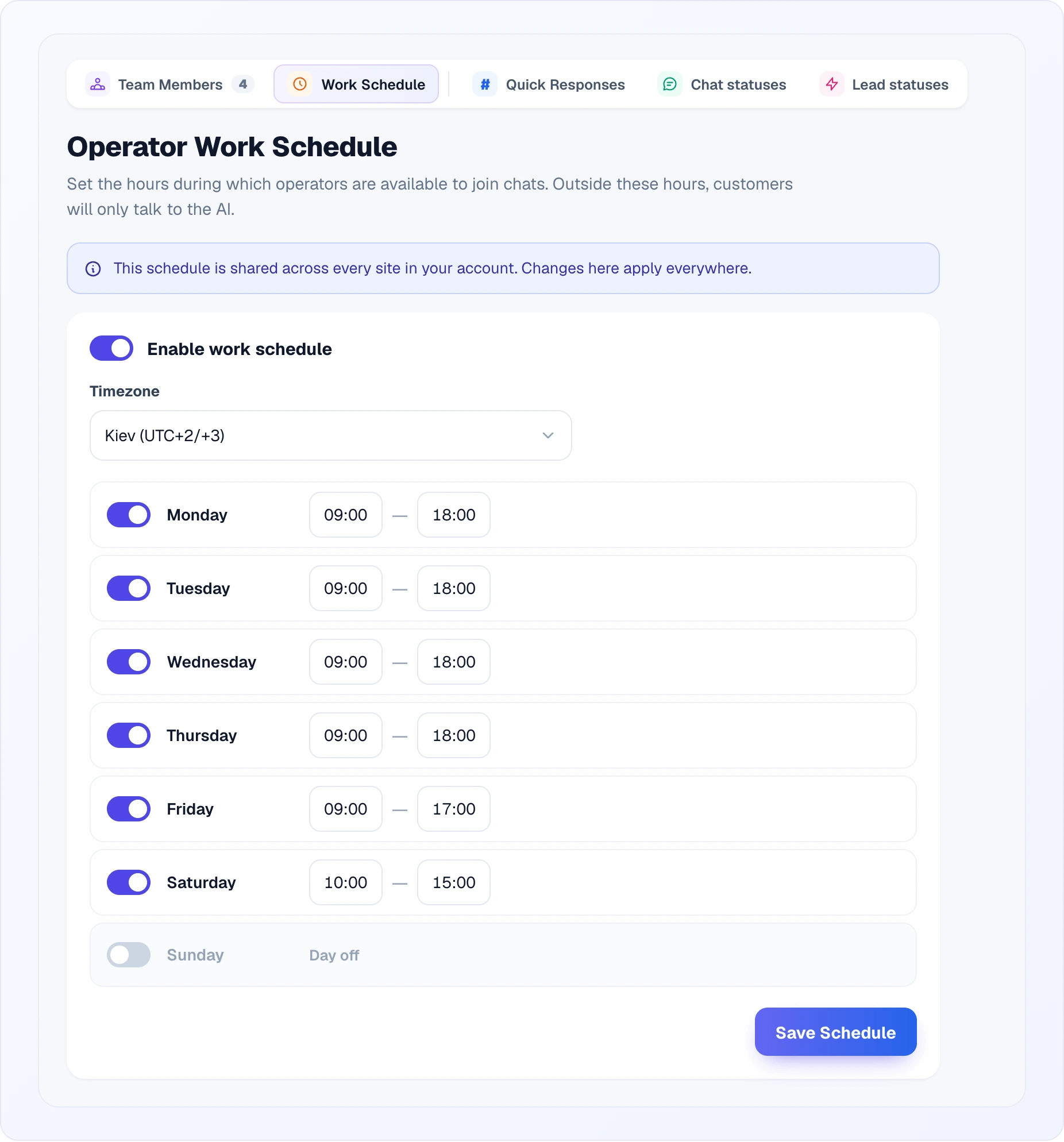
To set it up:
- Work Schedule tab → turn on Enable work schedule. While the switch is off, the schedule doesn't apply.
- Pick the Timezone your team works in. The hours below are counted in it, wherever the customer writes from.
- For each day: switch on — a workday, set the start and end time; switch off — the day shows as Day off.
- Save Schedule.
By default the workdays are Monday to Friday, 09:00–18:00, with Saturday and Sunday off.
There is one schedule for the whole account — for all sites and all operators, not per person. It describes your support hours, not one person's availability. If operators work different shifts, set the widest window the team covers.
Chat statuses and Lead statuses
These two tabs hold the work statuses — the stages a chat or lead goes through. They appear in the status bars of the Chats and Leads pages; it's the same editor the gear button opens on those pages.
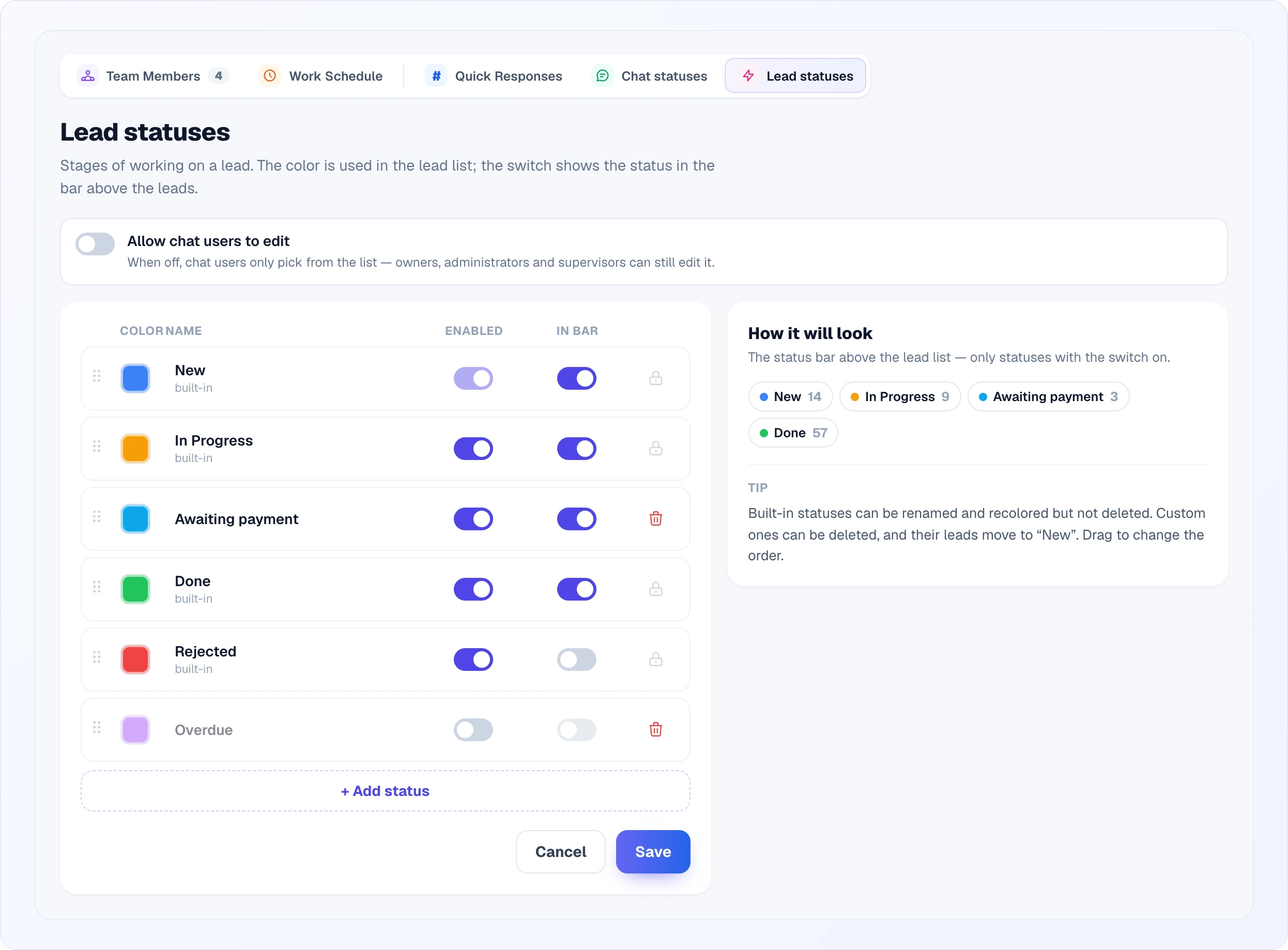
The built-in statuses:
- chats — New, Answered, In progress, Waiting for customer, Unanswered, Done;
- leads — New, In Progress, Done, Rejected.
Each row in the list:
- Handle on the left — drag the row to change the order. The order in the list is the order of the buttons in the bar.
- Color — click the square to pick a colour; the status is marked with it in the chat or lead list.
- Name — click and type your own. Built-in statuses are labelled "built-in".
- Enabled — a switched-off status isn't offered to operators or automations, but chats and leads already in it stay there. "New" (and "Done" for chats) can't be switched off — work starts or ends with them.
- In bar — whether the status gets a button in the bar above the list. The status stays available in the chat or lead even when hidden from the bar.
- Lock on built-in statuses: they can be renamed and recoloured but not deleted. Bin on your own — deletes the status.
Add status creates a new row, and Save under the list stores all changes at once; Cancel brings back the saved state. On the right, the How it will look block previews the status bar with counters — only the statuses with "In bar" on.
Deleting your own status moves its chats to In progress and its leads to New. Statuses are shared by the whole account. Your own statuses can also be used in automation rules — for example, to move leads to "Overdue" after a week without activity.
The Allow chat users to edit switch at the top of each of these tabs works the same way as for quick responses: on — chat users can change the status list from the gear in Chats or Leads, off — they only pick a status from the list.
Personal settings
Each member sets their own notifications (sound, browser notifications, emails), name and avatar in their own profile, not on this page. See Profile.
Common workflows
- Onboarding a new operator — Invite Member → the Chat User role → they accept the email invitation (if the link expired — Send again) → they log in and work in Chats and Leads. Show them the # button and Ctrl + / for quick responses.
- Promoting an operator — the "⋯" menu on their card → Change Role → Supervisor or Administrator.
- Removing a leaver — hand their open chats and leads to colleagues → "⋯" menu → Delete Member → confirm.
- Sharing a good reply — write it in a chat → the message menu → Save as quick response → tag → done; the whole team has it now.
- One set of rules for newcomers — switch off Allow chat users to edit on the templates and statuses tabs so that only leads maintain the lists.
- Your own funnel stage — Lead statuses tab → Add status (for example "Awaiting payment") → colour → Save; the status shows up in Leads right away.
Related
- Chats — how operators handle conversations day to day
- Leads — lead assignment and statuses
- Automations — rules that change statuses on their own
- Chat Modes — how the work schedule affects the customer-facing widget