

Widget Appearance
Set how the chat widget looks on your website: the colour, background, header of the window, the floating button, the messenger picker, your own buttons on pages and CSS.
All of it lives in Site Settings → AI Assistant → Button & Style. The tab has four sections: Widget Theme, Floating Button, Inline Button and Custom CSS. Settings apply to one site: if you have several sites, each is styled separately.
Widget Theme
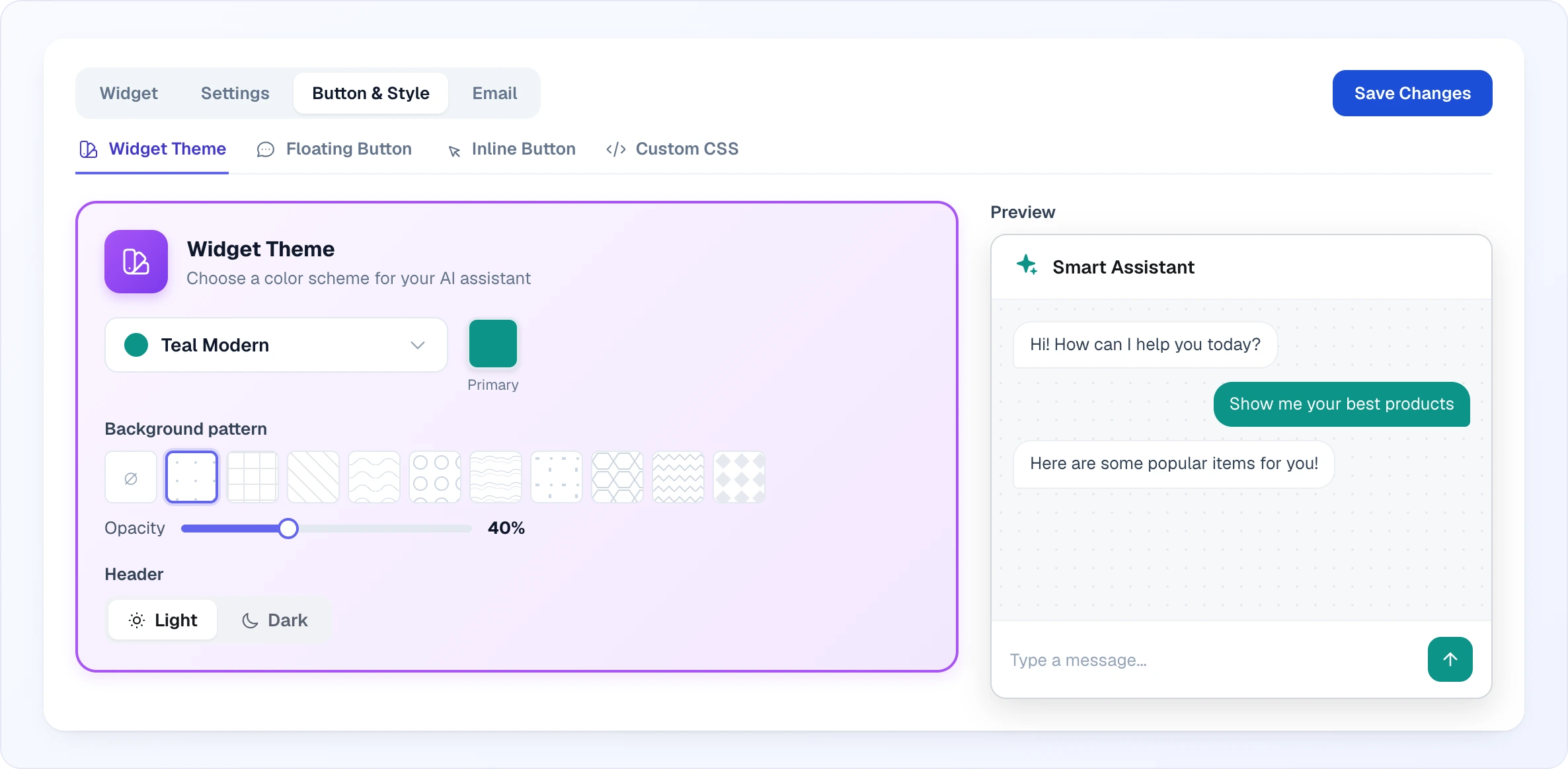
The theme sets the main colour of the widget. It goes to the send button, the visitor's messages, the sparkle icon in the header, the "Powered by Looma" label, and to the floating button and the messenger picker unless they have their own colour. Quick Search uses the same colour.
To the right of the settings is the Preview: a small chat window that repaints the moment you change something.
Preset themes
Open the theme list and pick one of 14: Indigo Calm, Ocean Blue, Purple Sunset, Night Sky, Emerald Wave, Purple Dream, Emerald Fresh, Rose Soft, Amber Warm, Teal Modern, Slate Minimal, Sky Light, Coffee Brown, Pure Black. Three of them — Purple Sunset, Night Sky and Emerald Wave — are gradients, the rest are solid. New sites start with Ocean Blue (blue #1D4ED8).
A theme is saved as soon as you pick it — no need to click Save Changes. Picking a preset theme resets your own colours and background pattern.
Custom colours
Click the Primary swatch next to the theme list. A picker opens with two tabs:
- Solid — one colour. Pick it in the palette or type a hex code, for example
#0d9488. - Gradient — Color 1 and Color 2, blended diagonally. A strip below the fields shows the result.
As soon as you change a colour, the theme list shows Custom: your own theme, built on the one you started from. Changes save by themselves a moment after you pick them. The arrows button next to it (Reset to theme default) brings back the colours of the original theme.
Tip: take the colour from your logo or the "Buy" buttons of your site. Very light colours (yellow, light grey) are hard to read with white text on the send button and in the visitor's messages.
Background pattern
Below the colour is a row of squares with patterns for the conversation background: None (the first, a crossed circle), dots, grid, diagonal, waves, circles, topography, confetti, hexagons, zigzag and diamonds.
- Once a pattern is picked, an Opacity slider appears, from 5% to 100% in steps of 5%. The lower the value, the paler the pattern. 20–40% suits most sites.
- The pattern only covers the message area. The header, tabs and input stay plain.
- Like custom colours, the pattern saves by itself and turns the theme into Custom.
Header theme
The Header switch decides how the top bar of the chat window looks.
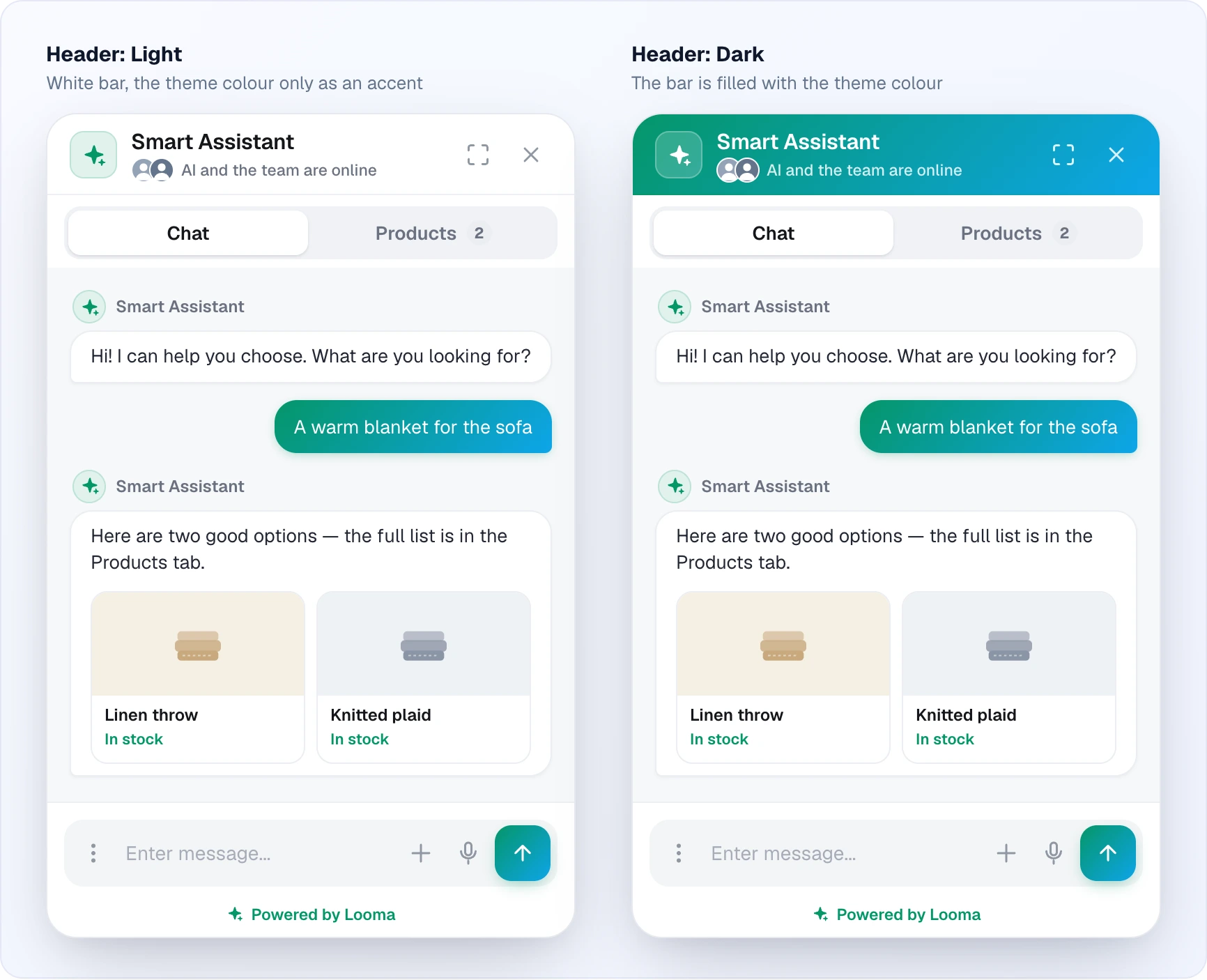
- Light (default) — a white header. The theme colour only accents: the sparkle tile, the send button, the visitor's messages.
- Dark — the header is filled with the theme colour (solid or gradient), and the logo, title, status line and buttons turn white.
The rest of the window is the same and light either way: the Chat and Products tabs (with the number of products found next to it), the conversation, the input with the menu, attachment and voice input, and the "Powered by Looma" label. The header combines with any theme, preset or custom, and never changes your colour by itself. It is also saved straight away.
If your site already has many bright blocks, the light header looks calmer. The dark one stands out better on white minimalist sites.
Status line
Under the title in the header, the widget shows who is answering right now:
- AI online — only the AI is available.
- AI and the team are online — shown together with a few small photos of your operators when at least one is online. The number of operators is not shown, so a small shop never looks smaller than it is. While the page is open, the line refreshes about once a minute.
- Operator online — as soon as an operator has joined this conversation, the header talks about that person.
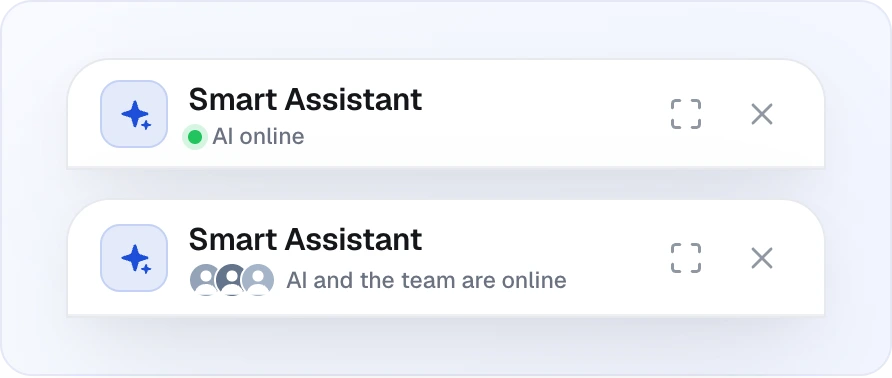
The multichannel window (see below) shows the same status line under its subtitle.
Floating button
The floating button sits in a corner of every page, above the content. Visitors click it to open the chat. Everything is set in the Floating Button section.
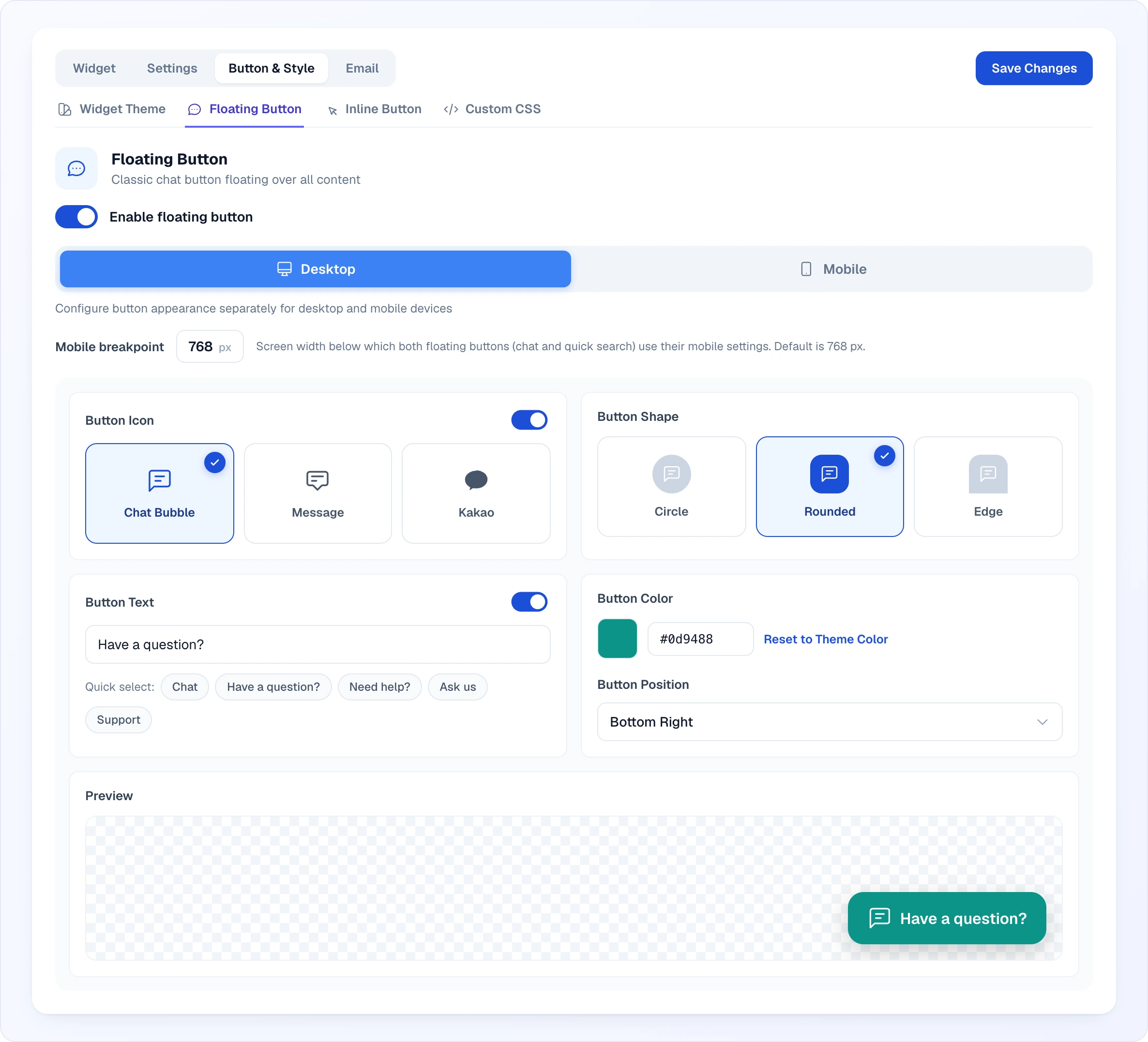
Enable floating button is the main switch. Turn it off if the chat is opened only by your own buttons (see Inline button).
Desktop and mobile
At the top of the section are the Desktop and Mobile tabs. Each has its own full set of settings below, so the button on a phone can differ from the one on a computer.
Mobile breakpoint is the screen width below which the mobile settings apply. The default is 768 px. The value is shared by the chat button and the Quick Search button.
What you can set
| Setting | Options |
|---|---|
| Button Icon | The switch shows or hides the icon. Options: Chat Bubble (default), Message, Kakao. |
| Button Shape | Circle, Rounded (default; a rounded square, or a pill when there is text), Edge — the button is pressed against the bottom (or top) edge of the screen and rounded on one side only. |
| Button Text | The switch shows or hides the label. Type your own text or use Quick select: "Chat", "Have a question?", "Need help?", "Ask us", "Support". |
| Button Color | The theme colour by default. You can set a separate one; Reset to Theme Color clears it. |
| Button Position | Bottom Right (default), Bottom Left, Top Right, Top Left. |
The icon and the text cannot both be off: turn one off and the other turns on by itself. The Preview at the bottom of the section shows the button on a checkerboard in the chosen corner.
New sites get an icon-only Rounded button in the bottom-right corner, on both desktop and mobile.
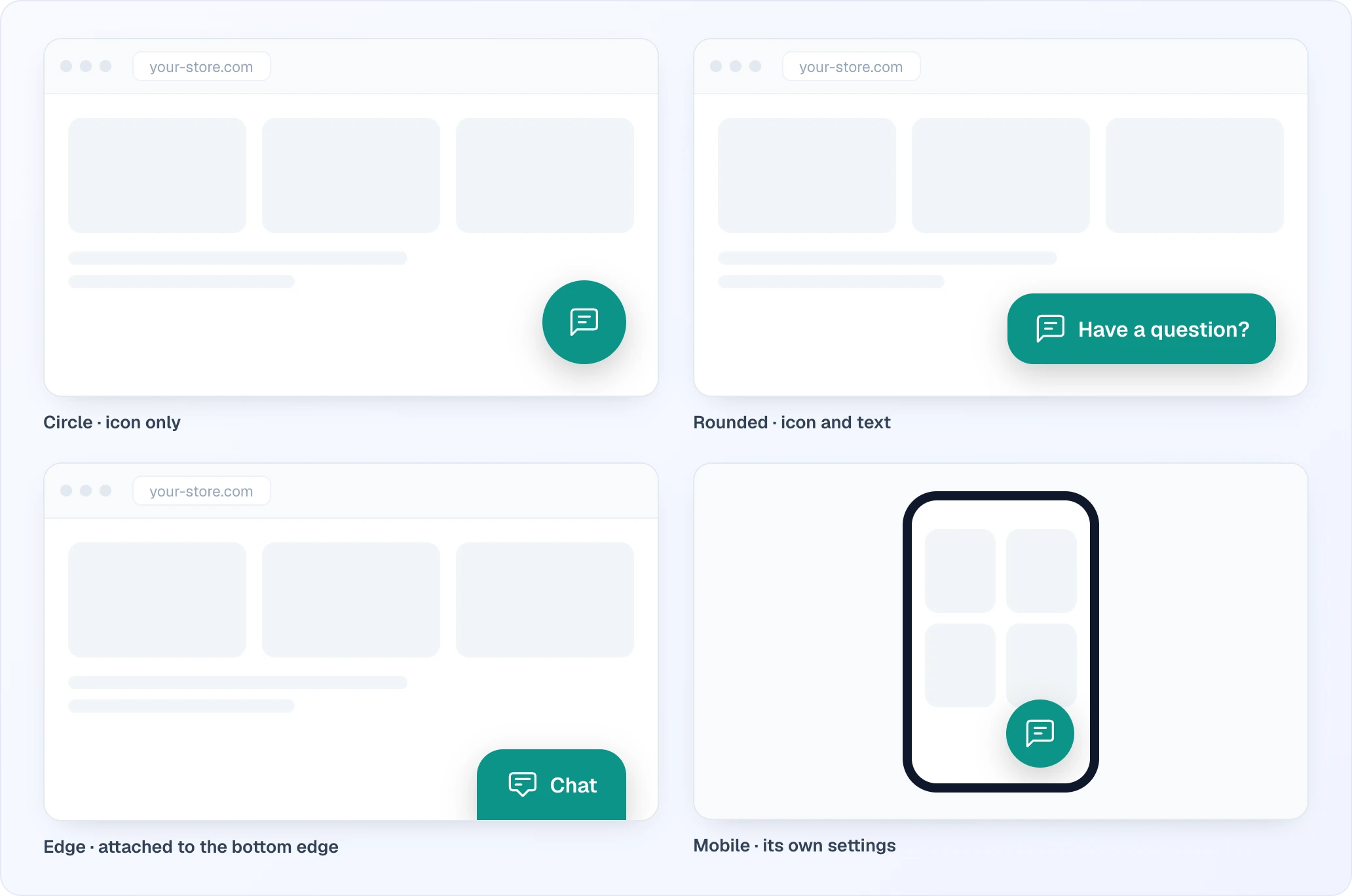
A common setup: on desktop a button with text ("Have a question?" is more noticeable than an icon alone), on mobile a round icon so it does not cover products and the cart button. If your site already has another button in the bottom-right corner (for example "back to top"), move the chat button to the left or shift it with the CSS constructor.
The same section has the Proactive Message switch with a Settings button — the AI greets visitors on its own and offers help. See Proactive Messages.
Open mode
- Standard (default) — the button opens the Looma chat straight away.
- Multichannel — the button first opens a small window where the visitor chooses where to talk: in the chat on the site or in your messenger.
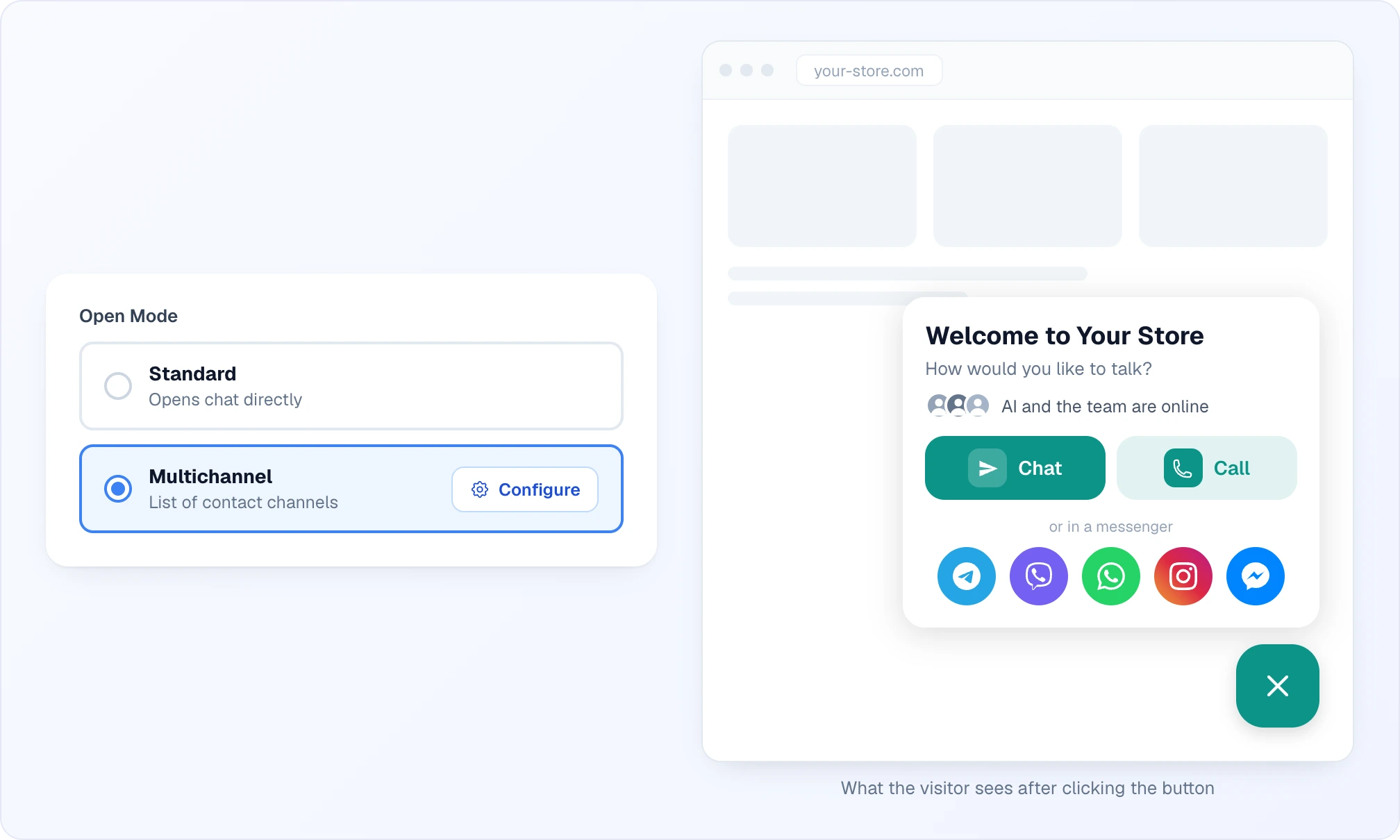
What the visitor sees
After a click the floating button turns into a close button, and a window appears above it:
- The Greeting and the Subtitle. If the subtitle is empty, the standard one is shown: "How would you like to talk?". Below it is the status line (who is available now).
- The main buttons in the floating button's colour: Chat opens the Looma chat. If calls from the widget are on for the site, a Call button sits next to it. Without calls there is one wide Online Chat button.
- Round icons of your channels, labelled "or in a messenger" (if every channel is a messenger) or "other ways to reach us". The channel name shows on hover. Clicks go through tracked links, so Looma sees which channels visitors choose.
Setting up the window
The Configure button next to the mode opens a two-column window:
- Texts — Greeting and Subtitle. Each field has ready-made Variants, but you can write your own text.
- Channels — the list of added channels. Each can be renamed, tested (opens the link), moved up or down, or deleted. The list order is the order of icons in the window.
- Connected Channels — messengers already connected to Looma under Channels; add them with one click.
- Add Manually — pick the type (Telegram, Viber, WhatsApp, Instagram, Messenger or Custom), a name and the username, phone number or link. A custom channel takes a full address, for example
https://your-store.com/contact.
Changes in the window are saved with its Save button, and then with Save Changes at the top of the tab.
Inline button
Besides the floating button, the chat can be opened from anywhere on a page. Add the looma-inline-button class to any button or link. Style it however you like — the widget handles the click. The Inline Button section has three ready examples with a Copy button:
1. Open the widget — follows your open mode: the chat or the channel list.
<button class="looma-inline-button">Chat with us</button>2. Always open the chat — opens the AI chat directly, even when multichannel mode is on.
<button class="looma-inline-button" data-looma-open="chat">Chat with us</button>3. Open with a question — opens the chat and sends the text from data-looma-message straight away. Put in a product name or any question — specs, who it is for, comparisons. The AI finds the product and answers.
<button class="looma-inline-button" data-looma-message="Tell me about "Product name": specs and who it is for">Chat with us</button>Below the examples are Ready-made questions that copy with a click: "Tell me about this product: specs and who it is for", "Is it in stock, and what sizes and colors are available?", "What are the payment and delivery options?", "Help me pick a product for my needs".
Where this helps:
- an "Ask about this product" button on a product page (the third variant, with the product name in the question);
- a "Need help?" link in the header or footer of the site;
- buttons on landing pages and in the delivery and payment sections.
Custom CSS
For fine-tuning beyond the visual options, add your own CSS in the field of the Custom CSS section. These styles are added to the pages of your site where the widget is installed. Every rule automatically gets !important, so it wins over the widget's and the site theme's styles.
The most common targets are .looma-floating-button (the floating button) and .looma-inline-button (your inline buttons). The example in the field placeholder shows how to change the floating button's shadow or the inline button's background.
Constructor
The Constructor button opens a window where styles are put together without writing code:
- Element — Floating Button or Inline Button.
- Margins — top, right, bottom, left (px). For example, to lift the button above a cookie banner.
- Padding — top, right, bottom, left (px).
- Size — width, height, corner radius (px).
- Z-Index — the layer, if other elements of the site (other services' chat buttons, banners) cover the button.
- Apply for — All devices, desktop only (wider than 768 px) or mobile only.
Tick the blocks you need, set the values and click Apply — the finished rule is added at the end of the CSS field. Then save the tab with Save Changes.
Saving and checking
- The theme, custom colours, pattern and header save at once.
- The floating button, open mode, inline button and CSS save with Save Changes at the top of the tab.
Check the result in the Widget tab of the same section (the live widget of your site) or via the direct links:
- Chat widget —
https://widget.looma.chat/chat.html?token=YOUR_TOKEN - Search widget —
https://widget.looma.chat/search.html?token=YOUR_TOKEN
On the site itself, refresh the page. If the changes do not show, it may be the browser's or the site's cache — open the page in a private window.
Next Steps
- AI Assistant Overview — main chat settings
- Proactive Messages — greeting visitors automatically
- Quick Search — the search widget's appearance
- Channels — connecting messengers you can show in the multichannel window