

Chats
The Chats page is the operator inbox — every conversation from your website widget and connected messengers (Telegram, Viber, Facebook, Instagram, WhatsApp) shows up here in one unified list. Live updates: new messages arrive instantly without refresh.
Video guide
The whole section in 4:26 — statuses, filters, the AI hint, taking over a chat, the customer card and viewed products, quick responses, AI Magic, notes and reminders, the customer's history. Subtitles are in the player menu.
Layout
Three panels, side by side on desktop; on a phone or tablet the page shows one panel at a time:
- Left — chat list (toolbar, filters, status badges)
- Center — active conversation (messages, input box)
- Right — Client Information (profile, location, viewed products, notes)
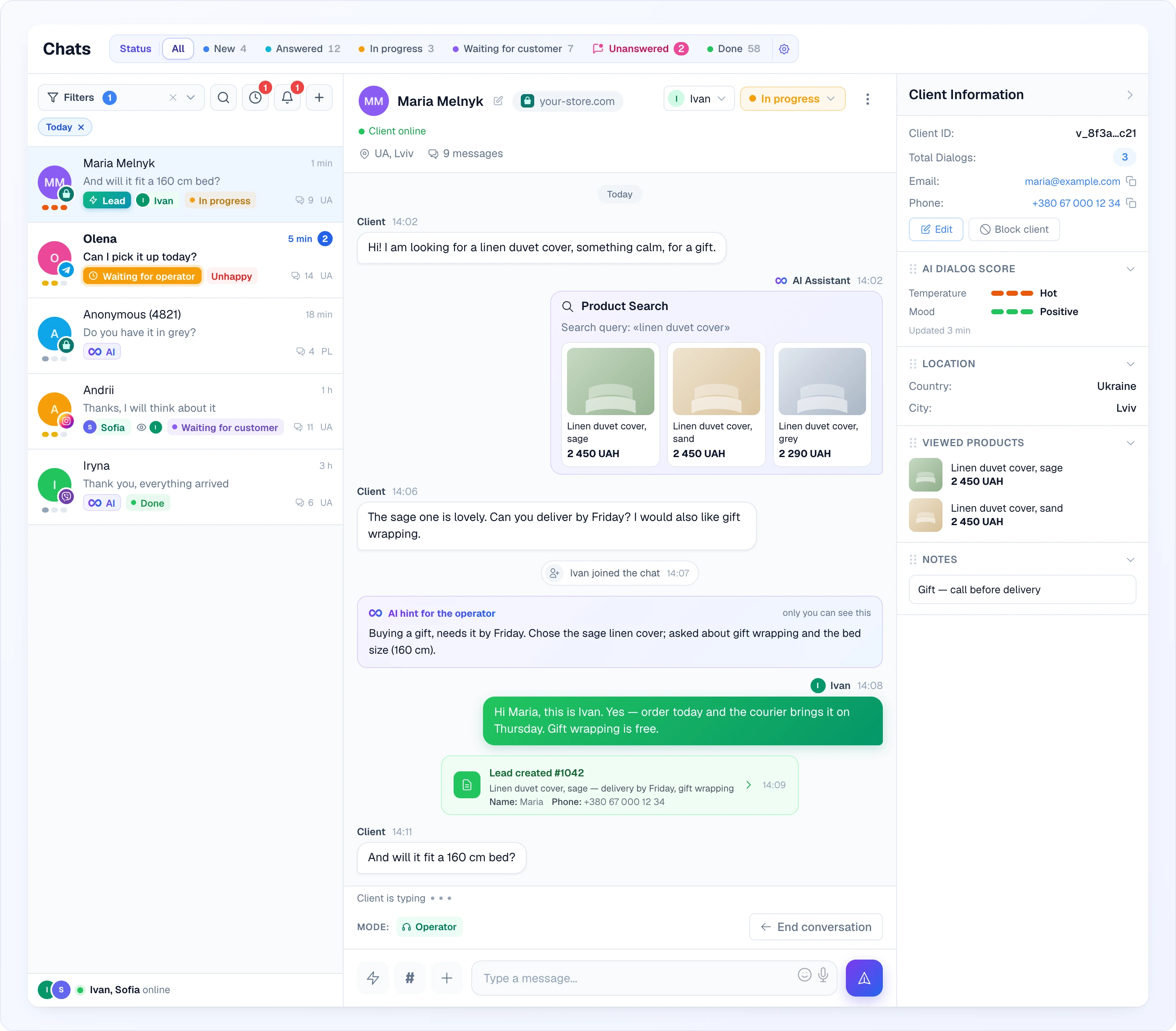
How to read the screen from left to right: the list tells you who needs you (unread counters, chips, temperature), the conversation shows what was said and done (messages, AI product suggestions, events, leads), and the right panel tells you who the client is (contacts, where they came from, what they looked at). The Status bar above everything counts the chats by work status and doubles as a one-click filter.
On desktop, drag the dividers between the panels to resize them; click the Client Information header to collapse or expand the right panel. On mobile, the back button in the conversation header returns to the list, the client information button next to the menu opens the right panel, and the back button there returns to the conversation.
If your subscription has expired, the page is blocked with a Subscription expired notice and an Upgrade plan button.
List toolbar and filtering
The toolbar above the list has:
- Filters — a pill that opens the filters panel. A number badge shows how many filters are active, and the ✕ next to it (Clear all filters) resets them. While the panel is closed, each active filter is shown as a small chip under the toolbar; click a chip to remove just that filter. A search query also counts in the badge, but it has no chip — it stays visible in the search field.
- Magnifier — opens the search field. Search matches the message text, chat and visitor IDs, and the client's name, e-mail and phone.
- Clock — one-click shortcut to the Waiting for operator mode, with a counter of chats waiting — useful first thing when you log in.
- Bell (Snoozed) — appears only when you have active reminders; click it to show just those chats. The badge counts reminders that are already due.
- + (Write to an e-mail) — appears when at least one of your sites can send e-mail. It opens New dialog by e-mail: enter the Client e-mail, pick the Site (if you have several) and click Create dialog.
The filters panel lets you narrow down:
- Time period — All Time, Today, Yesterday, or a custom date range (the last tab shows the chosen range)
- Site — only chats from a specific store (default All Sites)
- Channel — a specific connected channel by its name (default All Channels); shown when you have channels connected
- Mode — who is handling the conversation: AI, Operator or Waiting for operator (default: All modes)
- Status — the work status of the chat (default All Statuses; see Work statuses)
- Temperature and Mood — the AI's score of the dialog: Hot / Warm / Cold and Positive / Neutral / Unhappy (see AI dialog score)
- Unread only — chats with new messages you haven't seen
- Show archived — include archived chats (see Archiving a chat)
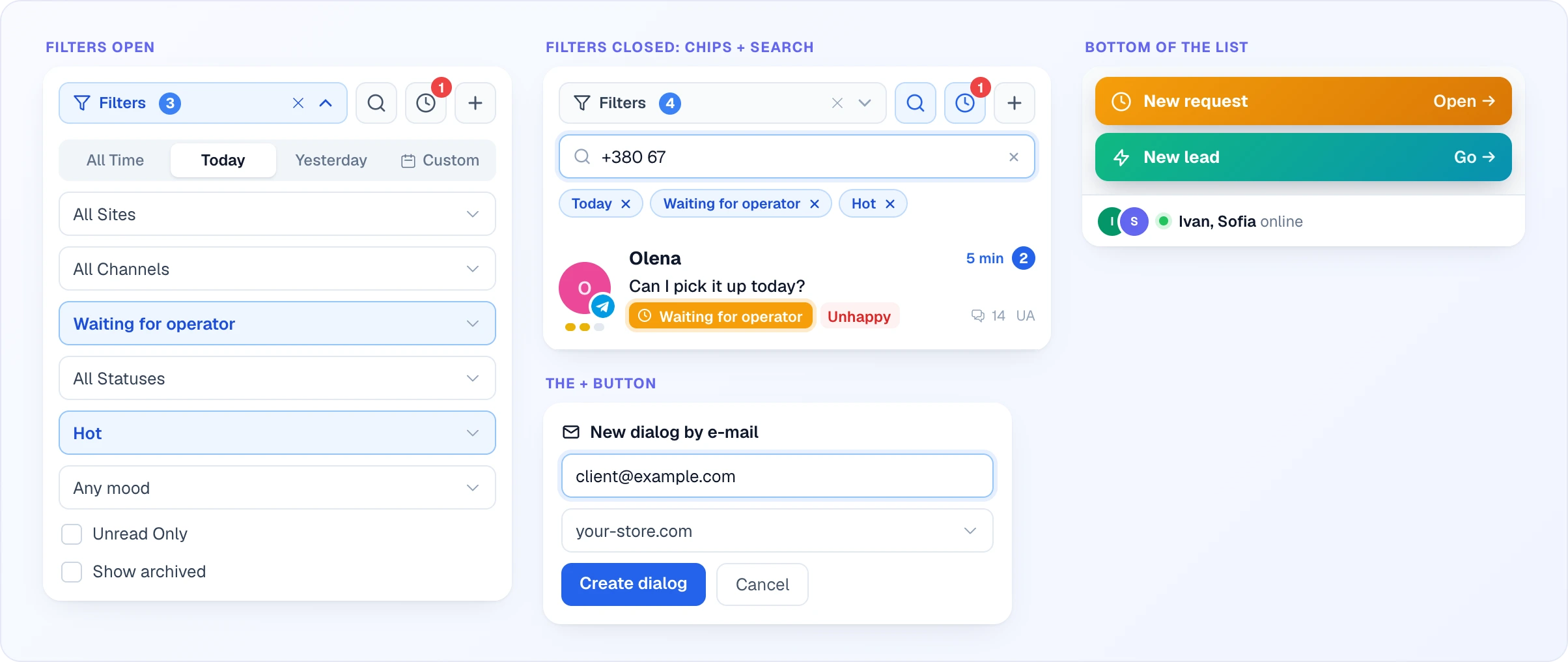
A set filter is highlighted in blue, so you can see at a glance what narrows the list. Filters combine: for example Today + Waiting for operator + Hot shows only today's hot clients who are asking for a person right now. Clicking the clock button sets the same Waiting for operator mode filter, and clicking it again removes it.
Clicking Total Dialogs in the right panel puts the client's ID into search, so the list shows every conversation with that client.
Work statuses and the status bar
Besides the mode (AI or operator), every chat taken by a team member has a work status that says what is left to do. The built-in statuses are New, Answered, In progress, Waiting for customer, Unanswered (the customer wrote and, by default, has had no reply for over 5 minutes) and Done. In the conversation header you set the responsible teammate (or Take it / Release if you are a chat user) and change the status by hand; changes are recorded in Chat history in the right panel. A chat user can change the status only while the chat has no responsible teammate or they are the responsible one. By default Looma moves statuses by itself as the conversation goes — see Automations.

Above the list a Status bar shows the statuses as buttons with counters; click one to filter the list, click All to clear. The bar shows a status only while it has at least one chat in it (the one you are filtering by stays visible) and only if its Show in bar switch is on.
The gear button at the end of the bar (Manage statuses) opens the status editor: drag to change the order, pick a colour, rename, switch Show in bar on or off, Add status for your own ones. Built-in statuses can be renamed and recoloured but not deleted; deleting a custom status moves its chats to In progress. The same editor lives in Team → Chat statuses. Statuses are shared by the whole account, and any team member can edit them.
Reading a chat
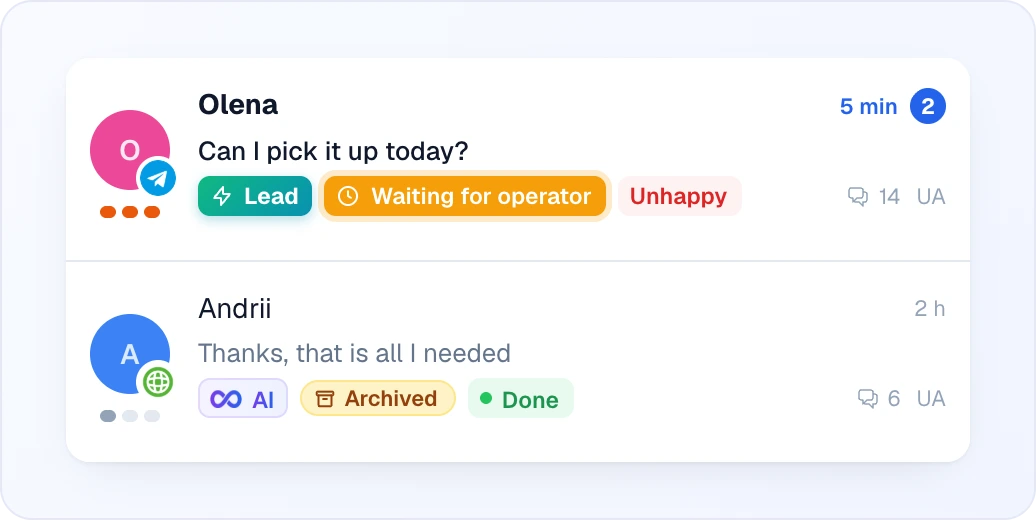
Each chat row shows the visitor avatar, name, last message preview, time, message count and country. Click to open. Badges on the row:
| Badge | Meaning |
|---|---|
| Three-bar scale under the avatar | AI Temperature of the dialog (cold / warm / hot) |
| Channel icon on the avatar | Telegram, Viber, Messenger or Instagram icon; other chats (website widget, WhatsApp) show the site's icon |
| Unread dot or number | Unread messages; a number is shown when the count is known (99+ above 99) |
| Bell next to the name | You set a reminder on this chat; it is highlighted once due |
| Lead chip | A lead was created from this conversation |
| Mode chip | AI, Waiting for operator, or the name of the teammate handling the chat |
| Unhappy chip | The AI scored the client's mood as unhappy |
| Archived chip | The chat is archived (visible with Show archived) |
| Work-status chip | The chat's work status |
| Eye with avatars | Teammates who have this chat open right now |
When something needs attention, a short toast appears over the list: New request (a client asked for an operator, button Open) or New lead (button Go). At the bottom of the list, a strip shows which teammates are online (names followed by online) or No operators online.
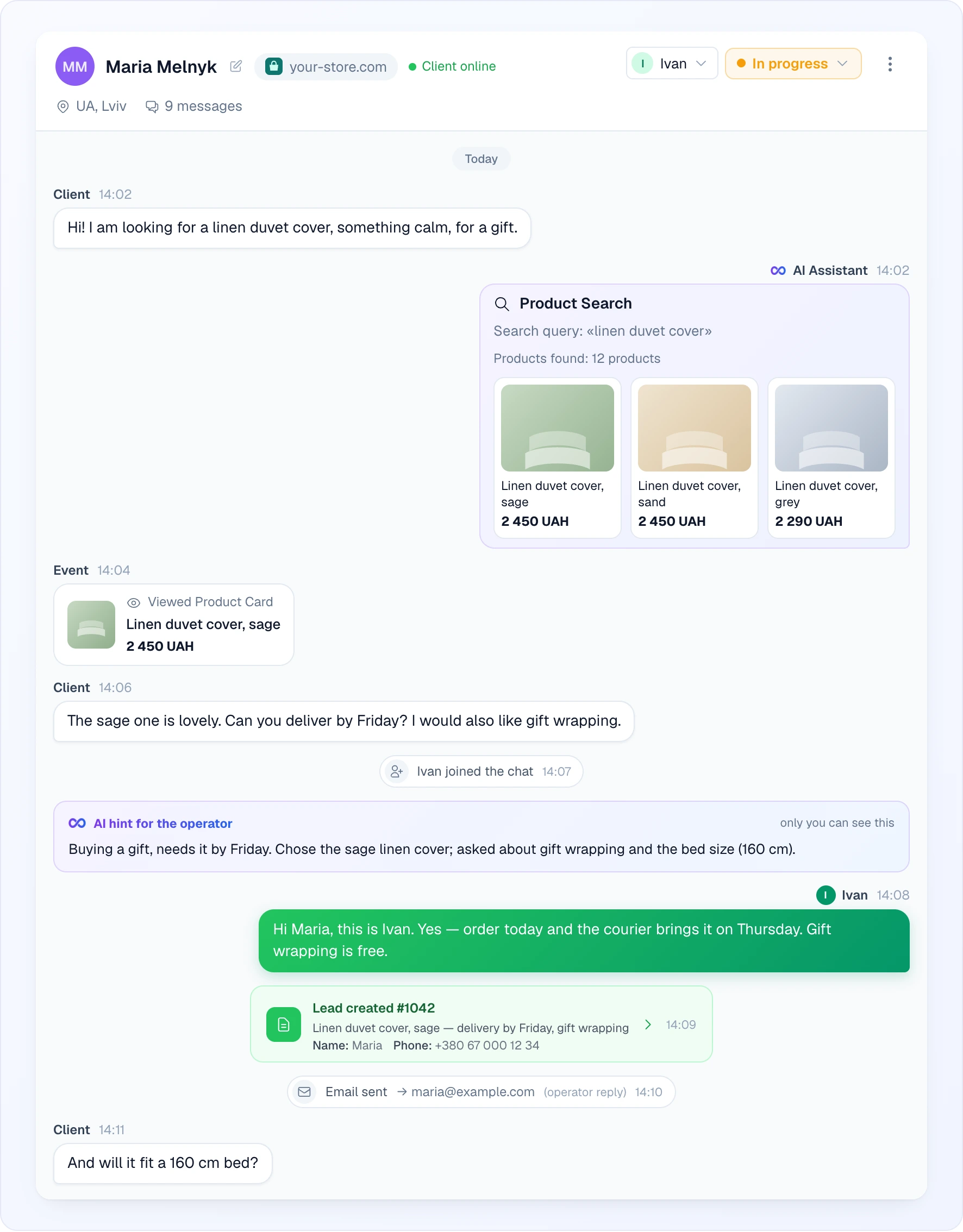
In the conversation, messages from the customer appear on the left, your replies on the right. AI messages have a badge. Customer messages from the website widget are always signed Client; messenger chats (Telegram, Viber, Facebook, Instagram) show the customer's profile name. System events appear centred: "joined the chat", "left the chat", "Chat automatically closed", "Lead created" / "Lead updated" (a card linking to the lead), "Clicked link from chat", "Email sent".
What else you can meet in the conversation:
- Product Search — when the AI searched your catalogue, its reply is a card with the Search query, the number of Products found and the product cards (photo, title, price); click a card to open the product on your site.
- Event bubbles on the client's side — Viewed Product Card (the client opened a product from the chat), Clicked link from chat (they followed a link you sent) and Clicked link from email. If the link points to a product or a category of your catalogue, the bubble shows it.
- Lead created #N / Lead updated #N — a green card with the start of the request and the collected fields (name, phone, e-mail…). Click it to open the lead on the Leads page.
- Email sent → address — with the kind of letter in brackets: operator reply, conversation copy, viewed products or personal email.
- Chat automatically returned to AI assistant, Chat automatically closed and Returned to operator queue — the auto-close rules at work.
- Date separators (Today, Yesterday or a date) between days, and Client is typing with three dots above the footer while the client types.
The header shows: visitor name (click pencil to rename internally), the responsible teammate and work status, Client online / Client offline, channel, message count, location. "Client online" means Looma has heard from the visitor's widget within the last 90 seconds, and the visitor stays online while any of their tabs is open. Telegram, Viber, Facebook and Instagram clients are always shown as online, because the messenger delivers your message either way.
Replying
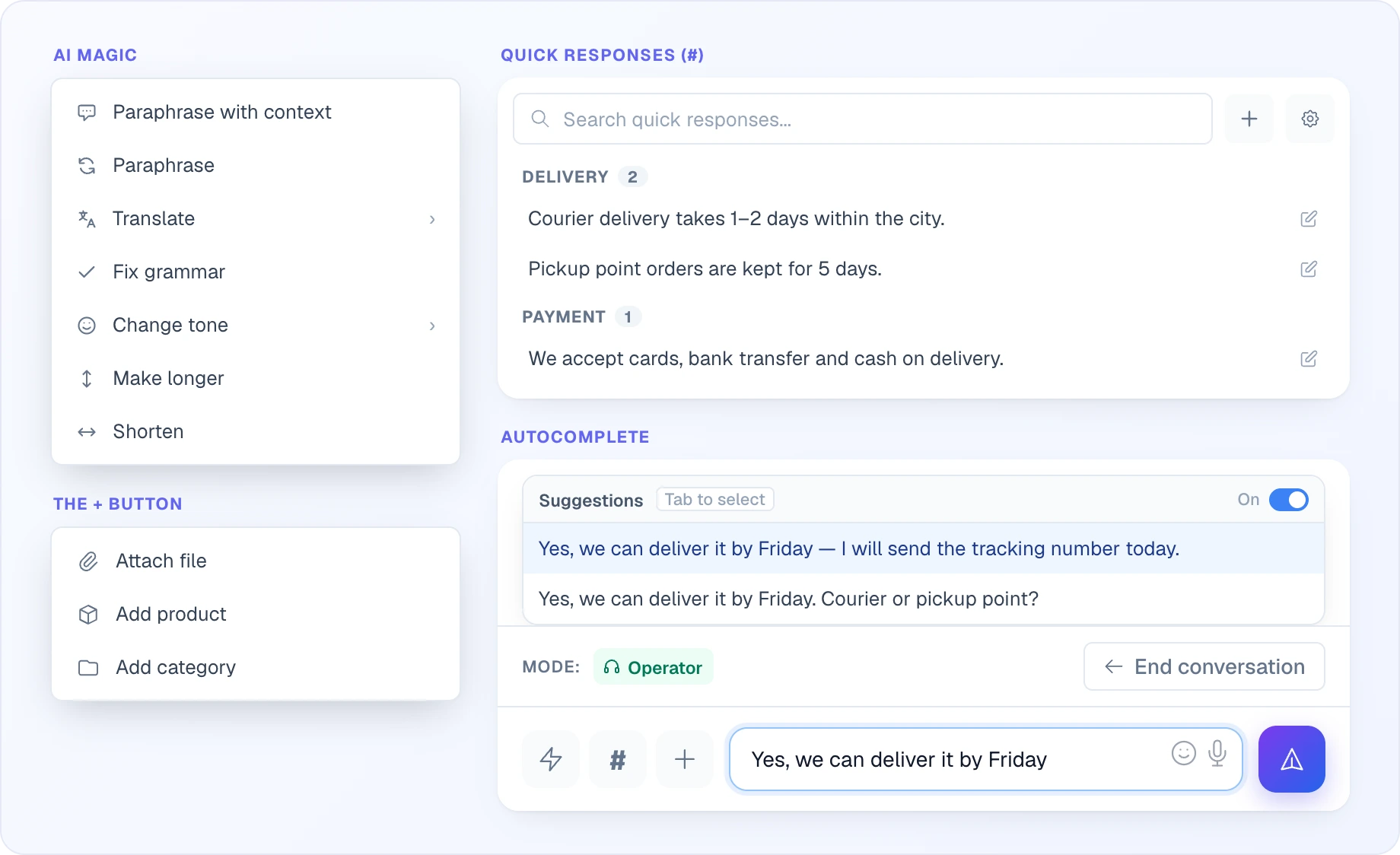
You can type only after you have taken the chat (see Operator actions); before that the input box is hidden. Type in the input box at the bottom. Messages from operators and the AI are rendered as markdown (bold, italic, links); emojis are supported. Send with the send button or Enter; Shift+Enter adds a new line.
When the client is offline but their e-mail is known and e-mail delivery is on, a blue Reply will be sent to email pill appears in the conversation header.
Attachments — drag files over the chat (the Drop files here overlay appears) or click the plus button (Add):
- Attach file — files / images / documents
- Add product — search your catalogue and attach a product to share with the customer; if the product has variants, a drop-down lets you choose the variant before sending
- Add category — search your catalogue and attach a whole category
AI Magic Helper — a paid, opt-in feature: when it's enabled for your account an AI Magic lightning-bolt button sits in the button row next to the input. It reworks your draft before you send it, with actions Paraphrase (and Paraphrase with context, using the conversation), Translate (searchable language list), Fix grammar, Change tone (Formal / Friendly), Make longer and Shorten. If you don't see the button, the feature isn't enabled on your plan.
Autocomplete — as you type, Looma can suggest a completion drawn from your past replies and knowledge base. Press Tab to accept the highlighted suggestion. Each operator can switch it on or off with the toggle in the suggestion dropdown.
Voice input — click the microphone to dictate. Your speech is transcribed straight into the message box as text (edit it before sending). This uses your browser's speech recognition, so availability depends on the browser. Inbound voice messages from customers arrive as audio; with AI Magic Helper enabled, a Transcribe to text button under the audio turns it into text.
Quick responses — click the # button in the button row next to the input (Quick Responses) or press Ctrl/⌘+/ to open the template panel. Search by text, or browse templates grouped by tag; insert by click and edit before sending. Edit and delete buttons on a template let you change or remove it right there. Owners, administrators and supervisors also get a gear link to the quick-responses settings. Save a message you sent as a template via its menu → Save as quick response. Templates are shared across the team — manage them on the Team page.
Shortcuts — Enter sends, Shift+Enter is a new line, Tab accepts an autocomplete suggestion, Ctrl/⌘+. opens the emoji picker, Ctrl/⌘+/ opens quick responses. Ctrl shortcuts are off on touch-only devices.
Message actions
Open the menu of a message to:
- Copy its text
- Reply to a client message — your answer is sent as a reply to it (not in every channel; always available in the website widget)
- Save as quick response — for your own messages
- Edit and Delete — for operator messages only. In the website widget this works any time; in Telegram only within 48 hours; in Viber, Facebook, Instagram and WhatsApp it is not available. Editing a message with only an attachment is not supported. A deleted message stays in the conversation as Message deleted, with the name of whoever deleted it, and is removed for the client too.
Click an attachment to open the viewer: the image or PDF opens in place, with Download, Open in new tab and arrows to move between the chat's attachments. Other file types show a card without preview.
Visitor info panel (right)
Open the right panel via its panel toggle (or the info button on mobile). It is titled Client Information and shows everything we know about the client:
- Client ID — with a copy button for messenger clients — and Total Dialogs: the count of all conversations with this client (click it to list them)
- Contact — email, phone and notes. Click Edit to change the name, email, phone or notes, then Save
- Block client / Unblock client — see Operator actions
- AI dialog score — see AI dialog score
- Device & Browser — browser, OS, mobile/desktop (widget chats only)
- Location — country, city, region
- Technical Data — IP, landing page, referrer (hidden for Telegram chats)
- UTM Parameters — marketing campaign source / medium / campaign / term / content (if tracking is on)
- Timing — time of the first and the last message
- Viewed Products — what they browsed on your site
- Viewed Pages — non-product pages they visited
- Notes — an internal note on this chat; saves automatically as you type
- Chat history — who took the chat, changed the responsible teammate or status, and when
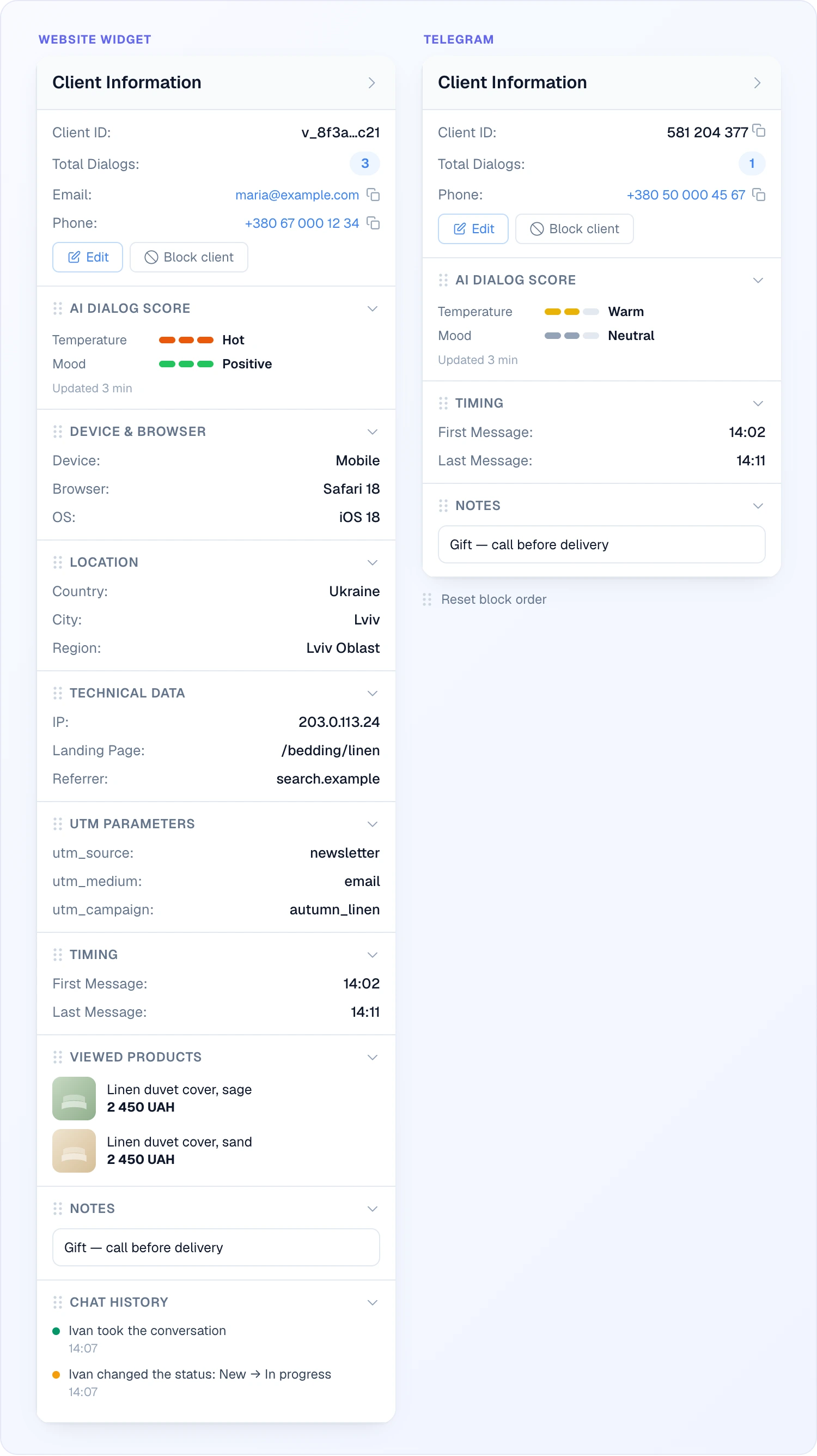
Blocks without data are hidden. Drag a block by its grip to reorder the panel; the order is remembered in your browser, and Reset block order restores the default. Direct-chat sessions (Telegram, Viber, etc.) have less info — no device, no page tracking, because messengers don't share that data.
AI dialog score
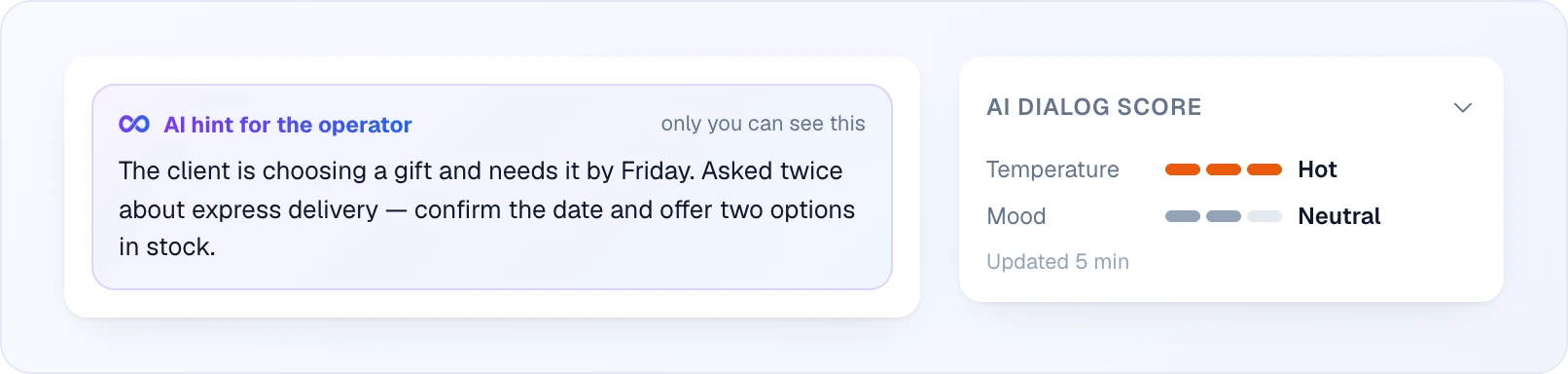
When the AI has scored a dialog, the AI dialog score block shows Temperature and Mood on a three-step scale, with the time of the last update. The same temperature is shown as a three-bar scale under the avatar in the list, and a negative mood as an Unhappy chip. You can filter by both (see List toolbar and filtering). Scoring is refreshed after you hand a chat back with End conversation.
When a chat is handed to a human, the conversation shows an AI hint for the operator card right after the handoff message: a short brief of what the client wants. Only operators see it; it is never sent to the client.
Operator actions
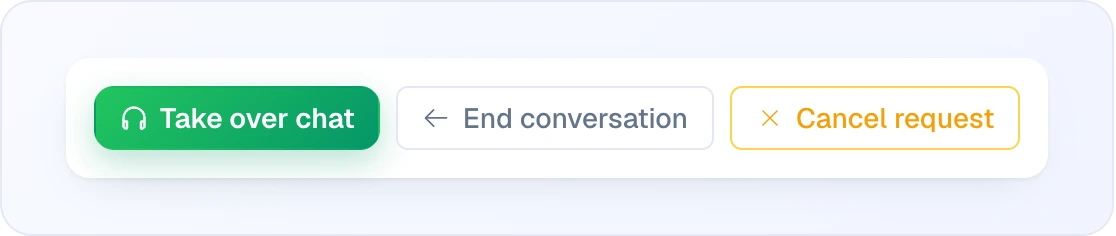
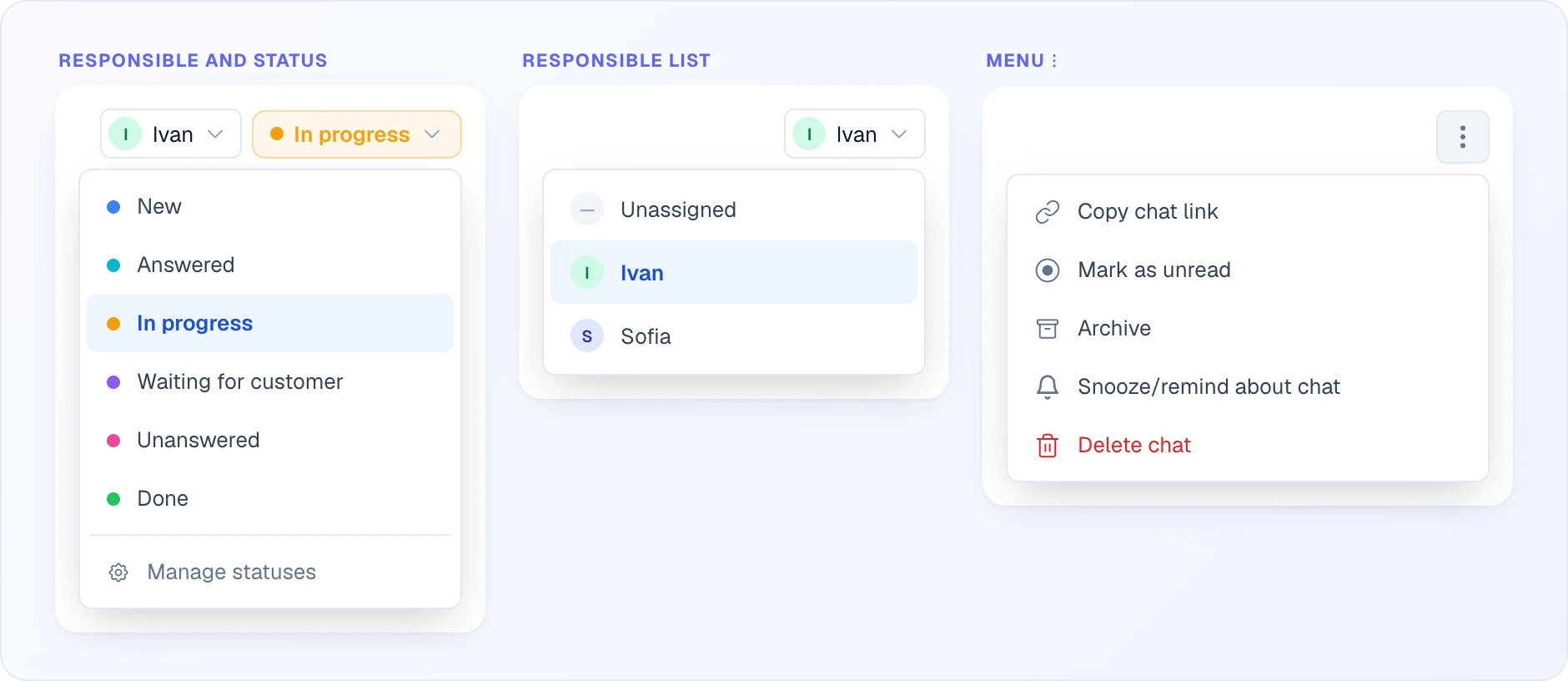
The header holds two drop-downs: the responsible teammate (pick anyone, or Unassigned to clear it) and the work status (with Manage statuses at the bottom for those allowed to edit statuses). Chat users don't get the teammate list — they see Take it / Release instead. The ⋮ menu next to them collects the actions on the chat itself; Delete chat appears only for Owner, Administrator and Supervisor.
Take over from AI — click the Take over chat button in the message footer (shown when the chat is in AI mode, waiting for an operator or closed). A system message confirms you joined. You're now in control; the AI pauses for this conversation. The footer shows the current mode as Mode: followed by a chip.
Cancel request — when a chat is Waiting for operator, this footer button withdraws the request without notifying the client; the chat goes back to the AI.
Return to AI — click the End conversation button in the message footer (shown while you're handling the chat). The AI resumes handling, the chat gets the Done status, and in the background the AI re-reads the dialog to refresh its temperature and mood score (the AI is silent while you handle the chat, so the score would otherwise stay frozen at the moment of handoff).
Mark as unread — three-dot menu → Mark as unread. Re-flags the chat so it stays in your queue.
Copy chat link — three-dot menu → Copy chat link. Useful for sharing a specific conversation with a teammate (only works for team members logged in).
Block client — button in the right panel. Stops them from sending any more messages on this channel. After a confirmation; click Unblock client to undo.
Archive — three-dot menu → Archive (Unarchive to undo). See Archiving a chat.
Set a reminder — three-dot menu → Snooze/remind about chat. Schedules a personal follow-up for this chat: pick a quick preset (In 15 min, In 1 hour, This evening, Tomorrow at 9:00, Monday at 9:00) or an exact date and time, and add an optional text. Once set, a reminder card with Reschedule and Got it buttons sits under the messages. See Chat Reminders.
Delete chat — three-dot menu → Delete chat (Owner, Administrator and Supervisor only). After a confirmation, it permanently removes the conversation and its notes. Any leads collected from the chat are kept.
Other operators viewing — small eye icon with avatars next to a chat row tells you a teammate already has it open, so you don't both reply at once.
Archiving a chat
Archive (three-dot menu in the conversation) tidies the list without touching the work status: the chat disappears from the list, from search and from the status counters. Any team member can archive and unarchive. Tick Show archived in the filters to see archived chats — they carry an amber Archived label in the list and in the chat header. If the customer writes again, the chat comes back to the list by itself, in every channel.
Old chats also go to the archive by themselves: the Archive old chats automation on the Automations page archives a chat with no messages for 90 days (except chats waiting for an operator or handled by one). You can change the period or turn the rule off.
Channel differences
- Website widget — richest info (location, device, viewed products, real-time online status)
- Telegram / Viber / WhatsApp — full text + files, no page tracking, no online status (messenger handles it on its side)
- Facebook Messenger / Instagram — supported, with the platform's own quirks (Instagram DMs are slower because of Meta's API rate limits)
- Email — when a mailbox is connected as a channel, letters arrive as chats with an envelope icon on the avatar and an Email · mailbox chip in the list; the letter's subject is shown above the message text
The channel is also visible in the conversation header: a messenger chat shows the channel name (with (Direct) when the channel is not tied to a site), a widget chat shows the site name.
When emails go out
If a customer goes offline and you reply via the chat, Looma can deliver your message as an email (if their address is known and email delivery is enabled). When they reply to that email, the reply lands back in this same chat as a new message. See Email Delivery.
Auto-close
Conversations that go quiet auto-close after a timeout — back to AI mode (widget chats with a site) or fully closed (direct-channel chats). If the operator hasn't read the last customer message, the chat goes back to Waiting for operator instead of closing — the timeouts are set on the Automations page (Return the chat to the AI when the operator is silent and Clear the "Waiting for operator" queue). The same page can also move finished chats to another work status by your rules.
When a chat leaves the operator this way, the AI also picks its work status instead of always marking it Done: it reads the end of the dialog and sets, for example, Unanswered if the customer is still waiting or the operator promised to come back. A status you set by hand is kept. This works for site chats returned to the AI and for direct messenger chats that are closed, uses credits, and can be switched off on the Automations page (The AI picks the status when a chat is returned by timeout). Chats you hand back yourself with End conversation always become Done.
A typical shift
- Open Chats and click the clock button — these are clients asking for a person right now. The Unanswered pill in the Status bar shows who has been waiting for a reply for over 5 minutes.
- Open a chat and read the AI hint for the operator card first — it tells you in two lines what the client wants, so you don't have to scroll through the whole AI dialog.
- Click Take over chat. Check the right panel: what the client viewed, where they came from, notes from earlier conversations (Total Dialogs shows if they wrote before).
- Answer — use quick responses (
#), add products with + → Add product, let autocomplete finish typical phrases. - Set the work status (Waiting for customer if the ball is on their side) or a reminder if you promised to come back.
- When done, click End conversation — the AI takes the chat back, the status becomes Done, and the AI refreshes the dialog score.
Tips
- Glance at the Waiting for operator counter when you log in — those are people actively asking for you
- Save useful replies as quick responses — they pay off after the first reuse
- Use the Notes field on the right panel for context you'll want next time
- For visitor follow-up, mark as unread + add a note (or set a reminder) rather than relying on memory
Related
- Chat Modes — when chats go to AI vs operator, work schedule
- Lead Collection — how the AI captures contact info during chat
- Channels — connecting Telegram / Viber / Facebook / Instagram
- Team — quick responses, member permissions