

KeyCRM
Connect KeyCRM and every lead your widgets collect turns into a card in your sales pipeline — with the contact, the conversation comment, the products the visitor looked at and the UTM tags of the visit. No feed, no export, no manual copying.
The connection is one-way: Looma writes into your CRM and never reads orders or the catalogue back. If you need shop data in KeyCRM, that is a separate channel your shop already has.
What reaches your CRM
Leads from chat and search. Everything the AI assistant, the search widget and the widget forms collect. Each lead becomes a card in the pipeline you pick, attached to a buyer that Looma finds or creates by phone (and then email).
Contacts without an order. People who left a phone or an email in the widget but never ordered and never became a lead. These are exactly the people your shop has no record of. Off by default — tick the box if you want them.
Updates to cards already sent. If a lead gains details after it reached the CRM — a phone number that arrived later in the chat, a changed status — Looma updates the same card and the same buyer instead of creating a second one.
Before you start
- A KeyCRM account with the Pipelines section enabled and at least one pipeline in it. Looma cannot create a pipeline for you — the KeyCRM API does not allow it.
- The Owner or Administrator role in Looma: the Integrations section is limited to those two.
- An active subscription. An expired one redirects you to Billing before the page opens.
If you want the visit details (visitor ID, landing page, referrer, Looma lead status) to land in the card, create extra fields for leads in KeyCRM first — Looma can only fill fields that already exist.
Step 1. Get the API key
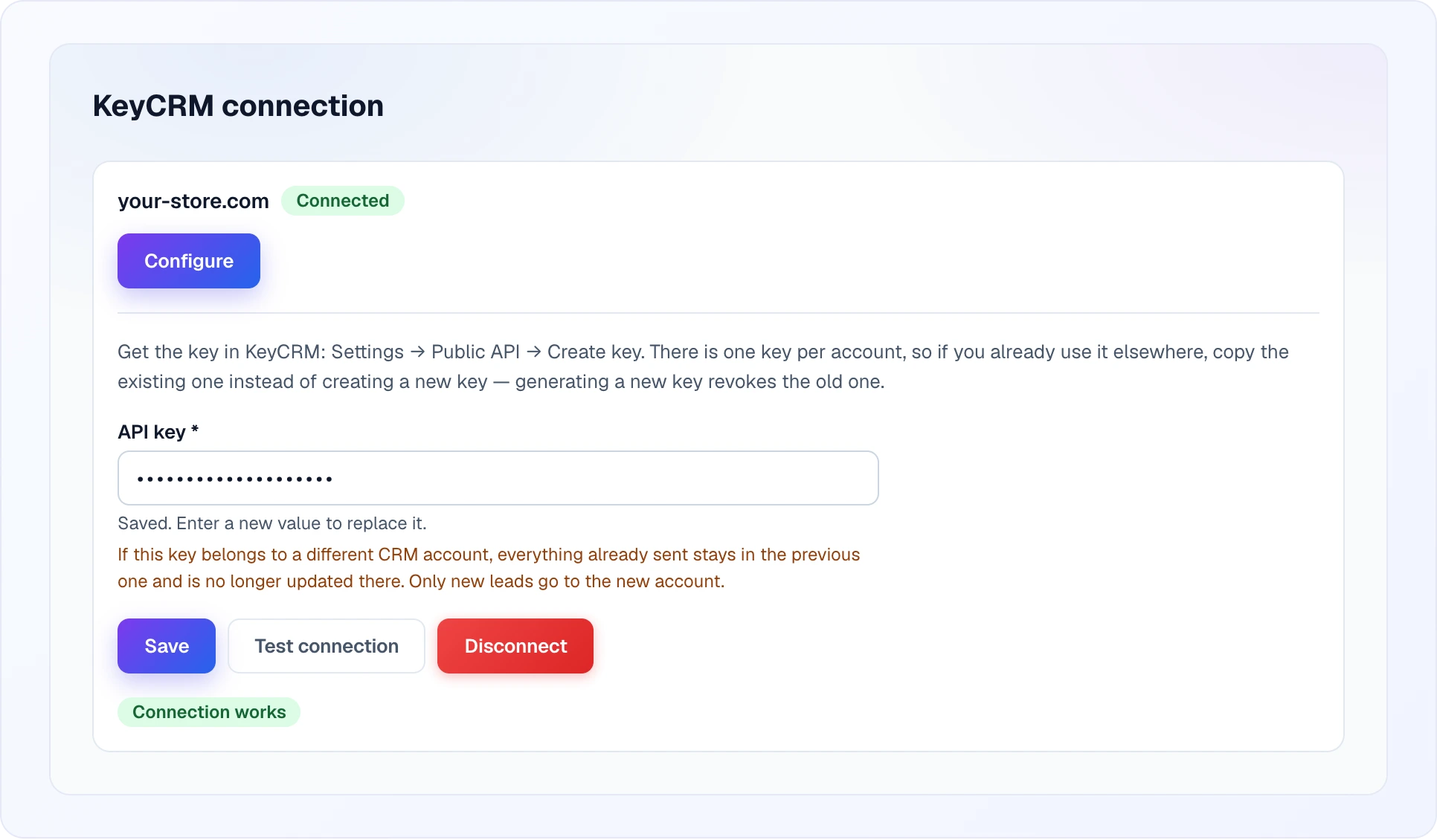
In KeyCRM open Settings → Public API → Create key.
There is one key per KeyCRM account
If you already use that key somewhere else, copy the existing one. Generating a new key revokes the old one, and everything that relied on it stops working.
Step 2. Connect the site
- Open Integrations in the sidebar and pick the KeyCRM card.
- Find your site in the list and press Connect.
- Paste the API key and press Save.
- Press Test connection — the button appears once the key is saved.
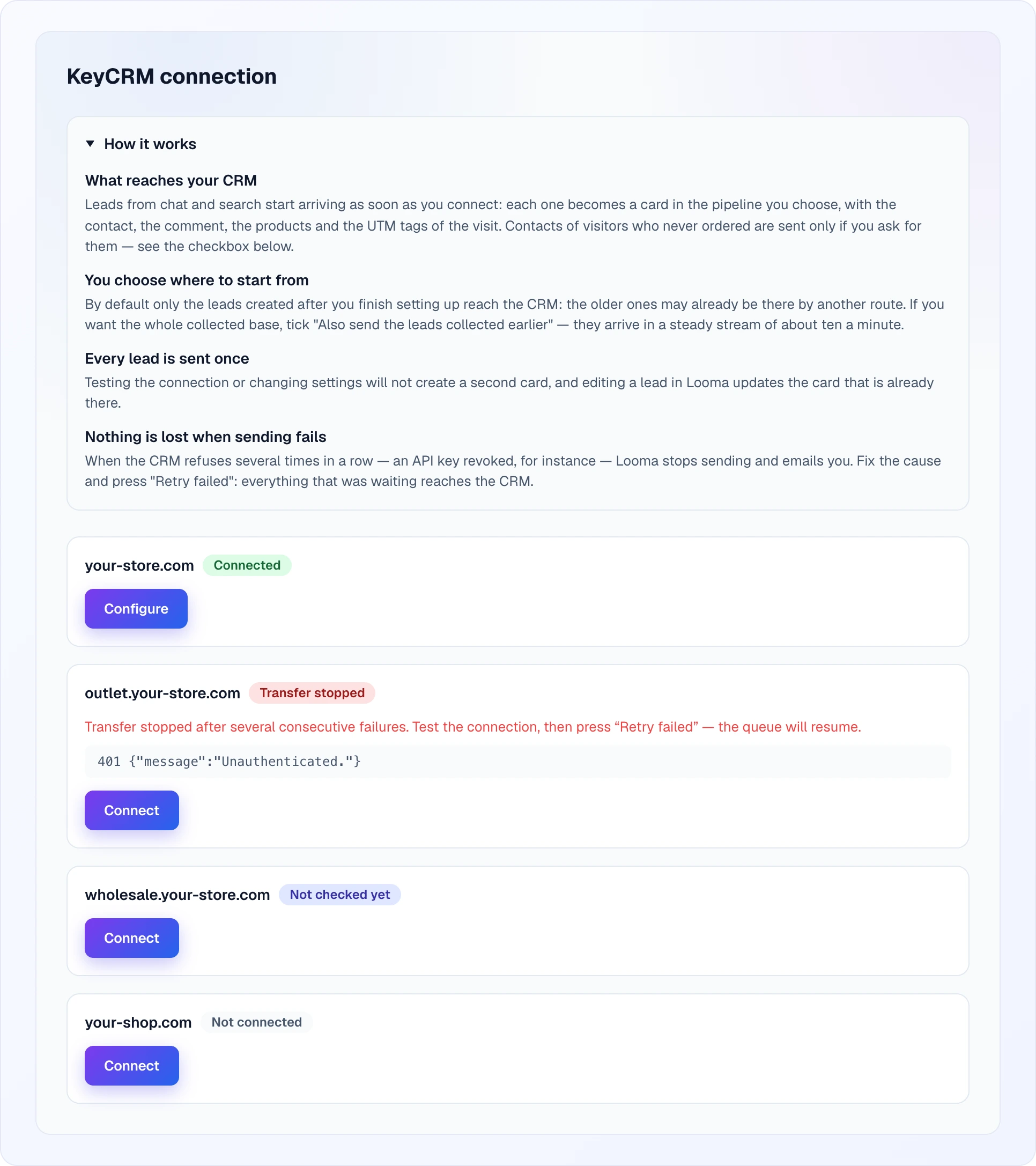
The KeyCRM connection page lists all your sites, each with its own badge and button: Configure for a connected site, Connect for the rest. A site whose transfer was stopped also shows the reason in red and the last error returned by the CRM.
The check reads your pipelines, sources and extra fields and stores a snapshot of them. When it succeeds the badge next to the site name turns into Connected, a green Connection works label appears inside the form, and the setup wizard opens below it.
One key, several sites
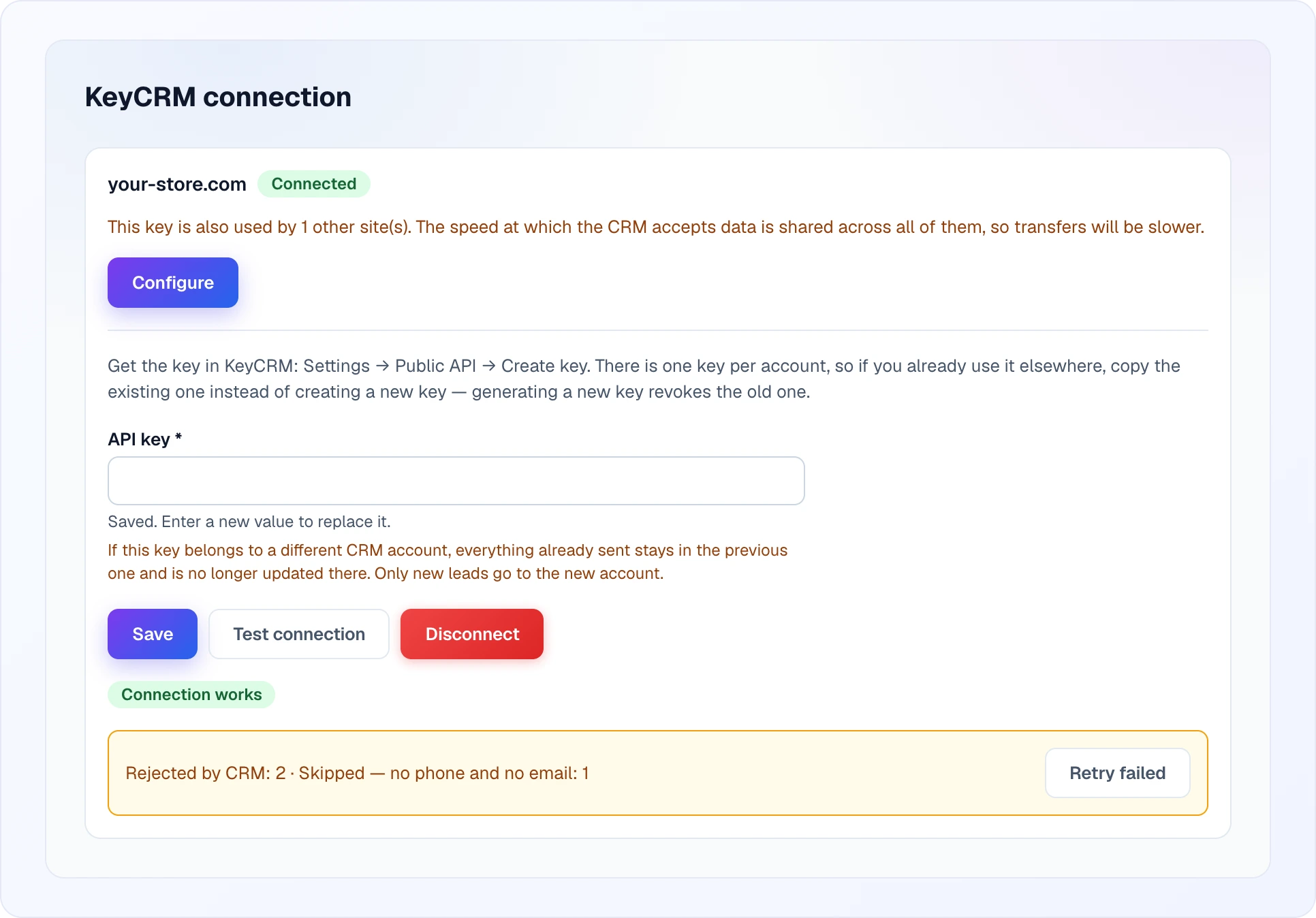
KeyCRM issues a single key per account, so if you connect several sites with it they share the same rate limit. Looma tells you when that happens — transfers get slower, nothing breaks.
Step 3. Say where leads should go
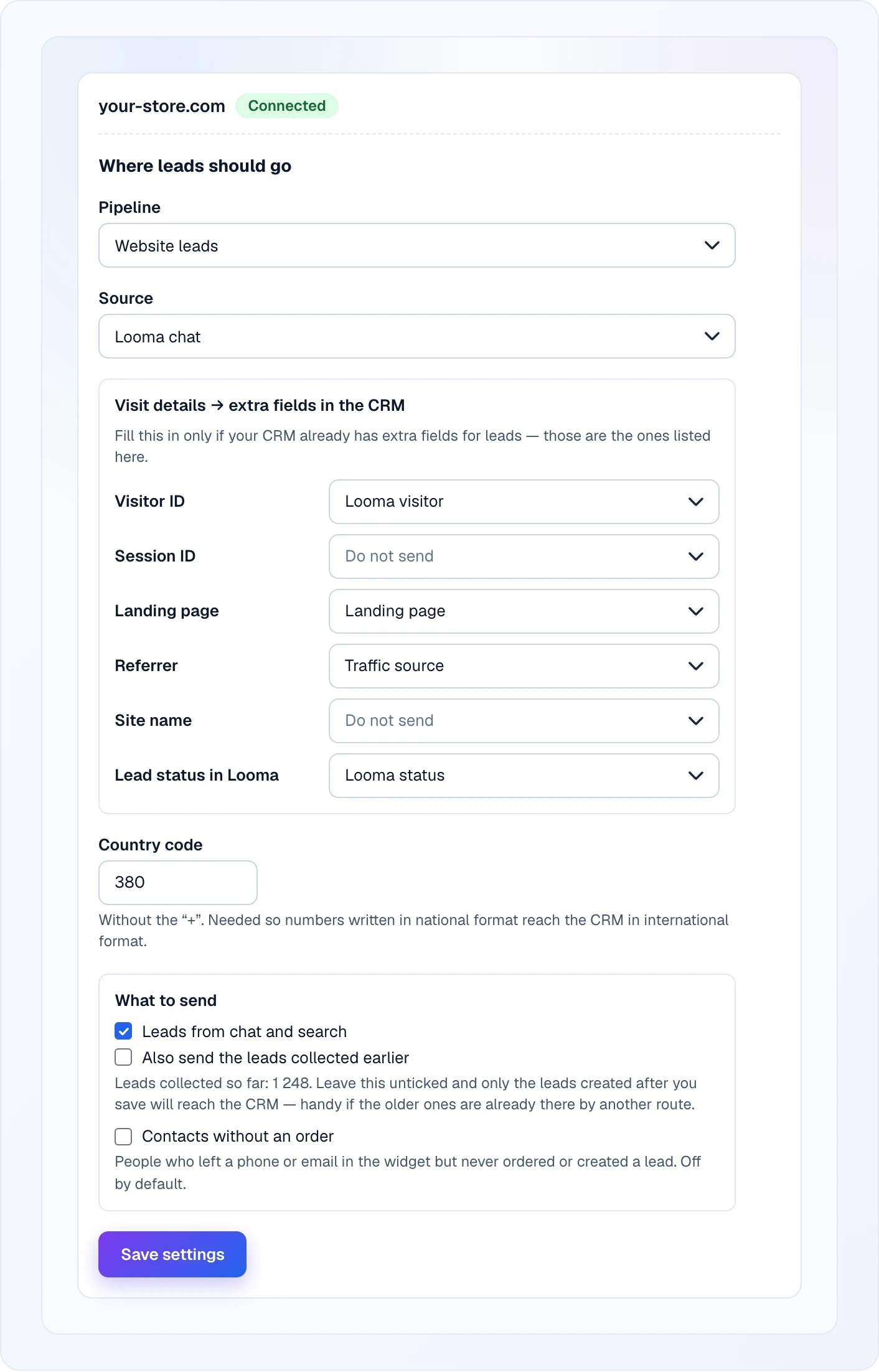
The wizard appears only after a successful check, because every list in it comes from that snapshot.
| Setting | What it does |
|---|---|
| Pipeline | which pipeline the cards land in. Required |
| Source | the KeyCRM source written on every card. Required |
| Visit details → extra fields | maps Looma values (Visitor ID, Session ID, Landing page, Referrer, Site name, Lead status in Looma) onto your KeyCRM lead fields. Leave a row on Do not send to skip it |
| Country code | dialling code without the +, so numbers written in national format reach the CRM in international format |
Looma never sets the pipeline status
The card is created in the pipeline's own default status and Looma leaves it alone — the pipeline belongs to your operators. The Looma-side status travels as a plain value instead, through the Lead status in Looma row of the field map. If you never renamed the four default Looma statuses, they arrive in English.
Step 4. Choose what to send
- Leads from chat and search — the main pipeline, on by default.
- Also send the leads collected earlier — off by default. Without it only leads created after you save reach the CRM, which is what you want if the older ones are already there by another route. With it, the whole backlog goes over in a steady stream of roughly ten a minute.
- Contacts without an order — off by default.
Press Save settings. Delivery starts within a minute.
What a card contains
- Title built from the lead.
- Contact — the buyer Looma found or created, with phone and email.
- Comment — what the visitor wrote.
- Products the visitor looked at, when there are any.
- UTM tags of the visit:
utm_source,utm_medium,utm_campaign. - Extra fields you mapped in step 3.
Products are sent once
KeyCRM always adds products to a card rather than replacing them, so an update would double the list. Looma therefore sends products when the card is created and never again.
Timing
| New lead → card in the CRM | about a minute |
| Backlog transfer | roughly ten leads a minute |
| Rate | Looma paces itself to the limit KeyCRM reports in its own responses, and backs off on 429 without losing anything |
A lead is deliberately held for 30 seconds before it is queued. Database transactions do not always become visible in the order they were numbered, and without that pause a lead created at the same instant as its neighbour could be skipped silently and never sent at all.
When something goes wrong
The badge next to the site name tells you where you stand:
| Badge | What it means |
|---|---|
| Not checked yet | the key is saved but never tested — press Test connection |
| Connected | everything is running. A green Connection works label also appears inside the open form right after a successful check |
| The CRM rejected the key | wrong or revoked key — paste a current one |
| The key is correct, but the CRM grants no access to the data | your KeyCRM plan does not include what Looma asks for |
| The CRM is not responding | a temporary KeyCRM outage; Looma keeps retrying |
| Pipelines are turned off in the CRM | enable the Pipelines section in KeyCRM. The key does not need changing |
| Transfer stopped | ten consecutive failures — see below |
| Not connected | no key saved for this site yet |
| Beyond your plan limit | the site itself is over the plan's site allowance — see Billing |
After ten consecutive failures Looma stops sending and emails the account owner. Nothing is lost: fix the cause, press Test connection, then press Retry failed and the whole queue goes over. The counter measures failures in a row, so a success resets it.
The Retry failed block also shows what is stuck and why:
- Rejected by CRM — the CRM refused the data itself.
- Skipped — no phone and no email — nothing to create a buyer from. These cannot be sent, whatever you do.
- No answer from the CRM — still in flight, usually clears on its own.
- CRM rate limit — delivery stalled — KeyCRM is limiting the speed; this clears on its own, and Retry failed does not speed it up.
Changing the key or the CRM account
Paste a new key on the same page and save. If the new key belongs to a different KeyCRM account, Looma warns you and then freezes the history: everything already sent stays in the previous account and stops being updated there, and only new leads go to the new one. The pipeline and source selection is cleared as well — pipeline IDs are small numbers that exist in both accounts, and reusing them would quietly file your leads into a stranger's pipeline.
Disconnecting
Integrations → KeyCRM → Disconnect. The stored key is deleted, not just disabled.
Disconnecting clears the delivery history
That history is what remembers which leads have already been sent. Connect the same CRM again and everything gets sent a second time, as new cards.
Troubleshooting
I cannot see the Integrations section. It is limited to the Owner and Administrator roles.
The setup wizard does not appear. It only shows after a successful Test connection — every list in it comes from that check.
"This KeyCRM account has no pipelines yet". Create one in KeyCRM (the Pipelines section), then press Test connection again. Pipelines cannot be created through the API, so this is genuinely a job for the KeyCRM interface.
The extra-fields list is empty. Looma lists your KeyCRM fields for the lead model only — a field created for orders cannot be filled from a pipeline card. Create the fields for leads in KeyCRM, then test the connection again to refresh the snapshot.
"The stored key cannot be read. Enter it again." The saved key can no longer be decrypted. Paste it again and save.
"Too many checks in a row. Try again in an hour." The connection test is rate limited on our side to protect your KeyCRM key budget.
Phone numbers arrive malformed. Check the Country code field — without it numbers written in national format cannot be converted to international.
Everything is connected but nothing arrives. Check that at least one switch under What to send is ticked, and that the leads you expect were created after you saved — the backlog only goes over if you tick Also send the leads collected earlier.
Related
- Leads — where the leads come from
- Integrations — API keys and webhooks for your own systems
- Billing — plans and subscription state