

Proactive Messages
Proactive messages are automated pop-up messages that appear to website visitors, encouraging them to start a conversation with the AI assistant. Instead of waiting for customers to click the chat button, the widget proactively reaches out.
Research shows proactive messages can increase chat engagement by up to 40%.
How It Works
Visitor arrives on your website
         ↓
    [Trigger fires]
    (after X seconds or scroll %)
         ↓
    💬 Pop-up bubble appears near chat button:
    "Hi! 👋 Need help finding the right product?"
         ↓
    Visitor clicks → Chat opens
    Visitor ignores → Bubble disappears after a moment
    Bubble won't appear again for X hours (cooldown)
The proactive message appears as a small speech bubble next to the floating chat button. It looks like the assistant is reaching out — friendly and non-intrusive.
The bubble first shows the first message, then after about 7 seconds it briefly hides and reappears with the second one. It stays up to 30 seconds (and keeps showing if the visitor moves to another page of the site during that time), and a soft sound plays on the first show. Clicking the bubble opens the chat; the cross closes it. While the visitor has the chat, a call or the messenger picker open, the bubble is not shown.
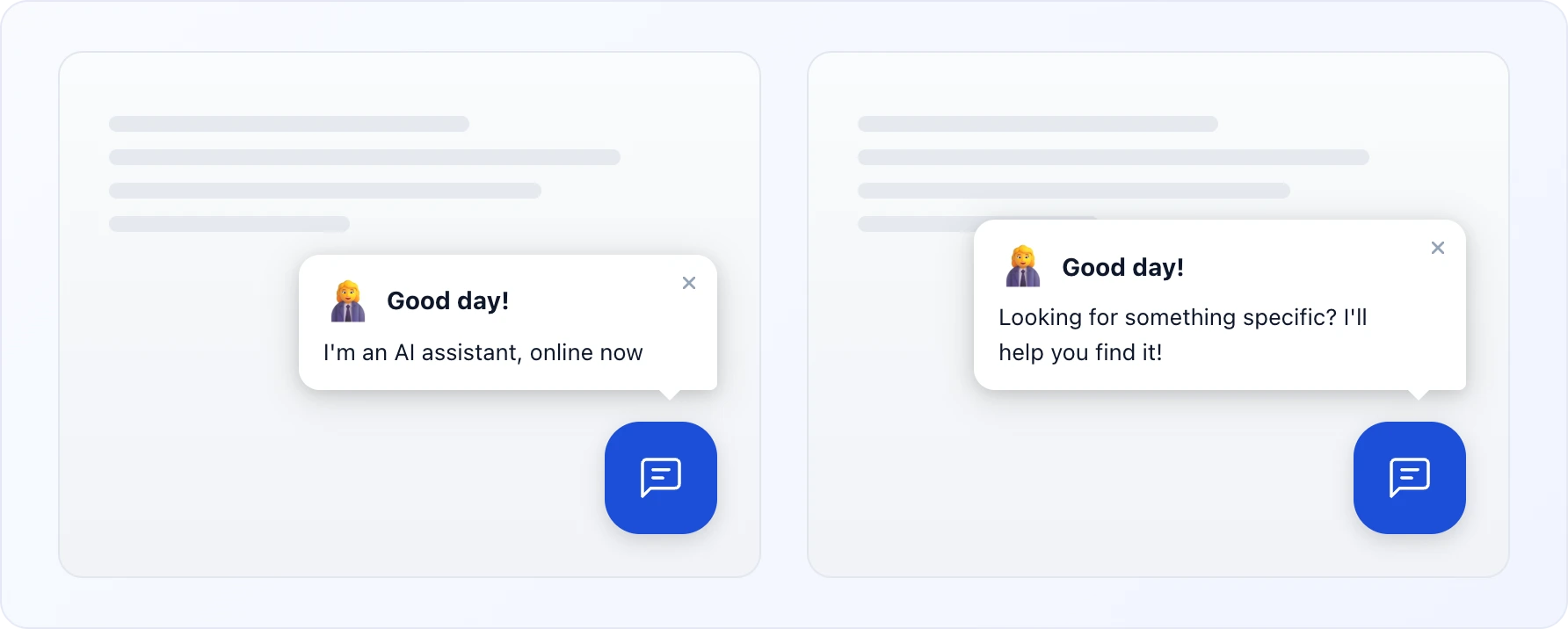
The bubble automatically stays silent on cart and checkout pages — interrupting a customer mid-payment hurts more than it helps. Detection covers the common store platforms (cart/checkout URLs and page markup) with no setting required, and visiting the cart does not consume the visitor's timer or cooldown.
Setting Up
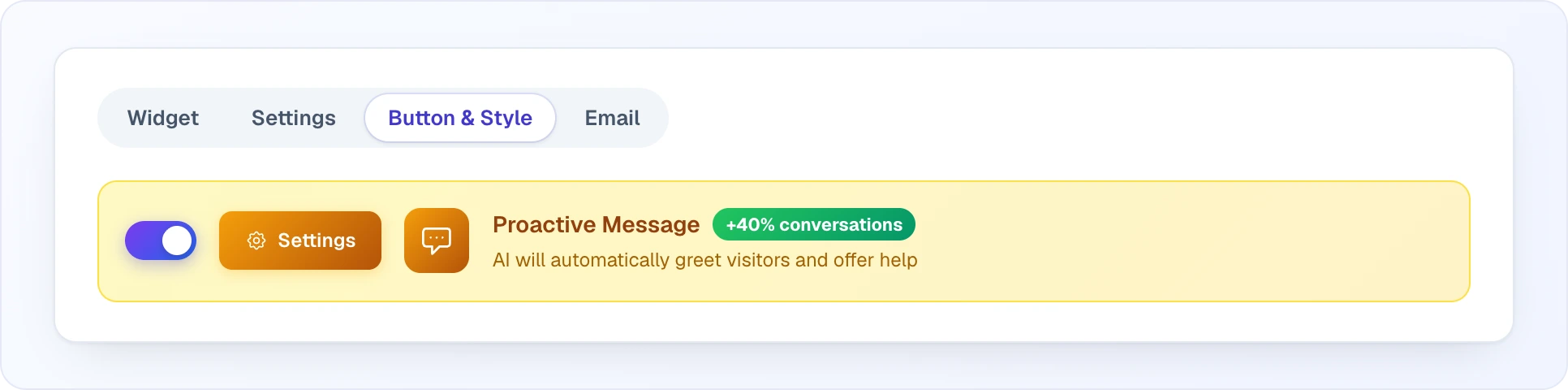
Go to Site Settings → AI Assistant → Button & Style tab, switch on the yellow Proactive Message block and click the Settings button that appears next to the toggle.
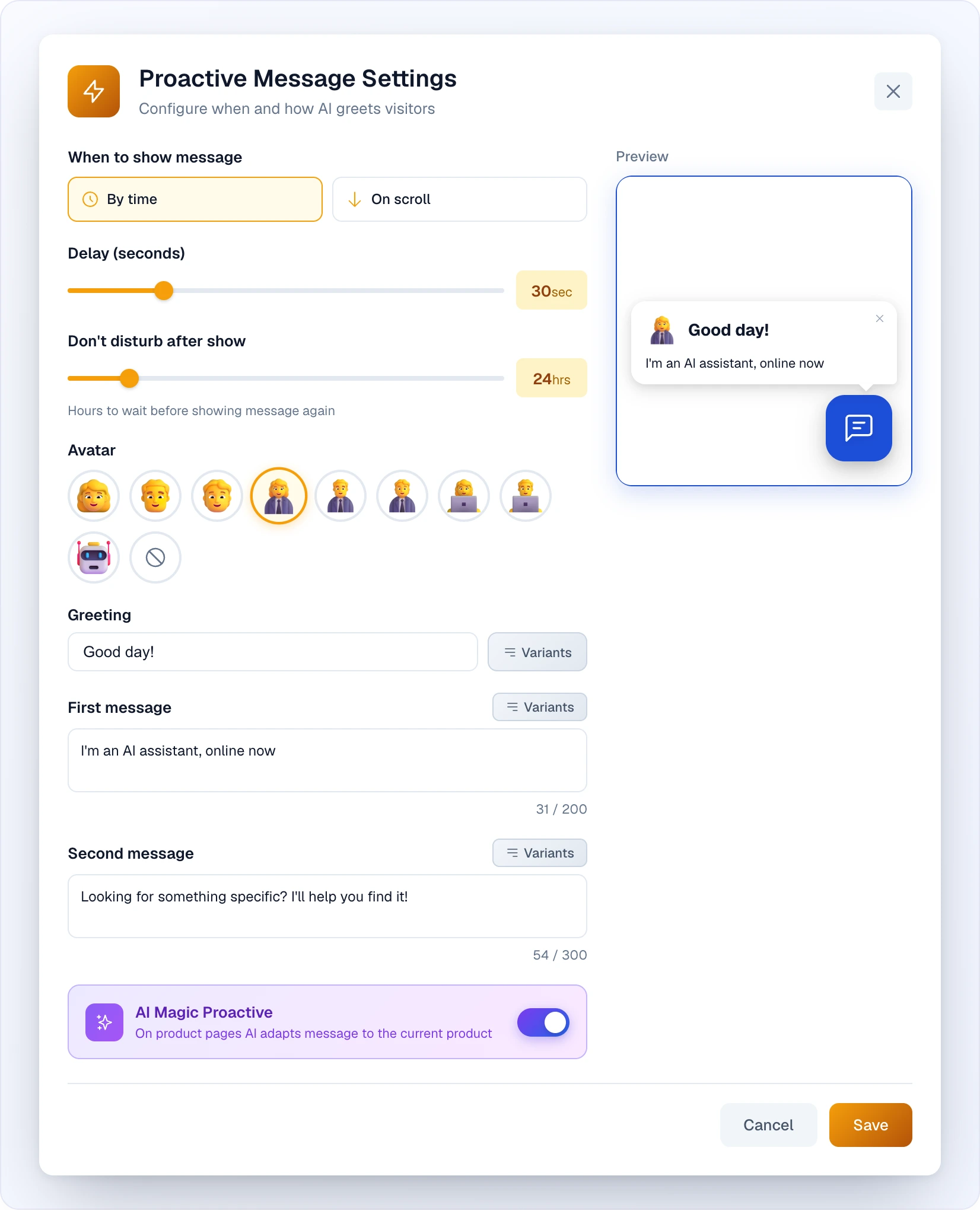
The "Proactive Message Settings" window opens: all options on the left, and on the right a live preview of the bubble that alternates between the first and second messages.
Trigger
Choose when the message appears:
- By time — shows after the visitor spends a certain number of seconds on the site. The count starts at the first visit and is not reset when the visitor moves between pages. Default: 60 seconds. Good for most stores.
- On scroll — shows when the visitor scrolls down a certain percentage of the page (e.g., 50%). Good for stores with long product pages where scrolling indicates interest.
Time delay / Scroll percentage:
- For time trigger: set the number of seconds (range 5–120, e.g., 10, 15, 30)
- For scroll trigger: set the percentage (range 10–100%, e.g., 30%, 50%, 75%)
TIP
Don't set the trigger too early (under 5 seconds) — it feels aggressive. Around 30-60 seconds works well for most stores.
Avatar
Choose an emoji avatar for the proactive bubble. This appears as a small icon next to the message, making it feel more personal.
Select from preset avatar options — full-body people figures (casual, office-worker, and technologist variants) and a robot (👩💼, 👨💼, 🧑💻, 🤖, …) — or leave the default. Standalone smiley faces and gestures aren't offered, since they read as reactions rather than "who is greeting you".
Instead of an emoji, you can reuse the bot's avatar for the proactive bubble: if you've set a custom bot avatar (the custom branding block on the AI Assistant Settings tab), enable Use this avatar in the proactive message there.
Greeting & messages
The proactive bubble is a two-step message: a short greeting plus a first message appear, and then a main message follows. All three have ready-made presets you can pick or replace with your own.
- Greeting — a short header line, up to 50 characters (e.g. "Hi! 👋"). 1-2 emojis max; make it feel like a real person.
- First message — the opening line shown in the bubble, up to 200 characters. Choose a preset variant or write your own.
- Main message — the follow-up that appears after the first message, up to 300 characters. Also has preset variants.
Best practices:
- Make it feel natural, like a real person greeting you.
- Avoid salesy language ("Buy now!", "Special offer!").
- Let the first message spark interest and the main message offer concrete help.
AI Magic Proactive
When enabled, on product pages the bubble's second message is replaced with a line about that exact product. The AI prepares these lines in advance while it processes the products from your feed: a few short variants per product (up to 80 characters), and one of them is picked at random each time. The greeting and the first message stay yours.
On the homepage, in categories and on other pages — and for products that don't have such lines yet — your regular second message is shown. If the visitor moves between products without a full page reload, the bubble text updates to the new product.
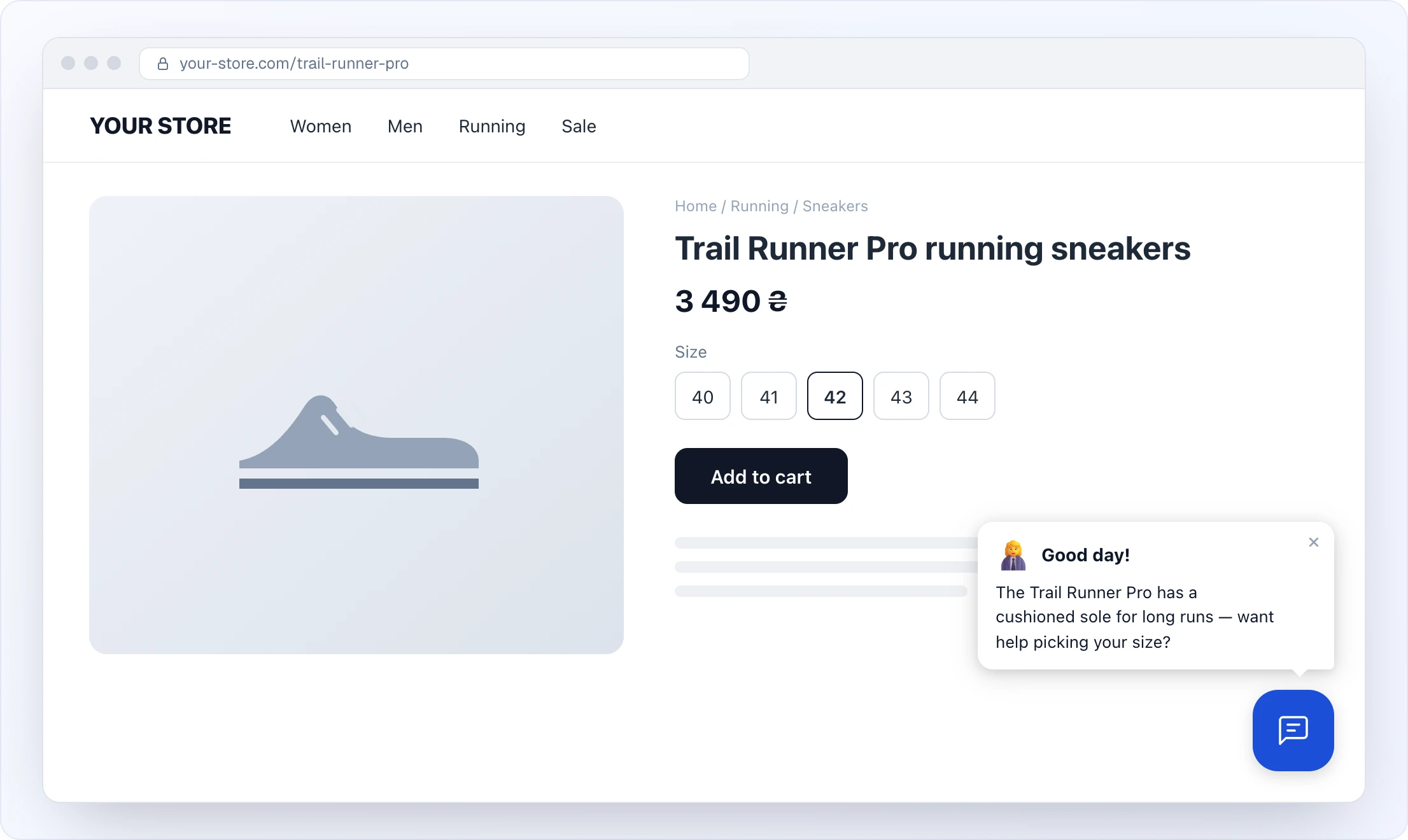
This makes the proactive message much more relevant and increases click-through rates.
Cooldown
After the proactive message is shown, it won't appear again for a set number of hours. This prevents annoying the same visitor repeatedly.
- Default: 24 hours
- Adjust from 1 to 168 hours (1 week)
The cooldown starts when the bubble disappears and is stored in the visitor's browser — if they clear site data or use a different device, they'll see the message again.
Best Practices
Do
- Test different trigger times and greetings to find what works best
- Use AI Magic Proactive for personalized greetings
- Set a reasonable cooldown (12-24 hours)
- Keep the message short and friendly
- Match the tone to your brand
Don't
- Set trigger under 5 seconds (feels intrusive)
- Use all-caps or excessive exclamation marks
- Write long messages (the bubble is small)
- Set cooldown too low (annoying)
- Make false promises in the greeting
Measuring Results
Track the impact of proactive messages in your Analytics dashboard:
- Compare chat engagement before and after enabling proactive messages
- Monitor the ratio of proactive → chat opened → lead collected
- Experiment with different greetings and triggers
Next Steps
- AI Assistant Overview — main chat settings
- Widget Appearance — customize the chat look
- Lead Collection — configure order collection