

Quick Search
Replace your store's built-in search with Looma's AI-powered search widget. Customers see relevant products as they type, with optional category navigation, popular searches, and viewed-products history.
Quick Search lives at Site Settings → Quick Search and has three sub-tabs: Widget, Settings, and Synonyms.
How it works
Quick Search hooks into your existing search input (or button) — customers don't see anything different in your page layout. When they focus the input or click the icon, Looma's panel opens over it with a richer experience: live results, popular products, recent searches.
Here is what the customer sees after typing a query. With the default two-column layout, the left column holds Filter by Categories (product categories found in the results, with counts) and Search Categories (links to your store's category pages that match the query); the right column shows the number of products found, the sort dropdown and the product cards with discount, auto badges and availability. Under the cards are Load More and page numbers; at the bottom — the Ask Smart Assistant button and the "Quick Search by Looma" badge.
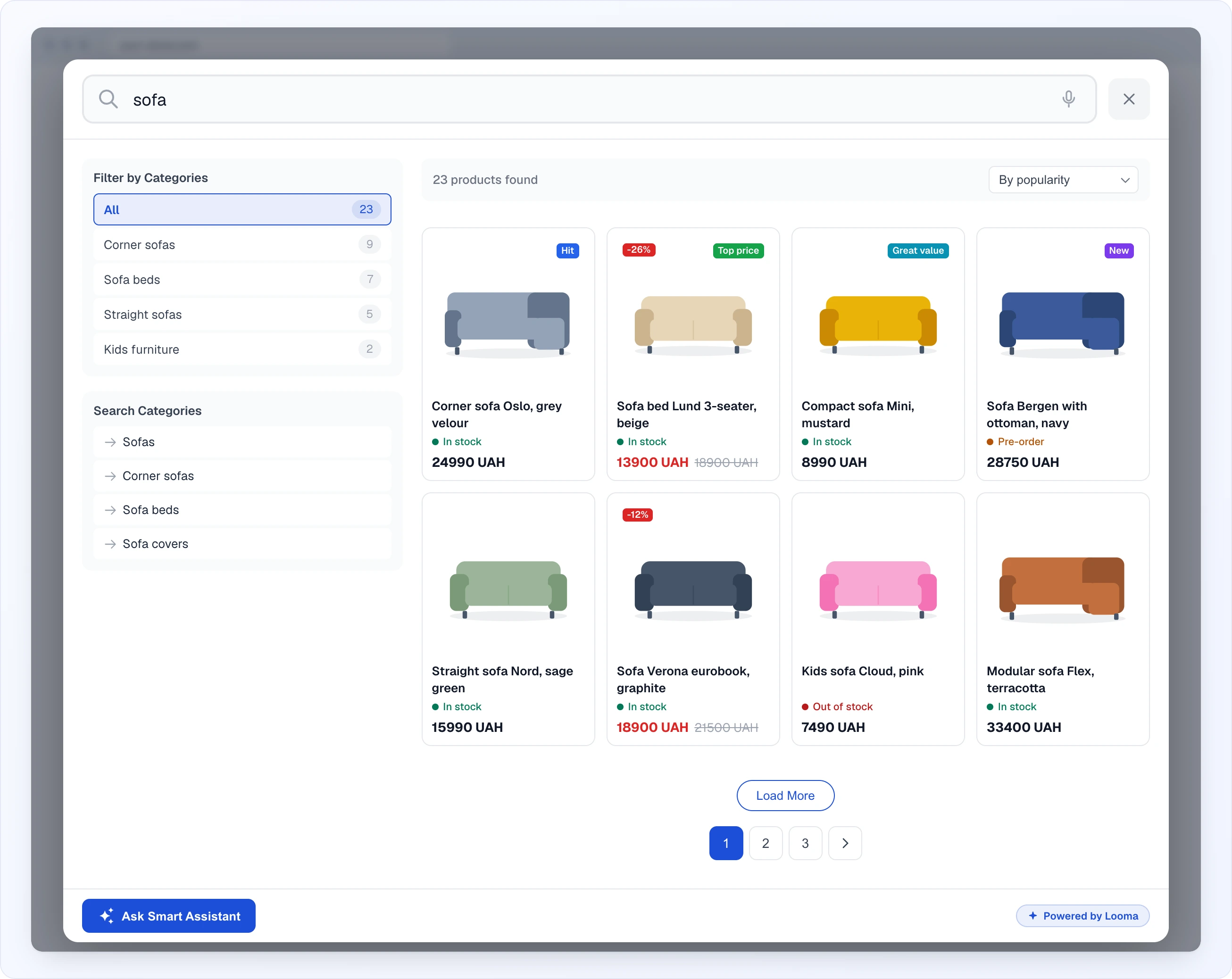
Behind the scenes Quick Search uses the same product catalogue as the chat widget, so results respect your stock availability rules and AI-generated synonyms. Note that Product selection rules (Site Settings → AI Assistant → Config) do not apply here — those bias only the AI Assistant chat when it picks products to recommend. To narrow what Quick Search itself surfaces, use Show only in stock, the Availability source setting, the Synonyms sub-tab, and the Category filter block in search results.
Setup — connecting it to your store
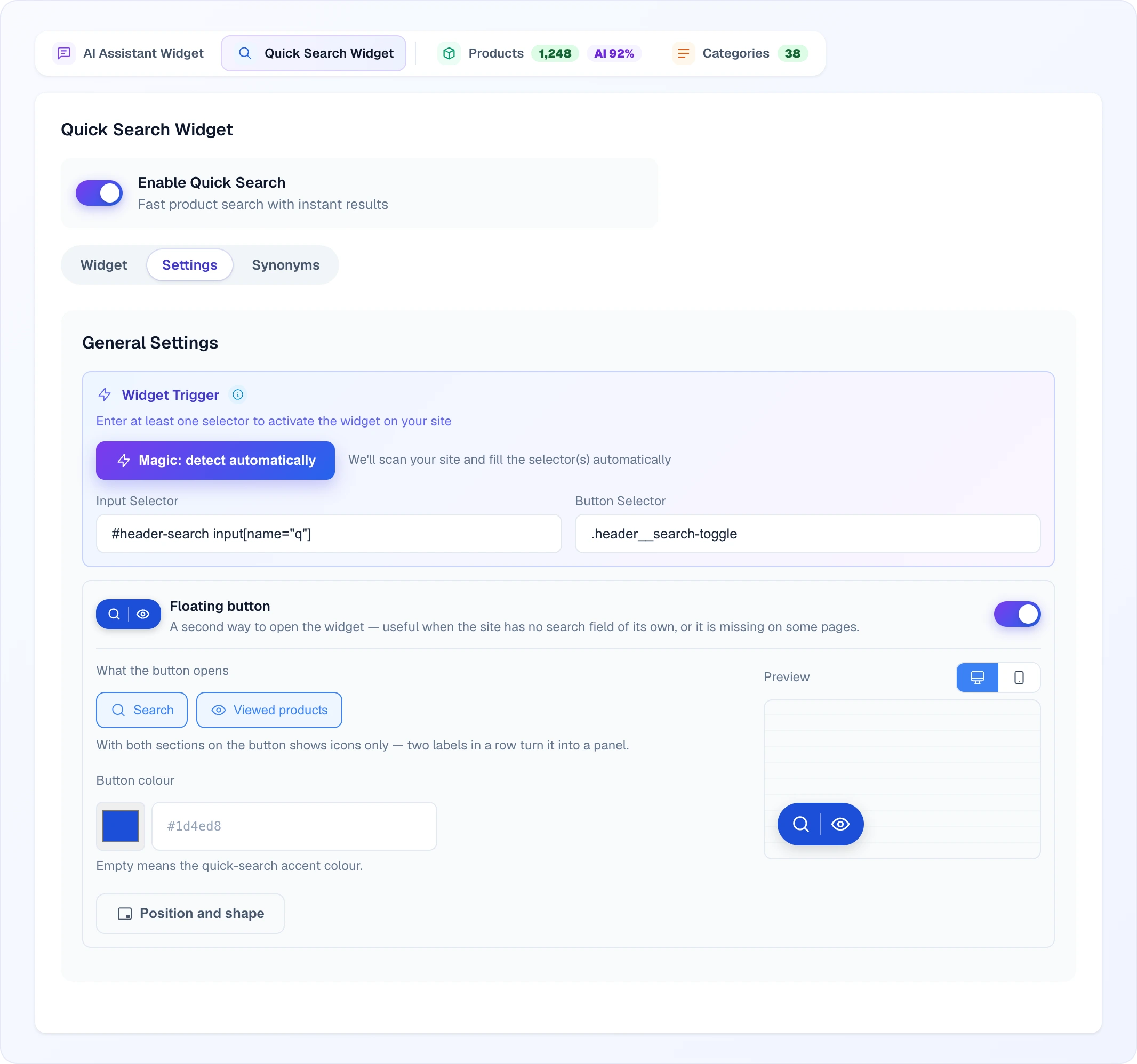
The critical setting is telling Looma which element on your site should trigger the search panel. Configure under Settings → General Settings → Widget Trigger.
- Input Selector — the CSS selector of your existing search input. When customers click or focus this field, Looma's search panel opens. Examples:
.search-input,#header-search,input[type="search"]. You can list multiple selectors comma-separated. - Button Selector — optional CSS selector for an icon button (magnifier, search icon) that should also open the panel. Examples:
.search-icon,#search-toggle.
You need at least one of these set, otherwise the widget has no way to know when to appear — while both are empty, the block shows a warning that the widget is inactive on your site. Both can be filled if your site has a magnifier icon and a separate search input.
To find the right selector, you can either let Looma do it for you or look it up manually:
- Auto-detect — click Magic: detect automatically above the selector fields. Looma scans your live page for the most likely search input and fills the selector in for you. This is the fastest route and works on most stores.
- Manual — right-click your existing search input on your site → Inspect → look at the element's
classoridattributes, and paste the matching selector in by hand.
Floating button
Besides hooking into your existing search field, Quick Search can show its own floating button — a small button pinned to a screen corner that opens the search panel. It is the right tool when your store has no search field of its own, or the field is missing on some pages. Configure it in Settings → Floating button, right under the trigger selectors.
The button has up to two sections:
- Search (magnifier icon) — opens the regular Quick Search panel.
- Viewed products (eye icon) — opens the panel straight on a full-width grid of the products this visitor has already browsed.
You can turn either section off, but not both — the last active one always stays. With both sections on, the button shows two icons only; on desktop, hovering a section slides out its label so the customer sees which one they are about to click. With a single section you can enable a permanent text label (Show a label next to the icon). Leave the label field empty and the text follows the visitor's language automatically; type your own text to override it for everyone.
- Button colour — empty means the Quick Search accent colour (which itself may inherit from the AI assistant style). Enter a hex code for a custom colour.
- Position and shape — opens a dialog with separate Desktop and Mobile tabs. Per device you pick the screen corner (four options), the shape (Rounded, Circle, or Pinned to the edge), and whether the button shows on that device at all — so you can keep it desktop-only or mobile-only.
Next to the controls is a Preview: a mini page layout with the button in the chosen corner, colour and shape. The desktop/mobile switch above it follows the device tab from the position dialog.
Rules the button follows on its own:
- It never shares a corner with the AI assistant's floating chat button. If both end up configured in the same corner, the search button automatically moves to the opposite corner — the chat button has priority. The default corner is bottom-left for this reason (chat usually sits bottom-right).
- It hides on cart and checkout pages automatically — the same detection that pauses proactive messages. No setting needed.
- New sites get the button enabled by default; sites created earlier have it off until you enable it.
Viewed products screen
The eye section opens the search panel directly on the visitor's browsing history: a full-width product grid titled "Viewed products". It reuses your existing Quick Search settings — the product card design (size, SKU, availability badge), Max results per page, and the pagination mode — there are no separate controls to maintain. The search field above the grid stays live: as soon as the customer starts typing, the normal search takes over.
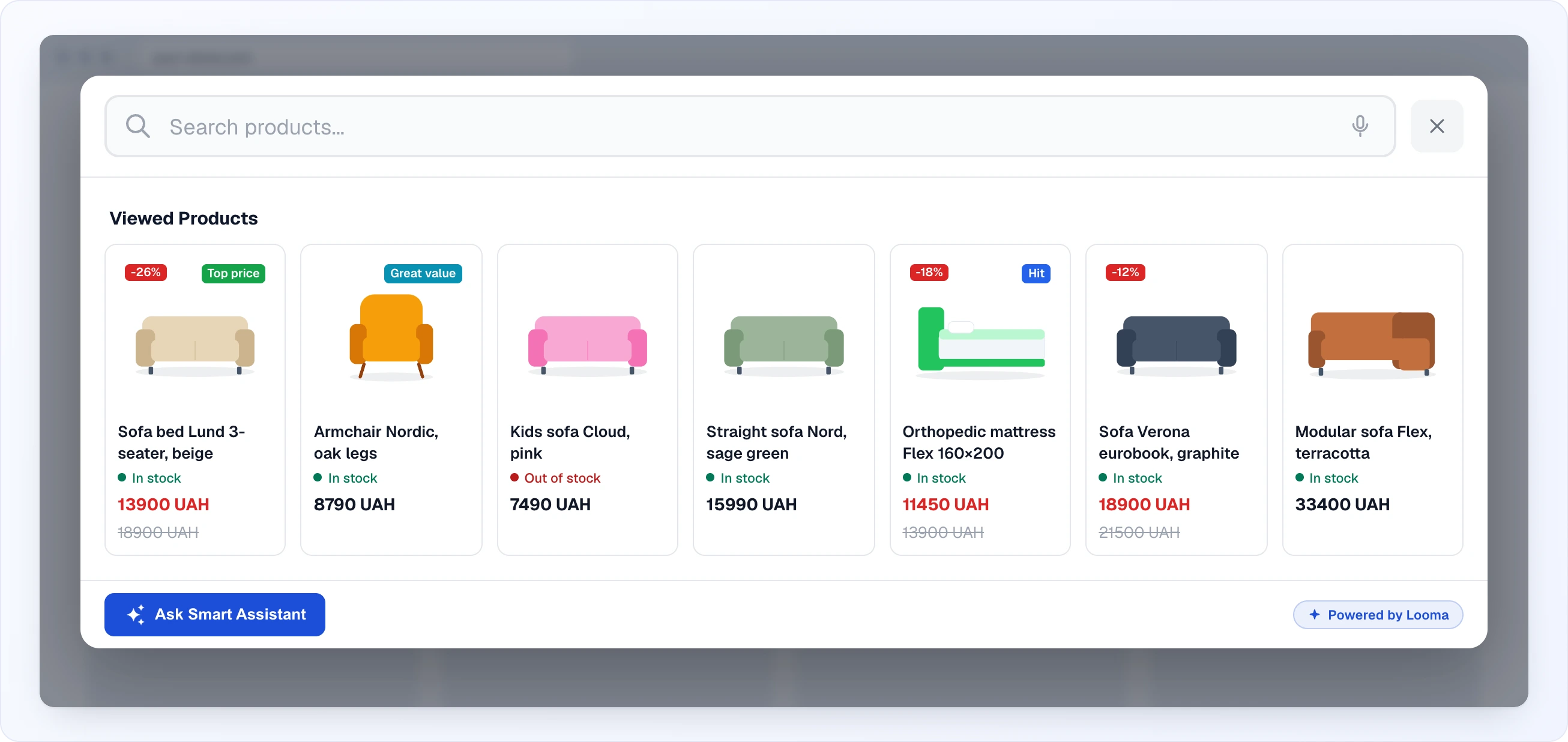
If the visitor hasn't viewed anything yet, the panel shows a friendly empty state with a "start searching" button and, when the AI assistant is enabled, an "ask the smart assistant" link. Viewed history intentionally includes out-of-stock items (marked with the availability badge if you show it) — hiding them would make the history look broken to the visitor.
Appearance
Placeholder text — what shows in the empty search input. Default: a translated version of "Search products…". Keep it short and action-oriented.
Minimum characters — how many letters the customer types before results start appearing. Default: 2. Lower (1) feels more responsive; higher (3) cuts noise on huge catalogues.
Accent colour — the highlight colour for selected suggestions, active filters and buttons. By default Inherit colour from AI assistant is on: the colour comes from the AI assistant style, and its actual value is shown right under the toggle. Turn the toggle off to pick your own colour from the swatch or enter a hex code (blue
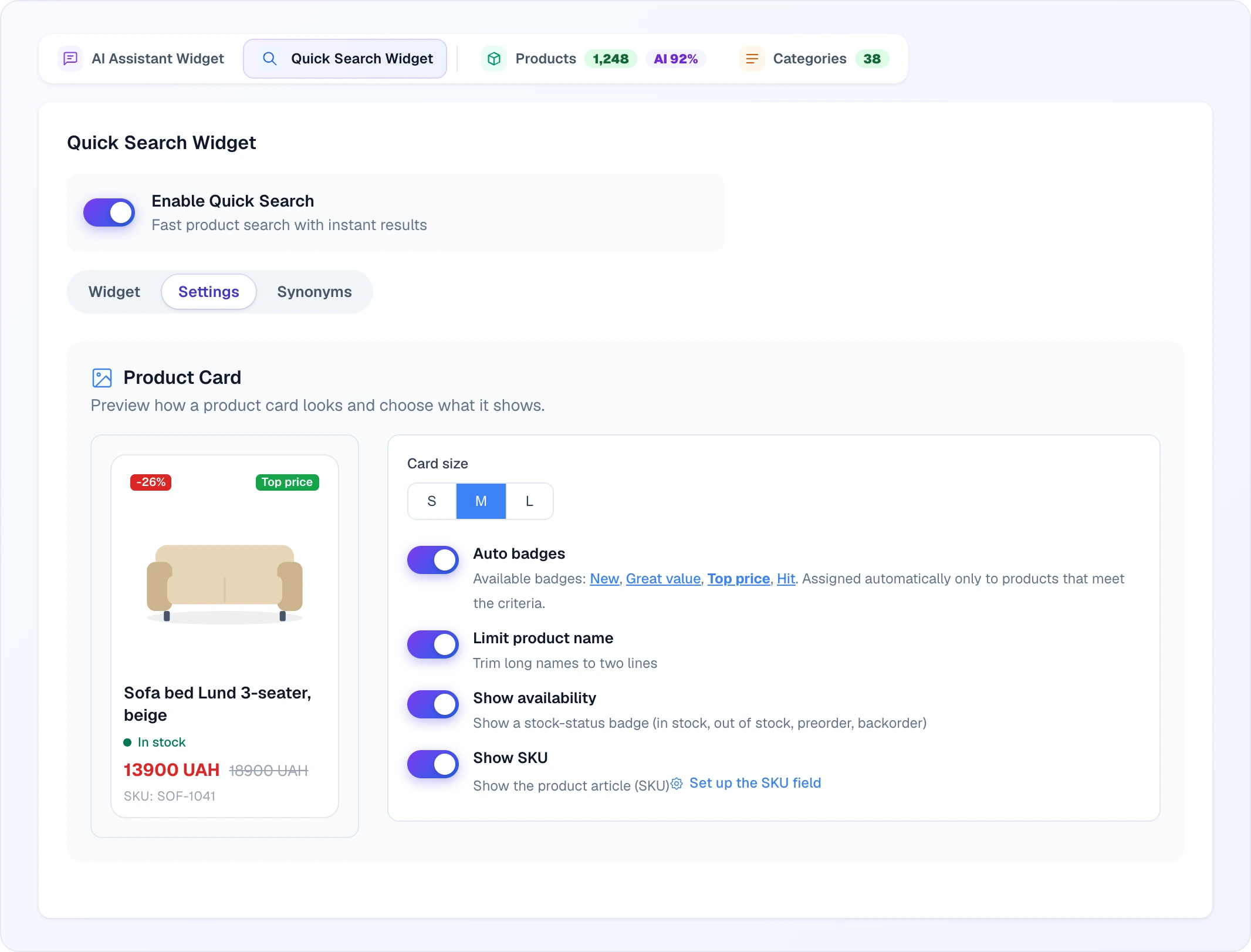
#1d4ed8if nothing is set). The Product Card panel lets you preview a card and choose what it shows:Card size — how large the product cards render: S, M or L. The size scales the card width, image, title, price and badges together, so larger cards show fewer per row but with bigger imagery. Mobile keeps comfortable touch sizes regardless of the desktop choice.
Limit product name — trims long titles to two lines so cards stay even in height.
Show availability — adds a stock-status badge to the card (in stock, out of stock, preorder, backorder), read from your feed's availability field.
Show SKU — displays the product article (SKU) on the card. The Set up the SKU field link takes you to the feed field settings, where you choose which field holds the article.
Auto badges — shows the automatic marketing badges (see Auto badges). Click a badge name in the hint to see it on the preview card.
The preview on the left updates as you switch the options, using a real product from your catalogue.
Display options
- Show Search Suggestions — dropdown of search-term suggestions as the customer types (based on previous search queries). Enabled by default.
- Show "Ask AI Assistant" button — adds the Ask Smart Assistant button at the bottom of the search panel; it opens the chat widget and passes it the search query. Shown only when the AI assistant is enabled on the site. Enabled by default.
- Hide Branding — removes the "Quick Search by Looma" badge at the bottom of the panel. Available on Growth and higher plans; on lower plans the toggle is locked with a link to billing.
Redirect mode
Clicking a product card always opens that product's page on your store. If you also have your own search results page (with filters, sorting, etc.), enable Redirect on Enter — when the customer presses Enter in the search field, Looma sends them to that page with the query in the URL.
- Search Page URL — your search results page with
{query}as a placeholder, e.g.https://your-store.com/search?q={query}. The placeholder is replaced with the search text when Enter is pressed.
Initial screen — what customers see before they type
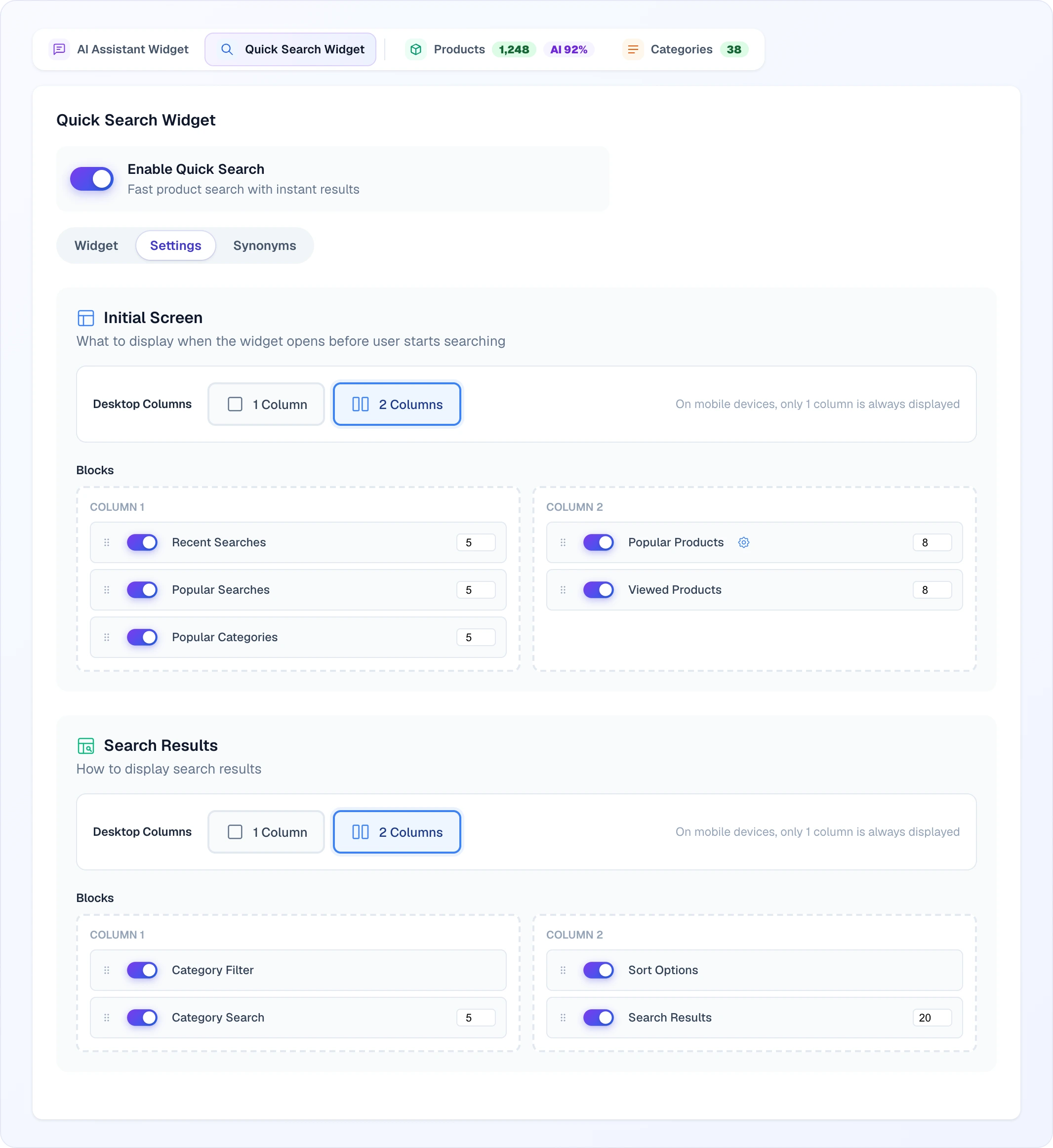
When the panel opens but the customer hasn't typed yet, you choose which content blocks appear. Each block has an on/off toggle and can be dragged by its handle — up and down within a column or into the other column.
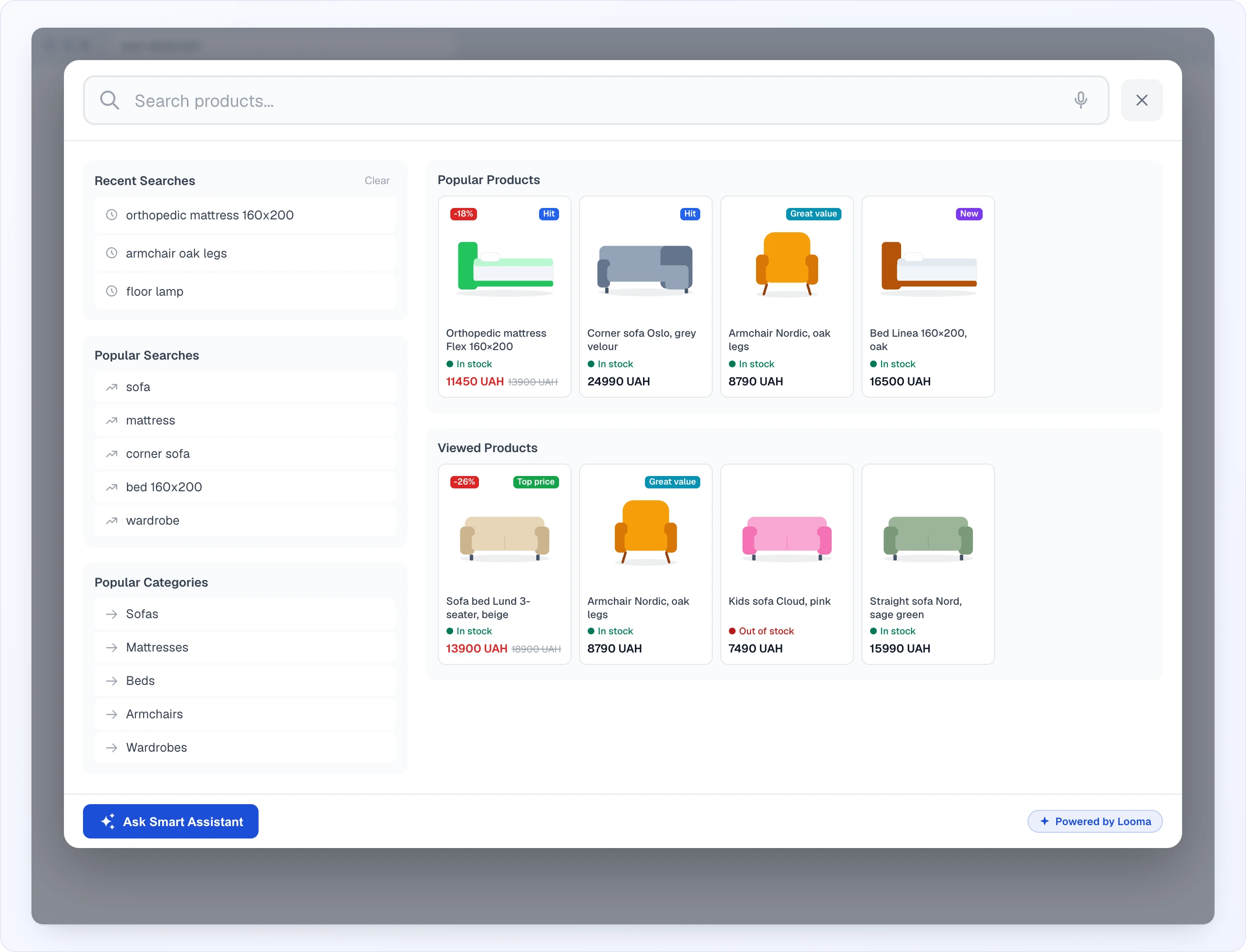
- Recent searches — the last few search terms this specific visitor used (stored in their browser).
- Popular searches — most-used search terms across all your visitors.
- Popular products — your bestsellers / most-viewed items.
- Viewed products — products this visitor has browsed.
- Popular categories — most-visited category pages (requires the Categories module to be enabled).
The Popular products block respects your Show only in stock setting — out-of-stock items never surface there. The Viewed products block intentionally does not filter by stock: it is the visitor's own history, and items vanishing from it would look like a glitch.
By default all five blocks are populated automatically from real visitor behavior — Popular products is sorted by product view-count, Popular searches by query frequency, Recent / Viewed are per-visitor history, Popular categories by page visits. You control whether each block is shown, the order, and how many items it displays (count).
For the Popular products block you can also switch from automatic to a hand-picked list: open the block's product picker, search your catalogue, and pin specific products to always show in that slot. When you pin products, that block stops following view-counts and shows exactly the items you chose, in order. Switch the block back to automatic at any time to return to view-count ordering. For the other blocks (popular searches, recent, viewed, categories), influence what surfaces by directing traffic to the items you want — or rely on Recent / Viewed, which always reflect the individual visitor.
You also pick 1 or 2 columns for desktop layout (Desktop Columns). Mobile is always single column. The number field on each block sets how many items it shows: 3–10 for search and category lists, 4–20 for product blocks. The gear on Popular Products opens the hand-picked list.
Search results layout
When the customer types and results come back, you control the layout the same way — toggle and reorder blocks:
- Search Results — the main product grid (always on, can't disable). Its number field is Max results per page.
- Category Filter — the product categories found in the results, with counts; a click narrows the grid to that category.
- Category Search — links to your store's category pages that match the query (requires the Categories module).
- Sort Options — the "N products found" line and a dropdown: By popularity, New arrivals, Cheap → Expensive, Expensive → Cheap.
Plus two product-display toggles:
- Show All Product Variants — off groups size/colour variants under one product entry; on lists each variant separately.
- Open products in new tab — when on, clicking a product opens it in a new browser tab instead of replacing the current page.
Max results controls how many products fit on one page (default 20).
Auto badges
Looma can tag products with a small coloured badge that highlights why an item stands out — like "Hit" or "Top price". Badges are assigned automatically every time the product feed reloads; you never set them per product. You only decide whether they show, with the Auto badges toggle in the card settings.
Four badge types, assigned by priority (a product gets at most one — the highest that applies):
- Hit — among the most-viewed products in its category (needs view history to build up).
- Top price — has a real discount of 30% or more off the regular price.
- Great value — priced in the cheapest 25% of its category (the category needs at least 10 products for this to apply).
- New — added within the last 30 days. This only kicks in once your catalogue itself is older than 30 days, so a brand-new import isn't tagged "new" across the board.
Each type has its own colour. A product only gets a badge if it genuinely meets the condition — items that don't qualify simply show nothing. Because everything is computed from your real catalogue and visitor data, the badges stay meaningful and update on their own with each feed load. The same badges also appear on product cards inside the AI chat assistant when enabled there.
Pagination
Pick how more results load:
- Load More + Pagination — both a "Load more" button and clickable page numbers. Best for large catalogues.
- Load More Only — append-on-click, feels natural on mobile.
- Pagination Only — classic numbered pagination, traditional desktop feel.
Synonyms
The Synonyms sub-tab lets you teach the search that two terms mean the same thing. Example: a customer searching for couch should find products labelled sofa in your catalogue.
Click + Add synonym and fill in two fields: Query (what visitors type) and Synonym (added to the search). Each row shows an Applied times counter — how many times the synonym actually fired in a customer search, so you can prioritise the ones that earn their keep. Edit and Delete are on every row.
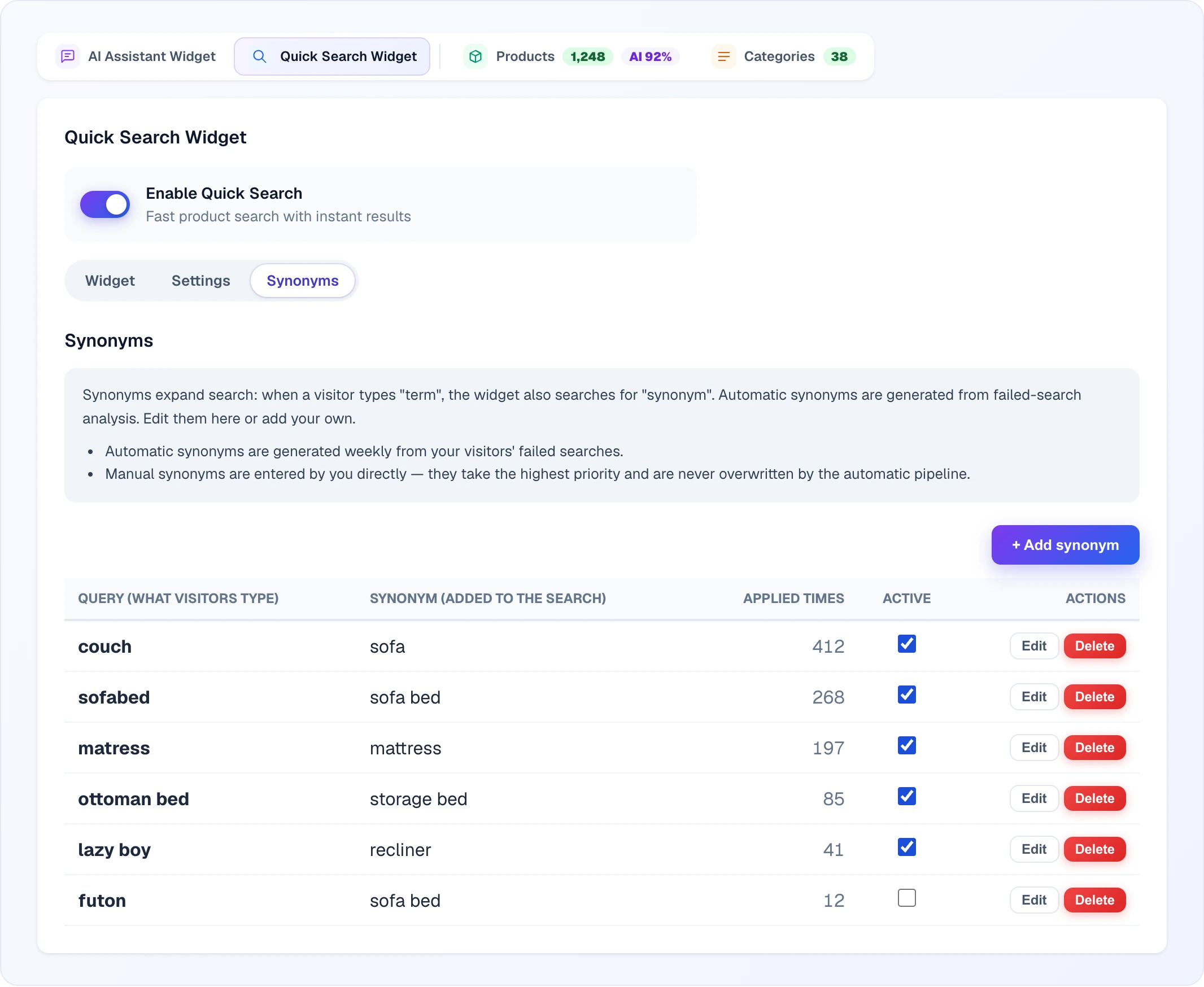
Synonyms also accrue automatically: the system generates them weekly from your visitors' failed searches. Any synonym you add manually takes priority and is never overwritten by the automatic pipeline.
Synonyms apply to both the typed query and individual words inside it, so a search for toppers for the sofa will surface couch toppers too.
You can toggle a synonym off temporarily (without deleting it) by unchecking its Active checkbox.
Custom CSS
For fine-grained styling beyond the accent color, the Settings tab has a Custom CSS textarea at the bottom. Paste CSS rules here to override the look of the search panel — fonts, spacing, the results layout, etc. Target the panel's container (e.g. .quick-search-container) and its child elements. Leave it empty to use the default styling.
Widget preview
The Widget sub-tab shows a live, working preview of your Quick Search in desktop and mobile layouts (the Desktop / Mobile switch). Type in the preview box to test results. Above it is the Direct Widget Link card with Open Widget and Copy Link — open the standalone page on a real device or send it to a colleague.
Common issues
- The search panel doesn't open — your Input Selector or Button Selector doesn't match any element on the live page. Double-check the selector in your browser's DevTools.
- Results look out of date — the catalogue syncs from your product feed every 24 hours by default (or every hour, if you chose that). To force a refresh, go to Site Settings → Products and click Update Data.
- Important products missing — check that they're not hidden by the in-stock filter (configured in the Products section), and that they exist in your feed.
Related
- Widget Appearance — colors and floating button (separate from Quick Search styling)
- Categories — required for category blocks and filters in search results
- AI Magic Data — improves search quality by generating attributes and synonyms from product pages