

General Settings
The General Settings tab under Site Settings holds your site's basic identity — name, domain, default language — plus the analytics tracking toggles. It's where you go to rename a store, switch its default language, or set up UTM tracking for your reports.
Fields
At the top of the tab is a site card with its favicon, name and domain; the fields follow below. Changes apply only after you click the floating Save Changes button at the bottom of the screen — it is shared by every field and toggle on this tab.
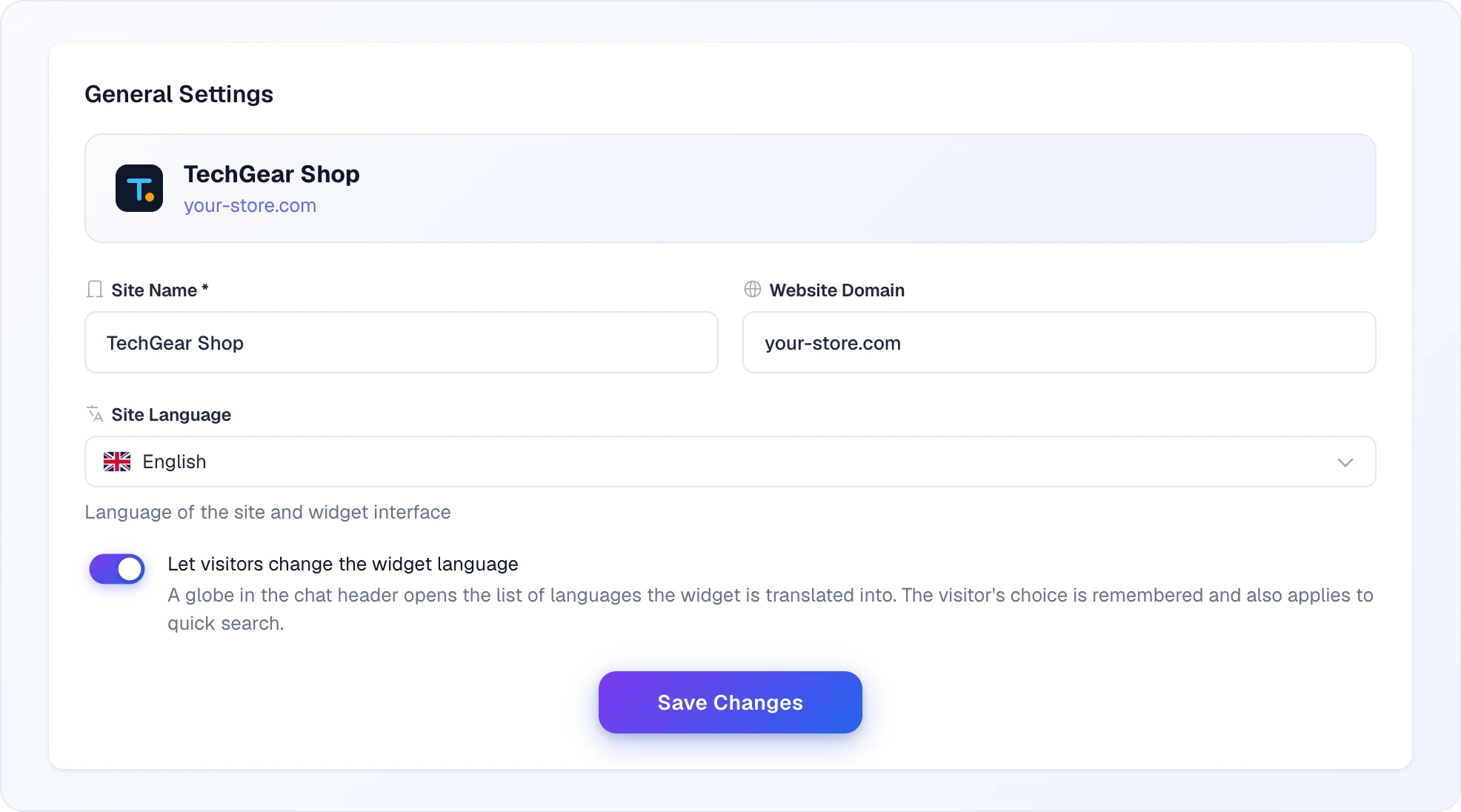
Site name
The human-readable name of your store as it appears in the Looma dashboard and in places where the widget shows your brand (welcome messages, operator notifications, emails). Required.
Examples: MyStore, TechGear Shop, Fashion Hub EU.
You can rename anytime; new visitors and new emails pick up the change immediately.
Website domain
Your store's domain — example.com, no https://, no trailing path. Optional but recommended.
Looma uses the domain to fetch a favicon for the dashboard sidebar (so multi-site users can tell stores apart at a glance) and as context when AI processes your catalogue. If you paste a full URL by mistake, Looma strips it down to the domain part automatically.
Update this if you rebrand or move to a new domain.
Site language
The default language for the widget's UI text and for AI replies when no language can be detected from the customer's first message. Pick from the dropdown — searchable, with country flags for quick scanning. Languages are listed by their own names in alphabetical order (Latin script first, then Cyrillic and other scripts), with the language code next to each; search matches both the name and the code, so en finds "English" straight away. The list holds the same languages the widget is translated into.
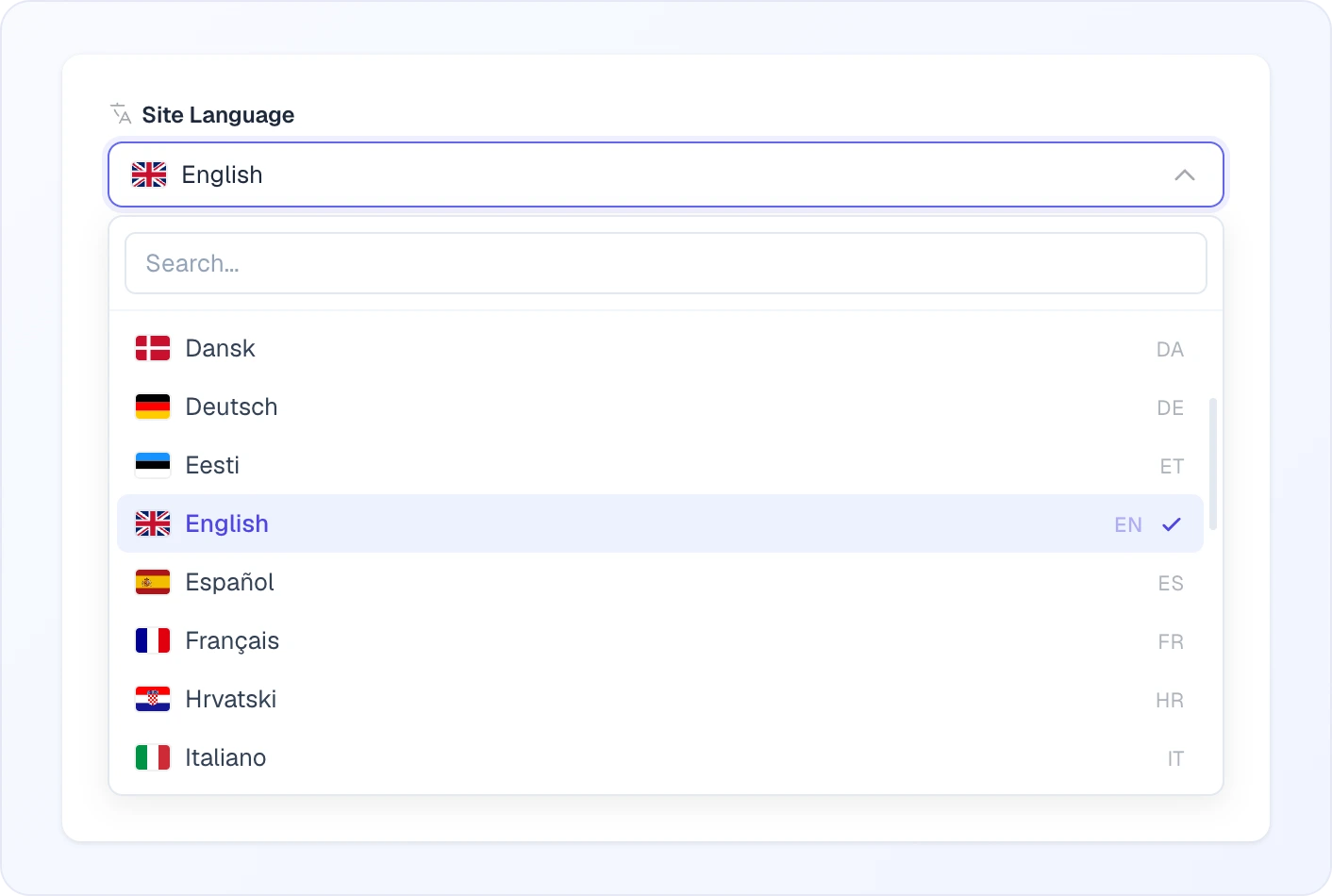
This setting does not lock customers into one language. The widget always prefers the customer's actual message language (or browser language for the first turn). The default kicks in only when there's nothing to detect from — for example a customer who just types "?" or sends an emoji as the first message.
Use cases to change it:
- You launched in Polish, now serve Ukrainian customers — switch the default and Ukrainian visitors land directly in their language without a switch-prompt
- You moved to a new market — change the default; customers from the old market still get their own language because the widget detects it
Letting visitors change the language
Right under the site language sits Let visitors change the widget language — on by default. It puts a globe in the chat widget's header that opens the languages Looma is translated into, each with its flag and its own name.
What the visitor picks is remembered in their browser for a year and applies to both widgets: chat and quick search. It does not change your site language — the setting above stays the default for everyone arriving for the first time.
Worth knowing:
- Your own texts stay as you wrote them. The welcome message, quick commands and product data are yours, so the switcher translates the interface around them, not their content.
- AI replies follow the customer's message language regardless of this toggle — the switcher is about buttons, labels and placeholders.
- Turn it off if your store serves one market and an extra control in the header would only add noise.
Tracking
UTM tags on widget product links
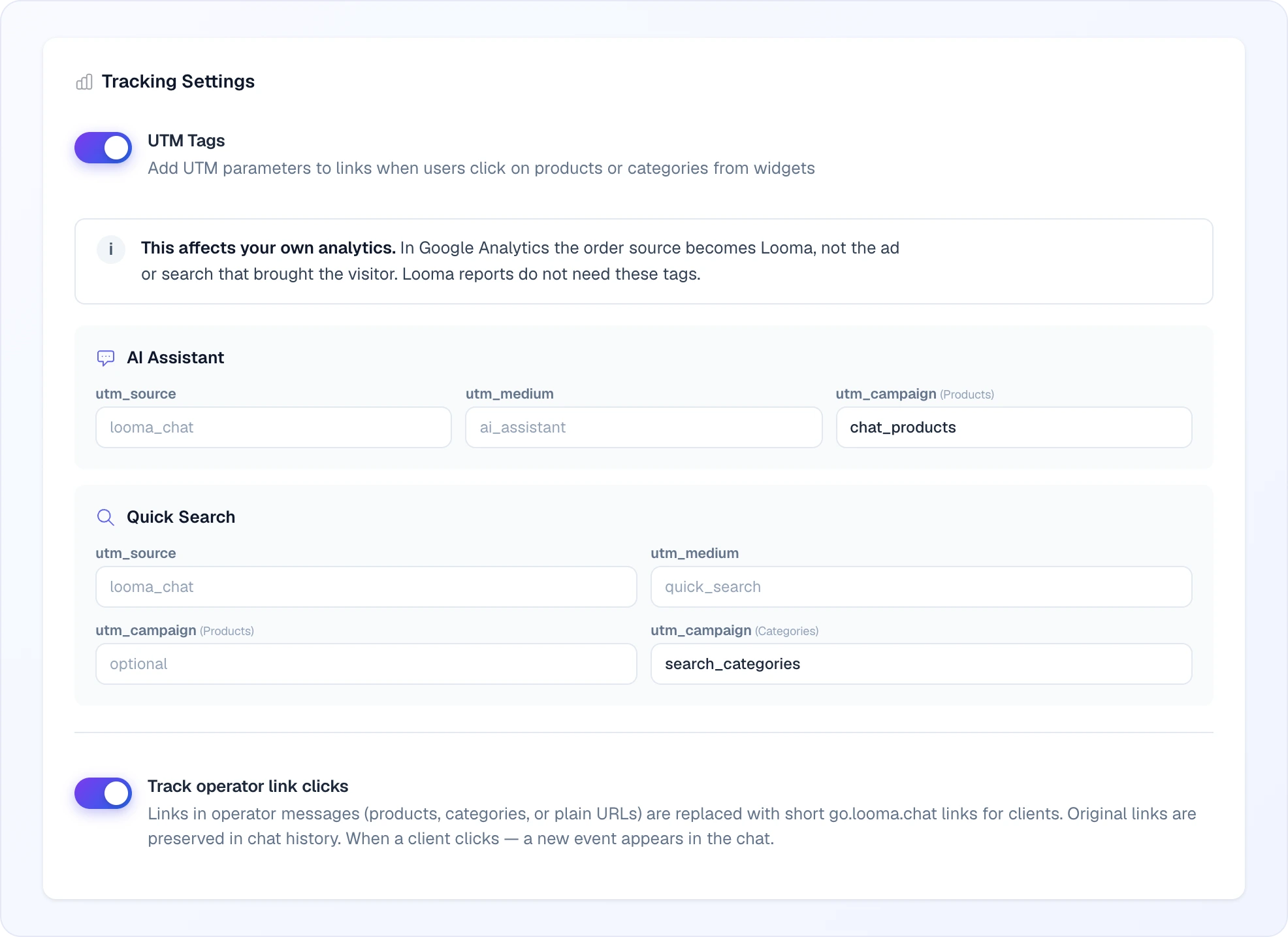
Toggle on to have Looma append UTM parameters (utm_source, utm_medium, utm_campaign) to product/category links the customer clicks from inside the widget. This makes the resulting clicks measurable in Google Analytics, Mixpanel, or any other analytics tool that reads UTMs.
The UTM Tags toggle is off by default — and for most stores it is best left that way. As soon as you switch it on, a note appears above the fields: "This affects your own analytics." In Google Analytics the order source becomes Looma, not the ad or search that brought the visitor. Looma's own reports do not need these tags. Turn it on only if you deliberately want widget traffic to show up as a separate source in your analytics.
Two independent sections appear once you enable the toggle:
- AI Assistant — UTM values applied to links inside chat answers and product cards the AI sends.
- Quick Search — UTM values applied to links the customer clicks from search results.
Each section lets you set utm_source (placeholder suggestion looma_chat), utm_medium (placeholder suggestion ai_assistant or quick_search respectively), and a custom utm_campaign for product-page clicks. Quick Search has a second utm_campaign for clicks that land on category pages — useful for separating product traffic from category traffic in your reports.
A typical setup: leave the defaults and your Analytics reports will show Source: looma_chat / Medium: ai_assistant as a clear breakdown of widget-driven traffic vs the rest.
Track operator link clicks
When operators paste product / category / external links in their chat messages, Looma can rewrite them as short tracking links (via the go.looma.chat redirector). The customer-facing experience is identical — the click goes to the same destination — but it's logged in the chat history as a measurable event ("clicked link from chat") so you can see which links your operators share and how often customers actually follow them.
Off = operator messages pass links through as-is, no tracking.
Dashboard tour and deleting the site
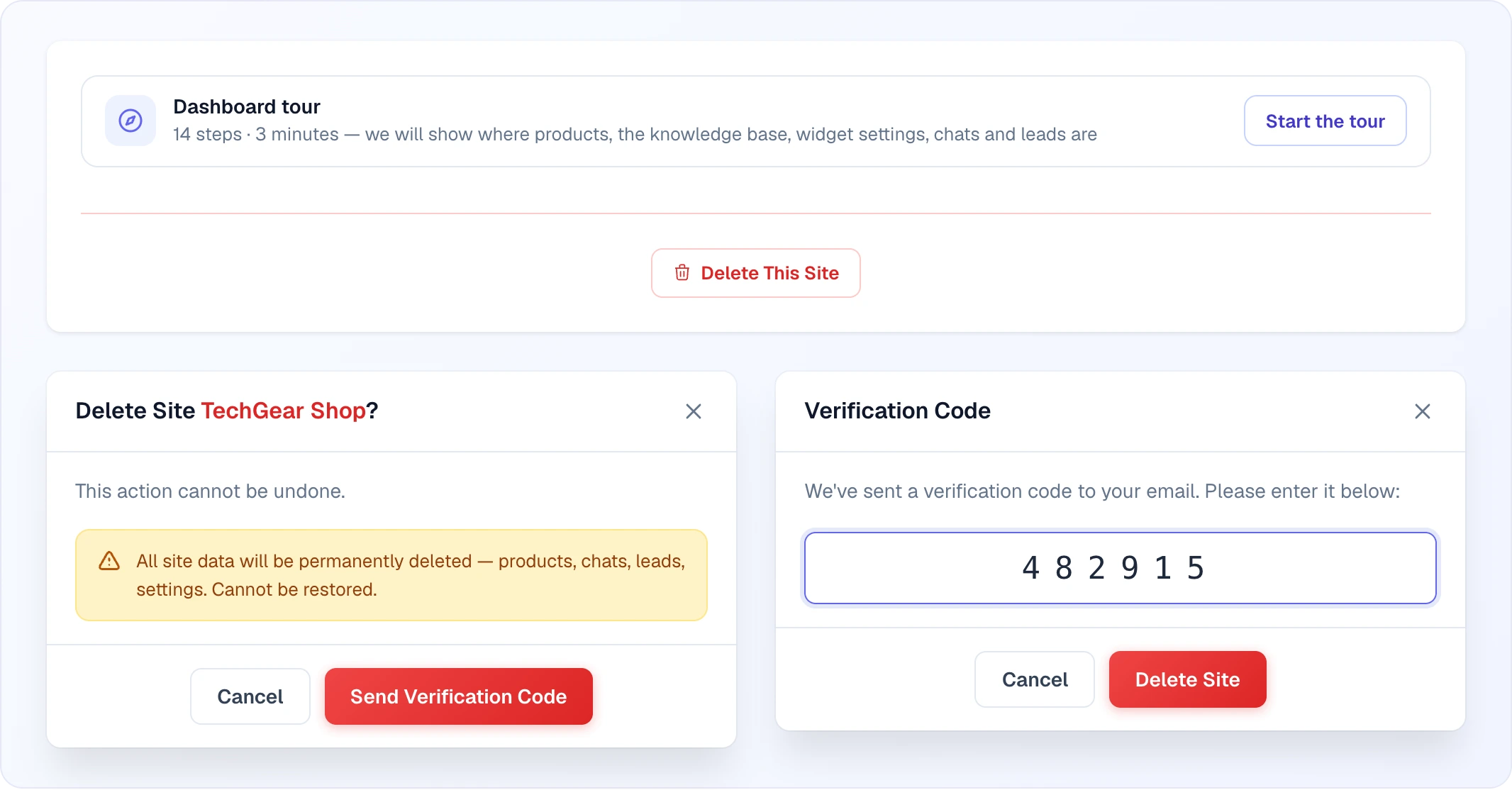
Below the tracking settings there is a Dashboard tour card with a Start the tour button — it restarts the step-by-step dashboard tour for this site (14 steps, about 3 minutes): where products, the knowledge base, widget settings, chats and leads are.
At the very bottom of the tab is the Delete This Site button. Deletion takes two steps:
- The "Delete Site …?" window warns that the action cannot be undone: the site's products, chats, leads and settings are gone for good. Click Send Verification Code.
- A 6-digit code arrives at the account owner's email (valid for 15 minutes). Enter it in the Verification Code window — the Delete Site button becomes active once all six digits are in.
Only this site is deleted; the account's other sites, team and balance stay.
Installation token
Your site's installation token (the long alphanumeric string in your widget install code) is not in this tab — it lives in Site Settings → Installation. The token is what tells the widget loader which site to load. See Installation for details.
The token is meant to be public (it ships in your site's HTML), but treat it like a shared secret in the sense that you wouldn't post it in public forums. If you ever suspect it leaked or want to rotate it, contact Looma support.
What's not here
A few site-level things you might expect in General Settings but live elsewhere:
- Work schedule / timezone for operators — one shared, account-wide schedule (your business hours, not per-operator) set on the Team page, not per site. See Chat Modes.
- Widget styling (colors, button) — under Site Settings → AI Assistant → Button & Style tab. See Widget Appearance.
- Email delivery settings — under Site Settings → AI Assistant → Email tab. See Email Delivery.
- Stock visibility / availability — under Site Settings → Products.
Related
- Installation — where the integration token lives
- Widget Appearance — visual styling of the widget
- Email Delivery — outbound emails to customers