

Chat Modes
The chat mode determines how the AI assistant and human operators work together. Choosing the right mode depends on your team's availability and how much human involvement you want in customer conversations.
You pick the mode in Site Settings → AI Assistant → Settings tab → Chat Mode. In the dashboard the three modes from this article are called "AI Full Autopilot" (AI Only), "AI + Operator Connection" (Full Mode) and "Direct Chat".
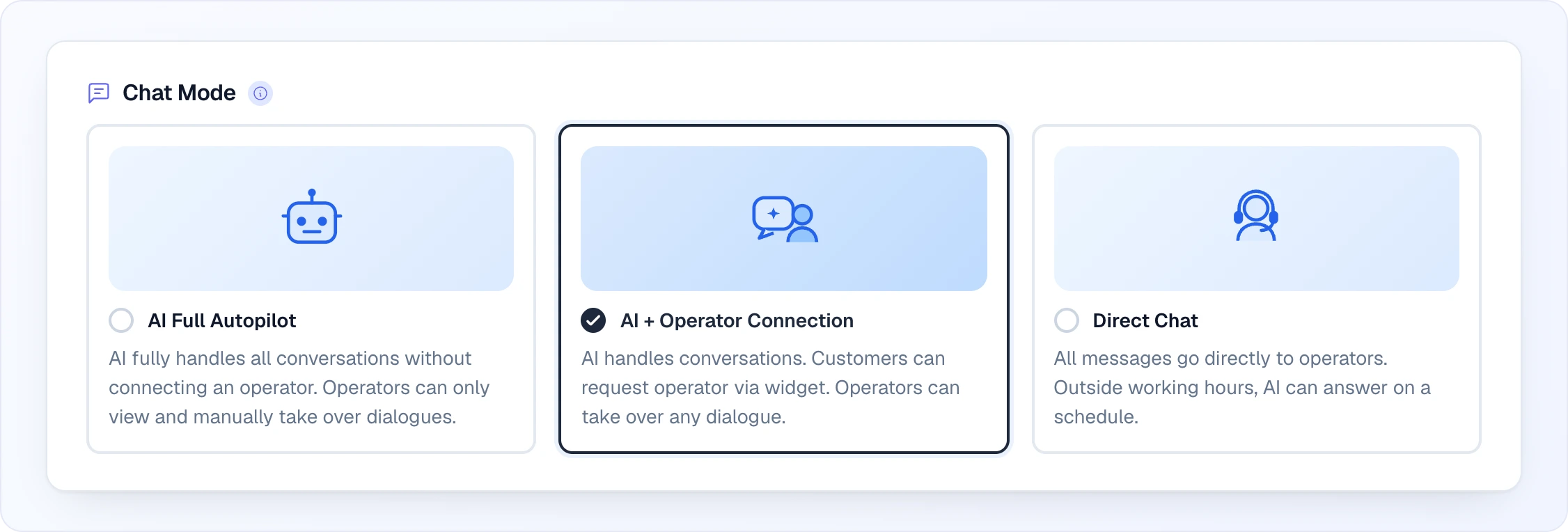
Mode 1: AI Only (Autopilot)
Customer → AI Assistant → Answers / Collects Leads
                       → No operator handoff available
The AI handles everything by itself. There is no option for customers to speak with a human operator.
Best for:
- Stores without a dedicated support team
- After-hours and weekends
- Businesses that want full automation
- Testing phase — try the AI without involving your team
How it works:
- Customer opens chat and asks a question
- AI responds using product data and knowledge base
- If the customer wants to order, AI collects contact information and creates a lead
- If the AI can't answer, it apologizes and suggests the customer contact you through other means (email, phone on your website)
Lead collection in AI Only mode: Since there's no operator to transfer to, lead collection is especially important. Make sure it's enabled so the AI can collect customer contacts for you to follow up later.
Mode 2: Full Mode (AI + Operators)
Customer → AI Assistant → Answers / Collects Leads
                       → Transfer to Operator (when needed)

Operator responds via:
├── Looma Dashboard
├── Telegram
├── Viber
├── Facebook Messenger
├── Instagram
└── Email
The AI handles initial conversations but can transfer to a human operator. This is the recommended mode for stores that have a support team.
Besides an explicit request for a human, the AI also transfers a chat when a specific fact is missing from your data, when the customer repeats a question it already answered, or when the customer is angry or rude. See AI Behavior Rules for the full list.
Best for:
- Stores with a support/sales team
- Complex products requiring expert advice
- When personal service matters for conversion
Operator Connection Modes
Within Full Mode, you choose when the AI involves operators. The Operator Connection Mode block appears below the chat mode as soon as "AI + Operator Connection" is selected (and also in Direct Chat with "AI answers outside working hours" turned on):
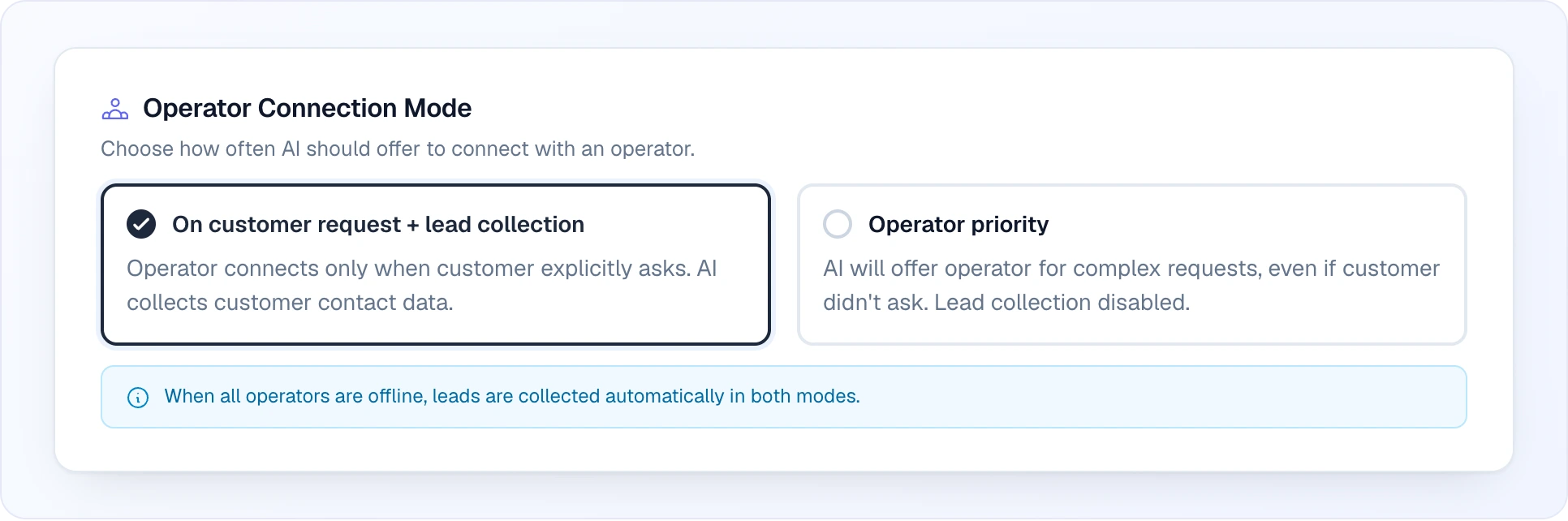
In the dashboard On Request is labelled "On customer request + lead collection", and Proactive is labelled "Operator priority".
Lead collection in Operator priority mode
In this mode the AI does not collect leads during working hours — it steers the customer to an operator instead. Leads are collected only outside the work schedule. If no schedule is enabled, the system treats operators as always available, so in Operator priority mode leads are not collected at all. In "On customer request + lead collection" mode leads are always collected.
On Request
Customer → AI Assistant handles everything
                    ↓
         Customer says "I want to talk to a person"
                    ↓
         → Transfer to operator
The AI is self-sufficient and only connects an operator when the customer explicitly asks for a human. The AI handles product questions, recommendations, order collection, and most inquiries on its own.
Also triggers operator transfer:
- Customer expresses frustration or dissatisfaction
- Customer asks something the AI truly cannot answer
Best for:
- Stores where AI handles 80%+ of conversations
- Teams that want to focus on high-value conversations only
- Reducing operator workload
Proactive
Customer → AI Assistant starts conversation
                    ↓
         Customer asks about delivery/payment/availability/etc.
                    ↓
         → AI immediately offers operator connection

         Customer seems confused or unsure?
         → AI offers operator connection

         Complex question? Not 100% sure about answer?
         → AI connects operator instead of guessing
The AI actively offers to connect an operator in many situations. It treats the operator as the primary resource for anything beyond basic product information.
Triggers operator transfer:
- Questions about delivery time and cost
- Questions about payment methods and installments
- Stock availability checks
- Custom orders and special requests
- Warranty specifics
- Installation and assembly
- Customer seems frustrated or confused after 2-3 messages
- Customer can't decide between products
- Any question requiring real-time data that the AI doesn't have
Best for:
- Stores where personal consultation drives sales
- Complex or expensive products (furniture, electronics, custom goods)
- Teams that want maximum customer engagement
Mode 3: Direct Chat
Customer → Straight to operator + contact form
        → No AI involvement
Every customer message goes directly to a human operator — the AI never answers. A contact form is shown so you still capture the customer's details even if no operator picks up right away. This mirrors the Direct chat mode available on messaging channels.
Best for:
- Teams that want a human on every conversation
- Businesses where the AI should not answer product questions at all
- High-touch sales where personal contact is the whole point
How it works:
- Customer opens chat and sends a message
- The message goes straight to the operator queue — no AI reply
- The customer sees a contact form to leave their details
- Operators respond from the Looma dashboard or any connected channel
AI answers outside working hours
Direct Chat has one optional toggle — AI answers outside working hours (Site Settings → AI Assistant → Settings tab → Direct Chat settings):
Within schedule    → Direct: straight to operator + contact form
Outside schedule   → AI answers, collects leads, connects an operator when it can't help
                     (behaves like Full Mode)
It requires an enabled work schedule. During working hours the conversation goes straight to an operator; outside the schedule the AI steps in — answering questions, collecting leads, and handing off to an operator when it can't help — so customers are never left without a reply.
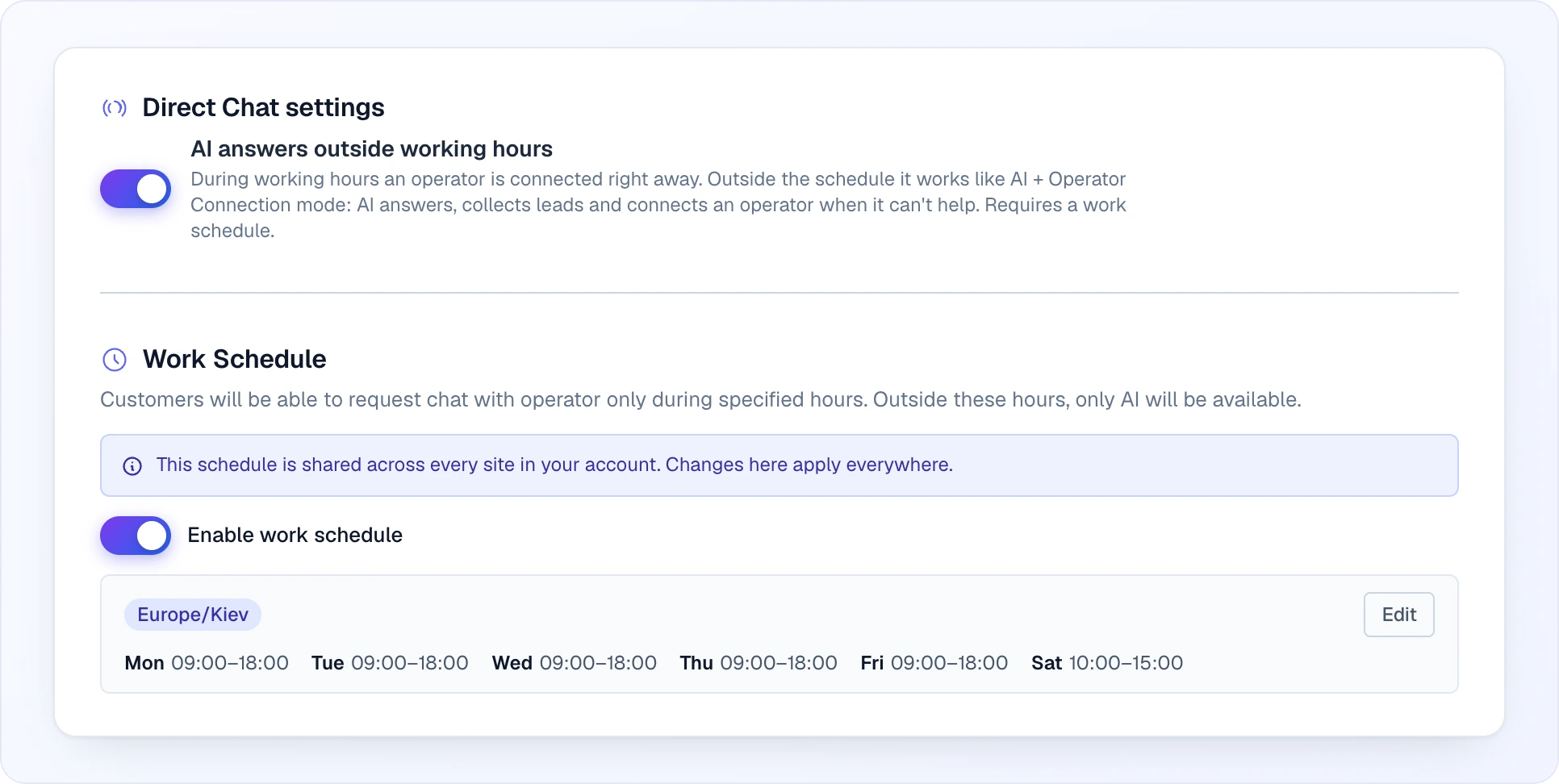
While the schedule is off, an Add work schedule button is shown under the toggle — it enables and expands the schedule in one click. Turning the schedule off also turns "AI answers outside working hours" off.
Work Schedule
The work schedule tells the system when your operators are available:
Within schedule    → AI + Operators available
                     Customer can request operator transfer

Outside schedule   → AI Only mode (automatic)
                     AI tells customers operators are offline
                     AI collects leads for follow-up
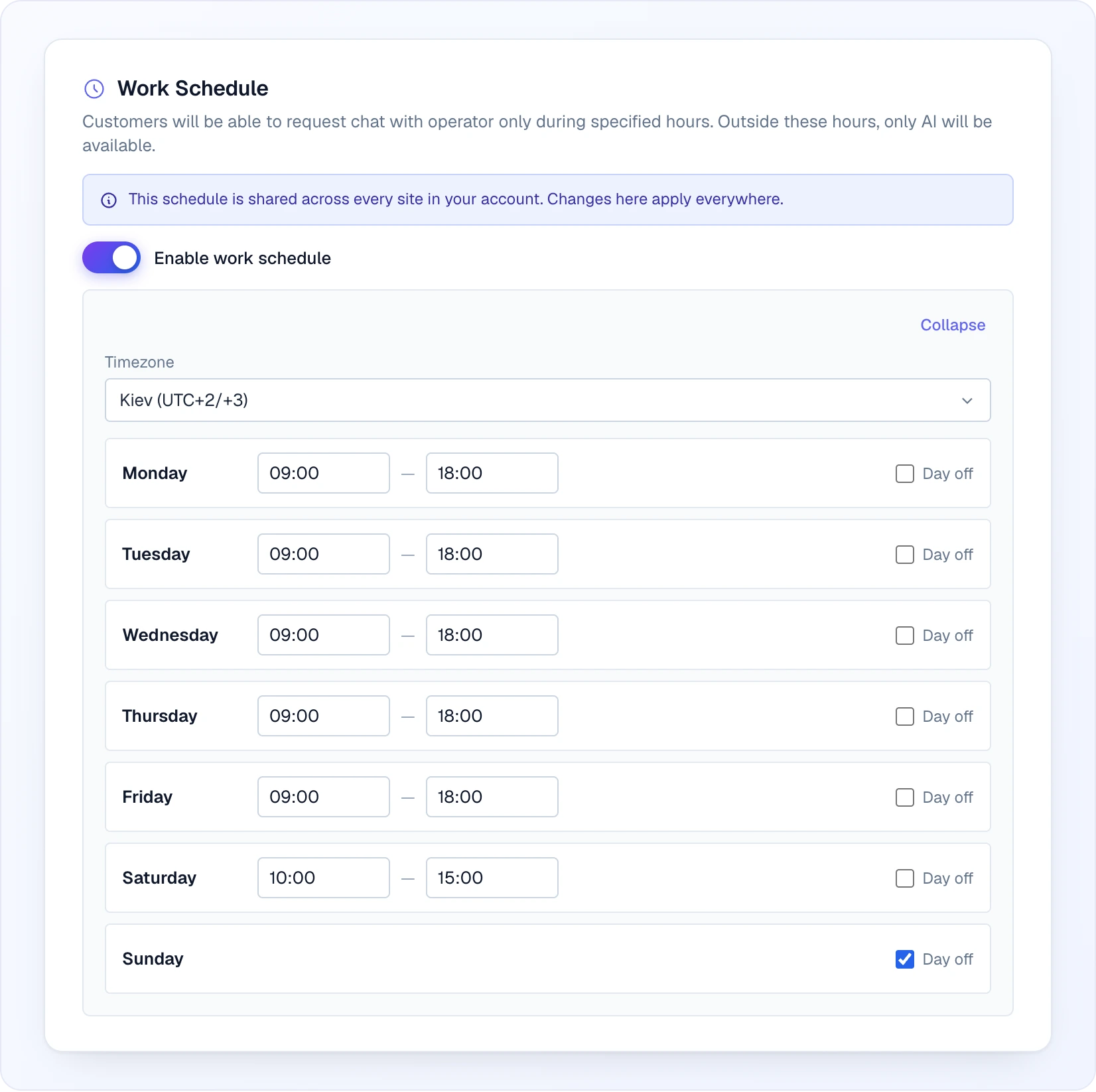
Setting Up
- Enable Work Schedule in AI Assistant settings
- Select your timezone
- For each day of the week:
- Set working hours (e.g., Mon-Fri 9:00–18:00)
- Mark days off (e.g., Saturday, Sunday)
The Work Schedule block is available in the AI Assistant settings in the "AI + Operator Connection" and "Direct Chat" modes. There is one schedule per account: changes made in one site's settings apply to all your sites. Once saved, the schedule folds into a short summary with an Edit button.
How It Affects Conversations
During working hours:
- Full Mode works as configured (On Request or Proactive)
- Online operators receive notifications about new chats
- Customers can be transferred to operators
Outside working hours:
- The system automatically switches to AI Only behavior
- If a customer asks for an operator, the AI explains they're offline and offers to collect contact info for a callback
- Lead collection continues as normal — you'll see all leads when you come back online
What the customer sees in the widget
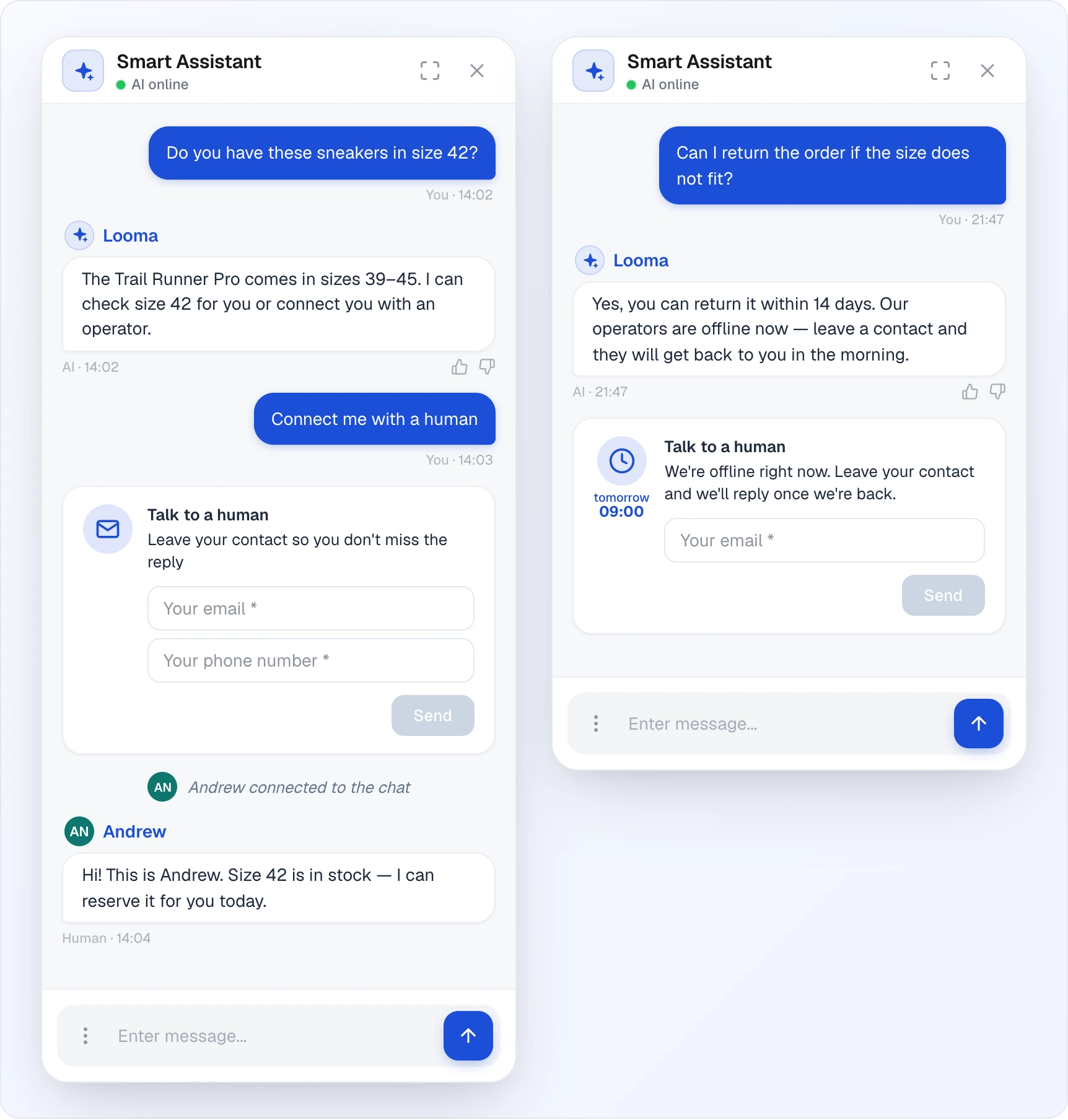
When a customer asks for a human (writes it or taps "Talk to a human" in the widget menu), a Talk to a human card with contact fields appears under their message — if the widget does not yet know this visitor's email or phone. The operator's reply arrives in the same chat: first a system line such as "Andrew connected to the chat", then messages with the operator's name and a "Human" label.
Outside the schedule the card has a different icon and the text "We're offline right now. Leave your contact and we'll reply once we're back", and under the icon it shows when operators will be back (for example, "tomorrow 09:00"). Even if contact collection for handoff is turned off, the widget still asks for an email outside the schedule — otherwise there would be no way to reply.
Choosing the Right Setup
| Your Situation | Recommended Mode | Operator Connection |
|---|---|---|
| No support team | AI Only | — |
| Small team, limited hours | Full Mode | On Request |
| Active sales team | Full Mode | Proactive |
| Complex/expensive products | Full Mode | Proactive |
| High volume, simple products | Full Mode | On Request |
| A human on every conversation | Direct Chat | — |
| Testing Looma | AI Only | — |
Common Setup Examples
Online furniture store with 3 operators (Mon-Fri 9-18):
- Mode: Full Mode
- Connection: Proactive (furniture requires consultation)
- Schedule: Mon-Fri 9:00-18:00, weekends off
- Result: AI handles initial questions 24/7, operators consult during work hours, leads collected overnight
Small accessories shop, owner handles support alone:
- Mode: Full Mode
- Connection: On Request (AI handles most questions)
- Schedule: Mon-Sat 10:00-20:00
- Telegram channel connected (owner responds from phone)
- Result: AI handles 90% of conversations, owner jumps in when needed via Telegram
Large electronics store, 24/7 support:
- Mode: Full Mode
- Connection: On Request
- Schedule: disabled (operators always available in shifts)
- Result: AI filters and handles simple questions, operators focus on complex consultations
Next Steps
- Lead Collection — configure what data to collect from customers
- Proactive Messages — engage visitors automatically
- Channels — connect Telegram, Viber, and other messengers