

Channels
The Channels page connects messengers — Telegram, Viber, Facebook Messenger, Instagram, WhatsApp — and your store's mailbox to your Looma account. Once connected, every conversation a customer starts in a messenger or by email lands in the same Chats inbox as the widget on your website, so you and your operators handle everything in one place.
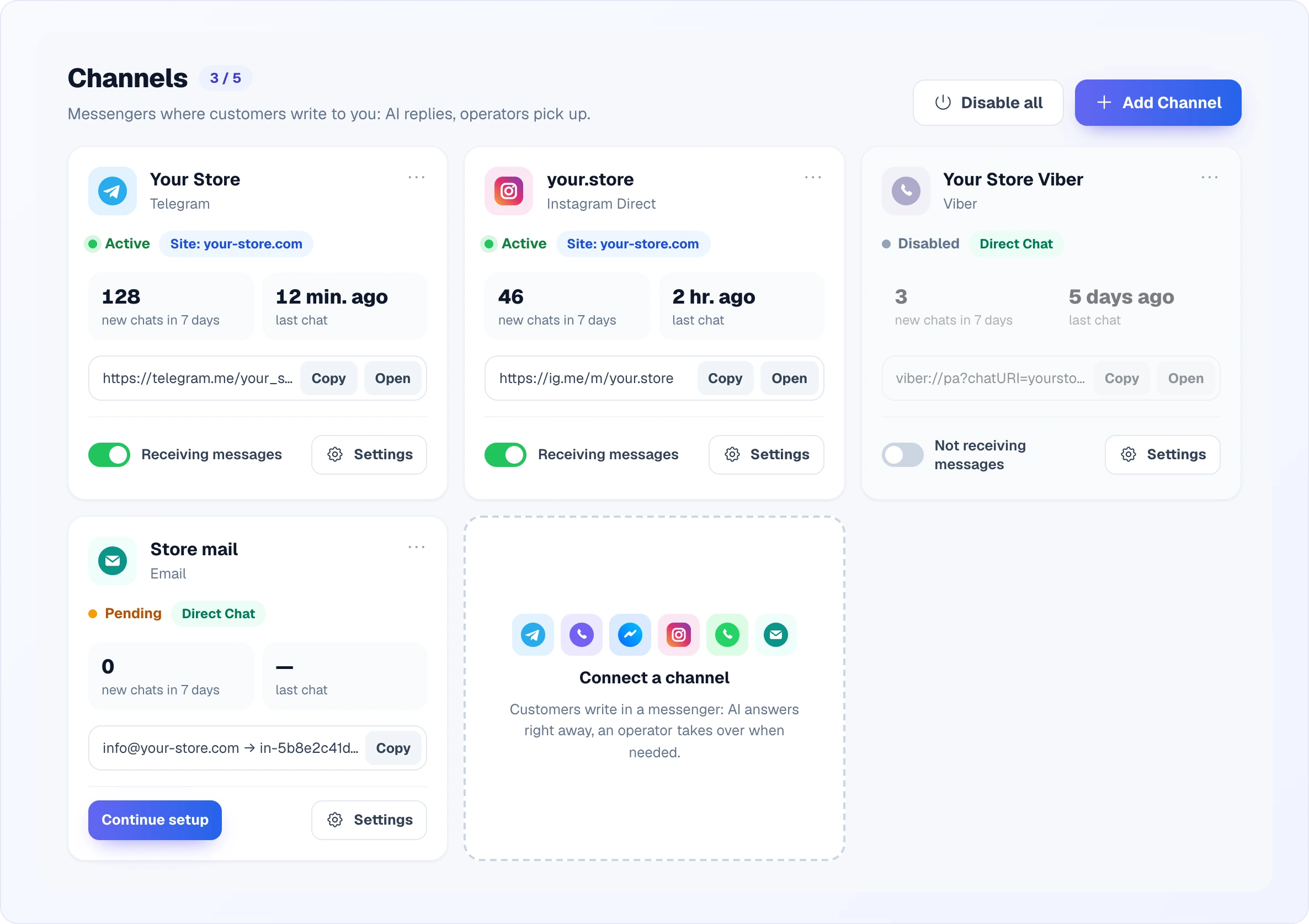
Supported channels
- Telegram — a bot you create via @BotFather.
- Viber — a Viber for Business bot (token from partners.viber.com).
- Facebook Messenger — your business Page's chat, connected by signing in with Facebook.
- Instagram Direct — direct messages to a professional Instagram account (Business or Creator) linked to a Facebook Page.
- WhatsApp — WhatsApp Business, connected with a 360dialog API key.
- Email (marked New) — emails to your store's mailbox (for example
[email protected]) become dialogs in Chats, and your replies go to the customer by email. See Email.
Who and on which plan
Connecting messengers is available from the Growth plan. On a smaller plan you see a "Messengers are not available on your current plan" screen with an Upgrade plan button instead of the page; if your subscription has expired, a "Subscription expired" screen. How many channels you can connect at once also depends on the plan (see Plan limits).
Two modes per channel
You pick the mode when adding a channel and can change it later in the channel settings.
AI Assistant (bound to a site) — the channel is attached to one of your sites. The AI answers customers using that site's catalog, knowledge base and rules, and an operator takes over when needed. Conversations from this channel appear in Chats next to the widget messages from the site. The language follows the site settings. The channel also inherits the site's chat mode — if the site is in Direct chat mode, the channel is routed straight to an operator too (respecting the "AI answers outside working hours" option), just like the widget.
Direct Chat — the channel is standalone, not bound to any site. AI is off — only operators reply. It is simpler to set up; useful when you do not want to mix messenger conversations with your site chats, or you have no site on Looma at all. You choose the language of system messages from the full list Looma supports (40+ languages with search — the same list as the site language setting).
You can connect several channels to one site — that site's settings apply to all of them.
Which one to pick
You have a site with a catalog on Looma and want the AI to answer in the messenger too — AI Assistant. A messenger for "live" conversations with operators, without AI — Direct Chat. Email always works as a direct chat.
The Channels page
Header. Next to the page title is a used / available counter for your plan (for example "3 / 5"); it turns yellow when the limit is reached. On the right:
- Disable all — temporarily stops receiving messages on all active channels. When all channels are disabled, Enable all appears in its place. If the channels had open chats, a notice tells you how many of them will no longer receive messages.
- Add Channel — opens the connection window. When the plan limit is reached, Upgrade plan is shown instead.
A channel card shows:
| Part of the card | What it means |
|---|---|
| Icon, name, type | The channel name (the one you set, or the bot's name) and the type — Telegram, Viber, Instagram Direct and so on. |
| ⋯ | A menu with Delete. |
| Status | Active, Pending, Disabled, Disconnected or Error — see Statuses. |
| Binding | "Site: your-store.com" for AI Assistant, or "Direct Chat". |
| new chats in 7 days / last chat | How many new conversations came from the channel this week and how long ago the latest one was. |
| Link | The public link to the chat with the bot (telegram.me/…, ig.me/m/…, m.me/…, viber://…) with Copy and Open buttons — handy for your site or social profiles. For Email it shows your mailbox and the forwarding address with a copy button. |
| Switch | Receiving messages / Not receiving messages — pauses the channel without deleting it. Shown only for an active or disabled channel. |
| Settings | The channel settings window. |
If a channel no longer fits into the limit (for example after moving to a smaller plan), its card is covered by Channel locked — plan limit with an Upgrade plan link.
The last card in the grid — Connect a channel — opens the same window as the button in the header. Below the grid a "Let customers pick where to message you" banner may appear: it shows while the widget on all your sites opens only the site chat, and leads to setting up the multichannel popup. You can close it with the cross.
Adding a channel
The Add Channel window walks you step by step; the bar under the title shows the progress.
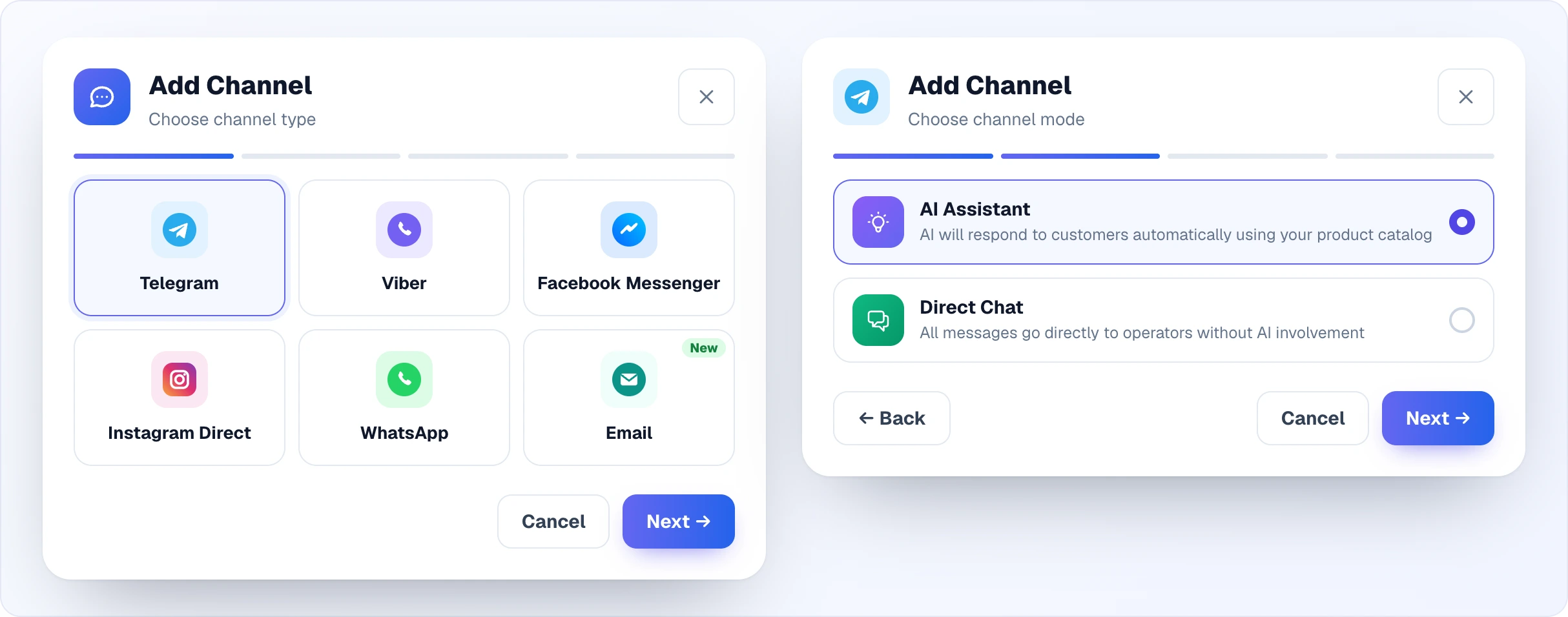
- Channel type — pick a messenger or Email and click Next.
- Mode — AI Assistant or Direct Chat (skipped for Email).
- Site — AI Assistant only: the site whose catalog and AI settings the channel will use. If you have no sites yet, the window warns you and offers Go to Sites.
- Connection — a token, signing in with Facebook or the mailbox setup, depending on the type. For Direct Chat the language is chosen on this step too.
Back returns to the previous step, Cancel closes the window without changes.
Telegram
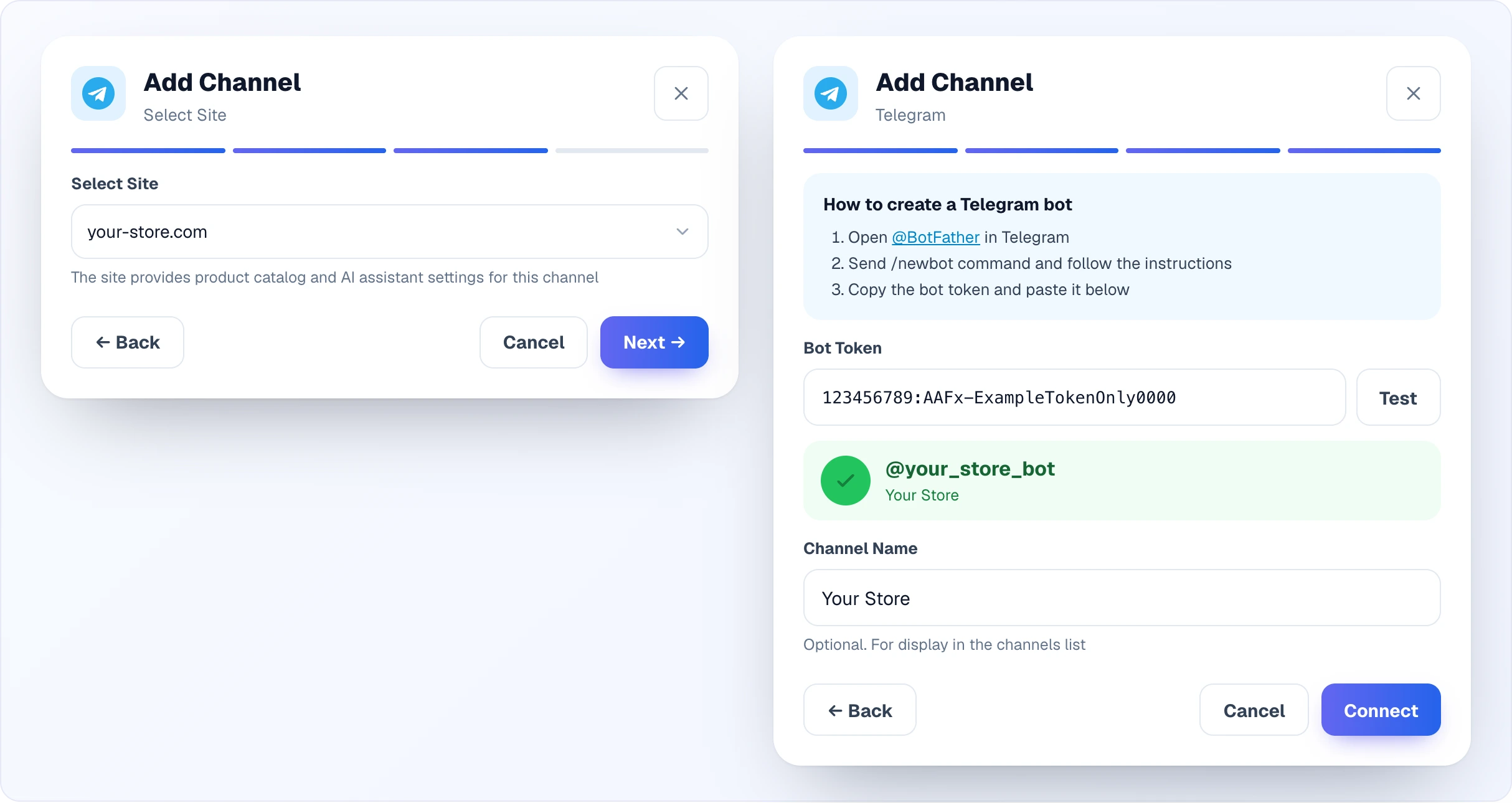
- Open Telegram → find @BotFather → send
/newbot. - Choose a display name and a username (must end in
bot). - BotFather sends a token like
123456789:ABCdef...— copy it. - In Looma → Channels → Add Channel → Telegram → mode → (site).
- Paste the token into Bot Token and click Test — Looma checks the token and shows the bot's username and name in a green box.
- Optionally set a Channel Name — it is only for you, in the channels list.
- Click Connect.
Common errors:
- Invalid Telegram bot token — copy the whole token, including the colon.
- This Telegram bot is already connected to another channel — the token is already used in Looma. Create a new bot or delete the old connection.
Viber
- Sign up at partners.viber.com and create a bot.
- Copy the Auth Token in the Bot Account section.
- In Looma → Channels → Add Channel → Viber → mode → (site or language).
- Paste the token and click Test — the bot's name and icon appear.
- Click Connect.
WhatsApp
- Sign up at 360dialog and register your WhatsApp number.
- In the 360dialog hub open your number → API Keys and create a key.
- In Looma → Channels → Add Channel → WhatsApp → mode → (site or language).
- Paste the 360dialog API Key, click Test, then Connect.
Facebook Messenger
- In Looma → Channels → Add Channel → Facebook Messenger → mode → (site).
- Click Connect with Facebook — the Facebook login window opens.
- Log in with an account that manages the Page and approve the requested permissions.
- Pick the Page from the list and click Connect.
You must be an admin or moderator of the Page. To connect several Pages, repeat — each Page becomes a separate channel.
Instagram
Before connecting, check (this list is also in the window under "How to connect Instagram properly"):
- the Instagram account is Business or Creator (not personal);
- it is linked to your Facebook Page;
- you are an admin of that Page;
- message access is on in Instagram: Settings → Privacy → Messages.
How to link Instagram to a Page: your Facebook Page → Settings → Linked accounts → Instagram → Connect account.
- In Looma → Channels → Add Channel → Instagram Direct → mode → (site).
- Click Connect via Facebook — it uses the same Meta authorization as Messenger.
- In the Facebook dialog keep all permissions checked and tick the Page you need — otherwise the list comes back empty.
- Pick the Instagram account and click Connect.
If the account is missing from the list — in Facebook open Settings → Apps and websites, remove Looma and run the connection again.
Email
The Email channel turns emails to your regular store mailbox into dialogs in Looma. The mailbox stays where it is (Gmail, Outlook or any other mail) — you just turn on forwarding to a unique Looma address in it. Email always works as Direct Chat: no AI and no site binding, operators reply.
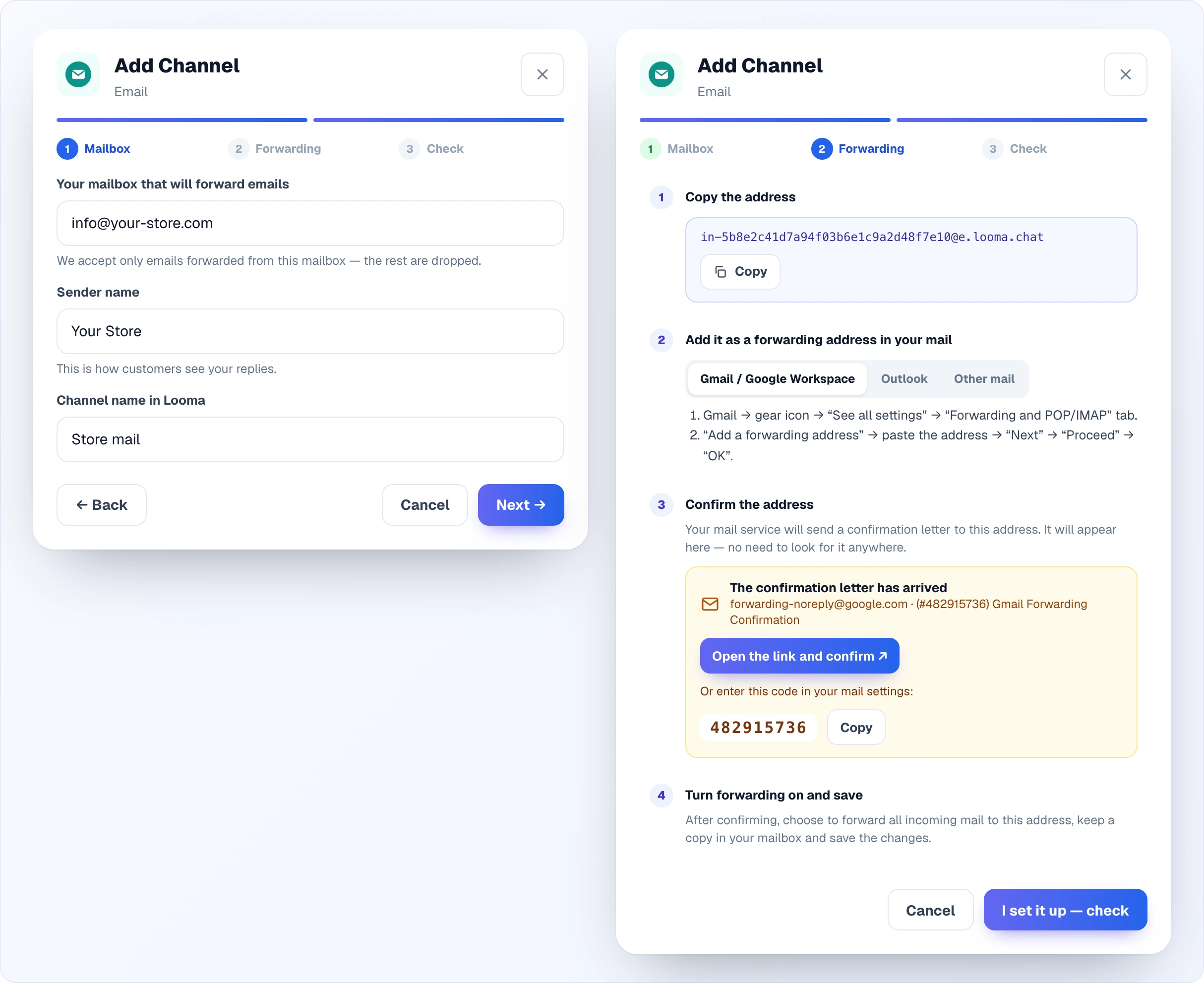
Connecting takes three steps:
- Mailbox. Enter the mailbox that will forward emails, the Sender name (how customers see your replies) and optionally the Channel name in Looma. Looma accepts only emails forwarded from this exact mailbox — the rest are dropped. A mailbox can be connected only once. Click Next — the channel is created in Pending status.
- Forwarding. The window walks you through four stages: copy the
in-…@e.looma.chataddress; add it as a forwarding address in your mail (there are instructions on the Gmail / Google Workspace, Outlook and Other mail tabs); confirm the address; turn on forwarding of all incoming mail and save. Most mail services send a confirmation letter to the new address before forwarding can be turned on. Looma catches that letter and shows it right in the window: click Open the link and confirm (or enter the code if your mail gave one, as Gmail does). You do not have to look for the letter anywhere; if your mail service does not ask for confirmation, skip this stage. - Check. Click I set it up — check and send an email to your mailbox from another address. As soon as the first forwarded email arrives, the window shows "Email connected" and the channel becomes Active. You do not have to wait: close the window with Close, I’ll check later — the status changes on its own. To get back to the instructions, click Continue setup on the channel card.
How it works afterwards. Each customer email opens as a dialog in Chats. You reply with a regular message (files allowed) — the customer gets an email from your sender name, with the subject "Re: …", continuing the same thread in their mail app. The customer's reply comes back to the same dialog, even if they change the subject. Sending replies spends credits like other Looma emails (see Credits & Plans).
Email look. The Settings button on the Email card opens its own window with a live preview of the reply:
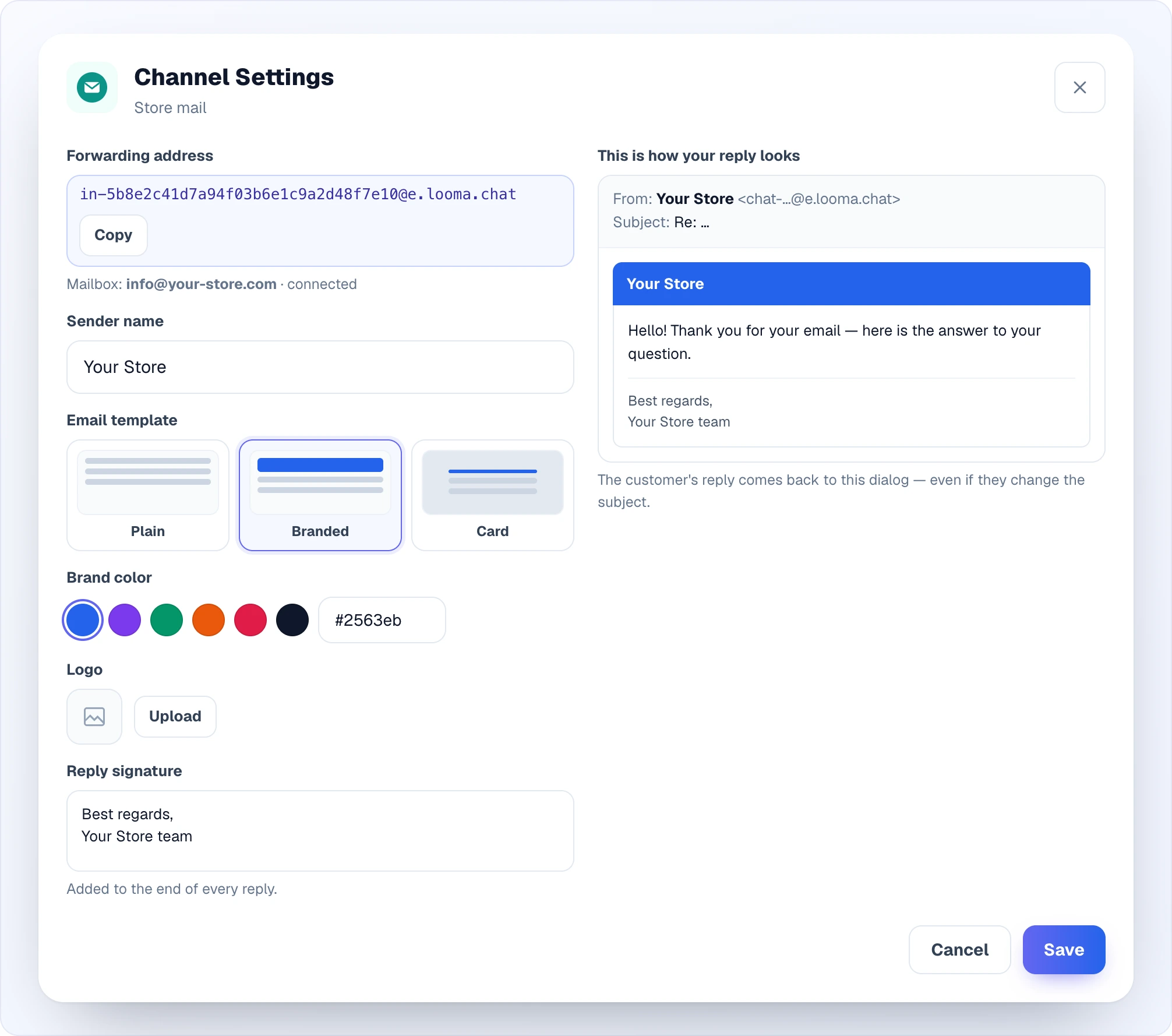
- Forwarding address — the same
in-…address with a copy button; below it, your mailbox and its state ("connected" or "waiting for the first email"). - Sender name — how customers see your replies.
- Email template — Plain (text only), Branded (a header in your brand color with logo and name; the default) or Card (text on a white card with a colored strip on top).
- Brand color — six ready colors or your own HEX code.
- Logo — PNG or JPG; Remove returns the email to no logo.
- Reply signature — added to the end of every reply (up to 1000 characters).
Channel statuses
- Active — connected, receiving messages.
- Pending — setup is not finished yet. For Email — until the first forwarded email arrives; for other channels it is rare and usually clears by itself.
- Disconnected — the token expired, the bot was deleted or the OAuth access was revoked. Connect the channel again.
- Error — something broke on the platform side; reconnecting usually fixes it.
- Disabled — you paused the channel with the switch on its card or with Disable all. Messages are not received, but the connection is kept, and you can turn the channel back on with the same switch. Only a disabled channel can be enabled; a Disconnected or Error channel has to be reconnected.
Connection health check
A daily background check looks at every Telegram, Viber, Facebook Messenger and Instagram Direct channel to catch a dead connection before you notice it yourself — a revoked Telegram/Viber token, a Facebook/Instagram access token revoked after a password change, or a bot/Page webhook that now points somewhere else. A broken channel is not silently marked Disconnected: its card keeps the Active status replaced by a red "Connection lost" line, with the reason, when it was first noticed, and a Reconnect button right there — no need to open Settings.
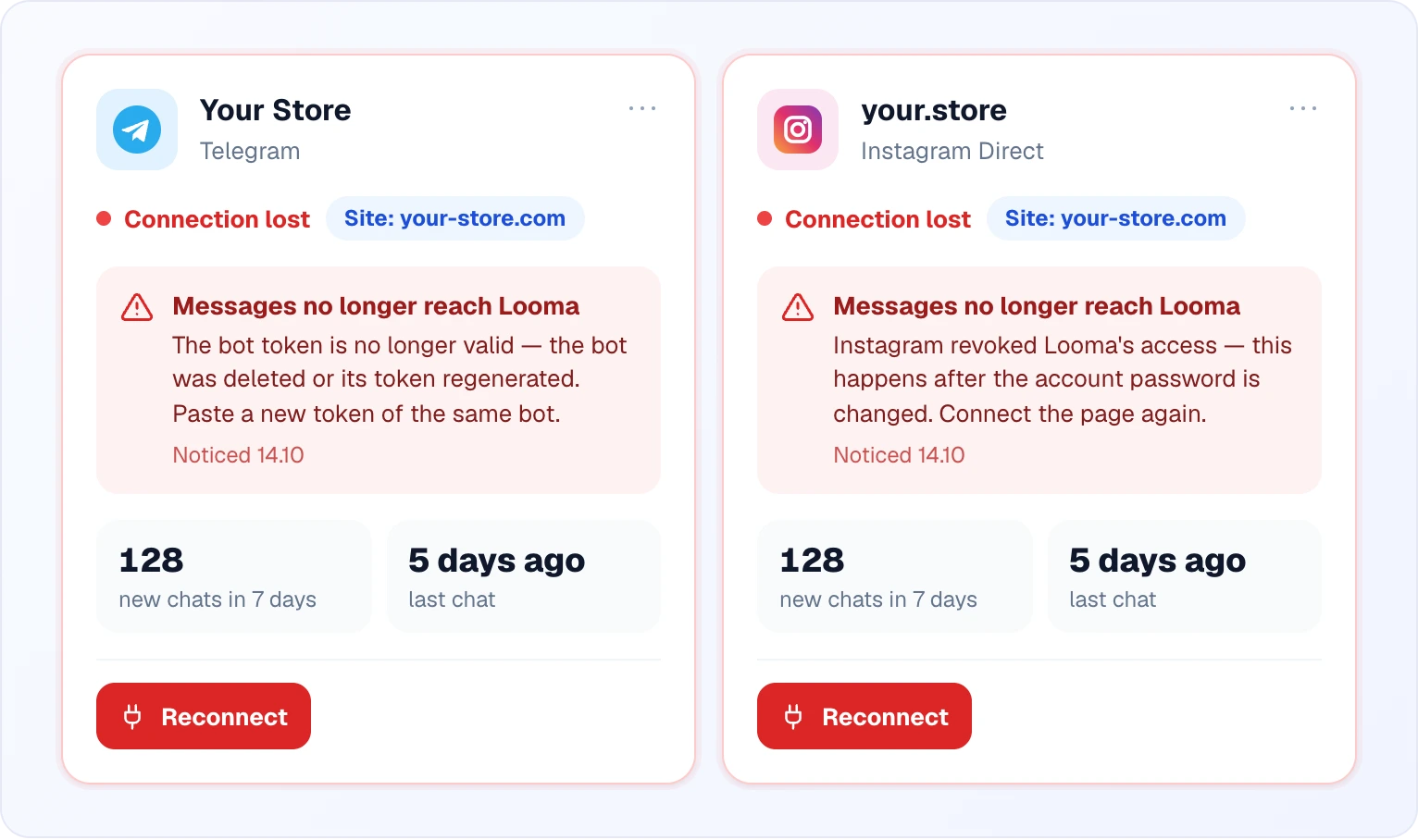
- Reconnect — for Telegram and Viber, opens the same "paste a new token of the same bot" window as Connecting; the channel and its chats are kept. For Facebook and Instagram, it sends you through the Facebook login again to pick up a fresh Page token.
- Email alert. The account's Owner and Administrators get an email the moment a channel is first found broken, each in their own dashboard language, with a link straight to the Channels page. While the channel stays broken, Looma does not spam you — at most one email every 7 days per channel. The moment the channel is reconnected, the mark clears, and a later break is treated as new (and emailed right away).
- This check runs next to — not instead of — the regular Disconnected status: a channel can show Disconnected the moment you look (if its access was removed outright) without waiting for the daily check.
Channel settings
The Settings button on a card opens a window with tabs. Which tabs you see depends on the channel: General — always; Calls — if you have the Calls module turned on; Bot menu — for Telegram, Viber, Facebook Messenger and Instagram. Email has only its own email settings (see above).
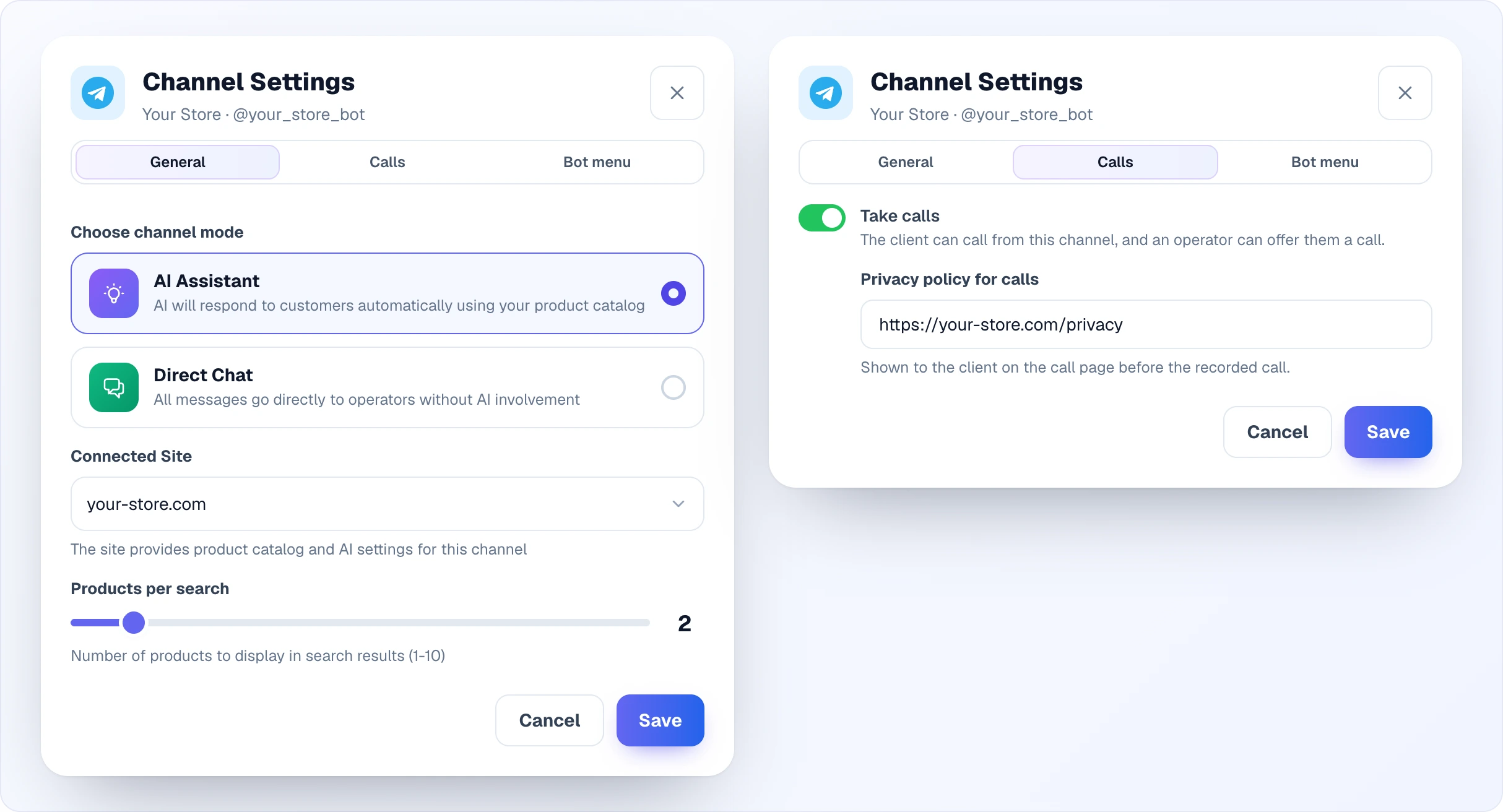
General:
- Channel mode — switch between AI Assistant and Direct Chat. If you pick AI Assistant and no site is set, your first site is filled in.
- Connected Site (AI Assistant) — rebind the channel to another site at any time.
- Products per search (AI Assistant) — how many product cards the AI sends in one reply, 1 to 10 (default 2). A small number works well in messengers, where long messages are awkward to scroll.
- Chat Language (Direct Chat) — the language of system messages, from the full language list with search.
Calls (if the Calls module is active):
- Take calls — the customer can call from this channel, and an operator can offer them a call.
- Privacy policy for calls — the link the customer sees on the call page before the recorded call.
Changes are saved with Save. The Channel Name is set while connecting; it cannot be changed in the settings window.
Bot menu
The Bot menu is a set of buttons your customers see in the messenger, such as "Talk to a person" or a link to your catalog. It works in Telegram, Viber, Facebook Messenger and Instagram, and everything is off until you turn it on.
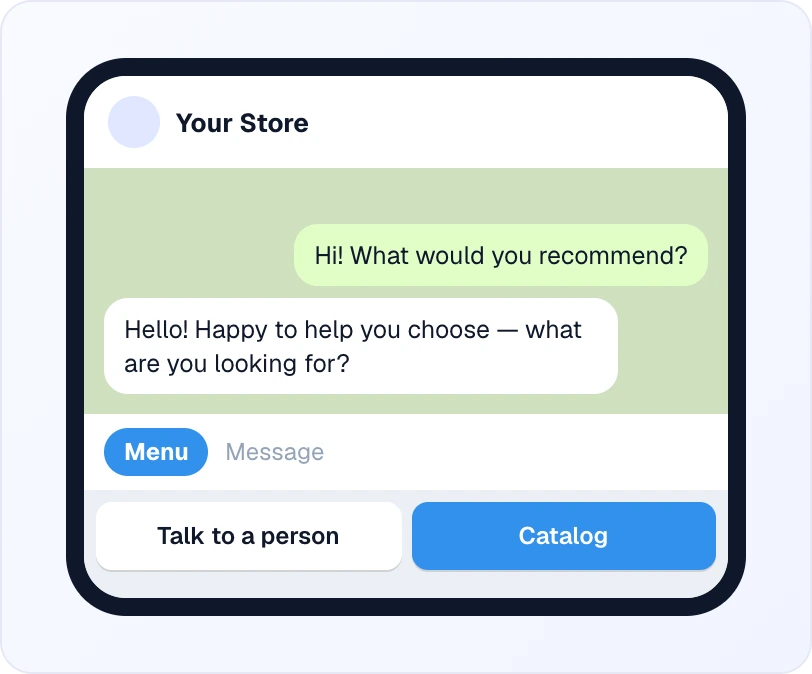
Where: the Settings button on the channel card → the Bot menu tab.
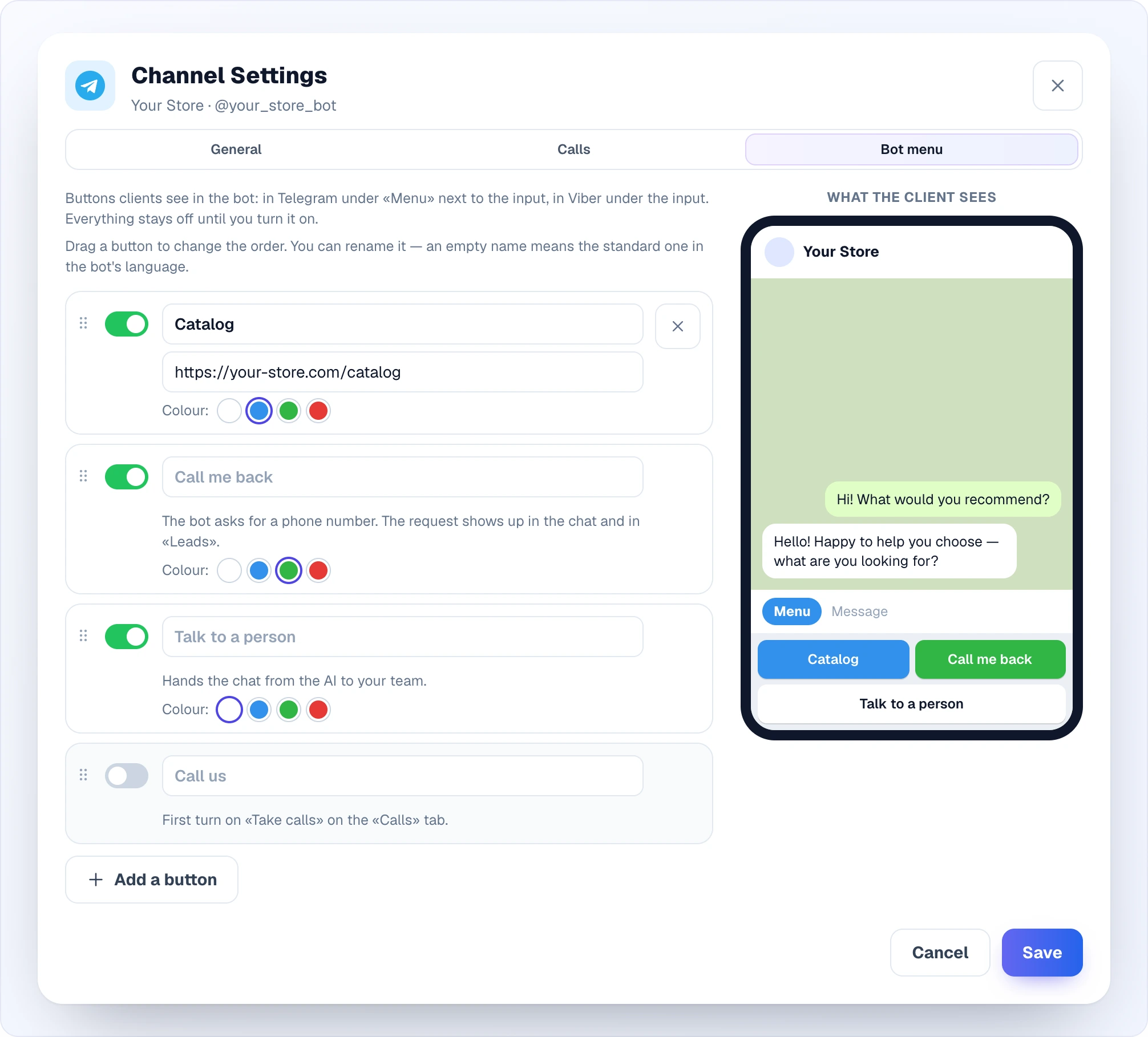
Which buttons you can offer:
- Talk to a person — hands the chat from the AI to your team. Available only in AI Assistant mode; in Direct Chat the customer already writes to people, so the button is inactive.
- Call me back — the bot asks the customer for a phone number. The request appears in the chat and, in AI Assistant mode, also in Leads.
- Call us — the customer calls you right from the menu, without an invitation. It can be turned on only when Take calls is on in the Calls tab, and only once the client could actually reach someone: a team member with "Приймає дзвінки" ("Accepts calls"), or the channel answering in full AI autopilot. Without the Calls module it is not in the list at all.
- Custom link buttons — up to 3, via Add a button. Each needs a name (up to 30 characters) and a link starting with
https://; the button opens that page on the customer's phone. A row without a name or with a non-https link cannot be saved. The cross on the right removes the button.
The editor:
- Order — drag a row by its ⠿ handle; customers see the buttons in the order you set.
- Name — type your own (up to 30 characters). An empty field means the standard name in the bot's language.
- Colour — Telegram: standard, blue, green or red. Viber: standard, green, blue, violet, yellow, red or dark. Messenger and Instagram draw their menu themselves, so there are no colours there.
- What the client sees — the phone mock-up on the right shows the chat with the buttons as the customer will see them and updates while you edit. In Telegram and Viber buttons go two in a row (an odd last one takes the full width); in Messenger and Instagram they are a list.
How it looks in each messenger:
| Channel | What the customer sees |
|---|---|
| Telegram | Buttons below the input, two per row, shown at the start of a conversation (the first reply, or after a day of silence). The bot's Menu command list stays available, and typing "menu" brings the buttons back. |
| Viber | A keyboard below the input with the same buttons, also only at the start of a conversation (bot opened, first reply, a day of silence) — so it does not cover the phone's keyboard on every reply. Typing "menu" shows it again. |
| Facebook Messenger | Meta's persistent menu next to the input; Messenger also gets a "Get started" button, without which Meta does not show the menu. |
| The same persistent menu, without "Get started". |
For Messenger and Instagram the menu is one per Page — every customer sees the same list, and it is sent to Meta when you save the channel settings. If nothing is turned on, the menu is removed from the Page.
Platform notes
| Channel | AI replies | Product cards | Files | Notes |
|---|---|---|---|---|
| Telegram | Full | Inline links + thumbnails | Yes | The most flexible |
| Viber | Full | Cards with descriptions | Yes | |
| Facebook Messenger | Full | Native rich cards | Yes | |
| Instagram Direct | Mostly text | Limited (no rich cards) | Images only | Slower delivery — Meta rate limits |
| Full | Text list (no rich cards) | No | Text only — incoming files get a "not supported" message | |
| — (no AI) | — | Yes, from the operator | A reply is an email in the same thread |
Operator handoff works the same on every channel — when the AI hands the conversation over, operators reply from Chats, and messages go back through the customer's channel.
Multichannel popup
The widget on your site can show a popup where visitors choose how they prefer to talk — the site chat, Telegram, Viber, Instagram and so on — so the conversation is not lost if the customer would rather continue in a messenger.
It is not automatic. Connecting several channels does not turn the popup on by itself: by default the floating button opens the site chat right away. To turn the popup on:
- Open Site Settings → AI Assistant → Button & Style.
- Set the floating button mode to Multichannel (the default is Standard).
- Choose which channels to show in the popup and, optionally, change the greeting and subtitle text.
After that, a visitor who clicks the button first sees the choice of contact method. Full button settings are in Widget Appearance.
Disabling and deleting
- Pause — the Receiving messages switch on the card. The channel stops receiving messages but stays connected and keeps its place in the plan limit.
- Delete — the ⋯ menu on the card → Delete → confirm in the "Delete Channel" window. Looma detaches its webhook from the platform (for Telegram, Viber, Facebook, Instagram); the bot, Page or number itself stays yours. Conversation history is kept — you can still browse old chats. If you add the same channel again later, a new channel record is created; old conversations stay attached to the old one.
360dialog does not allow removing a webhook, so after the channel is deleted messages may keep arriving at the Looma server (which rejects them). To stop delivery completely, disable or rotate the key in the 360dialog hub.
Plan limits
How many channels you can connect depends on your plan; the counter in the header shows current usage (for example "3 / 5"). Active and disabled channels count — a pause does not free a slot. Channels in Pending, Disconnected and Error status do not count. See Credits & Plans.
Common issues
- Messages are not arriving — the channel must be Active, and the switch on its card must say "Receiving messages". Send a test message from your phone to your own bot or Page.
- AI does not reply in the channel — the channel is in Direct Chat mode (by design), or the site it is bound to is itself in direct chat mode. Switch the channel to AI Assistant in its settings and check the site's chat mode.
- Facebook: no Pages in the list — you are not an admin or moderator of any Page, or you unchecked permissions in the Facebook dialog.
- Instagram: the account is not in the list — go through the checklist above: professional account, linked to the Page, message access on, all permissions granted.
- Email stays Pending — forwarding is not on yet, or mail is forwarded from a different mailbox than the one you entered. For Gmail, make sure you confirmed the address with the code and turned on "Forward a copy of incoming mail".
- The "Call us" button is inactive — turn on Take calls on the Calls tab of the same channel, and make sure someone can actually answer: a team member with "Приймає дзвінки" ("Accepts calls"), or the channel set to full AI autopilot.
- Token error after reconnecting — Telegram tokens are stable; Facebook/Instagram access can expire — connect the channel again.
Related
- Chats — where all channel messages land
- Chat Modes — AI vs operator behavior (shared by the widget and channels)
- Leads — where "Call me back" requests go
- Widget Appearance — the multichannel popup on the site widget
- Credits & Plans — channel limits per plan