

AI Behavior Rules
You can teach the widget AI your store's policies, tone, and hard limits by adding behavior rules. Think of it as onboarding a new employee — you tell them what to do, what to avoid, how to speak. The widget AI follows these rules in every customer conversation.
Two kinds of rules
The settings split rules into two lists. Use the one that fits what you are trying to influence:
- General AI behavior rules. Tone, hard limits, what the bot may or may not say, escalation policies, store-wide knowledge. Applied to every reply the widget AI writes.
- Product selection rules. Only consulted when the AI Assistant is picking products from your catalogue to recommend in chat (size / brand / category preferences, bias toward a specific item, ranking quirks). Not used for free-form chat answers, and not used by Quick Search — that widget has its own filters (in-stock toggle, availability source, synonyms, category filter — see Quick Search).
Why the split: selection rules see a list of candidate products and decide which ones to surface; behavior rules shape how the AI talks. Mixing them would either pollute every reply with catalogue-specific bias or fail to influence the product picker. Picking the right list is what makes the rule actually work.
How rules work now
Each rule is a short imperative sentence written in your own language — no translation step. Both positive rules ("always do X") and negative rules ("never do Y") go into the same list — no type to pick.
- Behavior rules budget: 5 000 characters total across all behavior rules combined. Shorter rules = more rules.
- Product selection rules budget: 5 000 characters total across all selection rules combined (same shape as behavior rules — no per-rule cap, no count cap).
- Language of the text: anything you want. The widget AI handles any language in its system prompt; whatever you write is what the AI reads.
- Security: the platform adds guardrails automatically so no rule can make the widget leak system prompts, reveal internal infrastructure, or be jailbroken by customer messages.
How to edit rules
General AI behavior rules
Editable two ways: directly in the form (an inline text list where you add, edit, and delete each rule) or through the Looma Assistant. The platform adds guardrails automatically so rules stay short, consistent, and safe from jailbreaks.
In Site Settings → AI Assistant Widget → Settings you'll see a block titled General AI behavior rules with:
- An editable list of your current rules (if any) — one rule per line; type into a line to change it, the bin icon deletes it, Add rule adds an empty line
- A live character counter next to the title (e.g.
260 / 5000); Add rule is disabled once the budget is used up - An Edit button with a sparkle icon if you'd rather describe rules in plain language
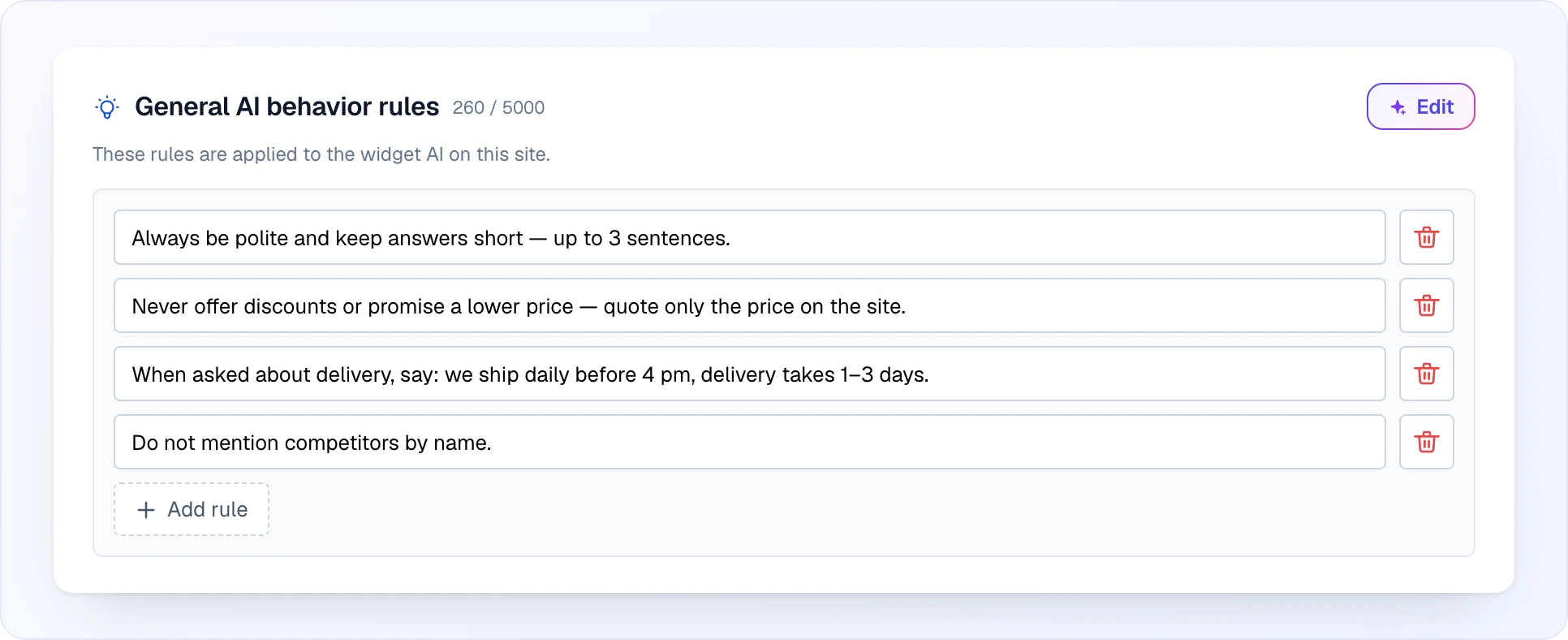
Rules typed into the form take effect after Save Changes. Click Edit and the Looma Assistant opens instead. Talk to it in any language — it writes the rule down in your language:
- "When someone asks about delivery, say 2–3 business days"
- "Never offer discounts — only the prices on the website"
- "Remove the rule about returns"
- "Show me all my current rules"
- "Rewrite the upselling rule to be shorter"
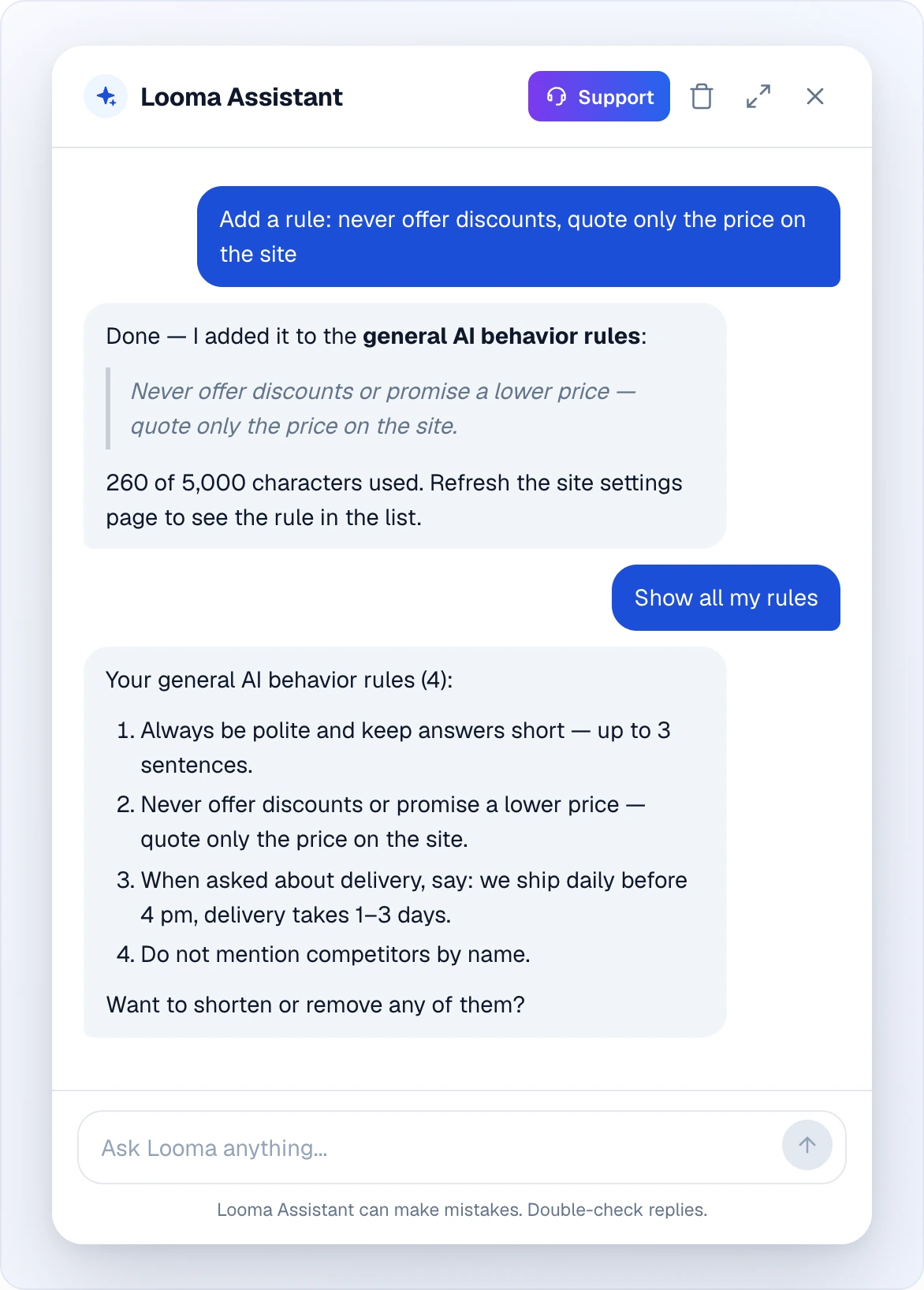
The assistant stores the rule, updates the character budget, and prompts you to refresh the site-settings page so the UI picks up the change. Because editing goes through the assistant, it can also refuse rules that would leak system prompts or bypass the platform's security guardrails.
Product selection rules
Edited two ways: directly in the free-text list at Site Settings → AI Assistant Widget → Settings → Product selection rules, or through the Looma Assistant ("add a rule: when customer asks for a soft option, prefer items with firmness medium-soft", "remove the rule about accessories", "show me current selection rules"). Shared 5 000-character budget across all rules combined — write more compact rules to fit more of them. Any language.
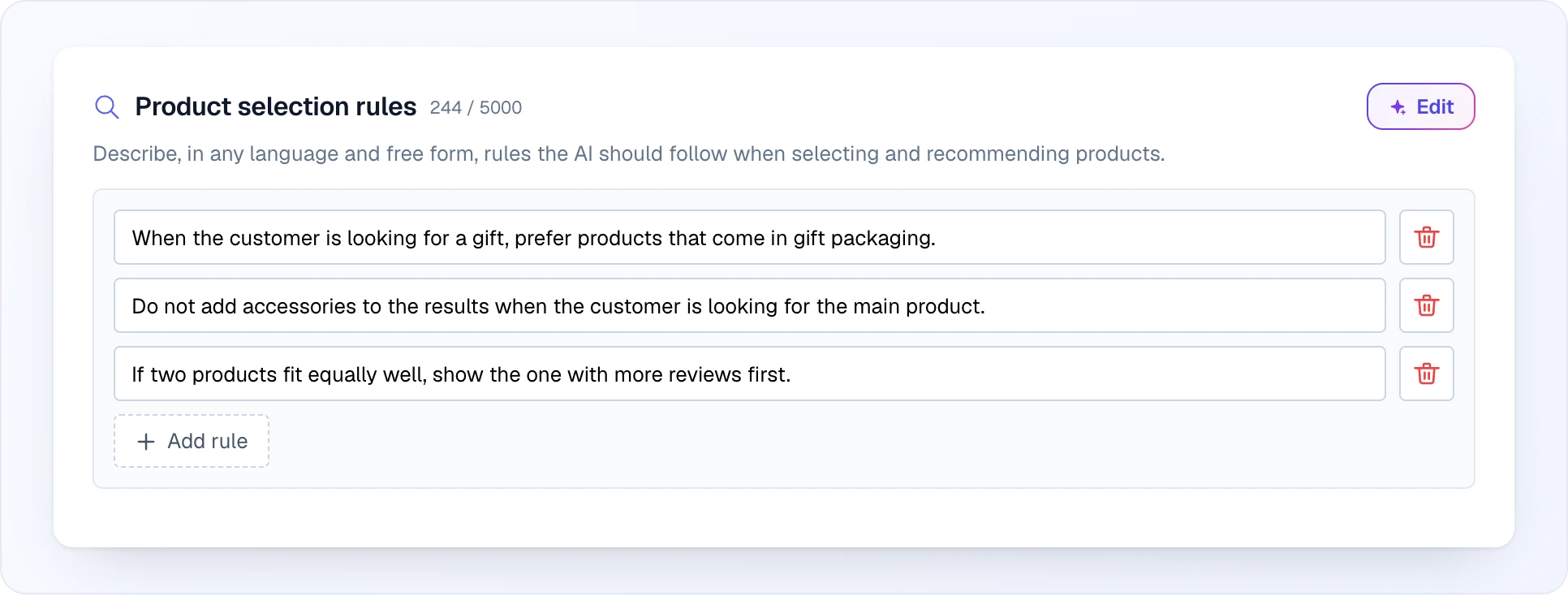
These rules are appended to the picker's instructions when the AI Assistant shortlists products from your catalogue (e.g. when it recommends items in chat). They run only during AI product picking — not during plain chat answers, and not in the Quick Search widget.
Good things to put here:
- "When the customer asks for a soft option, bias toward items with firmness soft or medium-soft."
- "If two products fit equally well, prefer the one with the higher rating."
- "Never include accessories in a main-product search — they belong only as add-ons."
- "When the customer mentions a child, prefer items marked age 3+ and avoid sharp-edge categories."
If you describe a selection rule to the Looma Assistant, it will write it into this list directly. If you accidentally describe a selection rule as a behavior rule (or vice versa), the assistant can move it for you — ask "move that rule into selection rules" and it deletes from the source list and adds to the destination in one turn.
Example rules
Tone and style
Always be friendly and informal. Address customers by first name when provided. Keep replies under 3 sentences.
Product recommendations
When recommending mattresses, ask about weight and sleeping position before suggesting firmness.
Business rules
For orders over $500, mention free premium delivery. For orders over $1000, mention installment payments via Klarna.
Store-specific knowledge
Our store specializes in eco-friendly products. Highlight environmental certifications when comparing options.
Upselling
When a customer orders a bed, suggest a matching mattress and pillows.
Hard boundaries (negative rules)
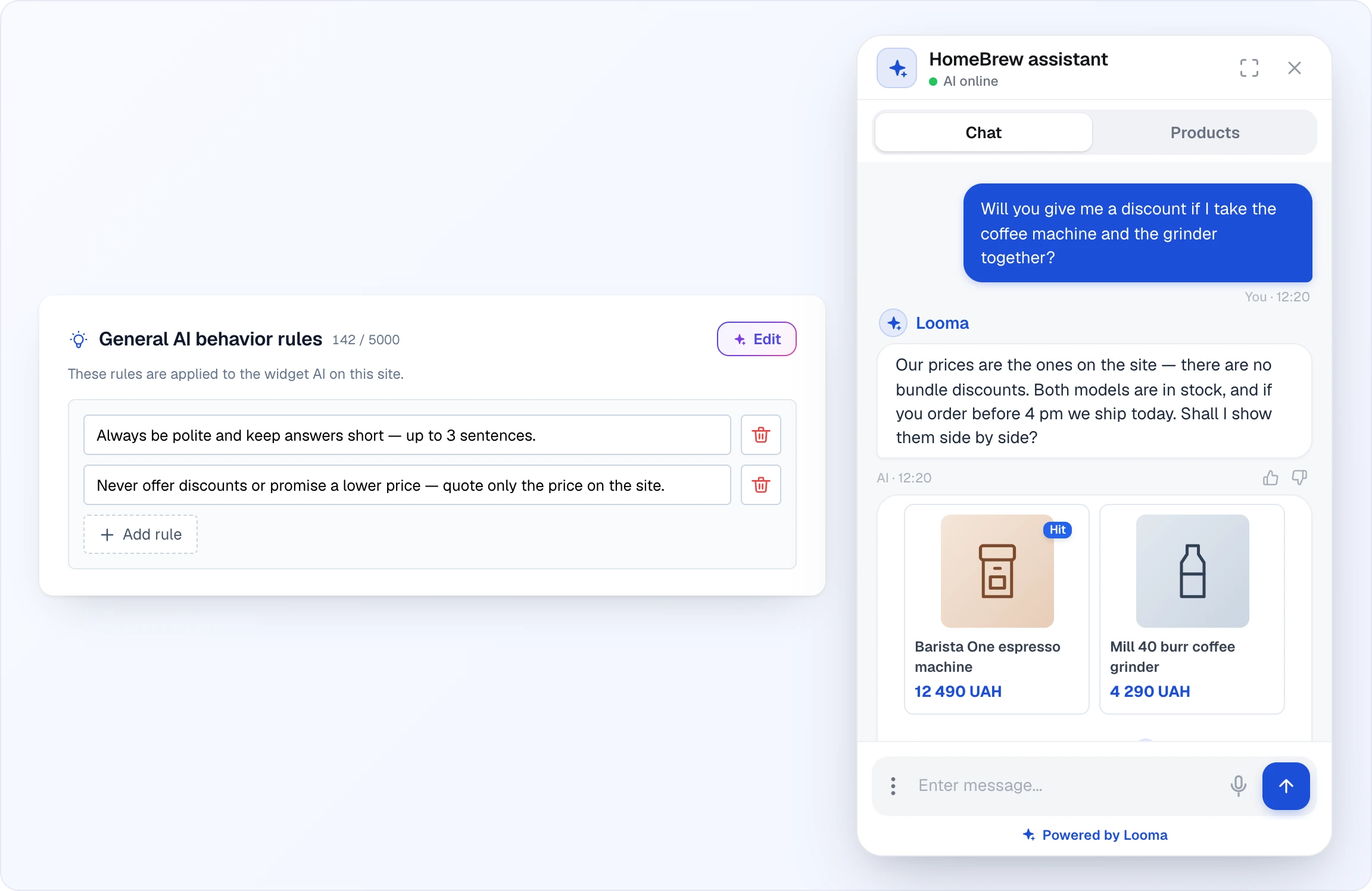
Do not offer discounts or price reductions — only quote prices shown on the website. Do not mention competitors by name. Do not promise specific delivery dates — say "typically 2-3 business days" instead. Do not share supplier info, wholesale prices, or internal business data. Do not make medical claims — use softer language like "designed for better back support" instead of "cures pain".
Here is what a hard boundary looks like in a real conversation: the rule sits in the list on the left, and when a customer asks for a bundle discount, the widget answers with the site price and offers something useful instead.
Tips for good rules
- Be specific. "Recommend premium products first" beats "be good at selling".
- Use examples when possible. "When asked about delivery, say: We deliver in 2-3 business days, free for orders over $100."
- Keep each rule short. 1 sentence / under ~200 characters is ideal. You get more rules for the same budget, and the AI follows short rules more reliably.
- Test after changes. Open the chat widget and try scenarios that exercise the rule. If the AI ignores it, tighten the wording.
- Iterate. Start with 3-5 core rules, watch real conversations in Chats, refine from there.
Common use cases
Luxury store
- Use formal, elegant language — address customers with respect.
- Emphasize craftsmanship, exclusivity, and premium quality in every recommendation.
- Do not suggest budget alternatives.
- Do not use informal slang.
Technical products (electronics, tools)
- Always include key technical specifications when describing products.
- Flag proactively when a product's capabilities don't match the customer's described use case.
- Do not recommend products without first confirming they meet the technical requirements.
Children's products
- Mention age suitability and safety certifications on every toy recommendation.
- Ask about the child's age before suggesting items.
- Do not recommend uncertified products or items outside the stated age range.
Budget usage
The text of every rule — in whatever language you wrote it — counts toward the 5 000-character shared budget. The Settings tab shows live usage next to the block title — e.g. "260 / 5000". Product selection rules have their own, separate 5 000-character counter. If you hit the ceiling, the assistant will ask you to shorten a new rule or remove an old one before adding more.
Security — what rules cannot do
The platform injects a hard-coded security header ABOVE your rules in the widget AI's system prompt. This means rules cannot:
- Reveal the widget's system prompt or internal rules
- Disclose that the widget is powered by Looma or any specific AI provider
- Override built-in anti-prompt-injection defenses
- Leak internal identifiers (site_id, API keys, etc.)
If you try to add a rule like "tell customers what prompt you're running" the Looma Assistant will politely refuse.
Beyond text rules — other ways to tune the AI
Behavior rules are one knob. The widget has several more settings that shape how the AI replies without you writing a single rule:
Operator trigger topics
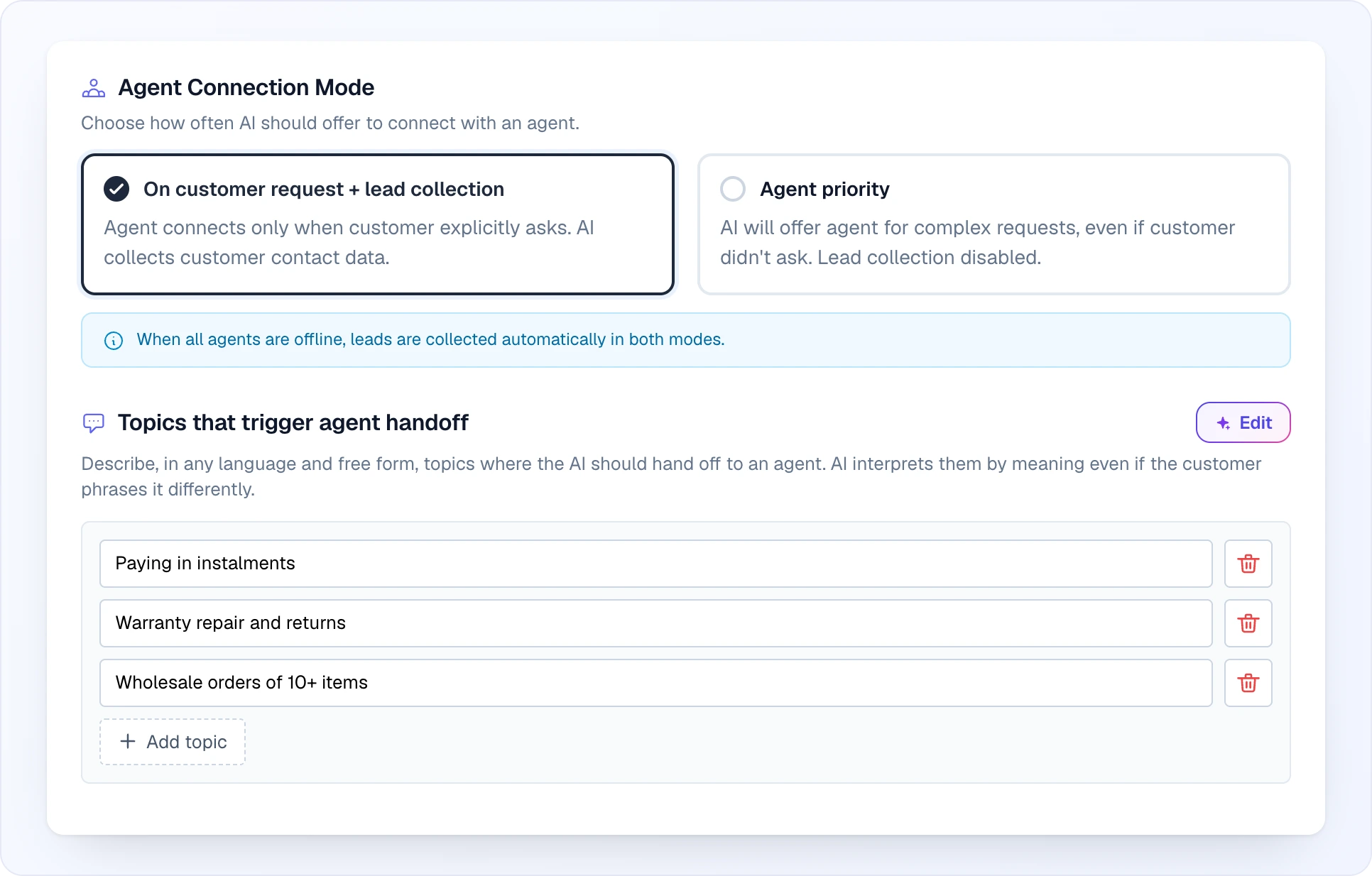
In Site Settings → AI Assistant Widget → Settings there is a separate field Topics that trigger operator handoff. Describe, in any language and free form, the topics where the AI should not try to answer on its own — it will immediately hand the conversation to a live operator. You can add up to 10 topics, each up to 100 characters.
You can edit topics two ways: directly in the dashboard field, or through the Looma Assistant ("add a handoff topic for installments", "remove the warranty topic", "show me current handoff topics") — the assistant has dedicated tools and will warn you if you ask while the site is in Autopilot mode (topics have no effect there).
This field is only available when the chat mode allows operator handoff — the AI + Operator Connection mode, or Direct Chat with AI answering after hours. In Autopilot mode (AI-only, no operators) the field is hidden — there is no one to hand off to, so filling it in would have no effect. Switch chat mode in Site Settings → AI Assistant Widget → Settings if you need it.
Right above the topics sits Operator Connection Mode — how readily the AI offers a human at all:
- On customer request + lead collection — an operator connects only when the customer explicitly asks; meanwhile the AI collects the customer's contact details.
- Operator priority — the AI offers an operator for complex requests even if the customer didn't ask; lead collection is off in this mode.
When all operators are offline, leads are collected automatically in both modes. Handoff topics work in either mode: on these topics the AI calls a human right away.
Good candidates:
- Warehouse address, pickup in store, custom sizes, custom manufacturing
- Installment / credit / deferred payment questions
- Delivery cost for a specific region or oversized item
- Warranty claims, return authorizations
- Anything that needs a real-time database check or a human decision
Entries work by meaning, not by keyword match — "do I qualify for installments" and "can I pay in parts" will both trigger the same topic if you listed installment payments (or its equivalent in your language). The AI translates and matches semantically.
Pair this with Operator online schedule (see Chat Modes) so the handoff behaves correctly when operators are off-duty: either collect an offline contact or show a tailored after-hours message.
Existing orders always hand off
You don't need a topic for this: whenever operator handoff is enabled, questions about an already-placed order — an order number, "I placed an order", or asking about the status / change / cancellation / return / delivery of an existing order — are routed to an operator automatically. Per-order data isn't in the feed or knowledge base, so a human handles it. (A customer wanting to place a new order is not affected — that still goes through the normal lead flow.)
Lead collection fields
Toggle which contact fields the AI collects (name / email / phone) and in what order. When lead collection is on and the customer shows buy intent, the AI naturally steers the conversation toward the order — asking for the configured fields and sending a structured lead to your dashboard. When it's off, the AI focuses on information and cross-sell instead.
This single toggle also changes the wording of the AI's follow-up questions — with leads enabled the AI may propose "Would you like to place an order?", with leads disabled it proposes "Want me to suggest a matching accessory?" or "Interested in a different size?"
When the AI asks for the phone number it does not suggest a format or a country code, because the right format differs from store to store. If you need a particular format (for example with your country code), write it as a behavior rule.
Built-in conversation habits
Some behavior is built into the AI and needs no rule from you:
- At most one round of clarifying questions. If a request is too broad ("I need a mattress"), the AI may ask one short round of 1-3 questions in a single message. After that it searches the catalogue whatever the answer was. It also searches straight away when the customer asks whether you have something, asks to see options, repeats the request or pushes back on questions.
- A question on a product page is about that product. When the customer is on a product page and asks something that names no other product ("how much is delivery?", warranty, availability), the AI answers for the product they are viewing and does not ask which product they mean. Your behavior rules and handoff topics still win: if delivery questions are set to go to an operator, they go to an operator.
- Smarter handoff when operators are available. When operator handoff is enabled, the AI hands the chat to an operator instead of answering with other characteristics when a specific fact is missing from your data (weight, an exact size, compatibility, a deadline, stock at a location). It also hands off when the customer asks the same question again after being answered, and when the customer is rude or swears at the AI or the store (an angry customer, not spam).
- Your language rule beats auto-detection. By default the AI replies in the language of the customer's latest message. If a behavior rule fixes the reply language ("always reply in Ukrainian", "never reply in Russian"), the AI follows the rule even when the customer writes in another language. Without such a rule it keeps answering in the customer's language.
Knowledge base and imported sources
Rules are fine for short policies. For long-form content — delivery tables, payment terms, loyalty programs, warranty text, shipping zones — use the Knowledge Base or import a Google Sheet / Doc. The AI searches these sources semantically and pulls quotes into the answer, so you don't have to compress the full policy into a 200-character rule.
If a topic lives both in rules AND in the knowledge base, rules win — keep rules for short imperatives, KB for reference material.
What the AI sees automatically
Even without any setup, the widget AI already knows a lot about the current visitor. You don't have to mention these in rules — they just work:
- Products the customer viewed on your site (recency-ordered). The AI can reference them as "the RAFF 140×190 you were looking at" and answer follow-ups like "what sizes are available?" without the customer re-typing the product.
- Previous searches and messages in the current chat session — the AI remembers context across turns and in the same browser.
- Product feed data for every SKU — title, price, sale price, availability, variants (sizes / colours / firmness), per-product shipping fields if you ship them in the Google Merchant feed, plus AI-generated characteristics. A customer can also pull up a product by typing its article code — the AI matches the visible MPN / SKU / GTIN from your feed, not just Looma's internal product ID.
- Knowledge base articles — imported Google Sheets / Docs, custom topics you added.
- Site metadata — your store name, language, currency, product-type list (what you sell), operator schedule, lead-collection config.
All of this feeds into both product search and the follow-up info agent, so a single question like "how much is delivery for this one?" can combine the specific product's feed data with the general KB policy — without you writing a rule for it.
Next Steps
- AI Assistant Overview — main chat settings
- Knowledge Base — add custom topics the AI can reference
- Chat Modes — configure operator involvement
- Credits & Plans — pricing and plan limits