

Knowledge Base & Google Base
The AI assistant answers questions based on your product catalog data. But customers often ask about things that aren't in the product feed — delivery options, payment methods, return policies, warranty terms, company information, and more.
The Knowledge Base and Google Base modules let you provide this additional information to the AI so it can answer these questions accurately instead of guessing or redirecting to an operator.
Knowledge Base
The Knowledge Base is a collection of topics — short articles with information that the AI can reference when answering customer questions.
How It Works
- You create topics with relevant information (e.g., "Delivery", "Returns", "Payment Methods")
- The AI processes each topic and understands its content
- When a customer asks a question that matches a topic, the AI uses that information in its response
- The AI combines product data with knowledge base content for comprehensive answers
Creating Topics
- Go to your site settings → AI Assistant → Knowledge Base tab
- Click Add Topic (or Add via Assistant to have Looma Assistant write the topic from your description)
- Fill in:
- Topic Title — a clear, descriptive title (e.g., "Delivery Information")
- Topic Description — the full text with all relevant details (up to 5000 characters; a live counter shows how much you've used). Links can go right into the text
- Topic is active — leave on so the AI uses this topic. Turn it off to keep the topic but temporarily stop the AI from using it (see below)
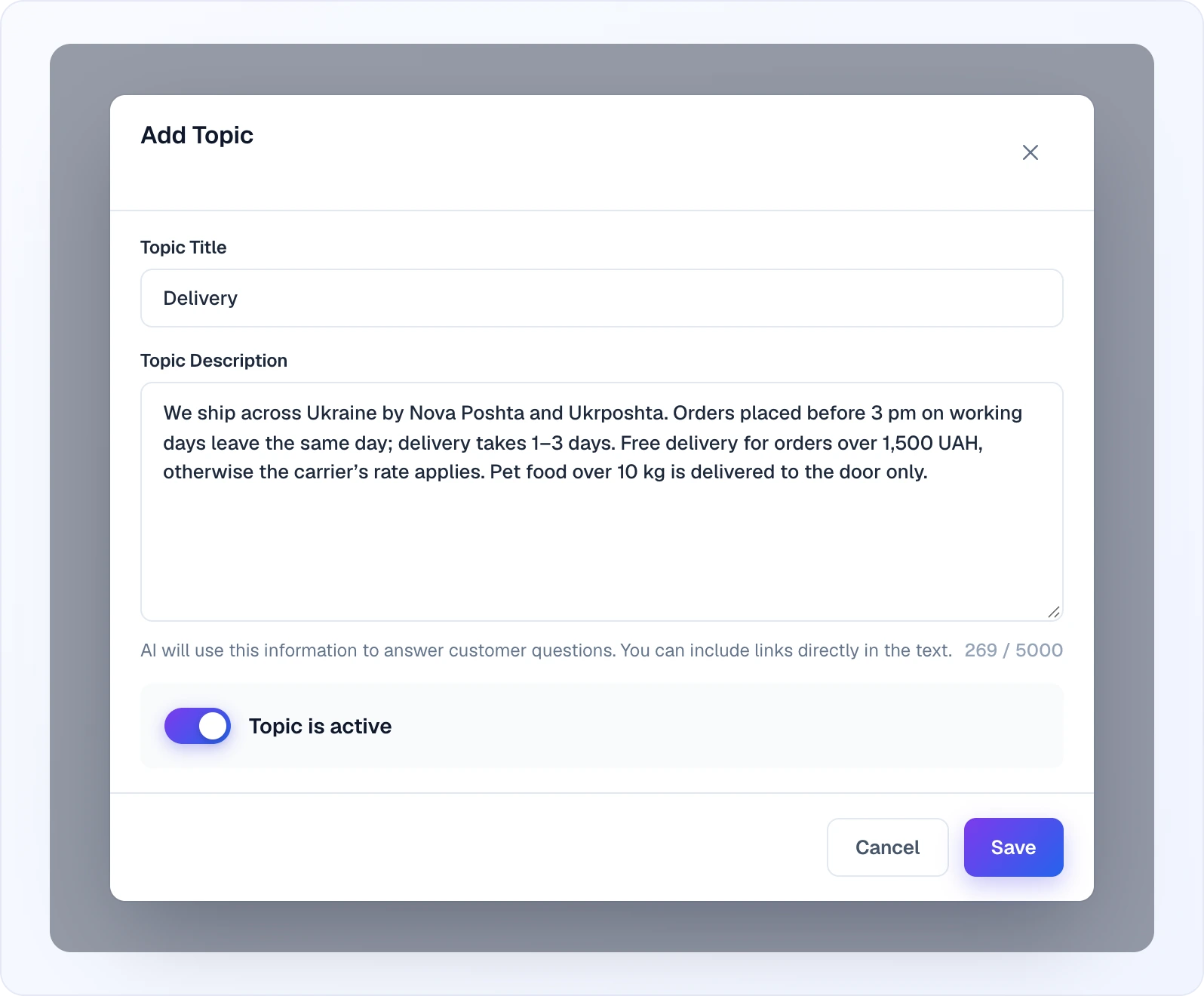
Write the content as if you were briefing a new employee — include all the important details a customer might ask about.
Managing Topics
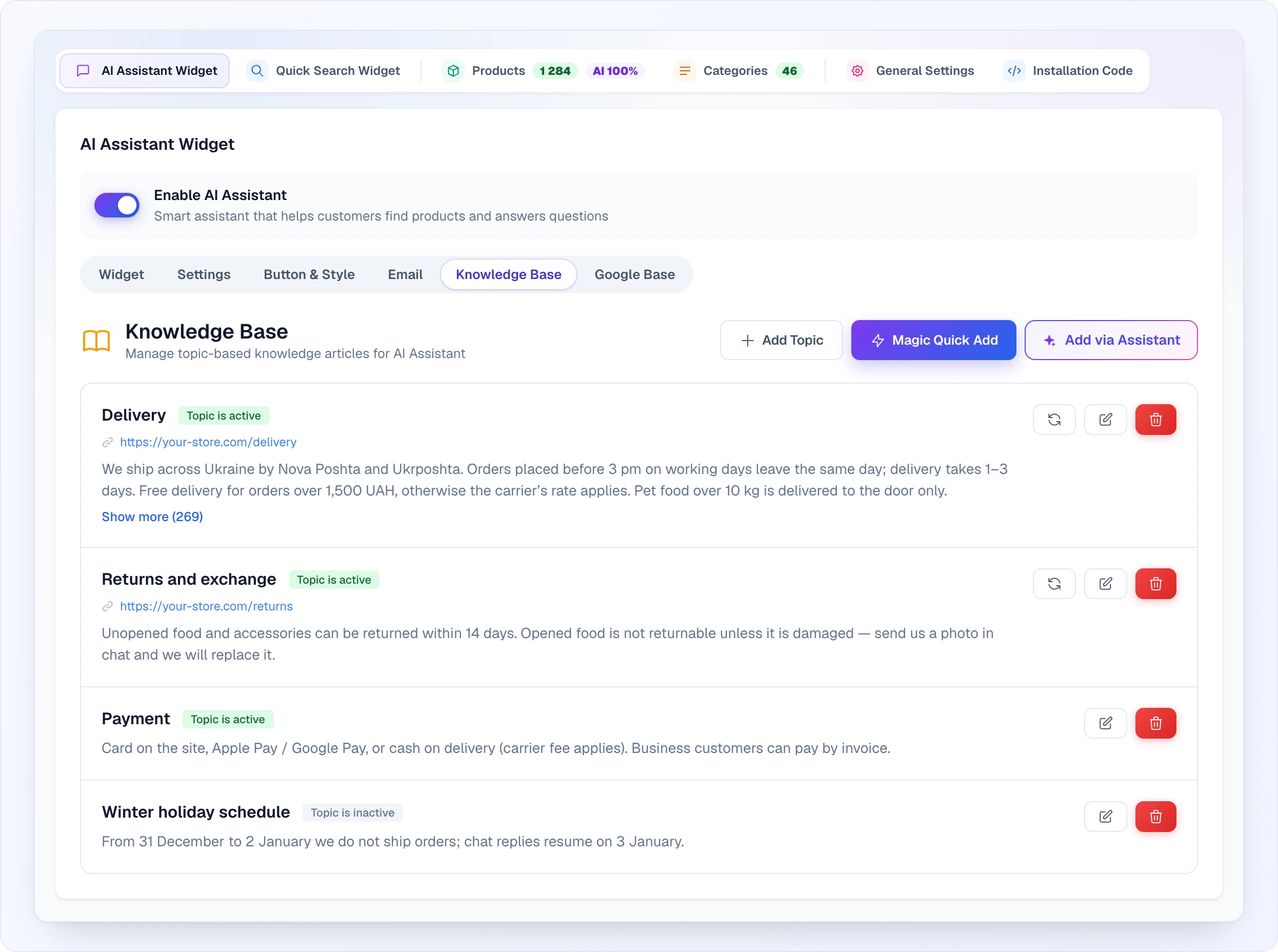
Each topic in the list has its own controls:
- Active / Inactive status — the badge next to the title shows whether the AI uses the topic ("Topic is active" / "Topic is inactive"). To switch a topic off without deleting it, open Edit and turn off Topic is active. An inactive topic stays in your list but the AI ignores it. Handy for seasonal info or while you rewrite a policy.
- Refresh — for topics created from a URL (via Quick Add), re-fetch the source page so the topic picks up the latest content from your website. Only shown on topics that have a source URL.
- Edit / Delete — change the name and content, or remove the topic entirely.
Tips for Good Topics
- Be specific — instead of one huge "FAQ" topic, create separate topics for each subject (Delivery, Returns, Payment, Warranty, etc.)
- Include real data — specific prices, timeframes, conditions. "Free delivery for orders over $100" is better than "We offer free delivery for large orders"
- Update regularly — when your policies change, update the knowledge base. Outdated information leads to wrong answers
- Cover common questions — look at your most frequent customer inquiries and create topics for them
Example Topics
Delivery:
We deliver across the country. Standard delivery takes 2-3 business days and costs $5. Free delivery for orders over $100. Express delivery (next day) is available for $15. We ship via UPS and FedEx. Tracking number is provided after shipment.
Returns:
You can return any item within 30 days of purchase. Items must be in original packaging and unused. To initiate a return, contact us at [email protected] or through the chat. Refund is processed within 5-7 business days after we receive the item.
Payment:
We accept Visa, Mastercard, American Express, PayPal, and Apple Pay. All payments are secure and encrypted. We also offer installment payments for orders over $200 through Klarna — split into 4 interest-free payments.
Quick Add
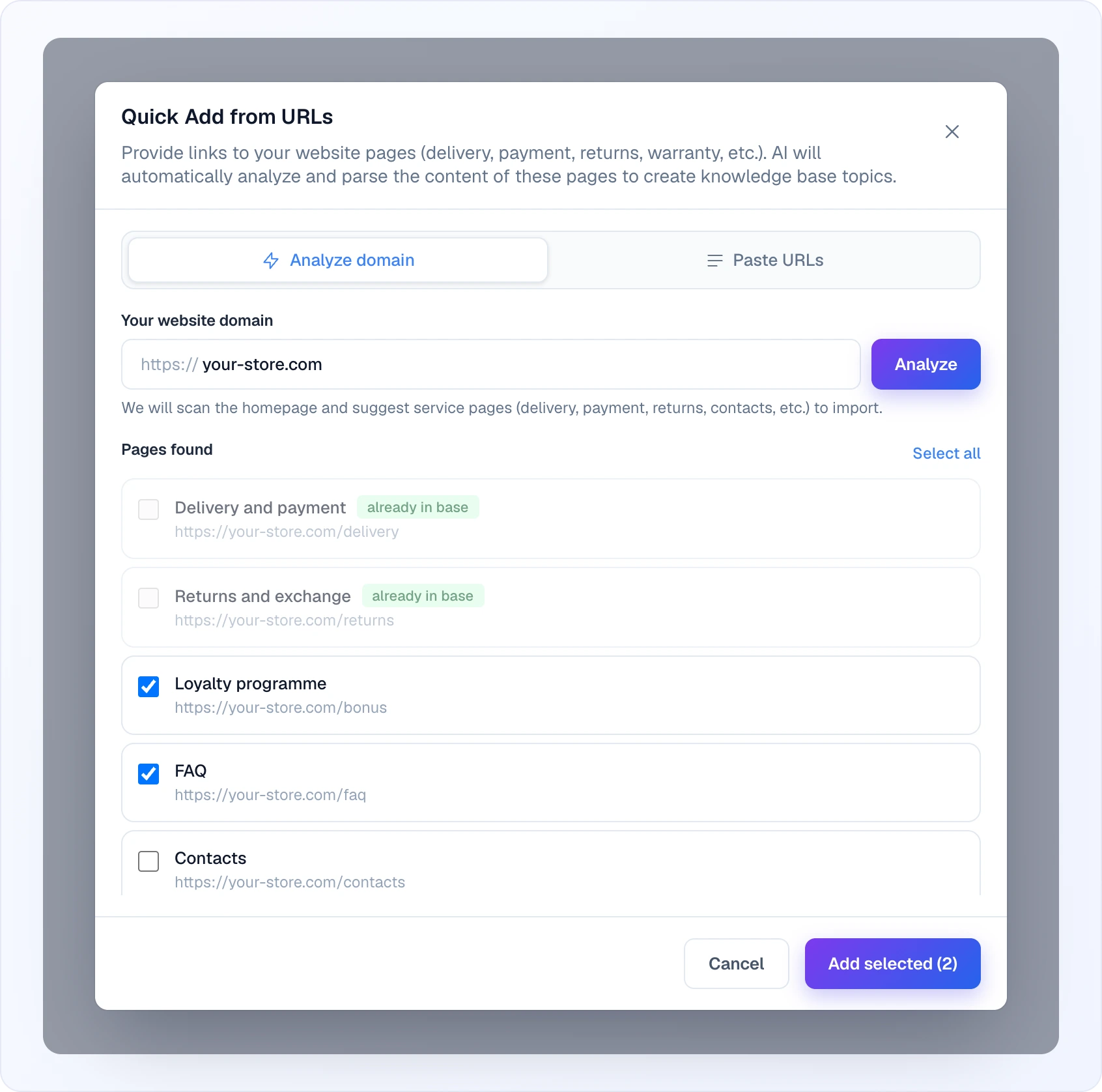
You can quickly add topics from your existing website content instead of typing them by hand. Magic Quick Add has two modes:
- Analyze domain — enter your store's domain (e.g.
your-store.com). Looma crawls the site, auto-discovers likely service pages (FAQ, delivery, returns, payment, warranty, about), and presents them as a checklist. Tick the pages you want, and Looma downloads each one and turns it into a topic. Pages already in your knowledge base are flagged so you don't add duplicates. - URL list — paste one or more URLs (one per line) into the text area. Looma downloads each page and creates a topic from its content.
This is the fast way to populate the knowledge base without copying text manually.
Looking to scan a sitemap and map out your category pages? That's a different feature — see Categories. The Knowledge Base tab itself does not read sitemaps; it works from the domain crawl or the URL list above.
Google Base
Google Base connects your Google Sheets or Google Docs directly to the AI assistant as a knowledge source. This is ideal for data that changes frequently — price lists, availability tables, FAQ documents, policy documents, etc.
How It Works
- You share a Google Sheet or Doc with Looma's service account
- Looma reads the content and processes it for the AI
- When customers ask relevant questions, the AI references this data
- Content is auto-synced daily (for clients with an active subscription) — when you update the spreadsheet or document, the AI gets the latest version automatically
Setting Up Google Base
Step 1: Go to Google Base Settings
Navigate to your site settings → AI Assistant → Google Base tab.
Step 2: Add a Source
Click Add Google Source and choose the type:
- Google Sheets — for spreadsheets, price tables, structured data
- Google Docs — for text documents, policies, guides
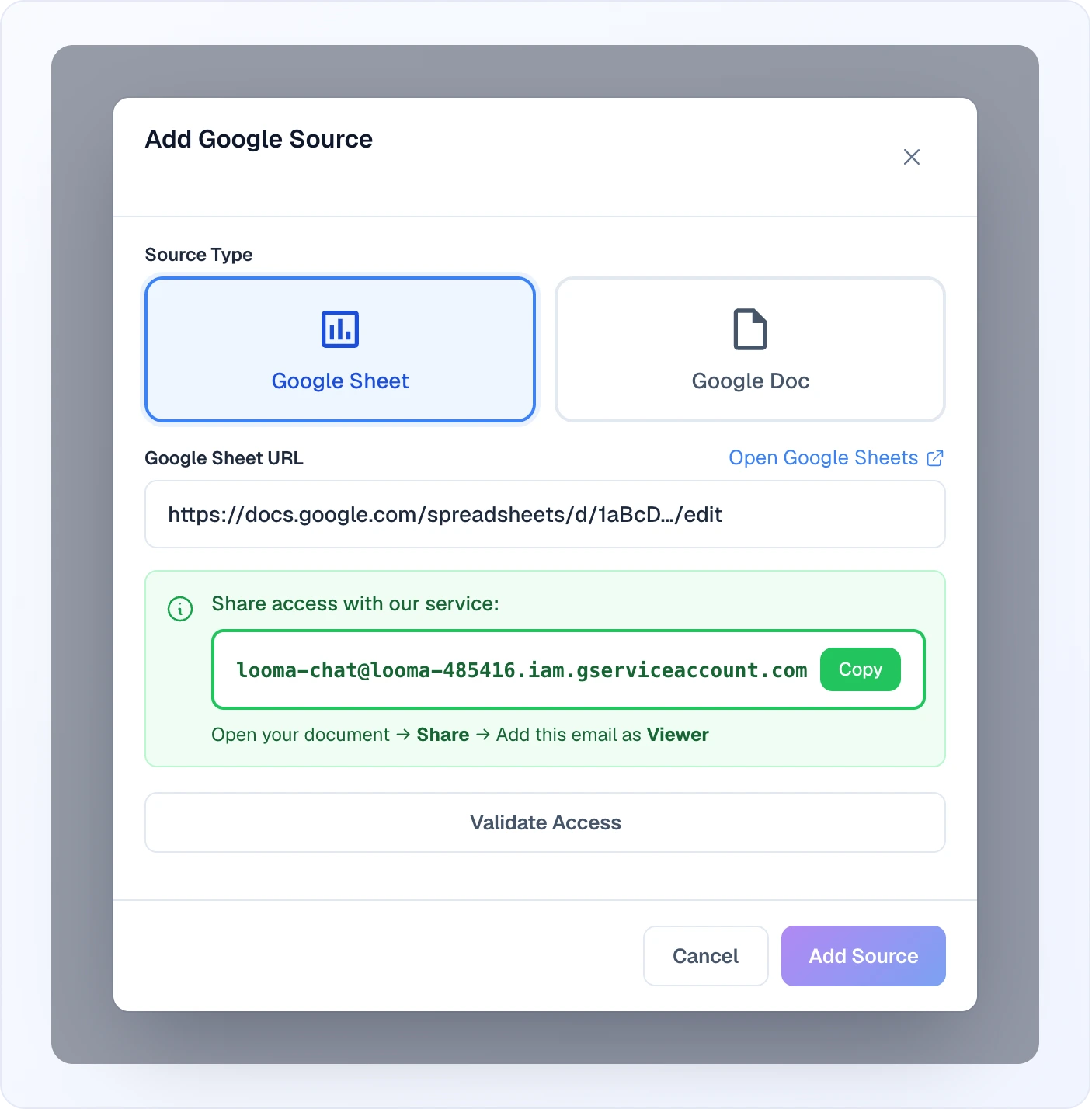
Step 3: Share Access
Looma needs read access to your document. Copy the service account email shown in the settings panel and share your Google Sheet or Doc with it (as a Viewer). Then click Validate Access — once Looma can read the file, the window shows "Access verified successfully!" and the remaining fields.
Step 4: Configure
For Google Sheets:
- Enter the spreadsheet URL
- Select which sheet (tab) to use
- Optionally specify cell ranges (e.g., A1:D100). Leave empty to use all data
- Give the source a name
For Google Docs:
- Enter the document URL
- Give the source a name
Step 5: Sync
Click the sync button to fetch the content. Looma will:
- Download the content from Google
- Process it for the AI
- Show a preview of the imported data
Auto-Sync
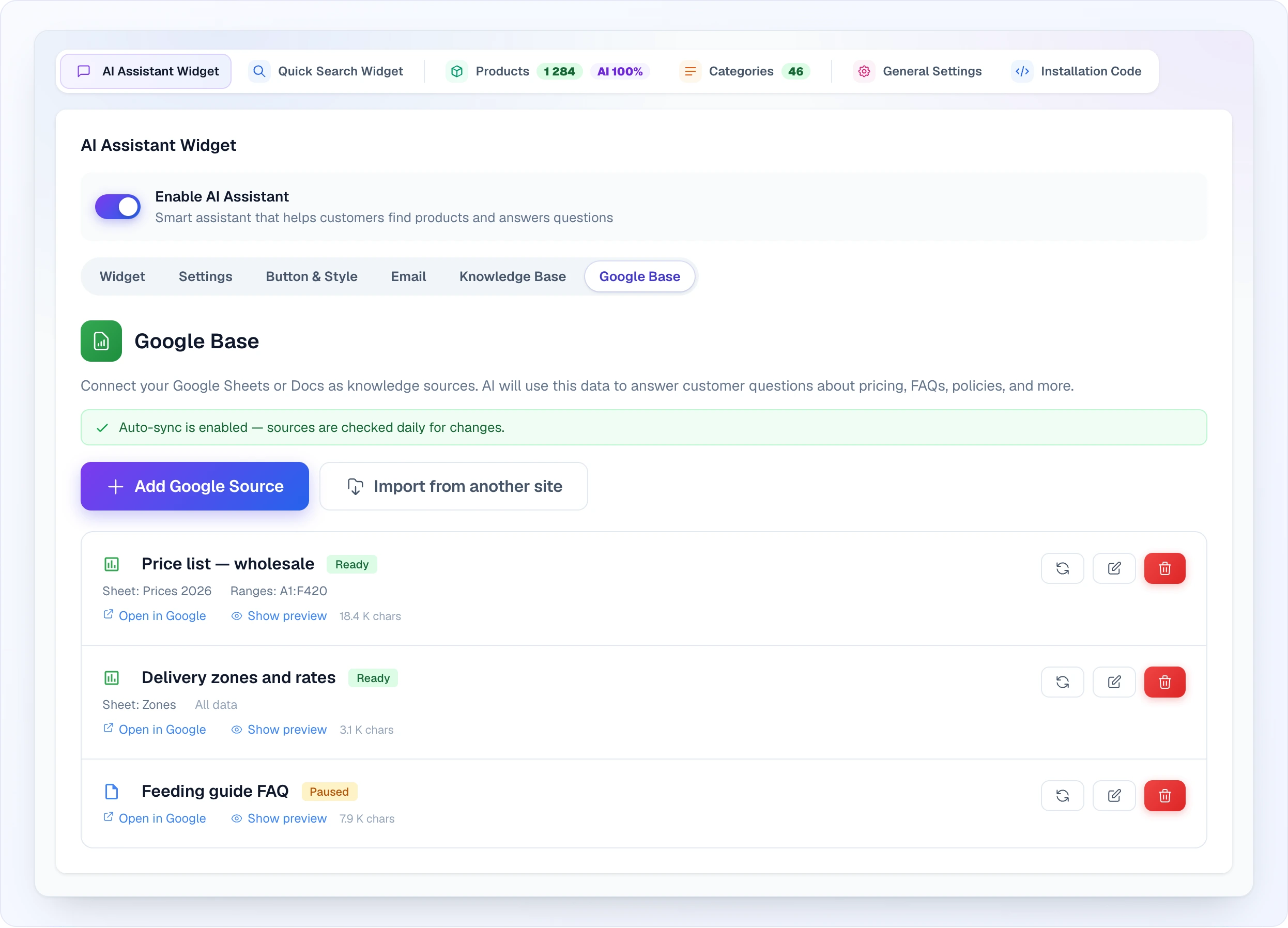
Sources are automatically checked for changes once per day for clients with an active subscription. If the content has changed since the last sync, Looma re-processes it automatically.
You can also trigger a manual sync at any time by clicking the sync button next to any source.
Copying Sources From Another Site
If you've already set up Google Base on another of your sites, you don't have to reconnect everything from scratch. When other sites in your account have Google sources, an import button appears next to Add Google Source. Click it to copy existing sources (sheets/docs and their configuration) from one of your other sites into this one — then sync. This is the quickest way to reuse the same price list or FAQ document across multiple stores.
Pausing Sources
You can pause any source without deleting it: open the source with the edit button and turn off the Active switch in the bottom-left corner of the window. A paused source gets the "Paused" badge and:
- Won't be used by the AI in conversations
- Won't be auto-synced
- Can be re-enabled at any time
Use Cases
Price lists in Google Sheets: A spreadsheet with current prices, including wholesale and retail. When a customer asks "How much does product X cost in bulk?", the AI can reference the price list.
FAQ in Google Docs: A shared document that your team maintains with common questions and answers. When updated, the AI automatically gets the latest information.
Delivery zones and rates: A spreadsheet with delivery zones, rates, and estimated timeframes. The AI can tell customers exactly how much delivery costs to their area.
Seasonal promotions: A document describing current sales and promotions. Update it when promotions change, and the AI will inform customers about current deals.
How It All Works Together
When a customer asks a question, the AI checks multiple sources:
- Product catalog — product data from your feed + AI-processed descriptions
- Knowledge Base topics — manually created information articles
- Google Base sources — data from connected Google Sheets and Docs
The AI combines relevant information from all sources to provide the most accurate and complete answer possible.
Next Steps
- AI Assistant — main chat configuration
- Proactive Messages — automated visitor engagement
- Leads — manage collected orders