

Automations
Automations is the dashboard page (sidebar → Automations, right after Modules) that lists everything Looma does on its own in your account — returning silent chats to the AI, marking unanswered chats, scoring dialogs, moving old leads and chats to a new status, collecting contacts and emailing customers. Each automation has an on/off switch that saves instantly, a settings popup where it has options, a cost label (Free or Credits), a count of runs in the last 30 days and a link to its last run. It is visible to Owners and Administrators only, and the settings apply to the whole account (all sites), not to a single site.
Last updated: 2026-10-18.
Who sees the page
Only the Owner and Administrator roles get the Automations item in the sidebar, and the page's data endpoint refuses other roles. Supervisors and Chat Users do not see it. Settings are per account: a switch you change affects every site and channel of the account.
The table
The page is one table, grouped into four sections — Chats, Leads, Contacts, Mailings. A row of chips above the table filters by type: All or one section, each with its count. With All selected, each section starts with a grey heading row; with one section selected, the heading is hidden and only its rows remain.
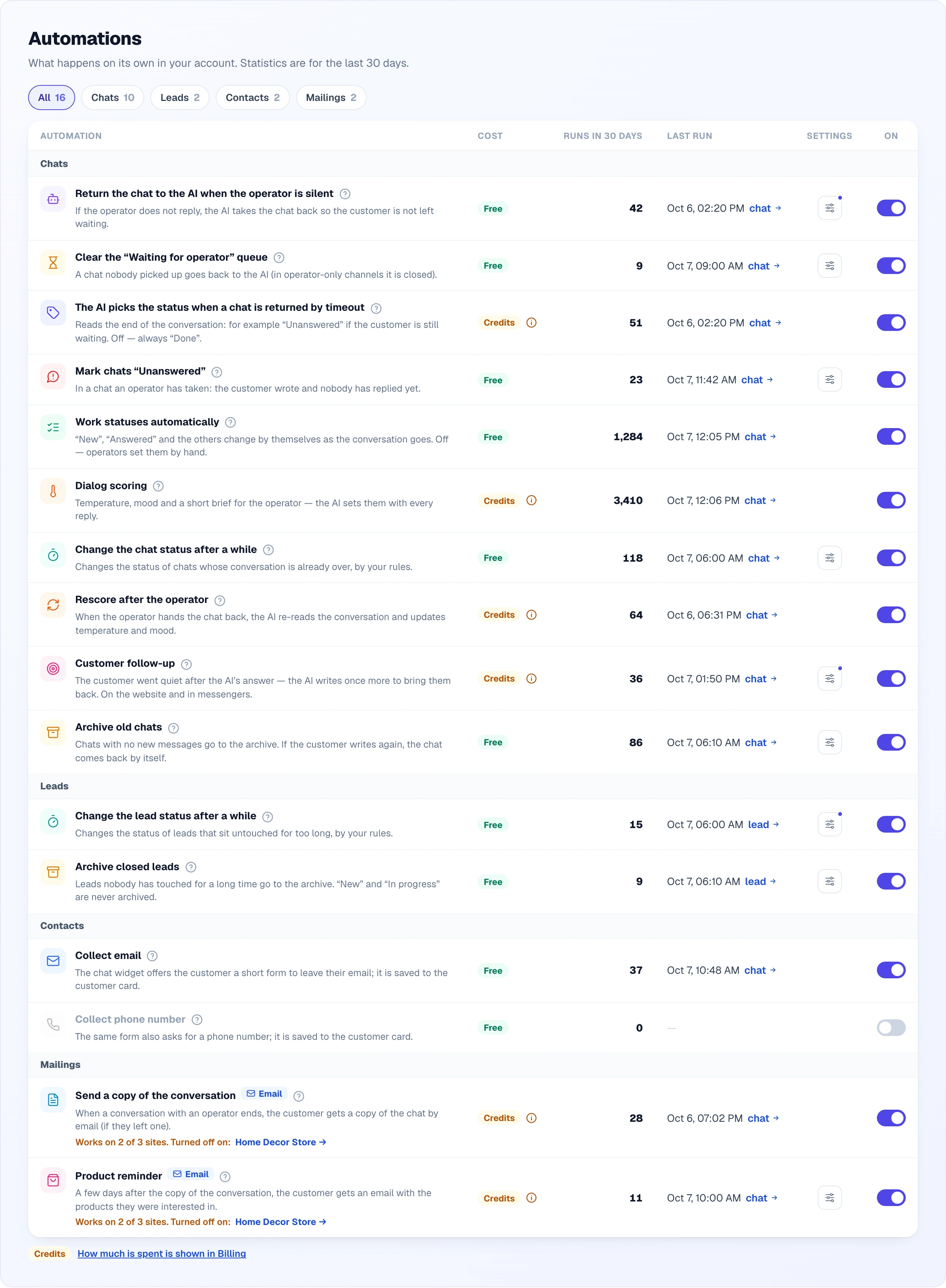
How to read the table at a glance:
- Grey icon and grey name — the automation is off (or locked because the one it depends on is off).
- Settings button with a blue dot — you have changed the options from the defaults. No dot — the default values are in use.
- Orange line under the description — something stops the automation from working fully: it waits for another automation ("Needs automatic work statuses") or emails are off on some sites. The links in the note go straight to where you fix it.
- Count 0 and a dash in Last run — the automation has not fired in 30 days: either it is off or there were no matching chats or leads.
- Under the table there is a Credits label with the link "How much is spent is shown in Billing".
| Column | What it shows |
|---|---|
| Automation | Name and a one-line description. The ? icon opens a "How it works" popup in plain words. Rows that send email carry an Email label next to the name. |
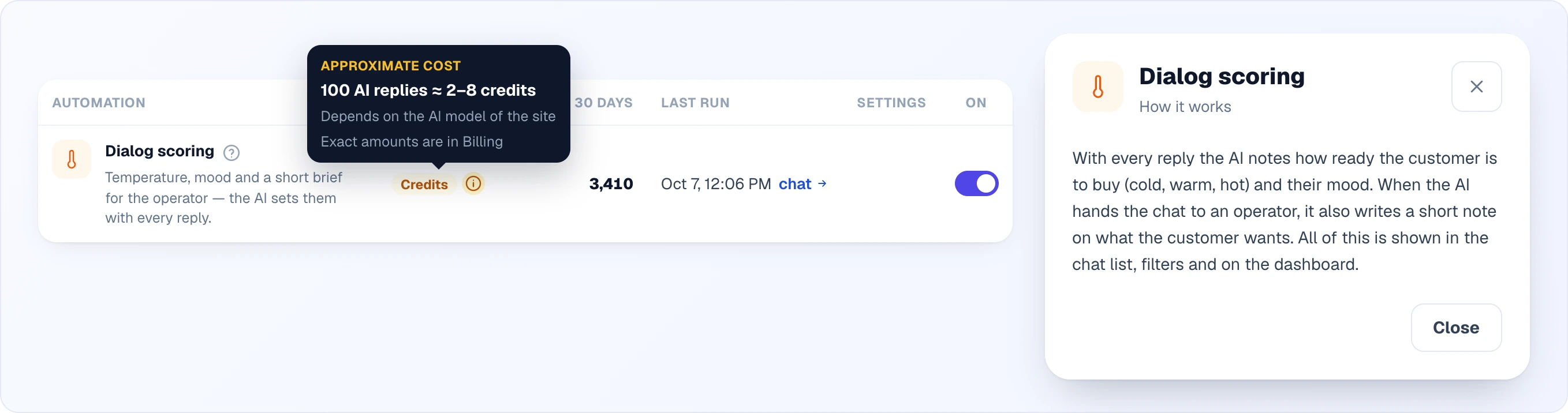
| Cost | Free, or Credits for automations that spend credits. Paid rows have an i icon; its tooltip shows an approximate "100 runs ≈ N credits" (for AI-priced rows a range, because it depends on the AI model of the site; for emails, "100 emails ≈ N credits"). Exact amounts are in Billing — the page links there. |
| Runs in 30 days | How many times the automation fired in the last 30 days. |
| Last run | When it last fired, with a link to what it fired on (for chat-based rows, the chat in Chats; for the lead status automation, the lead). A dash means it has not fired yet. |
| Settings | Opens the settings popup. Shown only for automations that have options. A dot on the button means the settings differ from the defaults. |
| On | The switch. It saves the moment you click it. |
If an automation needs another one, its row says so and the switch is locked until the other one is on: "Mark chats Unanswered" and "The AI picks the status when a chat is returned by timeout" both need Work statuses automatically.
Settings that have options (everything except plain on/off rows) are saved with Save in the popup; Cancel discards changes. After saving, a short "Saved" notice appears and the table refreshes right away.
The settings popup
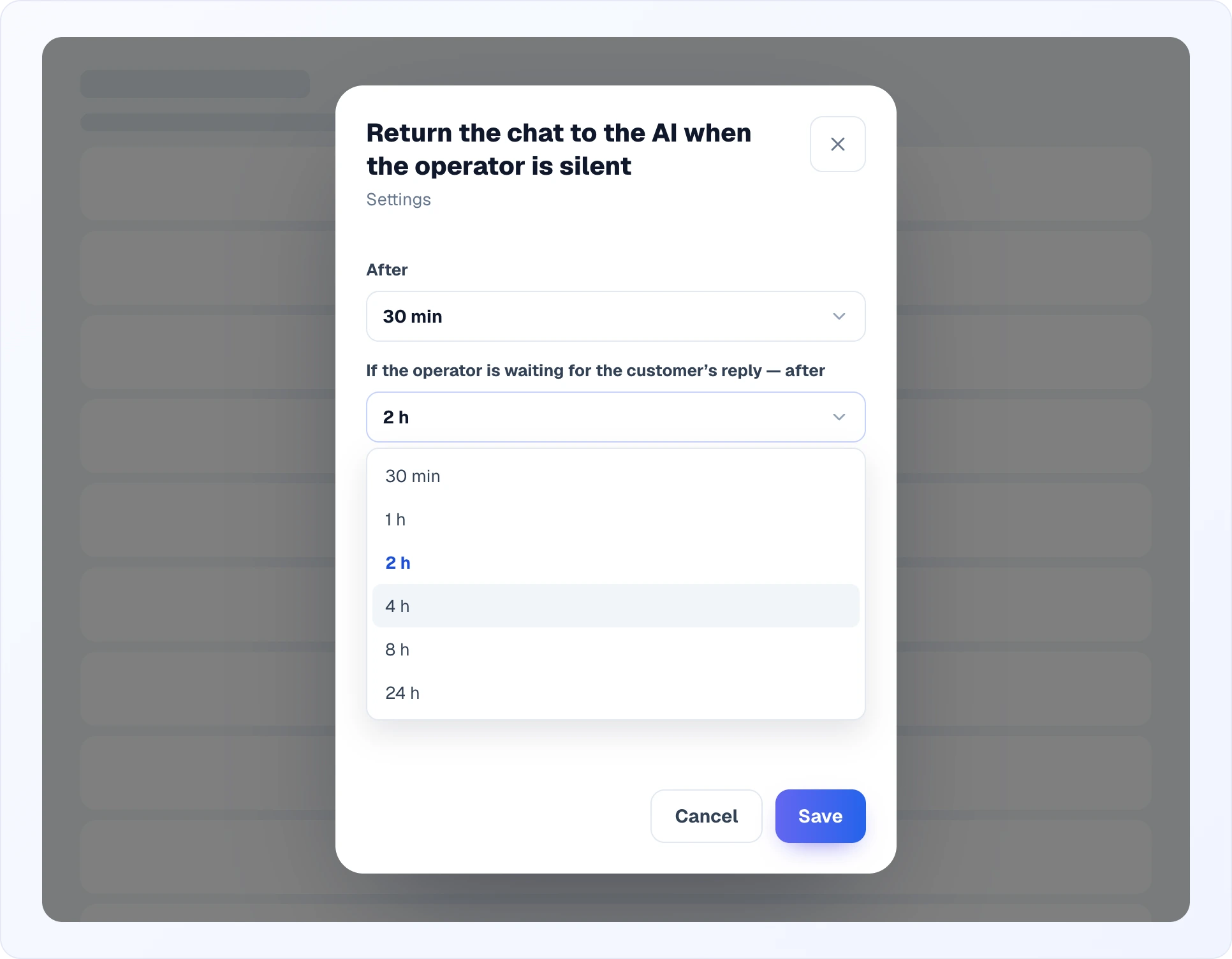
The sliders button in the Settings column opens a popup with the options of that automation. Most options are dropdowns with fixed values: you pick from a list instead of typing a number (minutes of an hour or more are shown in hours — "2 h", not "120 min"). The current value is highlighted in blue.
The "How it works" popup
The ? button next to the name opens a short plain-words explanation — what the automation does, when it fires and what it leaves alone. Nothing can be changed there; it is reference only.
Chats
Automations that keep the conversation list tidy and scored. All of them are on by default.
Return the chat to the AI when the operator is silent
An operator took the chat but is not replying. After the chosen time the AI takes the conversation back so the customer is not left waiting. Free. On by default.
- After (operator silent): 10, 15, 30 minutes (default), 1, 2, 4, 8 or 24 hours.
- If the operator is waiting for the customer's reply — after: 30 minutes, 1, 2 hours (default), 4, 8 or 24 hours. When the operator asked the customer something, Looma waits longer.
- If the customer wrote and the operator did not even open the message, the chat goes back to the "Waiting for operator" queue so another operator can take it.
Clear the "Waiting for operator" queue
The customer asked for an operator but nobody took the chat. After the chosen time the AI takes the conversation back; in channels without AI the chat is closed. Free. On by default.
- After: 1, 2, 4, 8, 12, 24 (default), 48, 72 or 168 hours (that is, up to 7 days). The list shows the values in hours.
The AI picks the status when a chat is returned by timeout
When a chat leaves the operator on its own (after the two automations above), the AI reads the end of the conversation and sets the status of what is left to do — for example "Unanswered" if the customer is still waiting or the operator promised to check and never came back. A status set by the operator is kept. When an operator clicks "End conversation", the status is always "Done". Uses credits. On by default. Requires Work statuses automatically. No options.
Mark chats "Unanswered"
In a chat an operator has taken, the customer wrote and has been waiting longer than the chosen time — the chat gets the "Unanswered" status. It does not fire while the operator has the chat open, or if they changed the status themselves after the customer's message. Free. On by default. Requires Work statuses automatically.
- If the customer has been waiting: 1, 2, 5 (default), 10, 15, 30 or 60 minutes.
Work statuses automatically
Chat work statuses change by themselves as the conversation goes: an operator takes the chat — "New", replies — "Answered", the customer answers a chat in "Waiting for customer" — "In progress", the conversation ends — "Done". When it is off, the responsible operator is still assigned, but operators set statuses by hand. Free. On by default. No options. Turning it off also locks the two automations that depend on it.
Dialog scoring
With every AI reply the AI notes how ready the customer is to buy (cold, warm, hot) and their mood. When the AI hands the chat to an operator, it also writes a short note on what the customer wants. This shows in the chat list, filters and on the dashboard. Uses credits (the tooltip shows "100 AI replies ≈ N credits"). On by default. No options.
Change the chat status after a while
Moves chats whose conversation is already over to a new status, by rules you write. Free. On by default. Rules are described in Status rules below.
- Default rules: Waiting for customer after 3 days since the last message → Done; Answered after 3 days since the last message → Done.
- Time can be counted from the last message in the chat or from the moment the current status was set.
- Chats that are with an operator right now or waiting for one are never touched — the return-to-AI automations handle those.
Rescore after the operator
While an operator handles the chat, the AI is silent and the score does not change. When the operator hands the chat back, the AI re-reads the conversation and updates temperature and mood — for example, a customer whose problem the operator solved no longer counts as unhappy. Uses credits. On by default. No options.
Customer follow-up
The AI answered and the customer went quiet — the AI writes once more to bring them back, on the website and in messengers (Telegram, Viber, Facebook, Instagram). It only writes when the conversation gives it a reason; if the chat is already settled or the customer seems unhappy, it stays silent and nothing is charged. Only chats the AI is still leading count — a chat with an operator, or one that already became a lead, is left alone. Uses credits for the tokens spent. On by default.
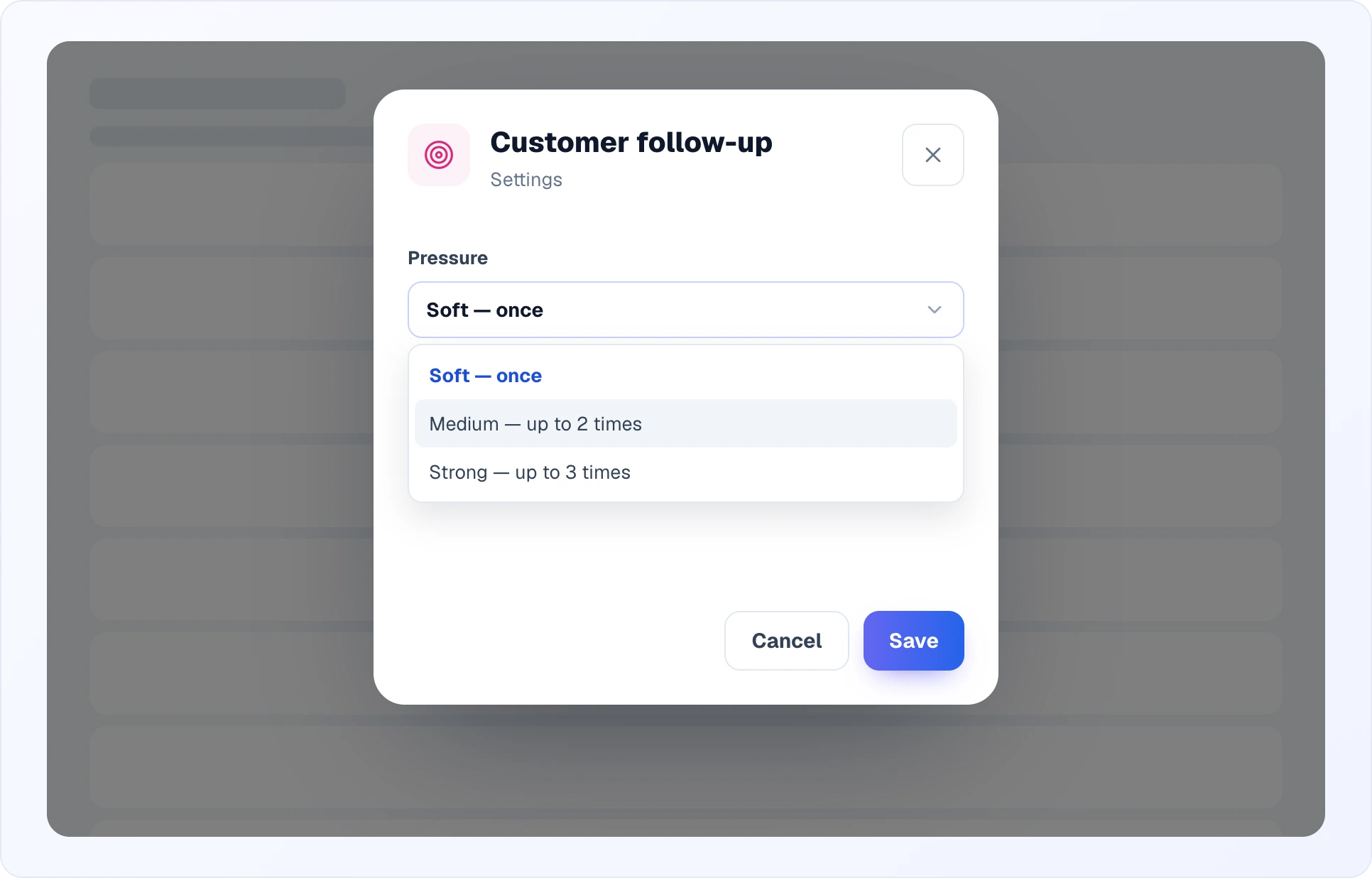
- Pressure — how many times the AI may try: Soft (once, the default), Medium (up to 2 times) or Strong (up to 3 times). Each attempt only fires if the model finds something worth saying.
- Timing — on the website, the first message comes after about 90 seconds of silence while the customer is still on the page, and a later one when they come back to the site (within 7 days). In Telegram and Viber, the AI waits 30 minutes, then 4 hours, then a day; in Facebook and Instagram only within Meta's 24-hour messaging window from the customer's last message. Messenger follow-ups do not go out at night (22:00–9:00 the customer's time, or Kyiv time when the browser didn't report a timezone).
- In the widget, a follow-up arrives like an operator's message — it plays the usual notification sound and raises the unread badge when the chat is closed or the tab is hidden.
Archive old chats
Removes chats with no messages for a long time from the list, so the list shows what is current. Free. On by default.
- The default period is 90 days without messages; in the settings popup you can choose 30, 60, 90, 180 or 365 days.
- It is the same archive as Archive in the chat menu: the chat status does not change and nothing is deleted. To see archived chats, tick Show archived in the Chats filters.
- Chats in the Waiting for operator queue and chats an operator is handling are not archived.
- If the customer writes again, the chat returns to the list by itself.
Leads
Change the lead status after a while
Moves leads that sit untouched for too long to a new status, by rules you write. Free. On by default. Rules are described in Status rules below.
- Default rules: New with no changes for 7 days → Rejected (only if nobody has taken the lead); In progress with no changes for 21 days → Rejected.
- Time can be counted from the last change of the lead or from the moment the lead was created.
- The change appears in the lead history as made by "System" and reaches a connected CRM like a manual status change.
Archive closed leads
Removes leads nobody has changed for a long time from the list, so Done does not grow into thousands. Free. On by default.
- The default period is 90 days without changes to the lead; you can choose 30, 60, 90, 180 or 365 days.
- Leads in New and In progress are never archived. Every other status, including your own, counts as closed after that long without changes.
- The lead status does not change, nothing is deleted and nothing is sent to a connected CRM. In the lead history the archiving shows as done by "System".
- Return a lead from its menu (Return from archive) or by changing its status. To see the archive, turn on Show archived in the Leads filters.
Status rules for leads and chats
Both status automations use the same rule editor in the settings popup (Rules). The rules popup is wider than the others, and with many rules its content scrolls.
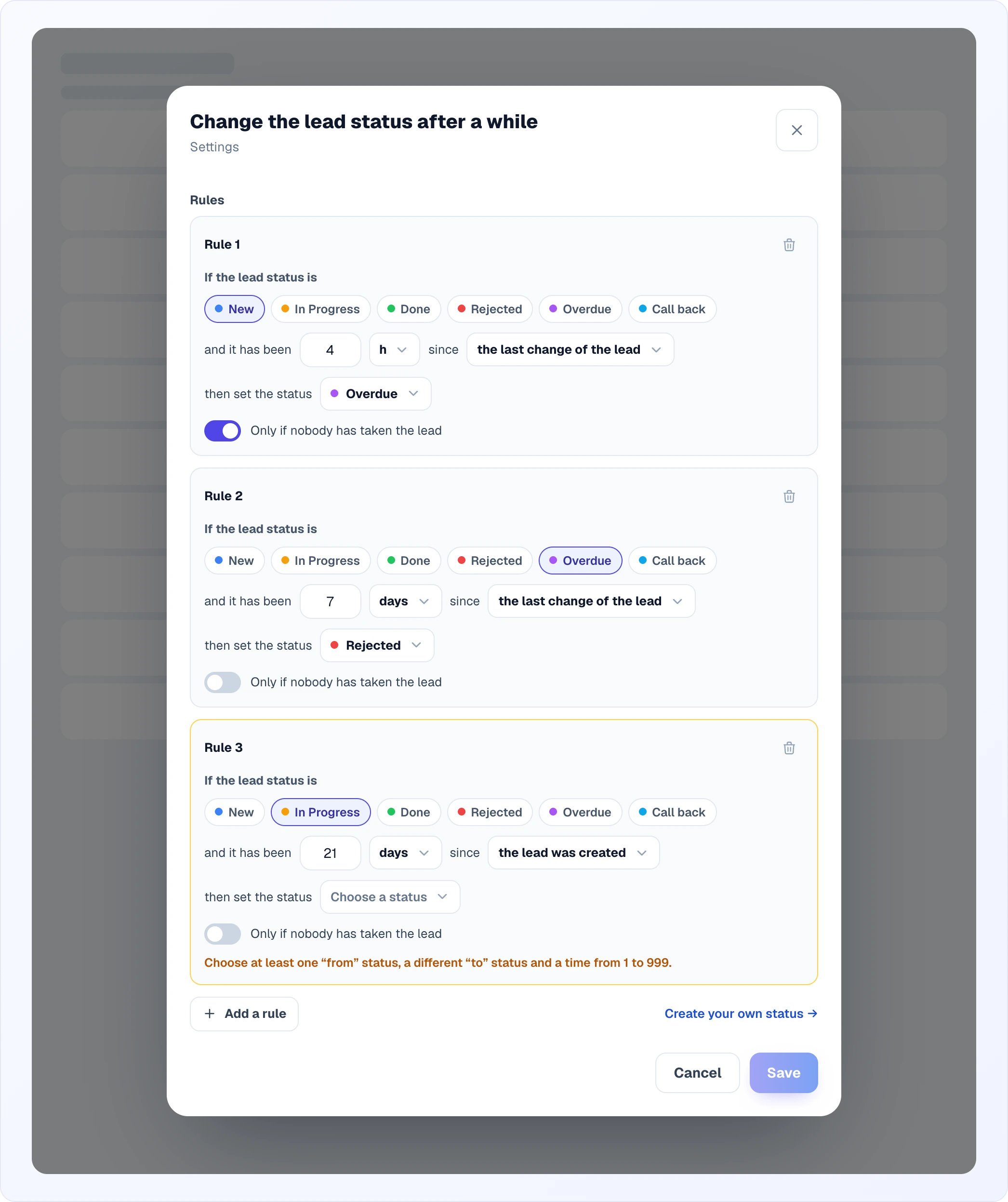
How to build a rule:
- Click Add a rule. A template appears: for leads, "New" after 3 days → "Rejected"; for chats, "Waiting for customer" after 3 days → "Done" (if you have those statuses). Adjust it to your needs.
- In If the status is… click one or more chips — the rule fires for any of the chosen statuses. Clicking again removes the choice.
- Enter a number and pick h or days, then what to count the time from.
- In then set the status pick the target status. This list leaves out the statuses already chosen in "If the status is" and statuses that are turned off.
- For leads, turn on Only if nobody has taken the lead if needed.
- Click Save. The bin in the top-right corner of a rule deletes it.
- Up to 10 rules. Each rule reads: if the status is (one or more statuses) and it has been N hours or days since (a starting point), then set the status (one status). N is 1 to 999.
- A rule needs at least one "from" status, a different "to" status and a valid time; an incomplete rule is highlighted and Save is blocked until it is fixed.
- You can pick built-in statuses or your own; Create your own status opens the lead or chat statuses list on the Team page.
- Lead rules have an extra option Only if nobody has taken the lead (leads with no assigned operator).
- Rules chain: after a rule moves a record, the next rule counts its time from that change, so the second step does not fire in the same pass. Example: "New" after 4 hours → your status "Overdue", then "Overdue" after 7 days → "Rejected".
- The check runs regularly in the background, so a change appears shortly after the time is up, not at the exact minute.
- If a status named in a rule was deleted afterwards, that rule is skipped.
- If the target status of a rule is turned off on the Team page, the rule is kept, but a warning shows under it: "Status … is turned off — the rule won't run until you turn it back on".
- Changes appear in the lead history or chat history as made by "System" (no operator).
Default rules and the 9 October 2026 cut-off
Both status automations are on for every account. Until you save your own rules, the default rules only touch leads and chats created from 9 October 2026. Older leads and chats are not closed in bulk. The moment you save your own rules in the popup, this limit is lifted and your rules apply to all matching leads or chats.
Contacts
Collect email
When the customer asks for an operator, the widget offers a short form to leave an email. It is saved to the customer card, and the copy of the conversation and reminders go to it. Even when this is off, outside working hours the form still asks for an email — otherwise there is no way to reply to the customer. Free. On by default. No options.
Collect phone number
The same form also asks for a phone number, which is saved to the customer card. Free. Off by default. No options.
Mailings
Both mailings are sent by email, use credits, and are on by default. Emails go only from sites whose Email setting is turned on (Site Settings → AI Assistant → Email, see Email Delivery). If emails are off on some or all sites, the row shows a note — "Emails are turned off in the site settings" or "Works on N of M sites" — with links to the sites where they are off. The tooltip shows "100 emails ≈ N credits"; the real amounts are in Billing.
Send a copy of the conversation
When a conversation with an operator ends, the customer gets a copy of the chat by email — if they left an address. One chat — one email. No options.
Product reminder
A set number of days after the copy of the conversation, the customer gets an email with the products they viewed in the chat. It is sent only if the copy was sent and the customer actually looked at products.
- Send after: 1 (default) to 10 days.
Costs
Rows marked Free never spend credits. Rows marked Credits — dialog scoring, rescoring, the AI status pick and the two emails — spend credits per run. The tooltip next to the label gives an approximation for 100 runs; it is an estimate, not a bill. Actual spending is shown in Billing and per-credit rates are in Credits & Plans.
To save credits, turn off the paid rows you do not need: for example, without Dialog scoring the AI will not set temperature and mood, but it answers customers the same way. There is no point turning off free automations to save money.
Tip: where to start
- Open the page and check that the rows you need are on — most already work by default.
- Tune the time in Return the chat to the AI and Mark chats "Unanswered" to your team's pace: if operators take a while to reply, raise the time so the AI does not take chats back too early.
- If you work with leads, open Change the lead status after a while and save rules that match your pipeline. Remember: after the first save, the rules apply to old leads too.
- For emails, turn on Email in the settings of each site — otherwise the mailing rows show an orange note.
- After a few days, look at Runs in 30 days: if an automation fires too often or never, change its options.
Related
- Chats — where returned, unanswered and re-scored chats appear
- Leads — lead statuses and the lead history
- Clients — the contact directory (the old Automations tab moved here to this page)
- Email Delivery — turning emails on per site
- Modules — the neighbouring page for per-site features