

AI Assistant — Overview
The AI Assistant is an intelligent chat widget that lives on your website. It acts as a virtual sales consultant — answering product questions, recommending items, collecting orders, and connecting customers to your team when needed.
What It Can Do
Answer Product Questions
Customers can ask anything about your products — sizes, materials, colors, specifications, compatibility, comparisons. The AI uses your product catalog data and knowledge base to give accurate, detailed answers.
Recommend Products
When a customer describes what they're looking for ("I need a comfortable mattress for back pain, budget around $500"), the AI searches your catalog and shows the most relevant products with images, prices, and links.
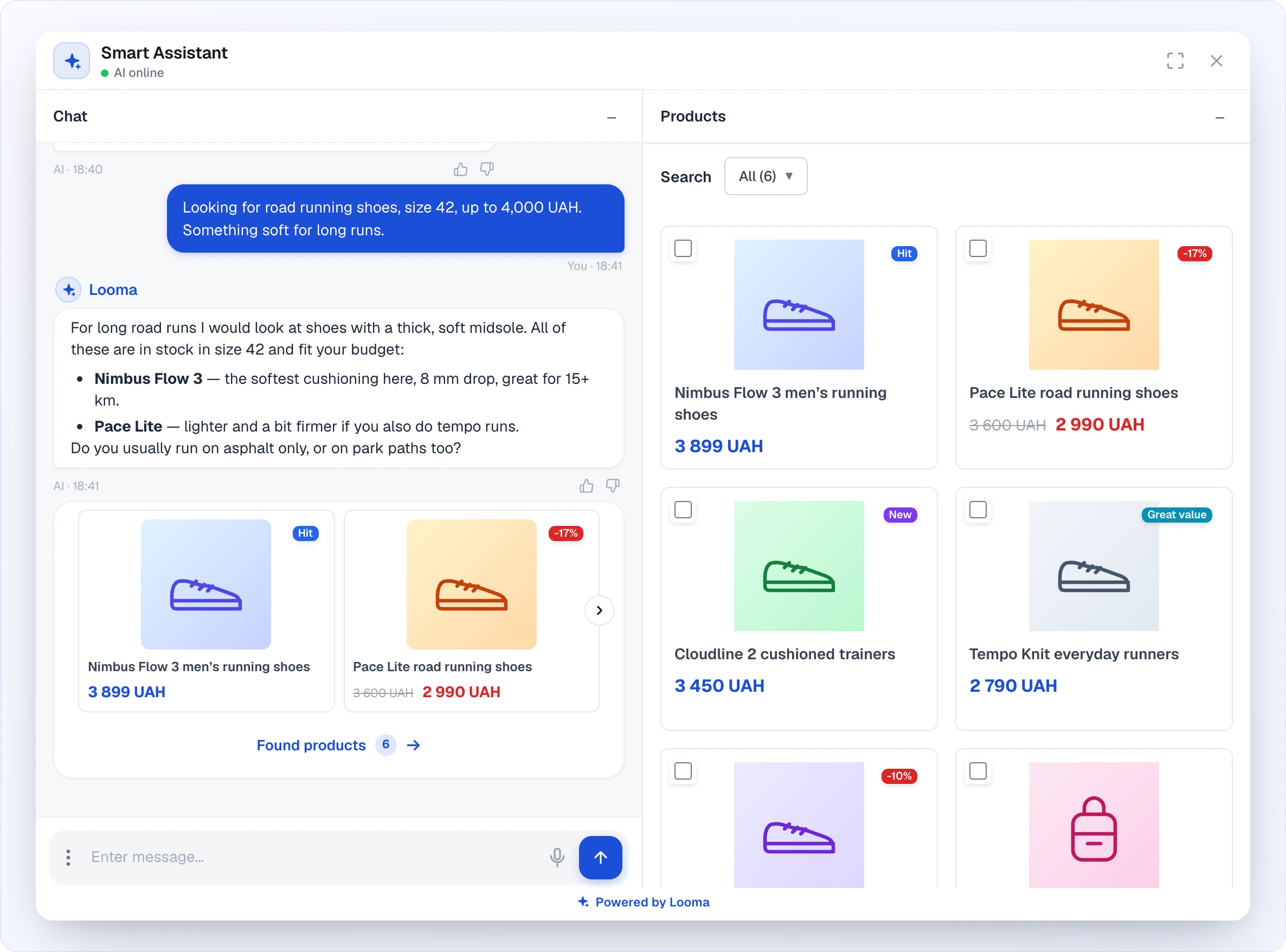
In the compact widget the cards come as a carousel right in the chat, and the Products tab holds the full list; when the customer expands the widget, chat and products sit side by side, as above. Clicking the "Found products" footer opens the whole selection.
Collect Orders (Leads)
When a customer wants to buy, the AI naturally collects their contact information (phone, email, name, or any custom fields you configure) and creates a lead in your dashboard. Learn more →
Connect to Human Operators
If a customer wants to talk to a person, or if the AI detects frustration, the conversation is transferred to your team. Operators can respond from the Looma dashboard, Telegram, Viber, or other connected channels. Learn more →
Send Product Info by Email
Customers can request to receive product details, consultation summaries, or recommendations by email directly from the chat.
Work 24/7
The AI answers customer questions at any time, even when your team is offline. It collects leads around the clock, so you never miss a potential sale.
Speak Any Language
The AI automatically detects the customer's language and responds in the same language. It works with any language supported by the AI model. If you add a behavior rule that fixes the reply language, the rule wins — see AI Behavior Rules.
How a Typical Conversation Works
Here's what happens when a customer opens the chat:
1. Customer opens chat → sees welcome message + quick commands
2. Customer types a question or clicks a quick command
3. AI analyzes the message:
   ├── Product question → searches catalog, shows products
   ├── General question → checks knowledge base, responds
   ├── Wants to order → starts collecting contact info (lead)
   ├── Wants an operator → transfers to human (if available)
   └── Off-topic → politely redirects to store topics
4. Conversation continues naturally
5. At any point, customer can request an operator or place an order
Key Settings
The AI Assistant has several configuration areas, each documented in detail:
| Setting | Description | Link |
|---|---|---|
| Chat Modes | AI Only vs. Full Mode with operators, operator connection rules | Chat Modes → |
| Lead Collection | Configure which fields to collect, how orders work | Lead Collection → |
| Proactive Messages | Auto-popup messages to engage visitors | Proactive Messages → |
| Widget Appearance | Colors, themes, button style, position, CSS | Widget Appearance → |
| Knowledge Base | Custom topics, Google Sheets/Docs, FAQ data | Knowledge Base → |
| AI Behavior Guide | Custom rules and instructions for the AI | AI Behavior Guide → |
Quick Settings Reference
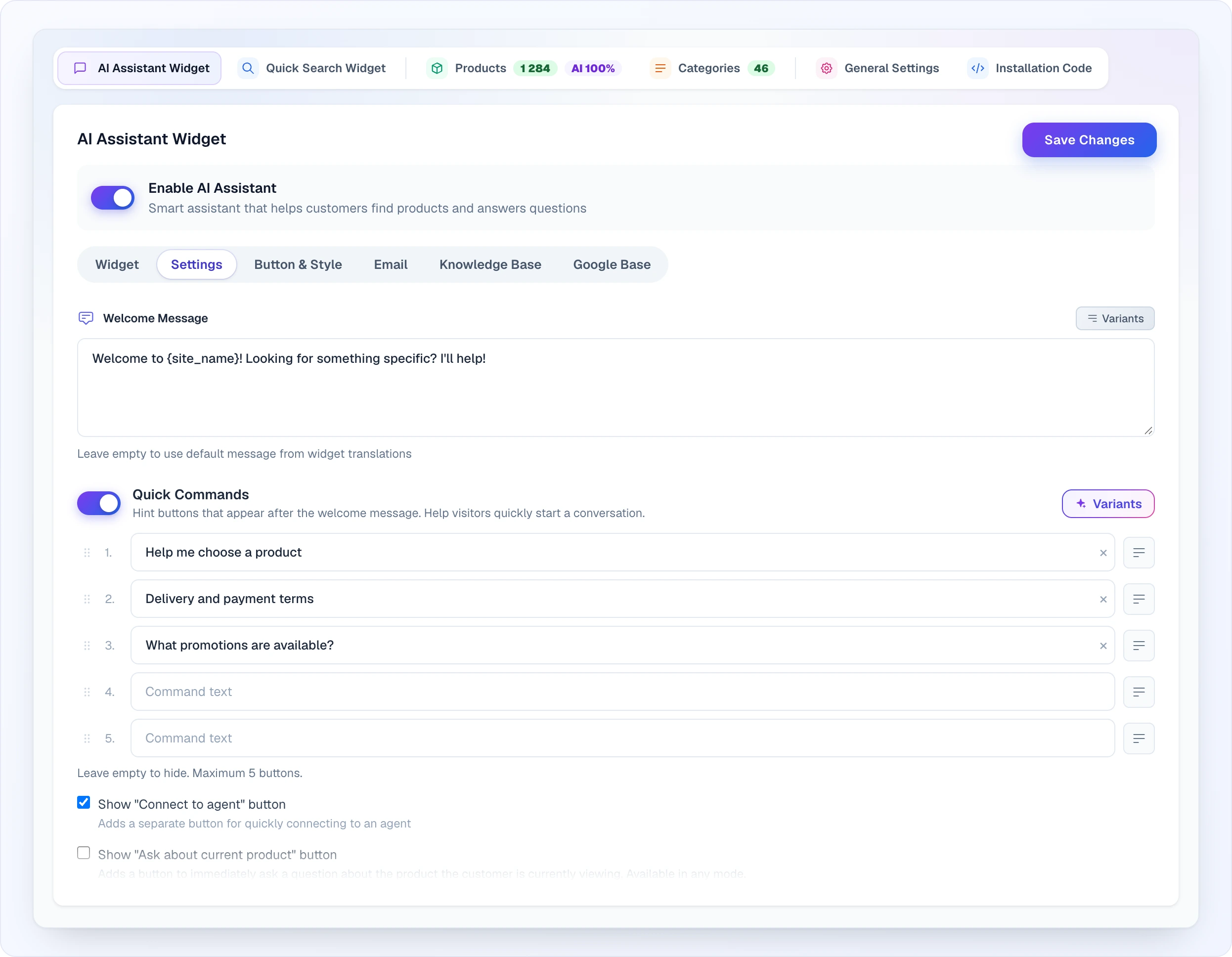
Everything below lives in Site Settings → AI Assistant Widget. The page has its own sub-tabs: Widget (live preview), Settings (most of the options on this page), Button & Style (appearance — see Widget Appearance), Email, plus a tab for every active module, e.g. Knowledge Base and Google Base. Changes on the Settings tab apply after Save Changes.
Welcome Message
The first message customers see when they open the chat. Keep it short, friendly, and action-oriented. Write your own, or open Variants: it offers four ready-made greetings, a Default option, and Edit with Assistant to have Looma Assistant draft one for you. The {site_name} placeholder is replaced with your site name in the widget. Leave the field empty to use the standard greeting from the widget translations (it is shown in the customer's language).
Bot Name & Avatar
- Bot Name — displayed above AI messages (e.g., "Consultant", "AI Assistant"). Max 50 characters.
- Widget Title — the heading shown in the widget header (separate from Bot Name). Max 60 characters. Leave empty to use the default title.
- Bot Avatar — the bot's profile picture, shown next to each message. Set it three ways: upload your own image, generate one with AI, or pick from a catalog of ready-made avatars (remove it anytime). Customizing the avatar requires custom branding (Growth plan and up). The same avatar can optionally be reused for the proactive-message bubble.
Bot Name, Widget Title, and Bot Avatar are all part of the custom-branding panel, which only appears once the Custom bot name and avatar toggle is on (Growth plan and up; on lower plans the block is shown locked with an "Available from Growth" badge). The same toggle also removes the "Powered by Looma" line under the widget.
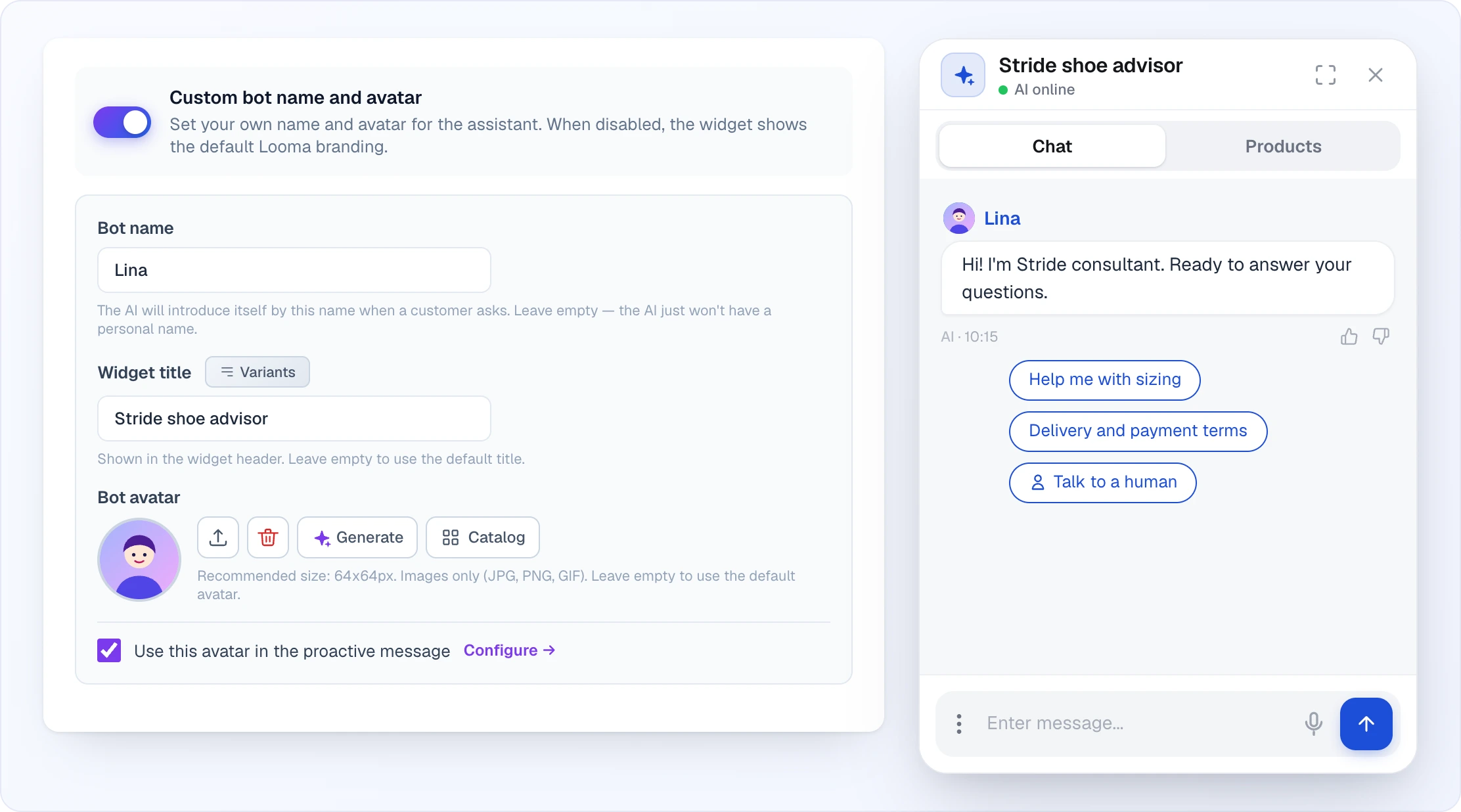
The Bot name is also the name the AI introduces itself by when a customer asks; leave it empty and the AI simply has no personal name. For the avatar the dashboard recommends 64×64 px, JPG / PNG / GIF.
AI Chat Model
Choose between two models based on how complex your conversations get:
Looma AI Start — fast and cost-effective. Built on the GPT-4.1 family, fine-tuned for sales. Handles typical store conversations well: product questions, recommendations, lead collection. Lower credit cost per message.
Looma AI Max — more powerful. Built on GPT-5 with the same sales fine-tuning but a stronger underlying model. Better at:
- Understanding long, multi-part questions in one message
- Connecting information across your catalogue and knowledge base
- Reasoning about product comparisons and customer intent
- Handling rare or ambiguous requests that confuse the Start model
- Following your custom AI rules more precisely
Choose Max when your products need real consultation (furniture, appliances, electronics, specialised items) or when conversion depends on getting nuanced answers right. Higher credit cost per message (roughly 2.5× the Start rate).
Each card shows the current price: about 2 credits per message for Start and about 5 credits per message for Max.
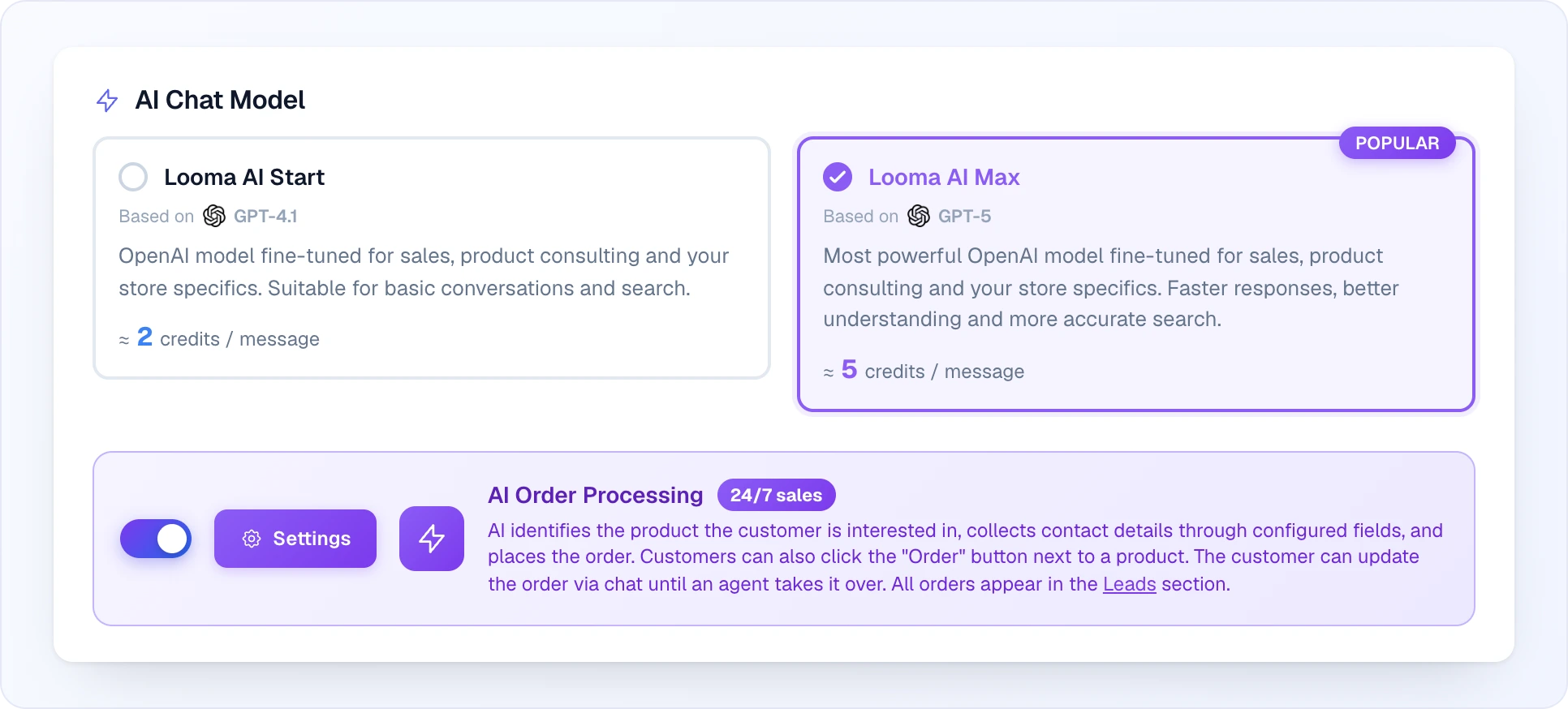
Right below the model cards sits the AI Order Processing switch with its Settings button — that is where lead collection is turned on and its fields are configured, see Lead Collection.
You can switch between models at any time — existing conversations continue, new messages use the selected model.
AI Magic Learning
An optional add-on that makes the AI progressively smarter about your store. When enabled, the assistant weekly learns from your real operator conversations, tracks the current catalogue (sales, bestsellers), and mirrors your site's category structure — so over time it sounds less generic and more like a salesperson who genuinely knows your shop. Privacy-preserving: emails and phone numbers are stripped before anything is learned.
Learn more about AI Magic Learning →
Quick Commands
Pre-defined suggestion buttons that appear in the chat right after the welcome message (up to 5). Help customers start a conversation without typing. Examples: "Help me choose a product", "Delivery and payment terms", "What promotions are available?".
How the list works:
- There are five numbered slots, up to 60 characters each. An empty slot is simply not shown.
- The button with lines next to a slot opens a list of 20 ready-made commands; the Variants button at the top asks Looma Assistant to suggest a set for your store.
- Drag a slot by the handle on the left to change the order of the buttons.
Two built-in behavior toggles sit alongside the button list:
- Show "Connect to operator" button — adds a dedicated chip for quickly reaching a human operator. The checkbox is shown only in the chat mode where operators can be connected (AI + Operator Connection).
- Show "Ask about current product" button — adds a chip that immediately asks about the product the customer is currently viewing. Works in any chat mode; the chip appears only after the visitor has opened at least one product page.
Product Display
- Show All Product Variants (Other Settings) — show each size/color as separate result
- Open in New Tab (Other Settings) — see below
- Auto badges (Other Settings) — show the automatic marketing badges (Hit / Top price / Value / New) on product cards in chat, right next to the discount label. Badges are assigned automatically from your catalogue and visitor data — see Auto badges for how each one is earned. On by default for new sites.
Stock-visibility (whether out-of-stock items appear at all) lives in Site Settings → Products → Availability rules — see Products → Availability rules.
Click action on a product in chat
What happens when a customer clicks a product that the AI sent into the chat — two modes, pick whichever fits how you sell.
Open product card inside the widget
The card opens right inside the chat with photo, characteristics, price, variant / size selector, "Order" button, and quick-question buttons ("Description", "Specifications", "Ask about this product"). The customer can read about the product and place the order through chat without leaving the conversation. Best fit when:
- Lead collection is on and you want orders processed via the chat funnel.
- You don't have a fast / mobile-friendly product page and the widget card is the smoother experience.
- You want the conversation context preserved — questions about the product land in the same chat, the AI already knows what the customer looked at.
Open the store page
The customer leaves the widget and lands on your real product page in the store, then orders through the usual cart and checkout. The AI's role is to help the customer find the right product fast; closing the sale stays on your existing store flow. Best fit when:
- You have a polished product page with full media, reviews, cross-sells, payment integrations you've already tuned.
- Lead collection is off and orders go through your normal cart.
- You want to keep customers in your store's funnel after the AI hands off.
Toggle in Site Settings → AI Assistant Widget → Settings → Action when tapping a product in chat.
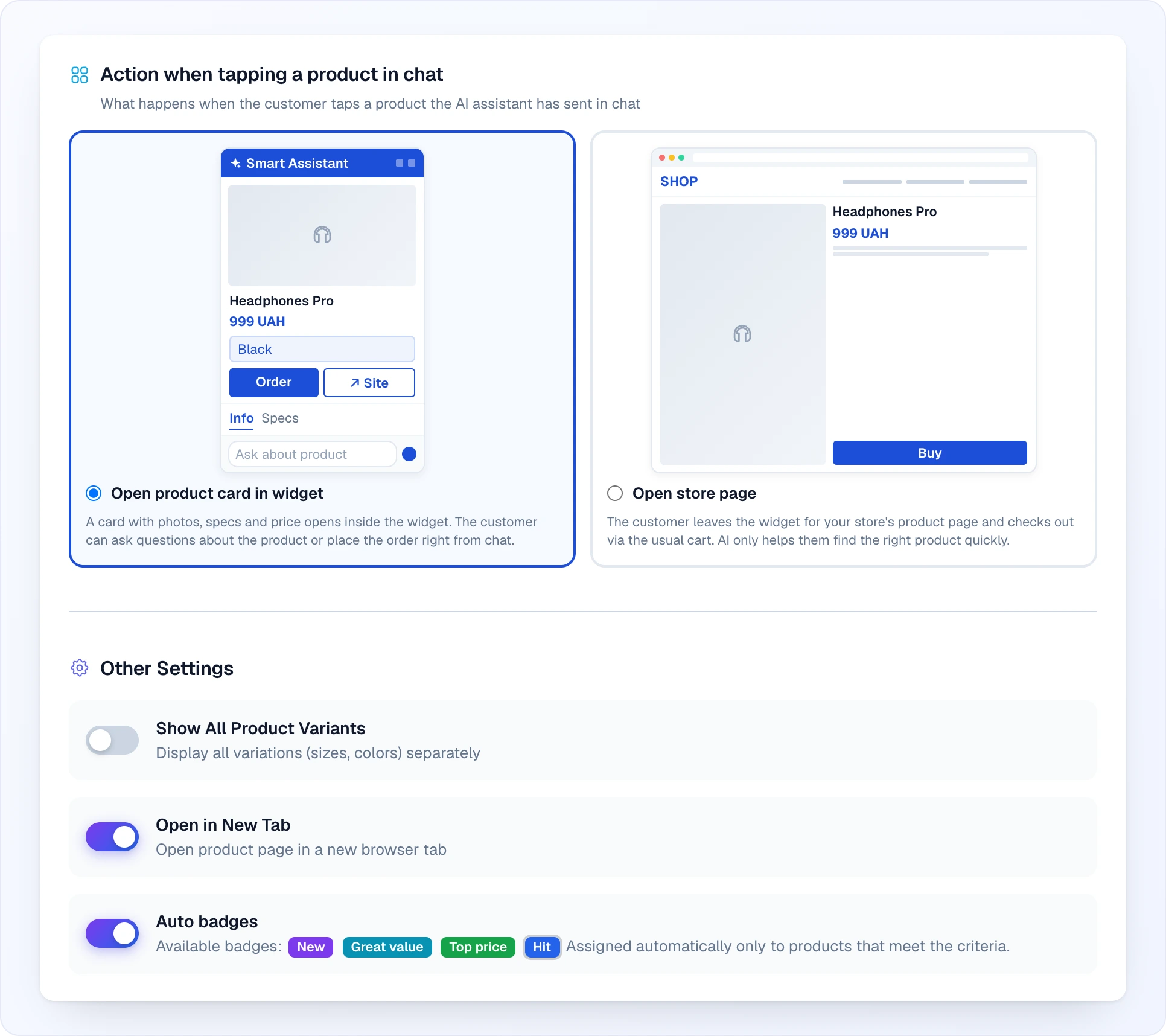
- Open in New Tab — when product links open the store page (mode above), they open in a new browser tab instead of replacing the current one. Recommended when "open store page" is selected so the chat stays open while the customer browses.
How the AI talks about stock
Whether the AI announces "in stock / out of stock / pre-order" — and which source it reads from — is governed by Site Settings → Products → Availability rules (a separate tab, not part of AI Assistant). Three modes: announce from source, hand off to operator, or follow a custom free-form rule.
See Products → Availability rules for full details.
AI Reply Limits
At the bottom of the Settings tab, AI Reply Limits caps how many AI replies a single visitor can get — a guard against someone spending your credits by chatting endlessly with the bot. Turn on Enable AI reply limits and set:
- Daily limit — maximum AI replies per visitor per day (1–10,000; 30 by default);
- Monthly limit — maximum AI replies per visitor per month (1–100,000; 100 by default).
Messages answered by an operator are not counted. When a visitor reaches the limit, the widget tells them they have hit the daily (or monthly) message limit and to try again later.
Next Steps
Start with the most impactful settings:
- Chat Modes — decide how AI and operators work together
- Lead Collection — set up order collection
- Proactive Messages — engage visitors automatically
- Widget Appearance — match your brand