

Google Business
Connect your Google Business profile and Looma answers the Google Maps reviews of your stores on its own. Once or twice a week it also publishes posts about discounts and new arrivals from your catalogue. The profile stays active, no review is left without a reply, and you spend a few minutes a week on it.
Video guide
Everything in 1:38 — review replies, manager approval, settings by star rating and posts from your catalogue. Subtitles are in the player menu.
What it does
Replies to reviews. Looma reads new reviews of your stores, writes a reply in the language of the review, in your tone and with your signature, following your instructions, and publishes it on Google. For each rating from 1 to 5 stars you choose: reply automatically, show you a draft for approval, or skip the review.
Automatic posts. Looma picks a product from your catalogue and publishes a post to every connected store:
| Post type | When |
|---|---|
| Discount | the product has an old price. Published as a Google offer valid for 7 days |
| New arrival | the product recently appeared in the catalogue |
| Product of the week | when there are no discounts or new arrivals |
The selection rules are simple: only products that are in stock, with a photo and a link, and the same product no more than once in 60 days. The text is written by AI strictly from your catalogue data (name, characteristics, description, price), without making anything up. The picture is built from our own template: a white field with the product, bands in your widget colour, and the logo from your Google profile. The post button leads to the product page.
Before you start
- The Owner or Administrator role in Looma: only they can connect Google and change settings.
- A Google account that manages the business profile (Google Business Profile) with your stores.
- Credits on your balance. See What it costs.
Connecting
- Open Integrations in the side menu and choose the Google Business card (the Set up connection button).
- Click Connect Google and sign in with the Google account that has access to the business profile. Looma asks for access to Business Profile only.
- On the Google screen, leave the access to business profiles ticked.
- Tick the stores whose reviews Looma should answer and click Save stores.
A store can be connected to one site only. If the store you need is missing from the list, it is probably already connected to another of your sites. You can change the choice later with Change stores.
After connecting, a Google Business section appears in the side menu: reviews and posts live there. Settings stay on the integration page.
Reply settings
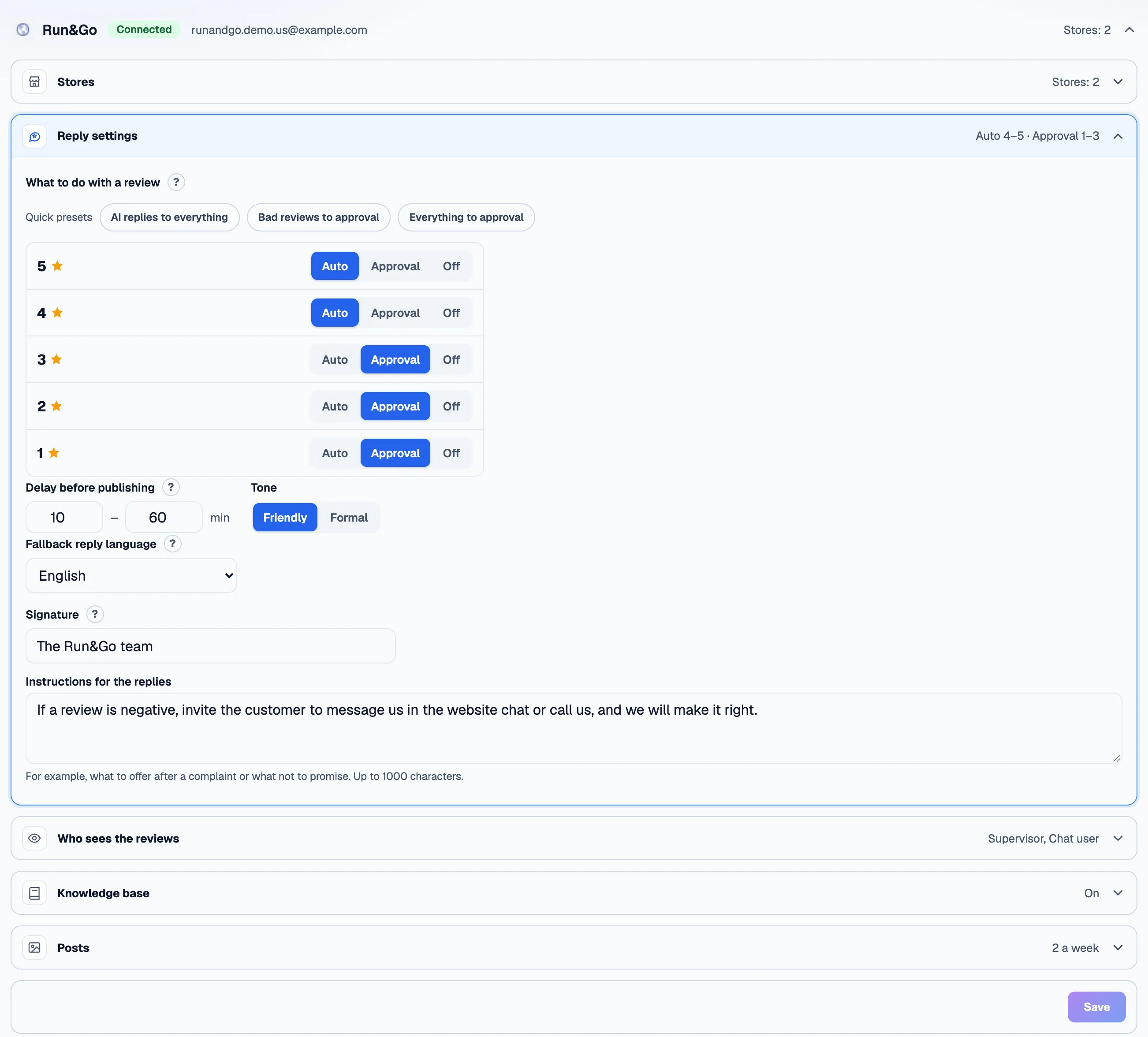
What to do with a review
For each rating (Rating 1 … Rating 5) you choose one mode:
| Mode | What happens |
|---|---|
| Reply automatically | Looma writes a reply and publishes it after the delay |
| AI writes, I approve | the draft waits for you in the Waiting tab |
| Do not reply | the review is only stored. AI does not run, no credits are charged |
By default all ratings are set to Reply automatically.
Better approve the bad reviews
On 4–5 star reviews the AI is safe to leave alone, but 1–3 stars are often a complaint where details matter. Set them to AI writes, I approve: the Bad reviews to approval quick preset does it in one click.
Quick presets: AI replies to everything, Bad reviews to approval, Everything to approval.
Other options
| Setting | What it does |
|---|---|
| Delay before publishing | Looma waits a random time in the given range (10 to 60 minutes by default) so replies look natural. Allowed range 0 to 1440 minutes |
| Tone | Friendly or Formal |
| Fallback reply language | Looma replies in the language of the review; this language is used when it cannot be detected (for example, a review with stars only) |
| Signature | added at the end of every reply, up to 100 characters. Optional, for example "Run&Go team" |
| Instructions for the replies | free text up to 1000 characters: what to offer after a complaint, what not to promise |
| Add store data to the knowledge base | the AI assistant will know the address, phone and opening hours from Google. On by default |
| Who sees the reviews | the owner and administrators always see them; separate ticks let you allow the Supervisor and Chat user roles |
Click Save settings.
Approving replies
Reviews set to AI writes, I approve land in the Waiting tab. The number of waiting items is shown on the tab and as a badge next to the Google Business item in the side menu. Each review has these buttons:
- Publish — the reply goes to Google right away, without the delay.
- Edit — fix the text and publish your own version.
- Rewrite with AI — AI writes a new draft (a few credits are charged).
- Reject — no reply will be posted.
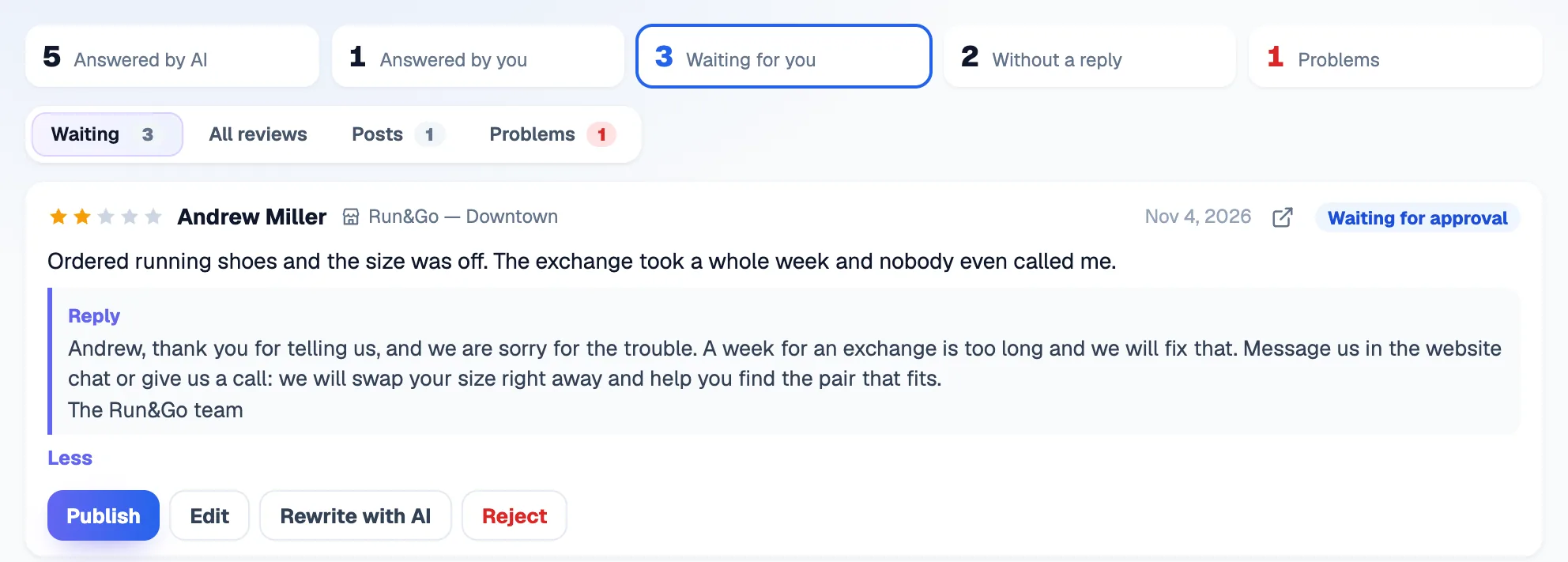
Approving is not limited to the owner and administrators: if Supervisor or Chat user is ticked under Who sees the reviews, managers with those roles also see the reviews and can approve, reject and edit replies.
All reviews
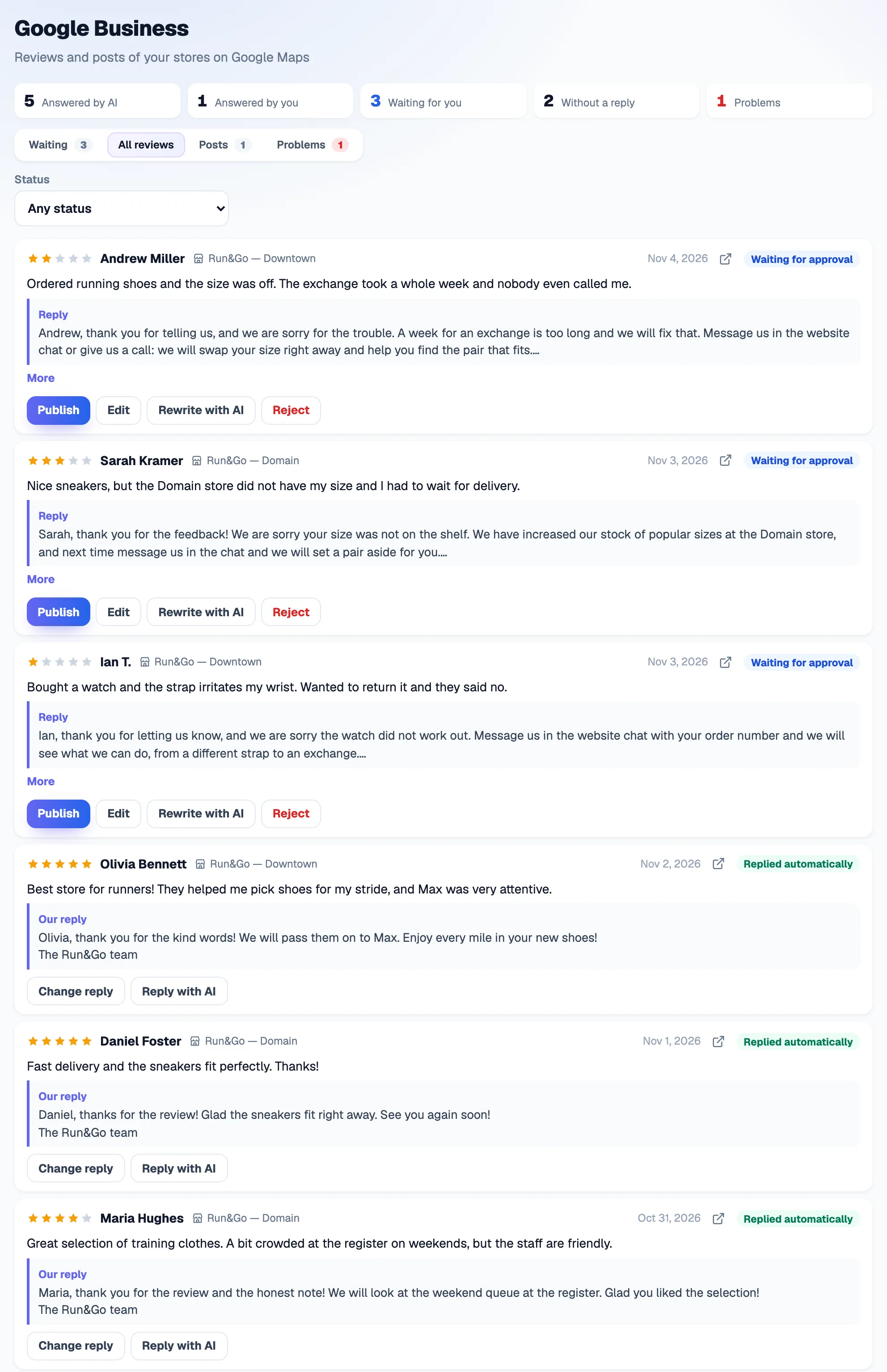
The All reviews tab lists every review with counters on top: Answered by AI, Answered by you, Waiting for you, Without a reply, Problems. You can filter by site and status. A card shows the rating, the review text and our reply, and who replied: Looma automatically, you, or someone on Google.
What Looma never does
- It never overwrites your replies. If you or someone on your team has already replied to a review on Google, Looma skips it. The same applies if the Google reply was changed between scheduling and publishing.
- It does not answer old reviews. Reviews left before you connected stay without a reply. To answer them too, click Answer them too in the Older reviews block of the settings. Looma first shows how many reviews are in the queue and the estimated cost in credits.
- It does not reply again to an edited review. If the author edits the review, the first decision stands.
Store data in the knowledge base
With Add store data to the knowledge base on, the store's address, opening hours, phone, website and description from Google go into the AI assistant's knowledge base, so it can answer "when do you close" or "where are you". Switch it off and this data disappears from the knowledge base. More about the knowledge base: Knowledge base.
Posts
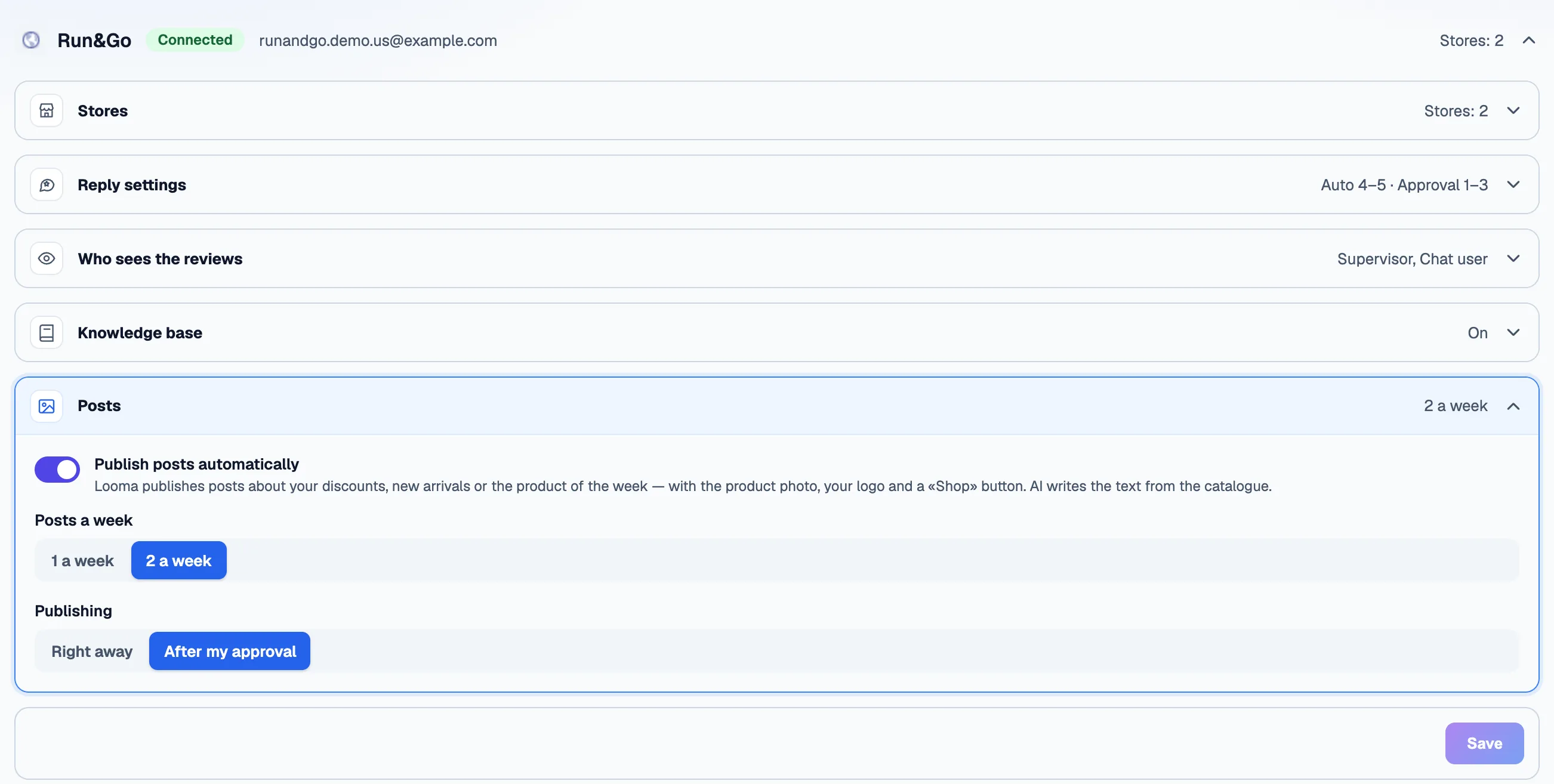
The integration settings have a Posts section:
| Setting | Value |
|---|---|
| Publish posts automatically | a switch. On by default, including for sites connected earlier |
| Posts a week | 1 a week or 2 a week (2 by default) |
| Publishing | Right away (default) or After my approval |
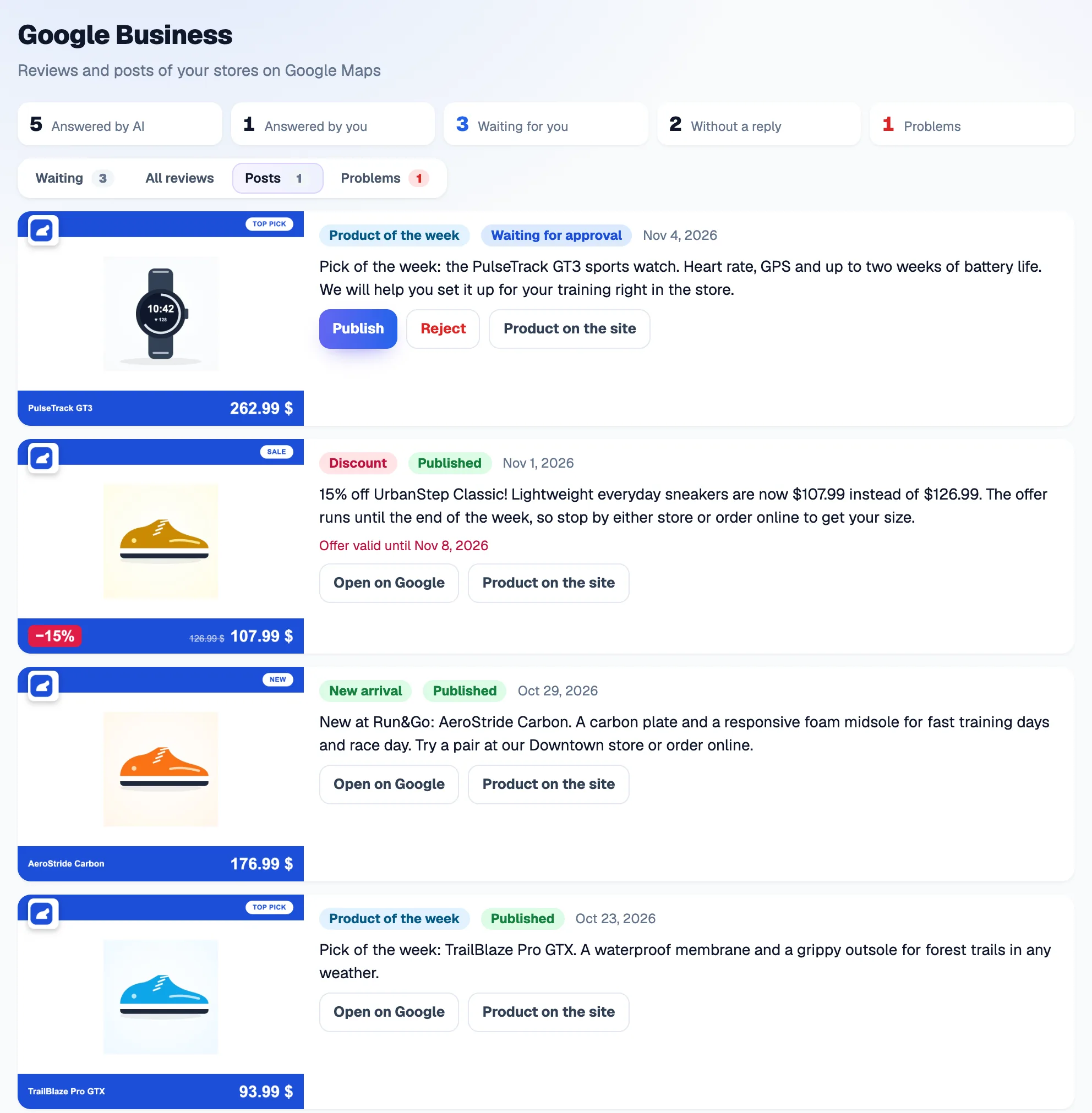
All posts are in the Posts tab of the Google Business section. Each card shows the picture, the type (Discount, New arrival, Product of the week), the status (for example Waiting for approval or Published) and the text. A post waiting for approval has Publish and Reject buttons, a published one has Open on Google; Product on the site leads to the product page.
If Google rejects a post, the reason is shown under the text. Looma never publishes a post without a picture.
Problems
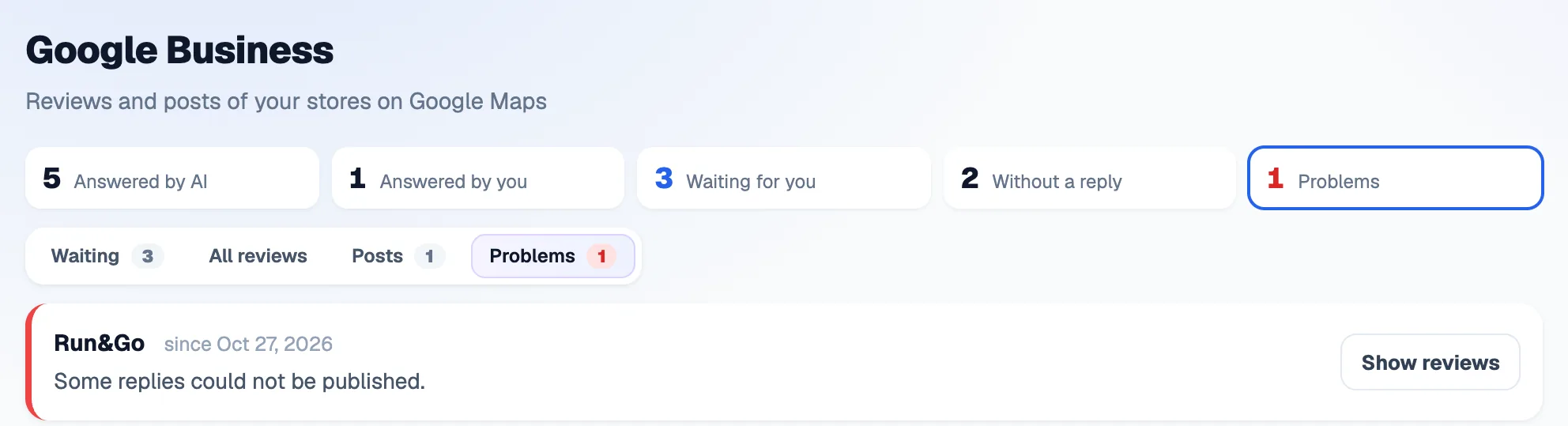
The Problems tab collects everything that needs your attention. The counter on the tab and the badge in the menu show how many there are. There are no notifications outside the dashboard, so look here if replies suddenly stop.
| Message | What to do |
|---|---|
| Access to Google was revoked — replies are paused | click Connect Google again and sign in with the same account |
| The connection to Google is not working | the same — Connect Google again |
| Some replies could not be published | click Show reviews, open the review, change the reply and publish it again |
| Some reviews are left without a reply: not enough credits on the balance | click Top up balance; the reviews are processed after the top-up |
| Review notifications of this Google account are used by another service | nothing breaks, but new reviews may arrive with a delay |
What it costs
It runs on the credits of your plan. Each reply written by AI (and each Rewrite with AI) costs credits: about 30 credits per 100 replies. A post costs less than one credit. A reply you write by hand is free.
Usage appears under Billing → Usage as a separate line, Google Business: reviews and posts. More in Credits.
If credits run out, reviews stay without a reply and show up in the Problems tab; nothing is charged.
Disconnecting
Integrations → Google Business → Disconnect. Looma stops reading reviews, replying to them and publishing posts, and forgets the Google access. Replies already published stay on Google.
FAQ
Can Looma reply to a review I have already answered on Google? No. Looma never touches or overwrites your replies.
I connected Google, but old reviews got no replies. That is by design. To answer them too, use Answer them too in the settings.
Can I check replies before they are published? Yes: set AI writes, I approve for the ratings you want. Posts work the same way with After my approval.
Languages. Looma replies in the language of the review. If it cannot be detected (for example, only stars), the Fallback reply language is used.
I don't see Integrations or the Connect Google button. It is available to the Owner and Administrator roles only.
A store is missing from the list. It is already connected to another site — a store can be connected to one site only.
Related
- Integrations — all ready-made connectors
- Knowledge base — what the AI assistant knows
- Credits — what things cost
- Team — roles